Unlock Stunning Quality: Upscale Video AI

Learn a practical workflow to upscale video AI. Cover footage prep, optimal settings, batch processing, & social media export with ShortGenius.
You’ve got a clip that should work.
Maybe it’s an old client testimonial recorded on a phone. Maybe it’s user-generated footage that nails the emotion but looks soft on a modern screen. Maybe it’s a past top performer you want to repost, crop, and turn into fresh short-form assets. The idea is strong. The source file isn’t.
That’s where upscale video ai stops being a novelty and starts being a production tool.
Good AI upscaling can rescue footage you’d otherwise throw away. Bad AI upscaling wastes hours, exaggerates compression noise, and gives faces that plastic, overcooked look viewers notice instantly. The difference comes down to workflow. Source quality, model choice, batch handling, and export decisions matter more than the marketing claims on a tool’s homepage.
Why AI Video Upscaling Is a Creator's Superpower
Low-resolution footage used to have a hard ceiling. You could enlarge it, but you couldn’t really improve it. Traditional scaling stretched pixels. It made clips bigger, not better.
AI video upscaling works differently. It uses deep learning to reconstruct detail, interpret surrounding pixels, and preserve motion across frames. That last part matters. A single image can look sharp and still fail as video if edges shimmer or textures flicker from frame to frame.

Why creators care now
This isn’t a niche restoration trick anymore. The AI Video Upscaling Software Market grew from $550 million USD in 2024 to $670 million USD in 2025, and is projected to reach $5 billion by 2035, with a 22.3% CAGR, driven by demand for 4K delivery and stronger visual quality for engagement, according to Wise Guy Reports on the AI video upscaling software market.
That tracks with what creators deal with every week:
- Old footage still has value: Past interviews, webinars, demos, and testimonials often contain ideas worth republishing.
- UGC is rarely captured perfectly: Great hooks come from imperfect clips.
- Every platform punishes softness: Cropping, resizing, and recompressing weak footage makes flaws more obvious.
Practical rule: Use AI upscaling to recover strong content. Don’t expect it to save weak cinematography, missed focus, or heavy motion blur.
There’s also a broader workflow angle. If you’re already turning one asset into many, upscaling becomes part of repackaging, not just repair. That’s why it fits naturally alongside AI content repurposing. A single low-res source can become shorts, square edits, and refreshed reposts if you clean the source before you resize and distribute it.
What it’s best at
AI upscaling shines in a few specific situations:
| Use case | Why it works |
|---|---|
| Archival clips | It can restore clarity without manually rebuilding every shot |
| Screen recordings | It helps text edges and UI elements survive compression better |
| UGC for ads | It raises baseline quality before captions, branding, and exports |
| Cropped social edits | Extra resolution headroom helps when turning one master into multiple formats |
If you need a quick refresher on what higher-resolution delivery means in practice, this breakdown of https://shortgenius.com/blog/what-is-4-k-resolution is useful before you decide whether a clip deserves a 4K finish.
Preparing Source Footage for Flawless Upscaling
The biggest mistake with upscale video ai is feeding it the worst file you have and hoping the model performs magic.
It won’t.
The market is moving fast. The broader Video Enhancing AI Tool market is projected to reach $1,166 million USD by 2032, with a 37.1% CAGR, fueled by deep learning systems that deliver instant 2x to 4x resolution boosts while reducing bandwidth, according to Intel Market Research on the video enhancing AI tool market. But better models don’t cancel bad inputs.

Audit the clip before you process it
Before I queue anything, I check whether the clip is a good candidate or a trap.
Use this short audit:
- Compression damage: If you see macroblocking, mosquito noise, or smeared detail, the model may treat that damage like real texture.
- Motion blur: AI can sharpen edges, but it can’t recover detail that never existed in the frame.
- Focus: Slightly soft can be workable. Missed focus usually stays missed.
- Frame stability: Shaky clips are harder to upscale cleanly, especially if the background already breaks apart.
- File lineage: Export from the nearest original you can find. Don’t upscale a file that’s already been compressed several times.
Pick the right source, not just the biggest source
Creators often chase resolution first. That’s backward.
A cleaner 720p master can outperform a battered 1080p repost. What matters is whether the source preserves actual image information. If you have options, choose the file with the least recompression and the fewest edits baked into it.
If the source already looks noisy, crunchy, and unstable at native size, upscaling usually makes those problems easier to see.
What to fix before upscaling
A little prep saves a lot of rerenders.
-
Trim the clip first
Don’t process dead air, false starts, or alternate takes if you won’t use them. -
Separate footage types
Talking head, gameplay, animation, and screen capture behave differently. Don’t batch them under one preset. -
Handle obvious cleanup early
If the file needs basic denoise or deinterlacing, do that before your upscale pass. -
Run a short sample
Take a demanding moment from the clip. Fast hand movement, hair detail, camera motion, fine text. If the sample fails, the full render won’t improve later.
Bad candidates for AI upscaling
Some clips aren’t worth the compute.
- Heavily filtered social downloads
- Tiny reposted memes
- Footage with severe low-light breakup
- Clips where faces are already distorted by compression
That sounds strict, but it protects your time. The best workflow starts with selection, not software settings.
Choosing the Right AI Model and Settings
Most failed upscales come from the same habit. People load a clip, pick the highest output, push sharpening too far, and assume more processing equals more quality.
It doesn’t.
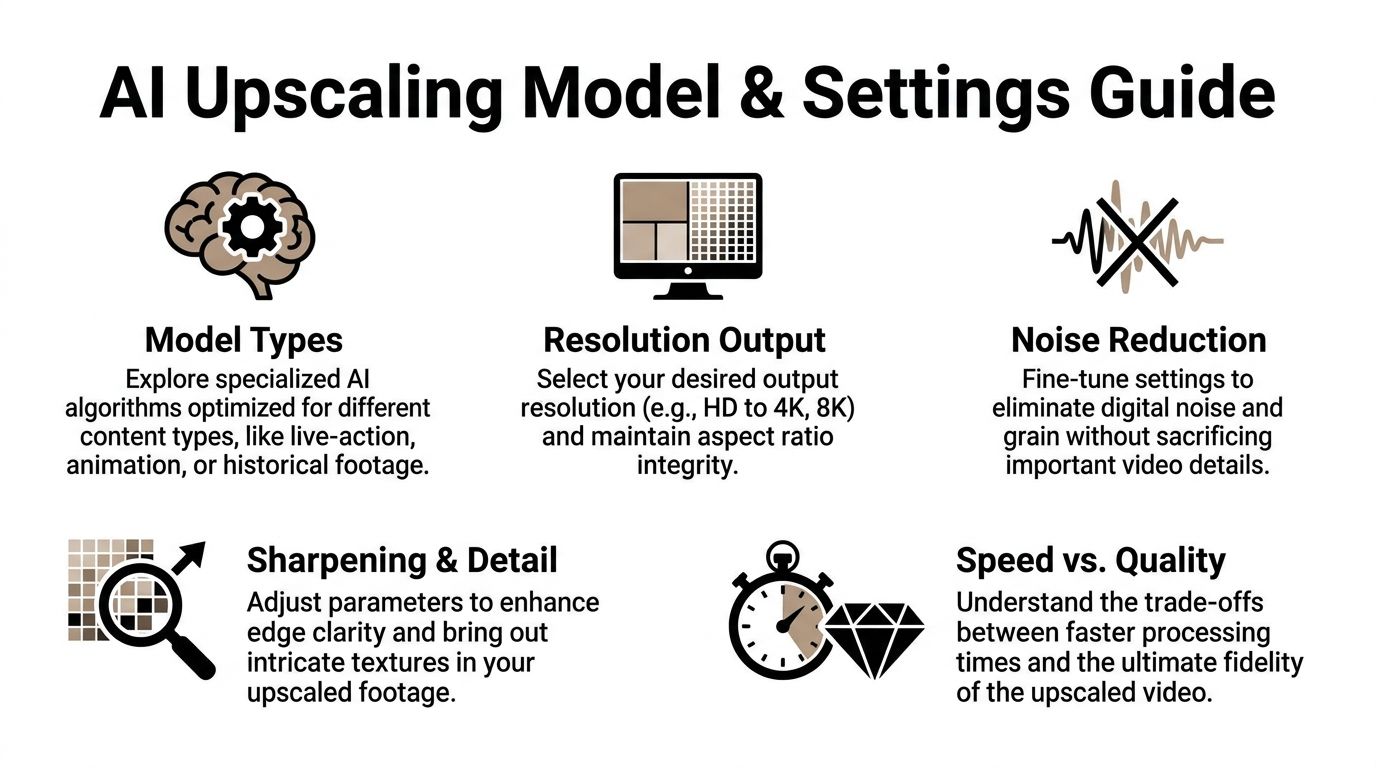
Different models make different trade-offs. Some preserve realism. Some invent more texture. Some behave well on animation and struggle on skin. Some are stable across motion. Others produce impressive still frames and ugly temporal artifacts.
A useful benchmark sits behind all of this. In AI upscaling, deep-learning models like basicVSR++ can achieve over 13% higher VMAF scores than traditional Lanczos when upscaling 540p to 1080p, with PSNR gains of 2-4dB, but hardware limits on consumer GPUs can cause 50%+ failure rates for 4K clips longer than 2 minutes due to VRAM shortages, as noted by At Scale Conference coverage of on-device video playback upsampling.
Model choice starts with footage type
A simple way to think about models:
| Footage type | What to prioritize | Common failure mode |
|---|---|---|
| Live action | Natural skin, stable motion, restrained sharpening | Waxy faces |
| Animation | Clean lines, edge consistency | Haloing around outlines |
| Gameplay | Motion handling, text/UI clarity | Ghosting in fast scenes |
| Archival footage | Conservative reconstruction | Fake texture that changes the original look |
If a tool offers multiple model families, don’t use one universal preset. That’s how you get oversharpened interviews and muddy animation in the same project folder.
For editors comparing tools and workflows before committing to a stack, this roundup of https://shortgenius.com/blog/best-ai-video-editing-software helps frame where upscaling fits inside a larger edit pipeline.
The settings that matter most
A lot of UI labels sound technical but behave in predictable ways.
Denoise
Use denoise when the source has visible noise that the model keeps mistaking for detail. Use less than you think you need.
Too much denoise strips texture from skin, fabric, and backgrounds. Then sharpening tries to rebuild fake crispness on top of a flattened image.
Deblock
Deblock helps when you’re dealing with compression damage. It can smooth out ugly block edges before the upscale model exaggerates them.
This is useful on downloaded clips and old exports. It’s dangerous on footage that’s already clean because it can soften edges you wanted to preserve.
Sharpen
Sharpen is where the render is often ruined.
A little sharpening can recover edge definition. Too much creates halos, brittle hair, and that synthetic “AI enhanced” look. If a sample looks impressive on pause but ugly in motion, sharpening is often the culprit.
The right sharpen setting should disappear into the final video. If viewers can feel the processing, it’s usually too aggressive.
Resolution strategy beats brute force
Going straight to 4K is often the wrong move. For social content, 1080p or a modest step up can look cleaner than a bigger file with invented detail.
Here’s the practical comparison:
| Approach | Upside | Downside |
|---|---|---|
| Direct jump to 4K | Maximum output size | More hallucinated detail, heavier renders |
| Step up to 1080p first | Better control, easier QA | Extra decision point |
| Moderate upscale only | Faster, safer for social delivery | Less dramatic before-and-after |
That middle path wins surprisingly often. You keep control over texture and motion, and you avoid spending all night rendering a file that still gets compressed hard on upload.
A quick visual walkthrough helps when you’re dialing this in:
Local versus cloud processing
This choice is less about ideology and more about constraints.
Local processing gives you control. It also ties up your machine and exposes your GPU limits fast.
Cloud processing removes the hardware bottleneck, but you trade some control over timing, cost structure, and sometimes fine-grained settings depending on the platform.
Pick local when:
- You need repeatable presets on a known machine
- You’re testing heavily
- You want direct oversight of every pass
Pick cloud when:
- Your GPU keeps failing on longer clips
- You need team access
- You’d rather keep editing while renders happen elsewhere
Build presets, then distrust them
Presets save time. Blind trust destroys quality.
Keep a few starting presets by content type, then test every new source with a short segment before launching the full render. One preset for clean talking-head footage. Another for rough UGC. Another for animation or screen recordings.
That discipline matters more than the brand name on the software.
Mastering Your Batch Upscaling Workflow
Upscaling one clip is an experiment. Upscaling twenty clips is operations.
Many creators frequently lose time. They treat every file like a custom job, babysit exports, and rerun failed renders because nothing was organized at the start. A batch workflow fixes that.
According to Audials guidance on beginner mistakes in AI video upscaling, experts recommend starting with high-quality, minimally compressed video and testing incremental resolution jumps like 720p to 1080p before 4K to avoid unnatural results and 4x longer render times. The same guidance notes that aggressive models can produce 20-30% artifact rates in motion-heavy scenes, dropping to less than 5% with a proper workflow.
A local overnight workflow
For desktop tools, the safest setup is boring on purpose.
-
Create three folders
Usesource,test-renders, andfinal-upscaled. Keep them separate. -
Rename clips before queueing
Add platform or project tags to filenames so you can trace failures quickly. -
Group by footage behavior
Don’t mix shaky UGC with polished studio footage in one batch preset. -
Run one stress test per group
Pick the hardest clip in each category. Fast motion, hair, text, crowd shots. If that works, the easier clips usually follow. -
Queue full jobs overnight
Let the machine render when you’re not editing.
A cloud batch workflow
Cloud workflows work better when you’re dealing with volume, collaboration, or a machine that can’t take the load.
The process is different:
- Upload only approved sources: Don’t use the cloud as your sorting room.
- Use clear naming conventions: Version confusion compounds fast in shared projects.
- Document the preset: The moment a good batch lands, save the exact configuration.
- Assign review ownership: Someone needs to spot-check outputs, not just confirm that files exist.
What to check after a batch run
A completed render queue isn’t the same as a usable batch.
Review these first:
| Check | Why it matters |
|---|---|
| Motion consistency | Flicker often hides until playback |
| Faces and hands | Aggressive models fail here first |
| Fine text and UI | Great for screen recordings, easy to break |
| Frame rate integrity | Mismatches create stutter on export |
| Aspect ratio | Incorrect handling causes awkward crops later |
Batch upscaling only saves time if your verification pass is fast and ruthless.
Mistakes that wreck scale
The biggest failures usually come from process, not model quality.
- One preset for every clip: Fast, but unreliable.
- No sample render: That’s how you wake up to a folder full of unusable files.
- Skipping QC because thumbnails look good: Many artifacts only appear in playback.
- Upscaling after multiple edit exports: Every re-encode lowers your ceiling.
For teams, the goal isn’t just faster processing. It’s predictable processing. A stable batch system makes upscale video ai part of regular production instead of a rescue mission every time a low-res asset shows up.
Post-Upscale Editing and Smart Export Presets
An upscaled file is not a finished file.
It’s closer to a restored negative. You still need to shape it, check it, and export it for the place it’s going to live. That last part matters because creators often chase resolution while ignoring delivery conditions.
The ROI question is real. As Cloudinary’s guide to using AI to upscale video notes, many tools promise 4K, but platforms like TikTok and Instagram Reels often downscale content anyway. That raises a practical question for creators. Is a 4K upscale proving beneficial, or would an optimized HD export perform just as well for mobile-first viewing?
The cleanup pass matters
AI models often introduce subtle issues that don’t show up in a side-by-side still frame.
Common ones include:
- Color drift: Skin tones can shift slightly after enhancement.
- Edge chatter: Fine detail may pulse across motion.
- Texture inconsistency: Hair, fabric, and backgrounds may alternate between sharp and soft.
I treat post-upscale editing like finishing work, not optional polish.
Fix color before export
Even a light grade can unify the image. Match skin tones, pull back highlights if the upscale made them brittle, and make sure blacks haven’t turned crunchy.
Review motion in playback
Don’t inspect only frame grabs. Watch the clip full screen, then again on a phone. Motion problems reveal themselves in playback, not screenshots.
If an upscale looks great paused and strange moving, the export isn’t ready.
Smart exports beat max exports
Creators often default to “highest quality available.” That sounds safe, but it’s not always useful.
For short-form distribution, think in terms of platform fit:
| Destination | Better default mindset | What to avoid |
|---|---|---|
| TikTok | Clean, stable HD master | Huge files with marginal visible gain |
| Instagram Reels | Strong compression resistance | Over-sharpened exports that break after upload |
| YouTube Shorts | Crisp text and stable motion | Needlessly oversized renders if source was weak |
The point isn’t that 4K is bad. It’s that 4K is not automatically better for every social upload.
A practical export policy
Use this rule set:
-
Export for the platform, not your pride
Viewers care about clarity and smoothness more than your render settings menu. -
Keep a high-quality archive master
Save a clean master for future reuse, crops, or client delivery. -
Create platform-specific derivatives
One archive file, then exports tuned for vertical, square, or horizontal needs. -
Check the uploaded result
Social platforms are part of the rendering chain. Your local export isn’t the final look.
Many creators compromise quality when exporting. They spend time upscaling, then hand the final result to platform compression with no strategy. Smart export presets protect the work you already did.
Automating Upscaling in a ShortGenius Pipeline
Manual upscaling works when you’re fixing one clip. It breaks down when you’re producing social content every week across multiple channels.
That’s the bottleneck for teams. According to Perfect Corp coverage of AI video enhancer workflow limitations, the biggest challenge is integrating upscaling into multi-channel workflows because most standalone tools lack batch processing at scale or API availability. A unified publishing pipeline matters more than another isolated enhancement app.
What automation should actually do
A useful automated pipeline doesn’t just “add upscale.”
It should handle a chain like this:
- Ingest the source clip
- Route it by content type
- Apply the right enhancement preset
- Pass the result into editing
- Resize and package for each channel
- Schedule distribution
That structure turns upscaling from a repair step into infrastructure.
Where it fits in production
For short-form teams, the best insertion point is usually early. Clean the visual asset before captions, branding, reframing, and exports.
That matters because every later step depends on the source looking stable. If you add animated captions, cut-ins, and brand overlays onto weak footage first, then try to upscale later, you’re forcing the model to interpret design elements and compression damage at the same time.
A more reliable order is:
| Stage | Better sequence |
|---|---|
| Source handling | Select and approve raw clip |
| Enhancement | Upscale and clean motion first |
| Edit layer | Add captions, trims, branding, voice |
| Distribution | Export per platform and publish |
One platform mention, used where it belongs
In a unified workflow, ShortGenius can sit in that production chain as one option for teams that want video assembly, voiceovers, editing, resizing, scheduling, and API-driven automation in the same environment. That kind of setup matters when you’re trying to turn rough footage into repeatable output without bouncing files across separate apps. If you’re building a broader system around recurring channel production, this guide to https://shortgenius.com/blog/youtube-automation-ai is relevant because automation only works when each production step connects cleanly.
What works and what doesn’t
What works
- Treating upscaling as a preprocessing stage
- Saving presets by footage class
- Automating repetitive passes, not aesthetic judgment
- Keeping a human review step before publish
What doesn’t
- Sending every clip through the same enhancement profile
- Automating without QC ownership
- Building a pipeline that requires manual file wrangling between tools
- Assuming AI-generated and organic footage behave the same under upscale
The win isn’t just better-looking footage. The win is removing one more manual bottleneck from content production.
For agencies, brand teams, and high-volume creators, that's the fundamental shift. Upscaling stops being a special fix for bad files and becomes a standard background process. You recover more usable footage, spend less time on repetitive cleanup, and keep output quality consistent across channels.
If you want to turn this workflow into a repeatable system, ShortGenius (AI Video / AI Ad Generator) brings video creation, editing, resizing, voiceovers, scheduling, and automated publishing into one platform, so upscaling can fit into a broader production pipeline instead of living as a one-off manual task.