Video from Slides: A Fast Guide to Polished Results

Turn slides into a professional video from slides with this practical guide. Learn the fastest workflow, essential tools, and pro tips for engaging content.
You have a finished slide deck, a deadline, and a vague plan to “turn it into a video.” The slides already contain the argument, visuals, and sequence, but the exported result often feels flat: the voice races through bullet points, dense charts stay on screen too long, captions cover the important labels, and the final file works on a laptop but not on a phone.
The export button isn't the difficult part. A polished video from slides depends on what happens before and after export, especially narration pacing, visual signaling, accessibility, platform formatting, and asset rights. Treat the deck as a structured storyboard, then add the timing, voice, motion, and quality controls that a slide file can't provide.
Why Slides Are Already Half Your Video
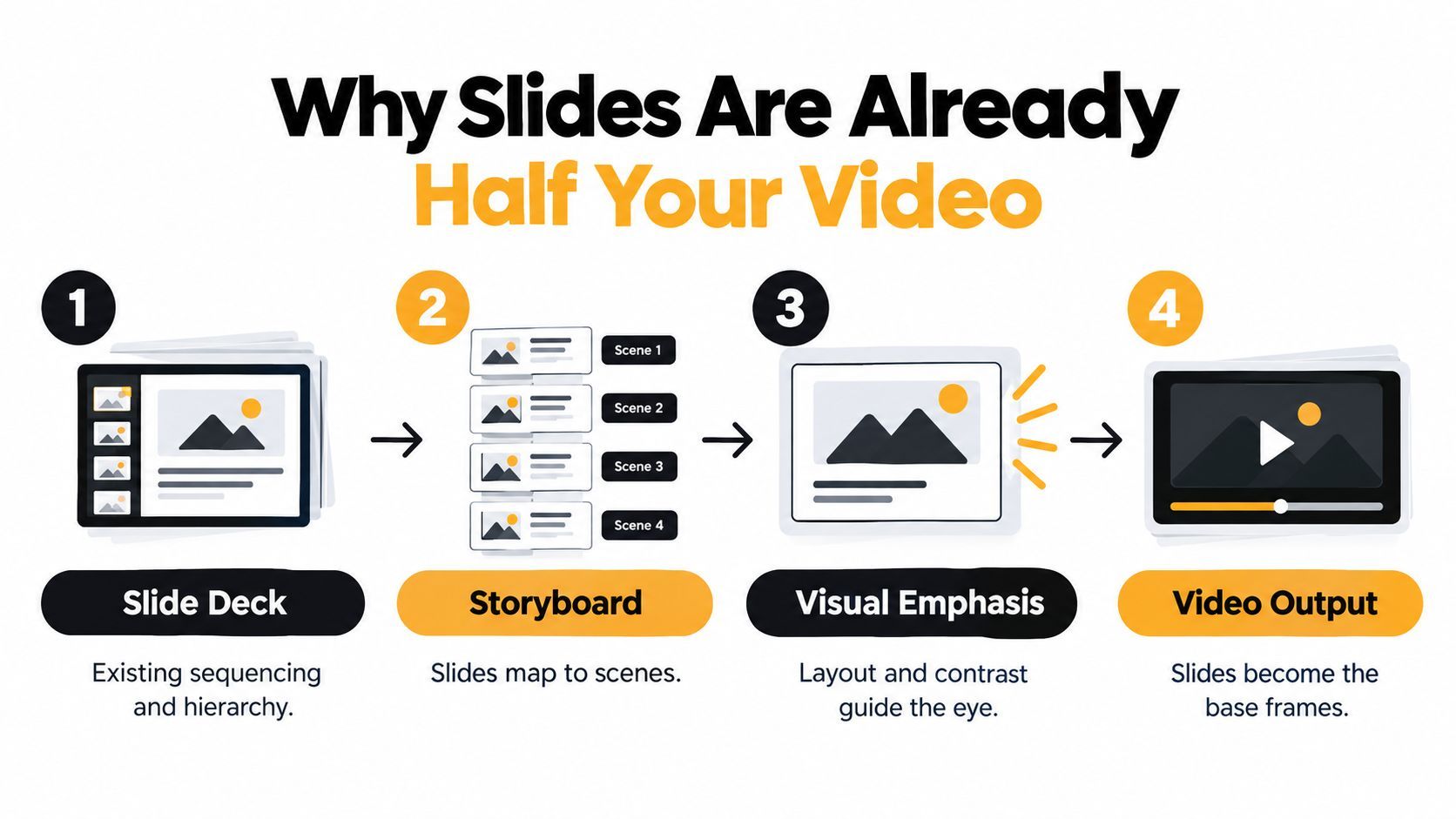
A slide deck is closer to a storyboard than most creators realize. It already contains a sequence of visual frames, a hierarchy of information, recurring design decisions, and an implied route through the subject. Your job isn't automatically to redesign every slide. It's to decide what each frame needs in order to work as timed media.
Presentation software developed rapidly between 1982 and 1987, when roughly a dozen programs appeared for personal computers and introduced visual presentations built from sequential slides containing text and graphic elements. PowerPoint joined that market in April 1987, when Forethought released version 1.0 for the Apple Macintosh. Microsoft acquired Forethought later that year for $14 million, according to the Computer History Museum's account of presentation software.
That history matters because slides are already a familiar communication format. IEEE reported approximately 1.2 billion PowerPoint copies in circulation and about 200 million copies used in a typical month, figures documented in the same historical source. A video from slides builds on a communication system audiences already understand instead of forcing creators to invent a visual language from scratch.
Use a four-stage production model
I use four decisions in order:
- Structure the story. Identify the purpose of the deck and group slides around meaningful ideas, not just file order.
- Add narration and pacing. Write spoken explanations, assign time to each visual claim, and decide where a slide needs multiple shots.
- Format for the destination. Adapt composition, captions, safe zones, and opening moments for the platform where people will watch.
- Verify accessibility and rights. Check captions, descriptions, contrast, licenses, provenance, and the final export before publication.
Native export is usually enough for an internal update, a simple evergreen lesson, or a presentation that only needs one horizontal file. An AI-assisted workflow becomes more useful when you need multiple aspect ratios, language variants, consistent narration, branded captions, or frequent scene-level revisions.
Practical rule: Preserve the original deck, transcript, clean master, and editable captions. A fast first export saves time only if the next revision doesn't require rebuilding everything.
Before converting a campaign deck or product presentation, it can also help to study how creators frame an offer visually. This resource on convert backers with video is useful for thinking about how a sequence of slides can move from explanation to persuasion without turning every frame into an advertisement.
Native Export Options in PowerPoint, Keynote, and Google Slides
Native export wins when the content is stable and the production brief is modest. It keeps the deck and timing close together, avoids a new editing timeline, and lets the original author make changes without handing the project to a video specialist. It also has a ceiling, and you'll notice it as soon as the same content needs multiple versions.
PowerPoint
PowerPoint offers a practical path through Record Slide Show. Record narration and timings while presenting, then export the file as an MP4. This approach preserves slide transitions and recorded timings, and it can be suitable for a narrated training deck or an internal presentation.
Set timings deliberately instead of letting every slide remain on screen for the same duration. A title slide might need only a short introduction, while a chart needs enough time for the voice to identify the axes, trend, and conclusion. If you record the entire deck in one pass, a mistake in one section can force a full rerecord or awkward editing later.
PowerPoint exports can also expose font, media, and machine-compatibility problems. A presentation that looks correct on the author's computer may shift when fonts or linked assets aren't available elsewhere. Test the exported file on a separate device, especially if the video will later be cropped from horizontal into a vertical format.
Keynote
Keynote follows a similar pattern. Play the slideshow, record narration, and export the presentation as a movie. It's a clean option for Mac-based teams that already have a finished deck and don't need complex scene replacement.
The limitation is continuity. A single recorded performance tends to behave like one long track. If the voice changes, a pronunciation is wrong, or one slide needs a revised explanation, replacing that part isn't as convenient as editing separate scene audio. Keynote is strongest when the speaker owns the script and the presentation will remain in one format.
Google Slides
Google Slides is useful for collaborative authoring, but its video workflow is less direct than the desktop applications. Teams commonly present the deck with audio, use a screen-recording workflow, or rely on an add-on or a separate video tool to assemble the result.
That flexibility creates more points to check. Audio may be recorded separately, fonts may render differently, and the final resolution may not hold up when the video is reframed for social feeds. Before recording, confirm who owns the script, which device captures audio, and how the final file will be exported.
| Workflow | Best fit | Strength | Ceiling |
|---|---|---|---|
| PowerPoint native recording | Narrated training and internal updates | Slide timings and narration stay with the deck | Scene-level replacement and reformatting take work |
| Keynote movie export | Mac-based presentations | Smooth slideshow recording and export | Long recordings are harder to revise cleanly |
| Google Slides plus recording workflow | Collaborative decks | Easy shared editing | Audio, rendering, and export depend on extra tools |
Native export doesn't fail because it produces a bad file. It fails when the brief expands. If you need vertical, square, and horizontal versions, several voices, translated narration, platform-specific captions, or a refreshed single scene, build the video as independent segments rather than treating the deck as one continuous recording.
Turning a Deck into Video Using an AI Workflow
Repetition is where AI-assisted conversion pays off: one deck becomes several captioned, multi-ratio drafts while your editorial judgment stays in charge. A tool such as ShortGenius can take a deck as source material, break it into scenes, generate or accept narration, apply timing, and produce a captioned draft. Automation handles the assembly. You keep the decisions that shape the video.
Start by importing the deck and checking every slide before generating anything. Remove hidden slides, speaker notes that shouldn't be spoken, duplicated layouts, and visual elements that depend on an in-person presenter. A clean source file gives the system fewer ambiguous instructions, and it saves you from regenerating scenes later because a stray slide slipped into the render queue.
Build one scene around one claim
For each slide, write or paste a script that explains the visual rather than reading every bullet. If the slide shows a process, the narration should describe the relationship between stages. If it shows a chart, the script should identify what the viewer needs to notice, including labels and direction of change. This is the storyboard mindset: the deck already defines your scene order, so your job is to give each frame a spoken purpose.
Then choose the voice and pacing. Keep the voice consistent across the project, but don't force identical timing onto every scene. A sparse title frame can be brief, while a chart or comparison needs deliberate pauses. Lock the brand kit early, including colors, typography, logo treatment, caption styling, and any recurring intro or outro. Changing these after generation means rebuilding drafts you already approved.
Review the generated draft in passes
Judge the draft in three passes rather than all at once:
- Content pass: Confirm that the narration represents the intended argument and that no slide claim has been omitted.
- Language pass: Correct names, acronyms, technical terms, chart labels, and pronunciation. Automated voices and captions can still mishandle specialist vocabulary.
- Visual pass: Check scene breaks, highlights, zooms, captions, and transitions. Remove movement that doesn't direct attention.
The most useful AI workflow leaves every scene editable. You should be able to regenerate a voice, replace a caption, swap a slide, or change the aspect ratio without rebuilding the entire timeline. If a tool produces one flattened video and makes every correction global, it works better for a first draft than for a production library.
Teams creating instructional material can also look at tools designed to build lesson slideshows, particularly when the source deck needs to be structured before narration and video assembly begin. The principle is the same: keep the instructional sequence explicit, then add media layers around it.
You still need a human at the review stage. AI can recognize a slide's structure, but it can't reliably decide whether a legal disclaimer is prominent enough, whether a chart's context is sufficient, or whether a transition distracts from a difficult concept. Automation saves the most time when it shortens repetitive production work while leaving those decisions visible.
Designing Narration, Pacing, and On-Screen Signaling
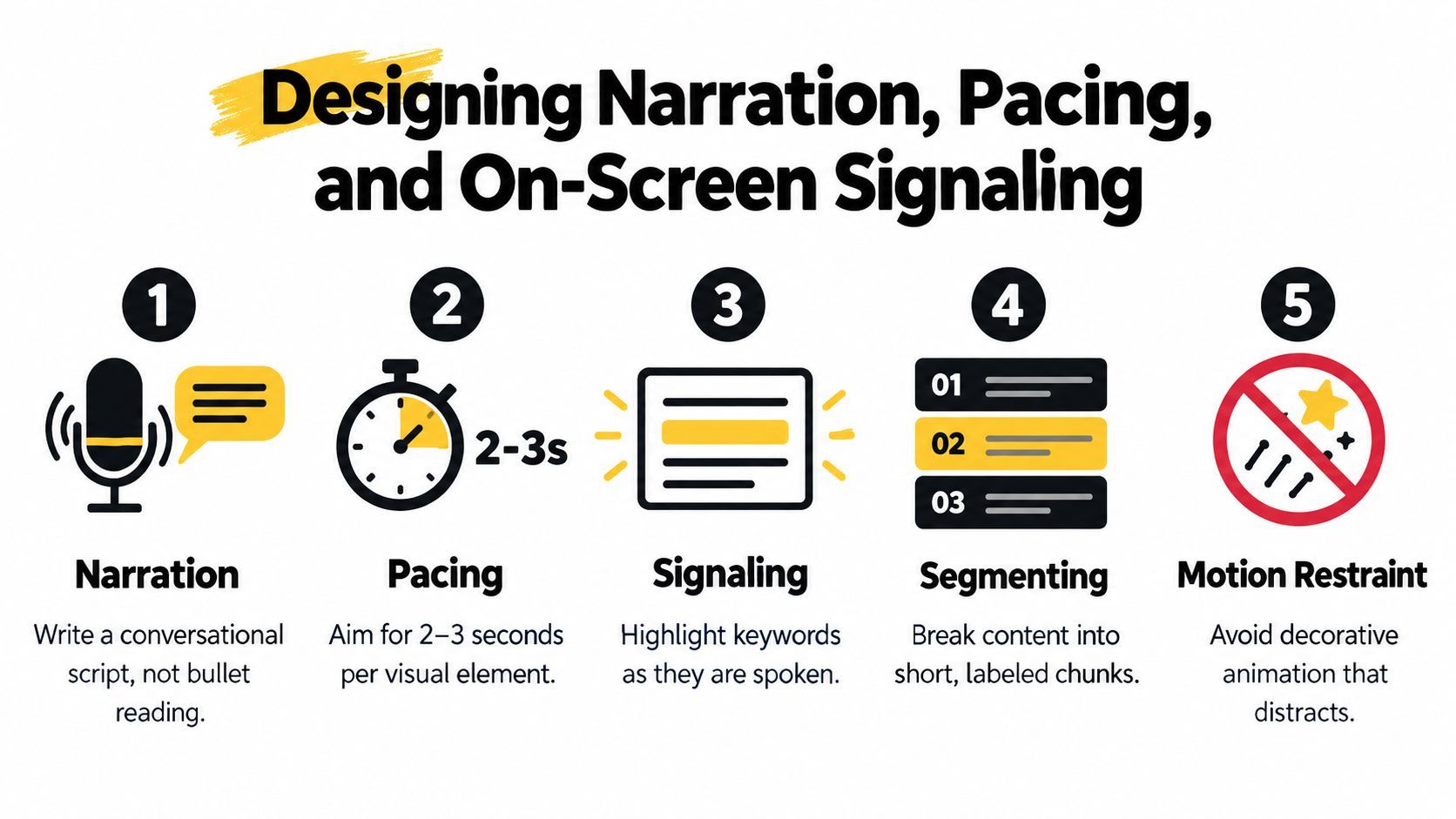
Give the voice and the visuals different jobs. Narration should explain what the eye cannot extract from a static frame, while movement should direct attention to sequence, emphasis, or relationships. Reading every bullet aloud duplicates visible text, forces viewers to read and listen at once, and can leave the screen unchanged while the spoken explanation moves elsewhere.
Research comparing static and dynamic slides found that motion alone did not improve knowledge acquisition compared with static slides. The same study found that instructor signaling improved knowledge acquisition when learners perceived material as difficult, as described in the peer-reviewed research on dynamic slides and signaling. Animate to show sequence, emphasis, or relationships. Do not animate to make a still image look busy.
Write for the ear and divide for attention
Give each segment one learning claim. Ask, “What should the viewer understand from this frame?” Then write narration that answers that question instead of repeating the heading and bullets already on screen.
Segmenting has experimental support. The multimedia-learning segmenting principle was supported in 10 of 10 experimental tests, with a median effect size of 0.79. A separate review found improved retention in 71.4% of studies and improved transfer in 83.3% when multimedia was divided into self-paced segments, according to the Cambridge Handbook of Multimedia Learning summary.
Split a dense slide when viewers must switch between unrelated regions, interpret several data points, or remember one explanation while waiting for another. Use a progressive reveal, crop, zoom, or highlight when the visual relationship matters. Keep the frame still when motion adds no information. This choice saves editing time and makes difficult ideas easier to follow.
Run two simple quality checks
Coherence research found positive effects in 23 of 23 tests, with a median effect size of 0.86, while signaling was supported in 24 of 28 tests, with a median effect size of 0.41, in the same Cambridge source. Remove decorative music, redundant prose, and animation that competes with the spoken claim.
Watch the export once with the sound off. Can you follow the visual sequence, identify the active area, and understand what changes between scenes? Then listen without looking at the screen. Does the narration remain coherent, or does it depend on labels the voice never explains?
Creators comparing formats can use the distinction between a lyric-led visual treatment and a conventional performance edit to refine text timing. This guide to compare lyrics video vs music video shows why on-screen words need pacing that works with, rather than merely duplicates, the audio.
Formatting and Publishing for Each Social Platform
Compose for the destination frame first. Decide where the chart, logo, captions, and other high-value elements sit in a 9:16 crop before rendering anything. A polished desktop layout can become unreadable once a mobile platform trims its edges.
Vertical exports need generous safe zones for captions, buttons, usernames, and interface overlays. Use 1:1 for an Instagram feed version when a square composition suits the material. Reserve 16:9 for YouTube long-form videos, presentations, and embedded blog players.
Platform formatting cheat sheet
| Platform | Aspect ratio | Length cap | Caption style |
|---|---|---|---|
| TikTok | 9:16 | Up to 10 minutes for most accounts | High-contrast, lower-screen safe placement |
| Instagram Reels | 9:16 | 90 seconds | Large, concise captions clear of interface controls |
| YouTube Shorts | 9:16 | 60 seconds | Synchronized captions with strong opening emphasis |
| LinkedIn vertical | 9:16 | Up to 10 minutes | Professional, readable captions with restrained animation |
| Instagram feed | 1:1 | Up to 60 minutes | Centered text with generous edge margins |
| YouTube long-form | 16:9 | No fixed short-form cap | Caption track or burned-in captions that don't cover charts |
| Embedded blog player | 16:9 | Set by the page experience | Accessible captions and a visible transcript option |
Check the frame before you export
Open with a clear claim instead of a logo-only intro. The first moments should identify the problem the video addresses, and the thumbnail frame should remain legible at a reduced size. Keep captions away from faces, chart labels, product screenshots, and any other region that carries meaning.
Create one platform master, then derive the required versions. Resizing a finished vertical video into a wide format often breaks the composition, so review every adaptation. Check line breaks, caption timing, title placement, and visual hierarchy in each export.
A themed series makes repurposing easier than producing isolated files. Group related videos by audience or topic, use consistent naming and brand treatment, and schedule each version only after reviewing its platform-specific crop. Distribution tools can reduce repetitive publishing work, but the final watch-through still belongs to the creator. That review catches clipped captions, hidden labels, and crops that change the storyboard's meaning.
Accessibility, Rights, and Provenance Before You Publish
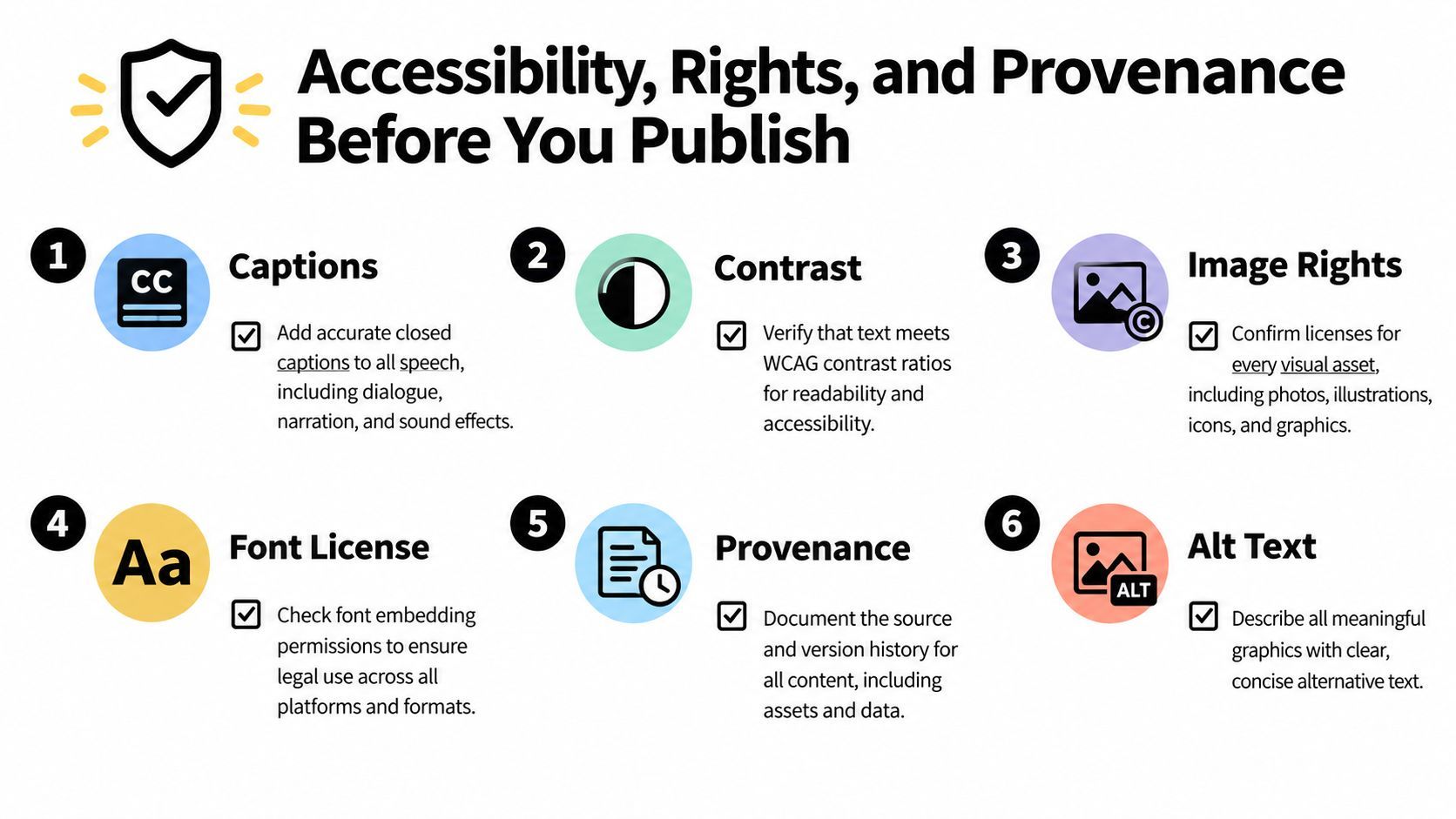
A video can look excellent and still exclude viewers who cannot hear the narration, see a chart, or distinguish meaning conveyed only through color. It can also create legal exposure when an image, font, quotation, music track, logo, recognizable person, or generated asset has no documented reuse rights. Accessibility and provenance decisions belong in the production file, not after export.
The U.S. National Library of Medicine recommends captions that include speech and relevant sound effects, music, laughter, and speaker identification. Captions should stay synchronized and readable, generally using two lines of no more than 32 characters per line, as explained in the Fundamentals of Video Captioning guide.
Make accessibility part of the production file
Generate a transcript from the final narration, then correct names, numbers, acronyms, punctuation, and timing by hand. Describe meaningful charts and images in the narration or through audio description. A slide deck cannot replace a transcript unless its text matches the spoken content exactly.
Use the Aalto accessibility checklist for learning material and digital content to review more than captions. A usable audiovisual experience needs captions, audio description where visual information matters, an accessible player, readable contrast, and a text alternative. Check these requirements while editing, because late changes to narration or slide composition can force new timing and caption work.
Document what you have permission to publish
Keep an asset register with the source, license, owner, and version for every image, music track, font, quotation, logo, and generated element. Record whether each item is user-owned, licensed, public domain, or produced by a generation system. The U.S. Copyright Office's artificial intelligence policy material helps teams examine copyrightability and ownership questions around generative-AI outputs.
Obtain releases for recognizable people and voices, and do not clone a real person without permission. Preserve edit histories, and disclose synthetic narration or imagery when the audience, client, platform, or applicable rules require it.
Use this final sequence before publishing:
- Compare captions with the final audio: Correct wording, timing, overlap, and display duration.
- Test the busiest background: Confirm that captions remain readable over charts, images, and dense slide layouts.
- Check every visual claim: Make sure important visual information is spoken or described.
- Retain production assets: Keep the clean master, editable transcript, timecodes, and separate caption file.
- Review rights and provenance: Verify licenses, permissions, releases, and generation records.
- Watch from beginning to end: Check captions, audio description, contrast, pacing, and scene changes.
ShortGenius (AI Video / AI Ad Generator) helps turn structured slide content into narrated, captioned video while keeping scene edits, voice swaps, resizing, brand kits, and publishing workflows in one place. If you want to move from a finished deck to platform-ready video without losing control of pacing, accessibility, or revisions, try ShortGenius (AI Video / AI Ad Generator).