10 Best Video Editing Software for Chrome in 2026

Find the best video editing software for Chrome. Our 2026 guide reviews the top 10 browser-based editors for performance, AI features, pricing, and use cases.
You open a Chromebook at 9 a.m., drag in footage from Drive, and need a usable cut before lunch. At that point, the decision is less about finding the editor with the longest feature list and more about picking one that fits Chrome's limits without slowing the job down.
Chrome can handle video editing well for the right kind of work. Short clips, captions, resizing, templates, review links, and fast exports are all realistic in a browser. Longer timelines, heavier footage, multicam projects, and unreliable internet expose the weak points fast. On ChromeOS, RAM pressure, upload time, and limited local storage shape the editing experience as much as the feature set does.
That is why this guide focuses on workflow fit.
Some tools are best for quick social posts. Some work better when a team needs comments, approvals, and shared templates. A few are closer to production systems than editors, especially if your job is generating multiple ad variations or recurring short-form campaigns through a platform like ShortGenius for AI-driven video production. If you are comparing browser-first creation stacks, these 2026 AI video generator comparisons help frame where editing ends and automated content generation starts.
The list below ranks tools by how they perform inside real Chrome workflows, not by marketing polish. The useful question is simple. Do you need to trim and publish one clip quickly, collaborate with a team in the browser, or build a repeatable system that turns ideas into batches of finished videos?
1. ShortGenius
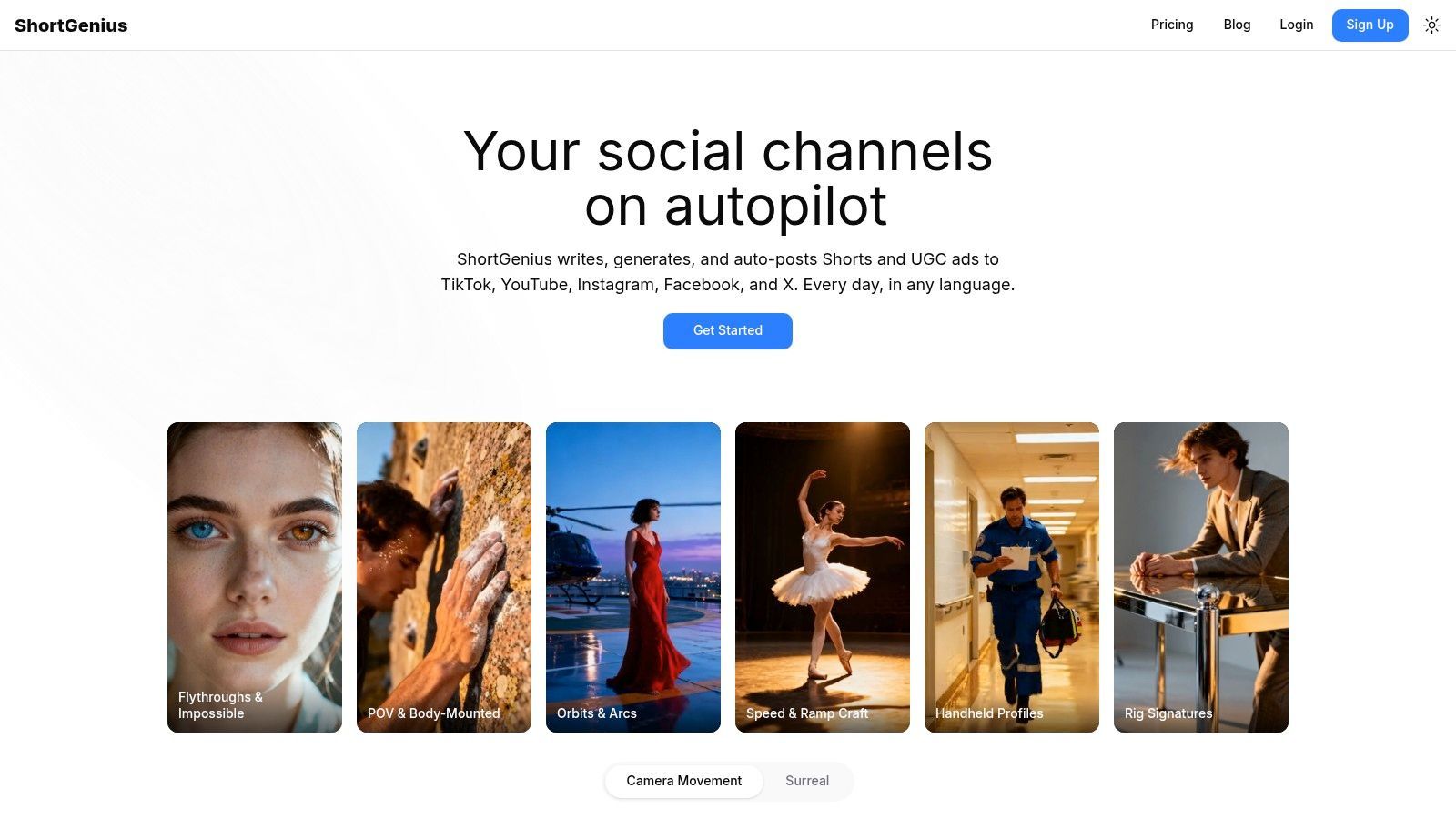
ShortGenius is the strongest pick here if your bottleneck isn't cutting clips. It's producing enough good clips, with consistent branding, voice, variations, and distribution. Most Chrome tools help you edit. ShortGenius handles the full chain from idea to published short-form campaign.
That's the biggest difference in practice. You're not jumping between a script generator, an image tool, a voice app, a caption editor, and a scheduler. You generate concepts, build scenes, apply voice, trim, resize, swap scenes or narration, add brand styling, and push content to multiple platforms from one workspace at ShortGenius.
Where it fits best
ShortGenius works best for creators and teams producing repeatable short-form output. That includes influencer clips, product promos, educational explainers, ad variants, and recurring “series” content where consistency matters as much as speed.
Its AI stack is also unusually flexible. It plugs into multiple major language, image, video, and voice models, so you're not stuck with one generation engine if results drift or a style stops working. Its importance is greater than often recognized, because AI video workflows break down when a tool is locked into one weak model or one mediocre voice provider.
Practical rule: If you're making one handcrafted hero video, a classic timeline editor may be enough. If you're making a stream of short videos every week, the all-in-one workflow matters more than any single editing feature.
A strong production advantage here is the preset and campaign structure. Camera moves, scroll-stopper styles, surreal effects, themed series generation, and scheduling make it more useful for recurring output than a normal browser editor that starts with a blank timeline every time.
Here's where it saves time in a Chrome workflow:
- Script-to-publish flow: You can move from idea to finished short without wiring together separate apps.
- Brand consistency: Brand kits, scene swaps, and voice swaps make it easier to keep outputs aligned across channels.
- Distribution built in: Auto-publishing to TikTok, YouTube, Instagram, Facebook, and X removes a separate scheduling step.
- Team readiness: It includes support, secure payments, a unified library, and an API for deeper operational use.
The real trade-offs
ShortGenius is powerful, but it isn't magic. AI-generated content still needs review, especially for brand tone, factual nuance, and compliance-sensitive campaigns. The fastest workflow is still a guided workflow.
Pricing also isn't disclosed in the provided materials, so you'll need to check current plans directly before making a team-wide decision. If you want a wider overview before deciding, these 2026 AI video generator comparisons are useful context.
Another reason this tool stands out is adoption. ShortGenius is described as used by 100,000+ creators and teams, which lines up with what the platform is built for: scale, repeatability, and multi-channel publishing rather than one-off editing.
2. CapCut Online
CapCut Online is the tool I'd hand to someone who needs to turn raw footage into a decent Reel, Short, or TikTok without overthinking the process. It's fast, template-heavy, and built around what social creators ship every day. On Chrome, that's a real advantage.
The workflow is simple. Drop footage in, trim aggressively, use built-in effects and captions, pick the platform format, and export. If your editing style is “make it look polished quickly,” CapCut usually feels faster than more traditional timeline editors.
What it gets right
CapCut's browser editor keeps the barrier low while still giving you enough control to make social content feel native to the platform. Auto-captions, text-to-speech, audio cleanup, filters, and speed tools cover most short-form needs.
It's also a good fit for creators who think in hooks and pacing rather than in tracks and bins. You can move quickly from rough assembly to posted clip without wrestling with a heavy interface.
CapCut is strongest when the content is short, trend-aware, and disposable enough to iterate fast.
The catch is that “PWA” doesn't mean true local editing freedom. One ChromeOS pain point is that users often want offline 4K editing or local handling of larger files, but mainstream guides rarely explain the hardware limits clearly. A YouTube analysis highlighting that gap notes that many ChromeOS users struggle with footage over 2GB because of RAM constraints, and that browser editors still run into hardware bottlenecks such as limited local acceleration, even when PWA options exist for tools like CapCut Online in this ChromeOS editing breakdown.
Where it falls short
CapCut isn't where I'd build a long documentary edit, a multi-camera interview, or a project where detailed audio work drives the final result. It can do more than people expect, but it still feels optimized for short-form assembly, not deep post-production.
If your workflow is social-first and speed matters most, it's one of the best pieces of video editing software for Chrome. If your workflow gets complex, you'll hit the ceiling quickly.
3. Microsoft Clipchamp
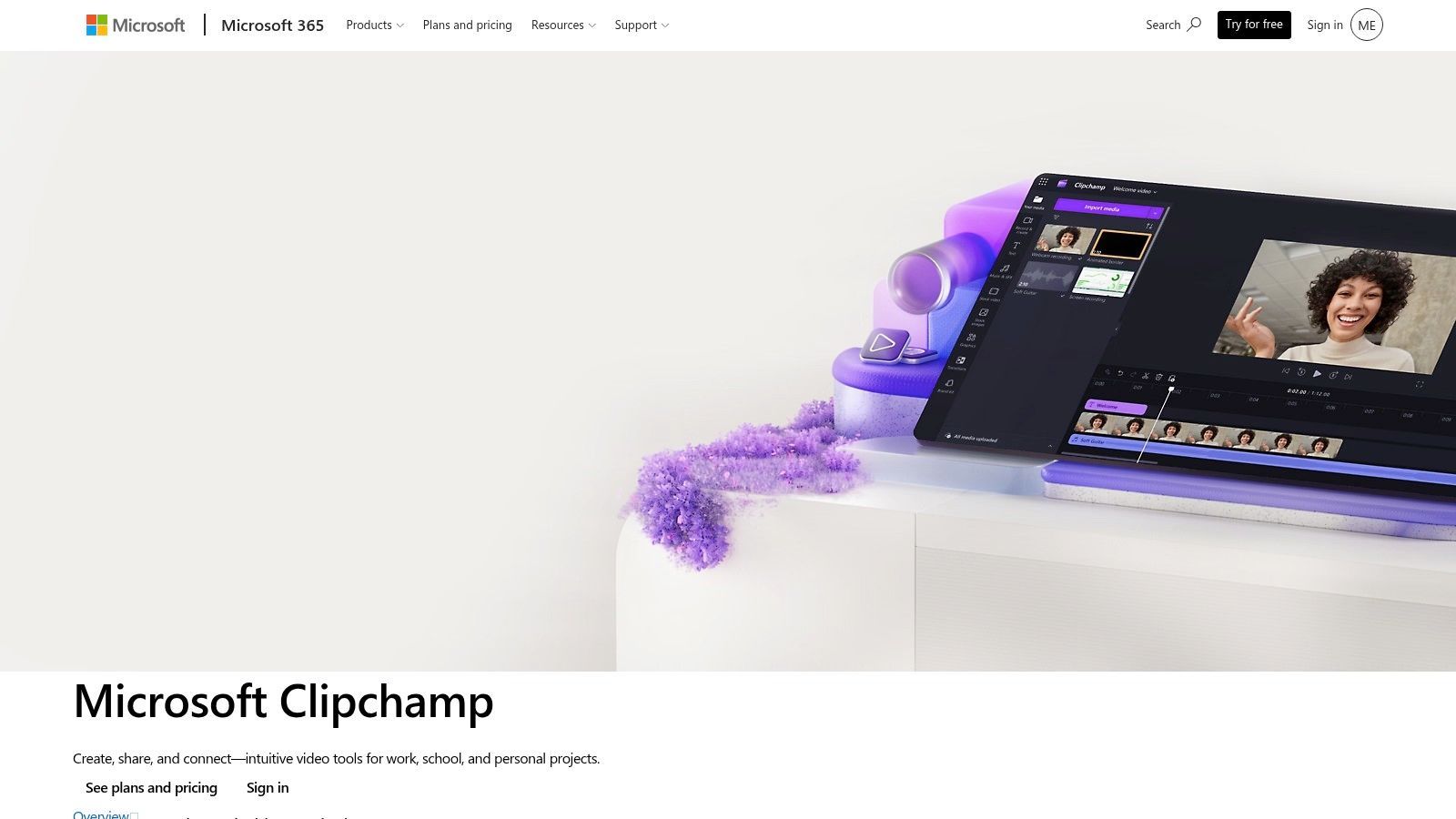
A common ChromeOS workflow looks like this. Files are sitting in OneDrive or Google Drive, the edit needs to be done in a browser, and nobody wants to spend half a day learning a complicated interface just to ship a two-minute update. Clipchamp fits that job well.
Its strength is straightforward production. The timeline is easy to read, templates are effective, and the Microsoft connection matters if a team already stores assets in OneDrive or works inside Microsoft 365. I've found it especially practical for internal explainers, product updates, recruiting videos, and simple paid social variations where speed and consistency matter more than advanced finishing.
Why it works well on Chrome
Clipchamp runs comfortably in Chrome because the workflow is built around browser editing, cloud media, and quick exports instead of heavy local post-production. That makes a real difference on Chromebooks, where storage, memory, and hardware acceleration can narrow your options fast.
Microsoft has also kept improving the tool for business use. In its Microsoft 365 updates, the company highlighted browser-based 4K export and brand kit support for subscribers, which makes Clipchamp more useful for teams producing repeatable branded content inside Chrome rather than one-off edits in a separate desktop app.
Here's where it tends to earn its spot:
- Fast onboarding: New editors can assemble a clean timeline without much training.
- Good fit for recurring business content: Brand controls, templates, and stock assets help keep outputs consistent.
- Works well with Microsoft-centric file workflows: Pulling assets from OneDrive is simpler than juggling local uploads on a Chromebook.
The practical downside
Clipchamp starts to feel tight once a project needs precision. Layer-heavy edits, more stylized motion work, and detailed audio cleanup are all possible up to a point, but the tool is clearly optimized for accessible editing rather than fine-grained control. Premium assets can also interrupt the workflow if someone on the team drags paid media into a draft without realizing it.
That trade-off is easy to understand. Clipchamp is one of the safer picks for people who need dependable browser editing on Chrome and care more about shipping polished everyday content than about pushing a timeline to its limits.
4. Kapwing
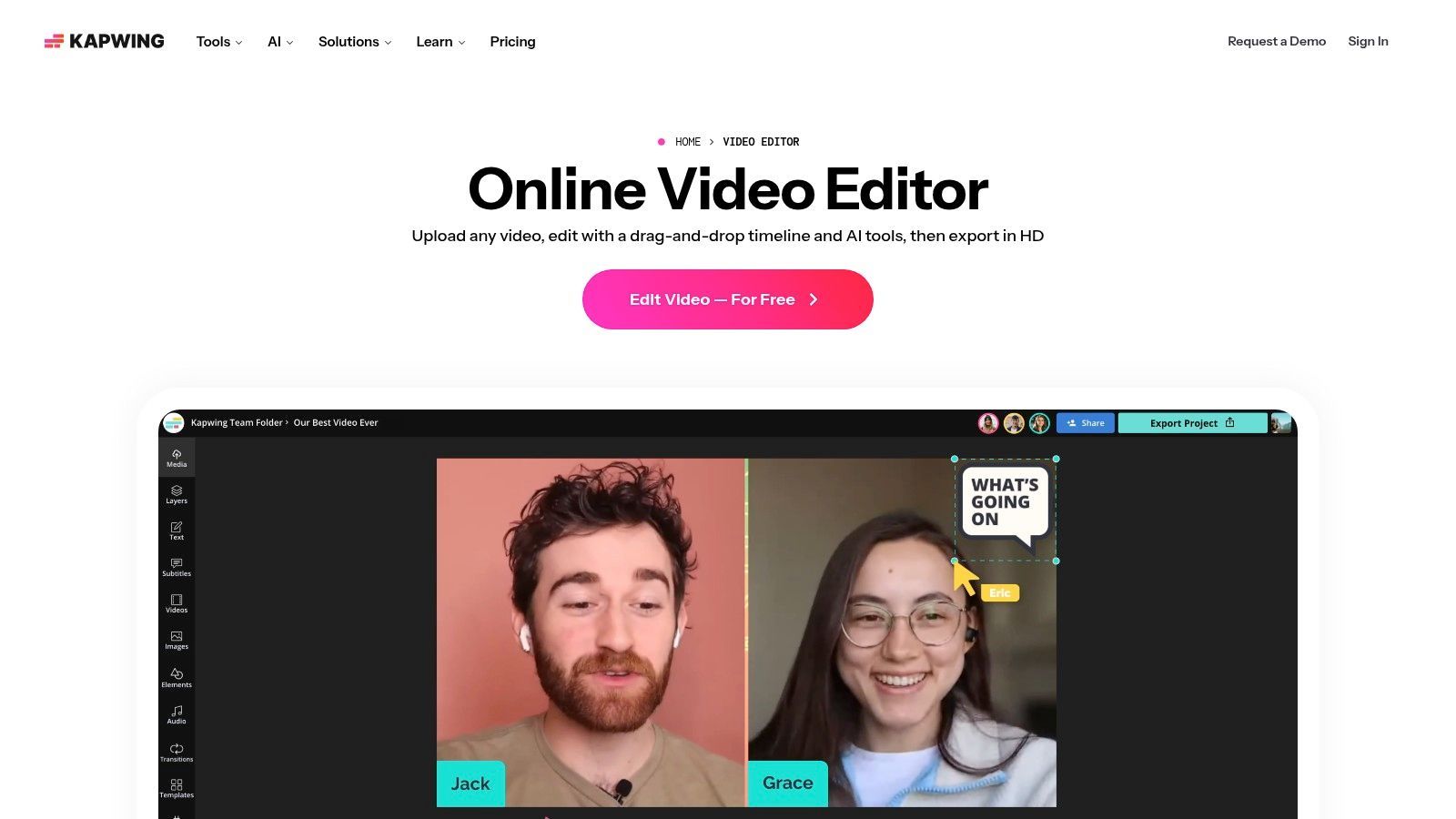
Kapwing is less about classic editing craft and more about content operations. If a team needs subtitles, translations, dubs, social cutdowns, and shared browser projects, Kapwing often makes more sense than a prettier timeline editor.
That's why social teams like it. It reduces the friction around repurposing, not just editing.
Best use case
Kapwing is strong when one source video turns into multiple assets. A webinar becomes Shorts. A podcast becomes clips with subtitles. A founder video gets localized for several audiences. The browser-first collaboration is what makes that workflow tolerable.
Its AI tools also map well to content team work. Auto-subtitles, dubbing, voice tools, and repurposing features are more important in these environments than flashy transitions.
Working note: If multiple people need to touch the same video in Chrome, collaboration usually matters more than timeline depth.
There's also a broader ChromeOS trend behind that. Browser-native editors such as Clipchamp, Kapwing, and WeVideo sit in the top adoption tier for Chromebook users because they run directly in Chrome and fit limited-storage devices well, while also aligning with fast social publishing workflows, as discussed in this Chrome editor analysis on YouTube.
What to expect
Kapwing's free plan is restrictive enough that serious use tends to push you toward a paid tier. On top of that, AI-heavy workflows can burn through plan allowances faster than expected.
For solo creators, that may feel expensive relative to simpler editors. For teams, the collaboration and localization features often justify it. This is one of the better options when “editing” really means “turn one asset into many assets fast.”
5. VEED.io
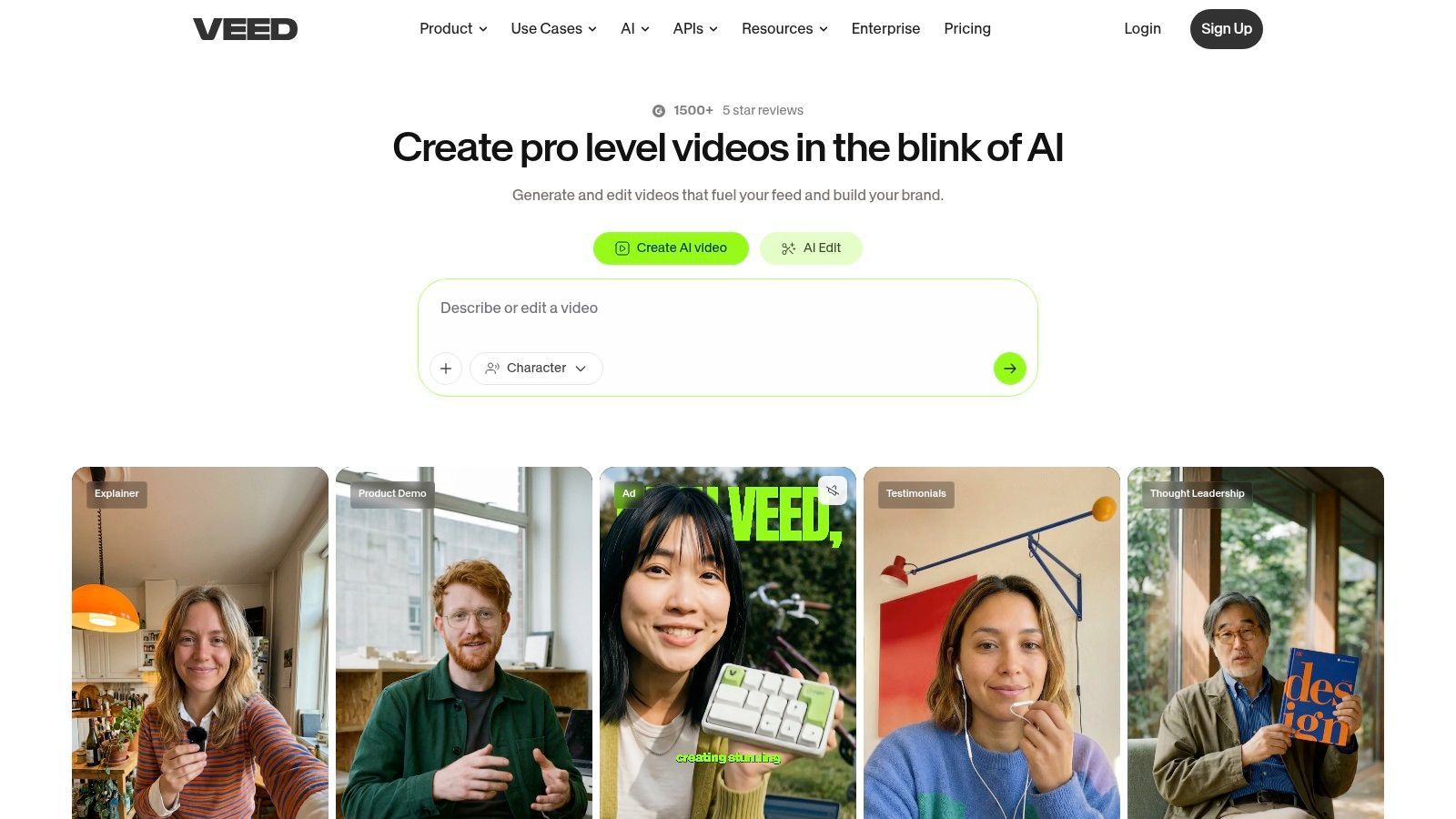
VEED.io is a browser editor for people who care about speed, subtitles, and brand-safe output more than they care about advanced editorial control. That sounds narrow, but it covers a lot of real work. Internal comms videos, training clips, product explainers, founder updates, and social edits all fit that pattern.
In actual use, VEED feels like a communications tool disguised as an editor. The subtitle workflow is fast. Screen recording is built in. Translation, dubbing, and text-driven AI features make it easy to package information for different audiences.
Where VEED earns its place
VEED is strong when the source material is already “good enough” and the main job is packaging it properly. Add captions, tighten the opening, insert titles, keep the branding consistent, and publish.
That's why marketing and L&D teams often like it. The browser reliability is usually good, and there's less setup than with heavier editing software.
A few practical wins:
- Caption workflow: Fast subtitle generation and easy subtitle cleanup.
- Localization support: Translation and dubbing are built into the platform.
- Recording plus editing: Handy if your process starts with screen capture or webcam clips.
Where it doesn't compete
VEED isn't the right tool for precision editing, layered audio design, or projects where timing has to be cut frame by frame with total control. You can absolutely finish polished work in it, but the ceiling is lower than in tools designed around a deeper timeline model.
The free limitations also show up quickly. For occasional use, that's fine. For regular production, you'll likely need a paid plan to avoid export and watermark frustration.
6. Canva Video Editor
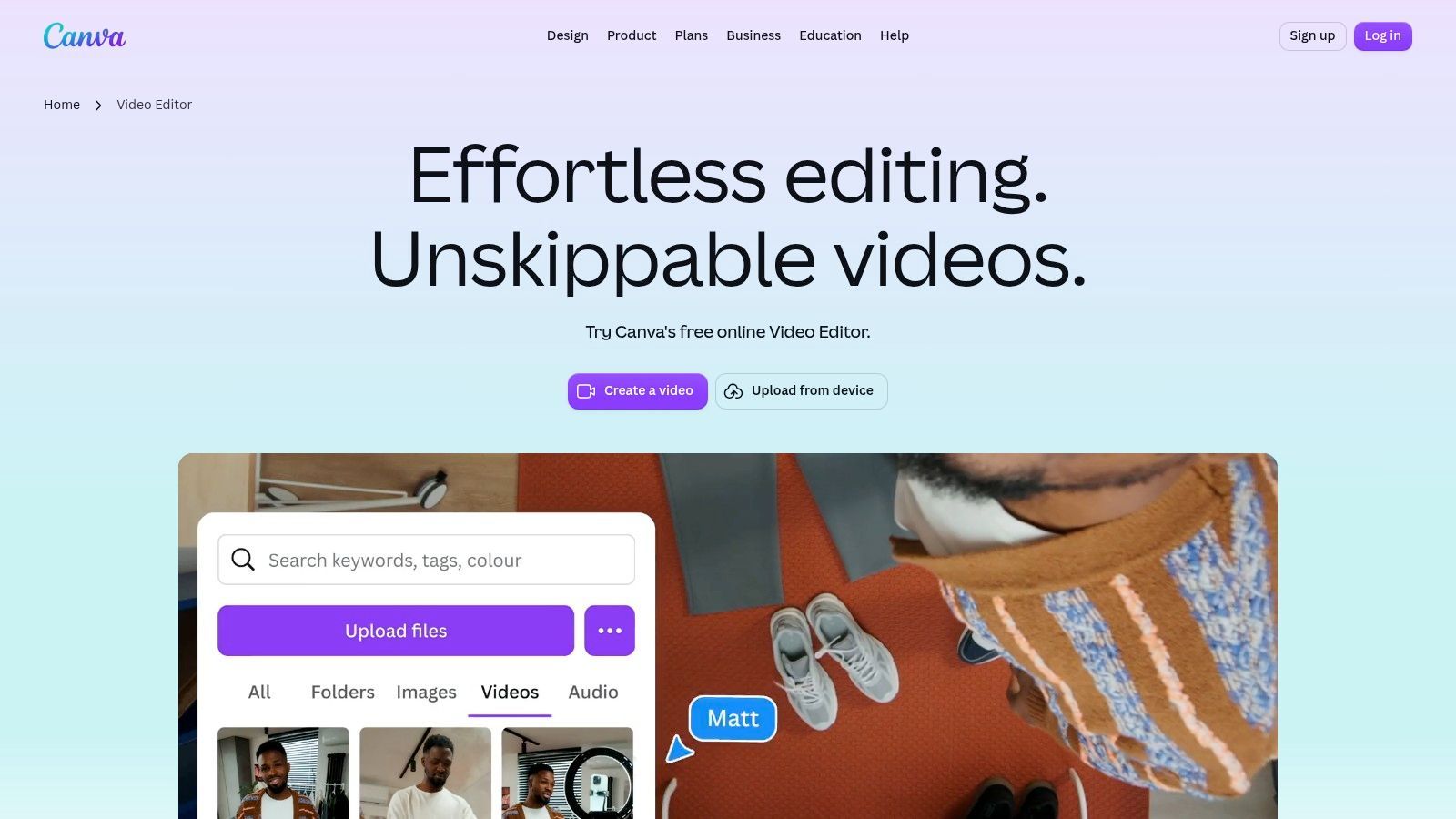
Canva Video Editor is what I reach for when the job is really a design system problem. If the video needs to match a campaign, a deck, an ad set, or a social package, Canva is often faster than more “serious” editors.
Its rebuilt video workflow fits Chrome well because it stays close to Canva's core strength. Templates, drag-and-drop design, branded assets, and collaborative editing all sit in one browser workspace.
Best for branded variations
Canva offers a clear advantage over traditional editors. You can make one promo, duplicate it, swap product shots, change copy, resize for another platform, and keep the visual identity intact without much effort.
For social ads, explainers, simple reels, and team-produced content, that matters more than fine-grain editorial power. Canva is friendly to non-editors, and that's not a small thing inside real organizations.
Canva is best when the video is one part of a larger branded content system, not a standalone post-production project.
Its Magic Studio tools also help with asset creation and cleanup, which reduces the number of separate tools a team needs to open. That's useful on Chrome, where the best workflow is often the one with the fewest tabs and the fewest handoffs.
The limits are obvious
Canva's timeline works, but it doesn't invite deep editing. If you need complicated pacing, nuanced audio mixing, or multi-camera structure, it starts to feel restrictive.
Used within its lane, though, Canva is one of the most practical pieces of video editing software for Chrome. It's not trying to be a film editor. It's trying to help teams ship polished branded videos quickly, and it does that well.
7. Adobe Express Web
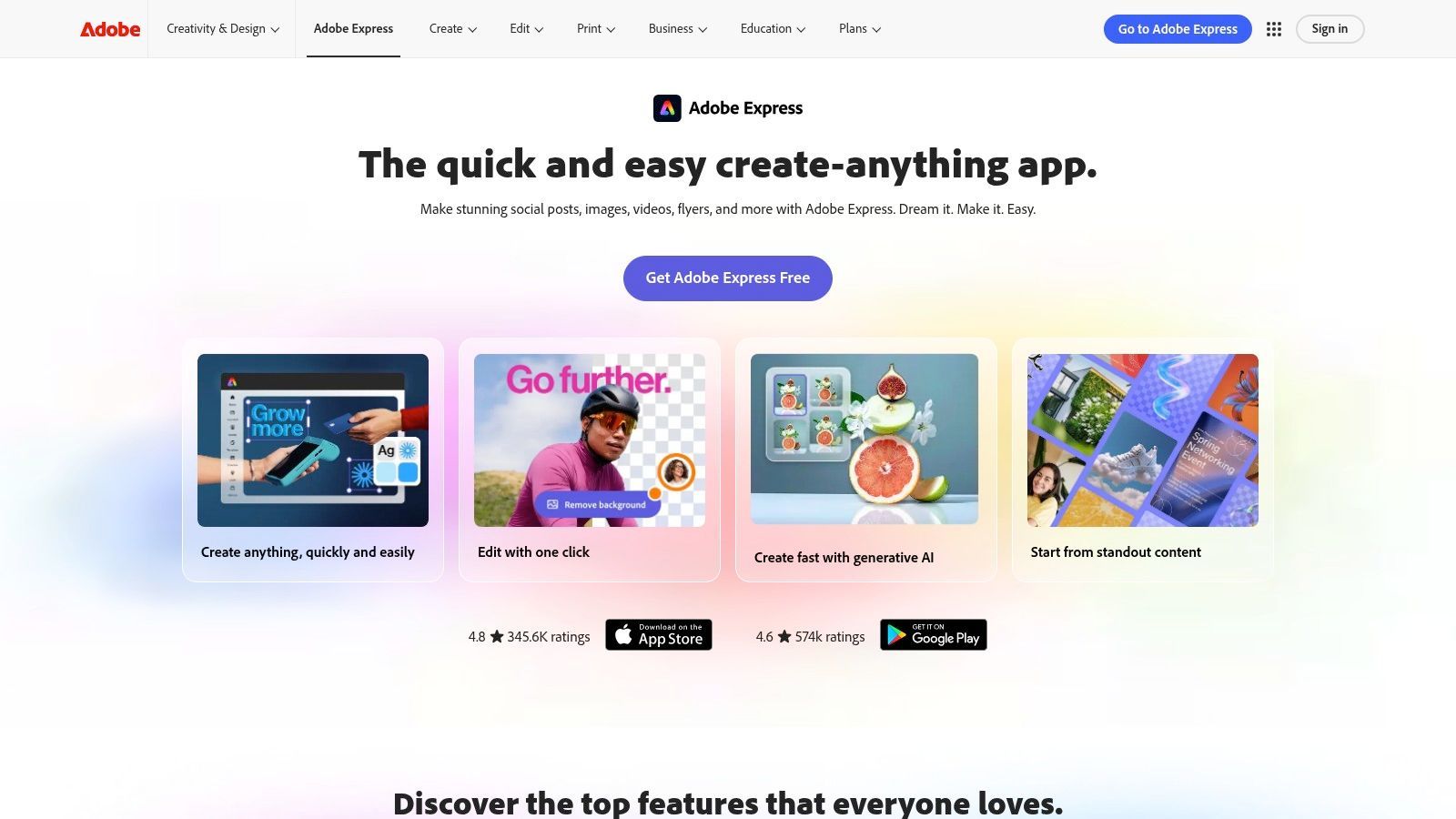
Adobe Express sits in an interesting middle ground. It's not Premiere Pro in a browser, and it shouldn't be judged like it is. It's Adobe's lightweight web workspace for making social videos, branded clips, and simple multi-layer edits without leaving Chrome.
That makes it useful for teams already living in Adobe's ecosystem. Brand assets, stock, templates, and handoffs feel familiar, even if the editing depth is much lighter.
Why some teams prefer it
Adobe Express works well when design and video are tightly connected. A campaign might include social graphics, story slides, short promo videos, and resized variants. Express handles that multi-asset environment better than editors built only for video.
The multi-layer editing is enough for most simple motion content. Firefly-powered AI tools also help speed up asset creation, though you'll want to keep an eye on how heavily you rely on premium stock and credits.
A few practical positives:
- Adobe familiarity: Easier adoption for teams already using Creative Cloud.
- Good for social packaging: Templates and exports are built around modern platform needs.
- Decent middle ground: More layered than the simplest editors, less intimidating than pro software.
Where it stops being enough
Once motion work gets intricate, or the project needs serious storytelling and edit rhythm, Adobe Express starts to feel like a helper app rather than the main editor. That's fine. It's exactly what many teams need.
For Chrome users who want approachable, branded, browser-based video creation with Adobe-style workflow continuity, it's a solid option.
8. InVideo
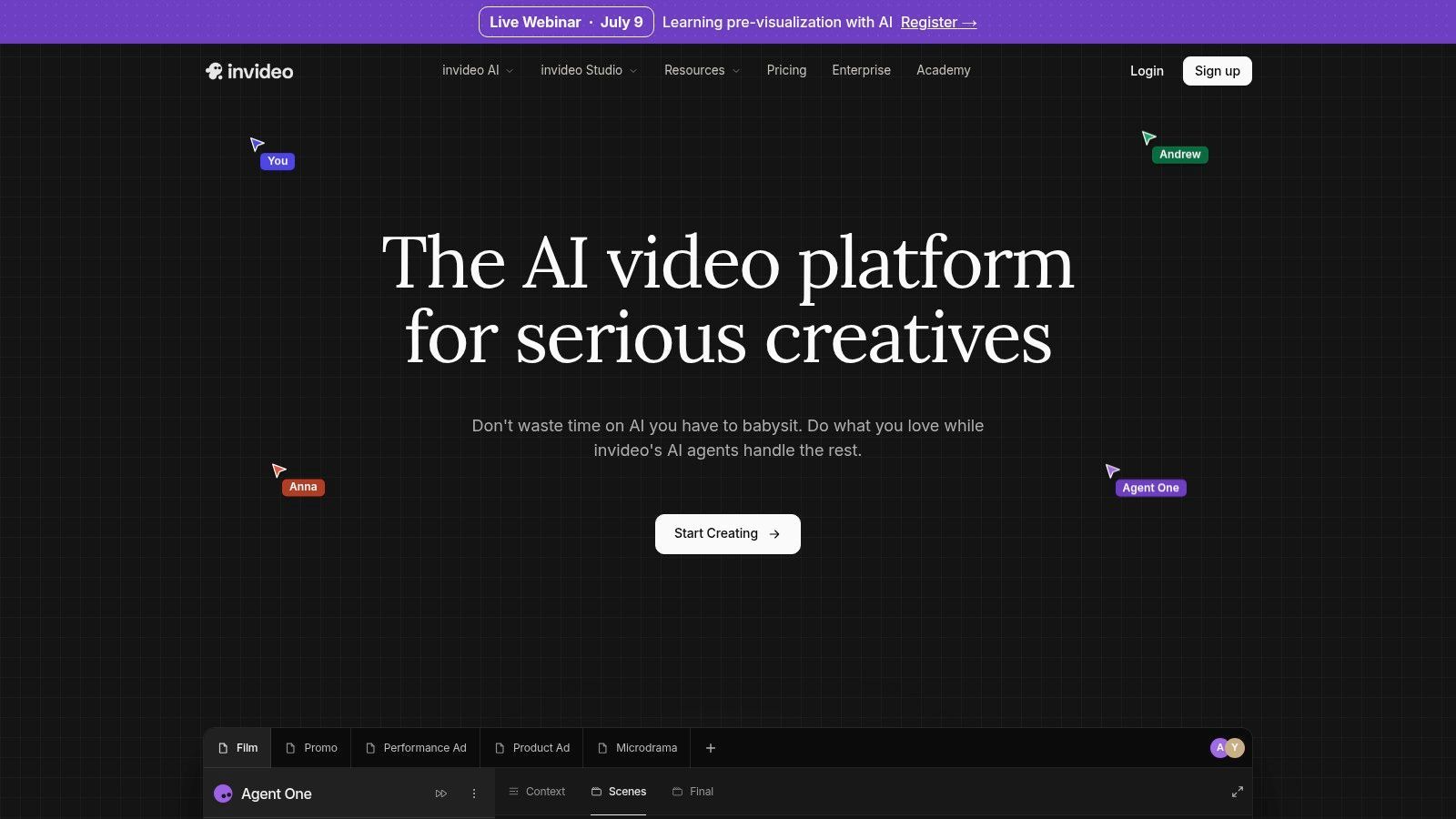
InVideo is built for speed more than craft. That's not criticism. It's the reason people use it. If you need to turn a script or prompt into a promo, explainer, listicle, or faceless content piece quickly inside Chrome, InVideo is very effective.
Its appeal is obvious when time is tight. The template library is massive, the stock access is built in, and the AI-assisted flow gets you from blank page to rough draft fast.
What it does well
InVideo reduces the startup cost of content creation. You don't need a detailed shot list or a carefully organized media folder before you begin. For ads, pitch-style videos, YouTube support content, and quick business promos, that's useful.
The browser-only workflow also keeps things accessible for Chromebook users who want production convenience more than editorial precision.
Here's the practical fit:
- Fast script-to-video generation: Good for roughing out ads and explainers.
- Stock-heavy workflows: Useful if you rarely shoot original footage.
- Promptable editing: Helpful when you want direction from the tool, not a blank canvas.
What usually needs cleanup
InVideo outputs can feel templated if you don't intervene. Generated voice quality, stock choices, pacing, and visual tone often benefit from manual adjustment before publishing. It gets you to a usable draft quickly, but the strongest results still come from editing the AI's first pass.
For production teams with volume goals, that trade can be worth it. For creators chasing a distinctive voice, it may feel too standardized unless you put extra work in.
Visit InVideo
9. Wave.video
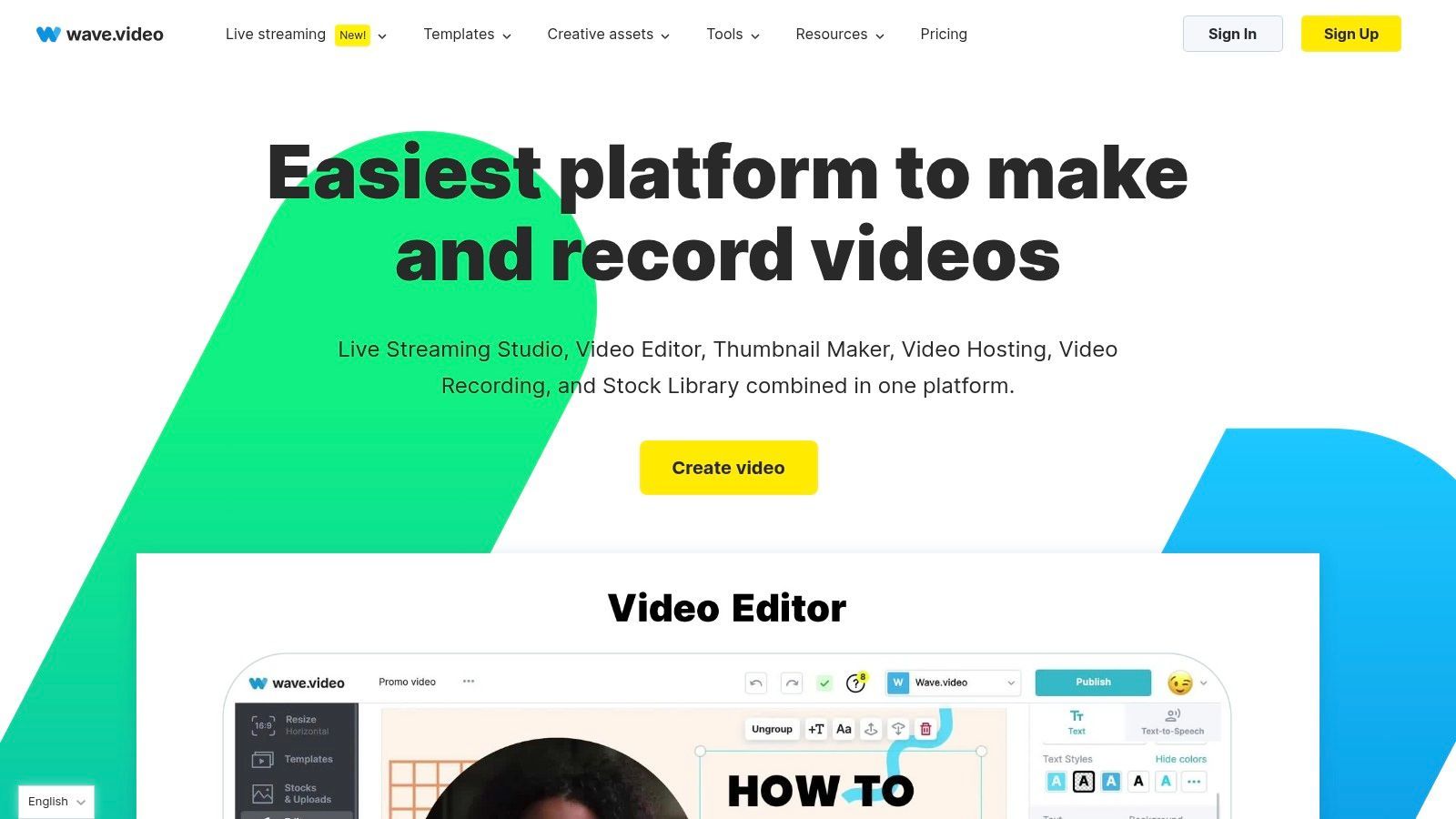
Wave.video is less a pure editor and more a browser-based media operations platform. If your work includes recording, light editing, livestreaming, hosting, and publishing under one roof, it has a compelling shape.
That makes it especially useful for agencies and teams managing recurring content for multiple brands. The editing side alone won't outclass dedicated editors, but the all-in-one workflow can save a lot of friction.
Who should consider it
Wave.video makes sense when content doesn't end at export. If you also need landing pages, hosting, stream support, recordings, and organized brand assets, consolidating those tools can be smarter than chasing the “best editor” in isolation.
This is one of those platforms where the surrounding workflow matters as much as the trim and transition tools. For teams handling webinars, social clips, and ongoing publishing, that's meaningful.
The more your process includes publishing, hosting, and live content, the more Wave.video makes sense.
Why it isn't for everyone
If your only goal is to cut strong videos in Chrome, there are cleaner and more focused tools. Wave.video's strength is range, not deep editing power.
That range can also mean higher-tier plans become necessary once you need the better hosting or streaming features. For the right team, that's still efficient. For a solo creator doing straightforward edits, it may be too broad.
10. WeVideo
WeVideo has stayed relevant because it solves a specific browser-editing problem well. It's accessible, collaborative, and easy to deploy across schools and teams. If you need a cloud timeline editor that multiple people can use without much setup, WeVideo still earns its place.
It's also one of the better-known names among Chromebook users. Browser-based editors like WeVideo sit in the practical center of ChromeOS creation because they avoid installation friction and fit devices with lighter local resources.
Why WeVideo still works
WeVideo is good at steady, repeatable work. Screen recording, webcam capture, green screen, voice recording, collaboration, and classroom-friendly management are all more important here than cutting-edge effects.
That's why it keeps showing up in education and small-team environments. The workflow is browser-native, and the admin side is more mature than what many creator-focused tools offer.
By the way, the larger market direction supports this cloud-first model. The global video editing software market was valued at USD 3.25 billion in 2024 and is projected to reach USD 4.83 billion by 2032, with a projected CAGR of 5.8% from 2025 to 2032, according to SNS Insider's video editing software market report.
Practical trade-offs
WeVideo is easier to roll out than it is to love. It's dependable, but it doesn't feel exciting. If your team needs high-end motion styling or the latest AI-heavy creative workflow, other tools will feel more current.
For classrooms, internal teams, and organizations that care about browser access, collaboration, and administrative control, it remains a practical option. For advanced creators, it's usually a support tool rather than the main creative environment.
Top 10 Chrome Video Editors Comparison
| Product | Core features | UX & Quality | Value / Pricing | Target audience | Unique selling points |
|---|---|---|---|---|---|
| 🏆 ShortGenius (AI Video / AI Ad Generator) | Script → image/scene → assemble → lifelike voice + editor & auto-post ✨ | ★★★★★, unified, fast pipeline | 💰 Contact / Pricing page; includes API & support | 👥 Influencers, agencies, marketing teams, e‑commerce, educators | ✨ Model-agnostic AI stack, series generation, one-click multi-channel publishing |
| CapCut (Online) | Web editor with templates, AI captions, effects, TikTok export | ★★★★, fast, social-first | 💰 Free core; CapCut Pro for premium assets | 👥 Short-form creators, TikTok-focused users | ✨ Tight TikTok integration + rich template library |
| Microsoft Clipchamp | Timeline editor, titles, 1080p free, 4K on Premium, OneDrive | ★★★★, beginner-friendly | 💰 Freemium; Premium often bundled with Microsoft 365 | 👥 Microsoft users, marketing teams | ✨ OneDrive/MS365 integration & easy exports |
| Kapwing | AI subtitles/translation, dubbing, brand kits, team workspaces | ★★★★, collaboration & localization | 💰 Freemium with limits/watermark; paid tiers for more AI | 👥 Social teams, localization & captioning workflows | ✨ Strong localization tools + real-time team workspaces |
| VEED.io | Auto-subtitles, dubbing, TTS, brand kit, screen recording | ★★★★, very fast caption/localize in browser | 💰 Freemium; paid tiers for advanced AI/exports | 👥 Marketing, L&D, internal comms teams | ✨ Rapid captioning + reliable Chrome-first editor |
| Canva Video Editor | Drag‑drop timeline, Magic Media AI, templates, brand kit | ★★★★, design-driven, very approachable | 💰 Freemium; Pro for premium templates & assets | 👥 Non-specialists, social advertisers, small teams | ✨ Massive template ecosystem + design tools |
| Adobe Express (Web) | Multi-layer web editing, Firefly AI, Adobe Stock, templates | ★★★★, familiar Adobe UX; web convenience | 💰 Freemium; Premium features/credits may cost extra | 👥 Creative Cloud users, teams needing handoff | ✨ Firefly AI + smooth Creative Cloud integration |
| InVideo | Script-to-video, 7k+ templates, 16M+ stock assets, TTS | ★★★, rapid templated outputs | 💰 Paid plans; large stock simplifies licensing | 👥 Marketers, promo/ad creators, faceless content | ✨ Script→video flow + huge integrated stock library |
| Wave.video | Editor + live streaming studio + hosting & landing pages | ★★★★, multi‑use platform for publishing | 💰 Paid plans; free tier limited/watermarked | 👥 Agencies, social teams needing hosting/streaming | ✨ Combines editing, streaming and hosting in one platform |
| WeVideo | Green screen, screen/webcam recording, classroom tools, compliance | ★★★, education‑focused, accessible | 💰 Paid seat bundles for schools & teams | 👥 K‑12, educators, SMBs requiring compliance | ✨ COPPA/FERPA docs, admin/seat management for institutions |
Final Thoughts
The best video editing software for Chrome depends less on raw feature count and more on where your workflow breaks. That's the lens most comparison posts miss. On ChromeOS, the pain usually isn't “this tool lacks one more transition.” It's “this footage is too heavy,” “this upload takes forever,” “this caption workflow is clumsy,” or “we need five versions of this ad by tomorrow.”
That's why the right choice tends to fall into one of four buckets.
- For AI-first campaign production: ShortGenius is the strongest choice here. It handles ideation, generation, editing, branding, and distribution in one place, which is rare.
- For quick social editing: CapCut Online is hard to beat when speed, templates, and short-form polish matter most.
- For beginner-friendly browser timelines: Clipchamp gives Chromebook users a low-friction path to good-looking edits.
- For collaboration and repurposing: Kapwing, VEED.io, and WeVideo each make sense when teams need browser access and shared workflows.
If your work is mostly branded marketing content, Canva Video Editor and Adobe Express are usually more useful than they first appear. They aren't trying to win on post-production depth. They win on packaging, consistency, and making non-specialists productive. That's often the core requirement inside a business.
If your work is volume-based content generation, ShortGenius and InVideo are more aligned with the job. They reduce the number of separate tools you need, which matters on Chrome more than on a traditional desktop setup. Less tab-hopping, fewer exports, fewer manual handoffs. That's real efficiency.
One more thing matters on Chromebooks. Be honest about hardware limits. Browser tools are excellent for fast, cloud-native workflows. They're much less forgiving when you try to force desktop-style editing habits onto weak hardware, large local files, or offline-heavy workflows. If you're handling larger footage or longer edits, choose tools that offload processing well, simplify asset management, and don't pretend your browser is a workstation-grade NLE.
The upside is that Chrome-based editing is no longer a compromise for many creators. It's a different production model. Lighter, faster, more collaborative, and often better aligned with how social and marketing teams publish. If you want another perspective on broader editing choices beyond Chrome-specific workflows, Flexwork Studios' software recommendations are worth browsing.
The short version is simple. Pick the tool that matches the job, not the one with the longest feature page. For fast social clips, choose speed. For team repurposing, choose collaboration. For repeatable AI-driven output, choose the platform that removes the most workflow friction from idea to published video.
If you want one Chrome-friendly platform that goes beyond editing and handles scriptwriting, visuals, voice, branding, and auto-publishing in the same workflow, try ShortGenius (AI Video / AI Ad Generator). It's a strong fit for creators, agencies, marketers, and educators who need to turn ideas into consistent short-form content without stitching together five separate tools.