Vertical Video Aspect Ratio: The Complete Guide

Master the vertical video aspect ratio with platform specs for TikTok, Reels and Shorts, plus safe areas, resolution tips and resize strategies.
You've exported a polished 16:9 video, uploaded it to TikTok, and watched the subject collapse into a small rectangle surrounded by empty space. The footage isn't necessarily bad. The window you delivered it through is wrong for the viewing surface.
That window is the vertical video aspect ratio, the proportional relationship between a frame's width and height. Once you treat aspect ratio as a distribution decision rather than a technical detail, the export choice becomes much easier. You'll know when to use full-screen 9:16, when 4:5 is more useful in a feed, and how to adapt existing footage without cutting off the person or product that matters.
Why Vertical Video Looks Right on Your Phone
Aspect ratio describes the shape of a video frame, not its resolution. The two numbers are separated by a colon, and the first number represents width while the second represents height. A 16:9 frame is wide, while a 9:16 frame is tall.
Think of the frame as a picture frame or a window. The room behind the window can stay exactly the same, but changing the window's proportions changes what the viewer sees. A 9:16 frame gives you a narrow, tall opening. A 16:9 frame gives you a wide, short opening. The numbers describe that opening's shape, not the size of the original recording.

Why phone orientation changes the answer
A smartphone held naturally is taller than it is wide. A portrait frame follows that grip, so it can fill the display from edge to edge. A horizontal frame doesn't match the phone's shape. The platform must either add empty space, crop the sides, or show the video as a smaller rectangle inside the feed.
That mismatch affects more than appearance. A full-height frame gives the subject more visual presence while the viewer scrolls. It also makes the video feel native to the feed instead of like a television clip placed inside a mobile app.
The shift happened as social platforms redesigned feeds around upright smartphone viewing. Historical industry coverage citing Mary Meeker's 2015 Internet Trends data reported that vertical viewing rose from 5% of view time to 29% within five years (Castr's history of vertical video aspect ratios). That change helps explain why portrait video moved from an unusual format to a strategic production choice.
Production rule: Choose the frame for the place where people will watch, not for the shape in which the footage was originally recorded.
The practical default
For full-screen short-form platforms, 9:16 is the standard portrait shape. The common production size is 1080 × 1920 pixels, which is Full HD rotated vertically and fills a phone held upright (Google Ads vertical video guidance).
That doesn't mean every social placement should receive 9:16. A full-screen video feed and a mixed-content feed have different viewing conditions. Your job is to select the frame that gives the content enough space in that specific environment.
The Main Vertical Aspect Ratios Explained
If the second number is larger, the frame is portrait. If both numbers match, it's square. If the first number is larger, it's a wider frame.
Here are the shapes you're most likely to encounter:
- 9:16: A tall portrait frame that resembles the phone in your hand. It's designed for full-screen TikTok videos, Instagram Reels, Stories, and YouTube Shorts.
- 4:5: A moderately tall portrait frame, closer to a print you might tuck behind a fridge magnet. It gives feed posts more height without taking over the entire phone display.
- 1:1: A square frame, similar to the classic Instagram post shape. Its width and height are equal.
- 16:9: A widescreen frame, like a laptop display turned sideways or a television. It's technically horizontal.
- 2:3: A tall still-photo shape associated with a standard film-camera photograph. It's portrait, but it's taller than 4:5 and not the usual default for short-form video.
The same ratio can be rendered at different pixel sizes. For example, 9:16 describes the shape, while 1080 × 1920 describes the pixel dimensions. Don't confuse the two. A larger file can preserve more detail, but it still has the same frame shape if its width-to-height relationship remains 9:16.
Common Vertical and Square Aspect Ratios at a Glance
| Ratio | Common Name | Shape Analogy | Typical Use |
|---|---|---|---|
| 9:16 | Full-screen portrait | Smartphone held upright | TikTok, Reels, Stories, Shorts |
| 4:5 | Tall feed portrait | Vertical print behind a magnet | Instagram and other feed posts |
| 1:1 | Square | Square social post or print | Mixed feed placements |
| 16:9 | Widescreen landscape | Laptop or television screen | Long-form, desktop, and TV viewing |
| 2:3 | Photo portrait | Standard film photograph | Still photography and selected visual feeds |
The key distinction is between portrait-friendly and full-screen native. Both 4:5 and 9:16 are taller than they are wide, but they occupy different amounts of the feed and support different creative decisions. A talking-head Short usually needs the full height of 9:16. A product announcement competing with other feed posts may benefit from the wider visual footprint of 4:5.
Platform Specs for TikTok, Reels and Shorts
A vertical master should match the destination where viewers will see it. For full-screen playback on TikTok, Instagram Reels, and YouTube Shorts, use 1080 × 1920 pixels at 30 fps as the practical starting point. H.264 is a dependable delivery codec. HEVC can also work when your editing workflow and destination support it consistently. Test the uploaded file on the actual platform, since acceptance and final transcoding can vary.
Use this table as a production reference. The resolution describes pixel dimensions, while the frame shape determines how the image occupies the screen.
Platform Export Specs for TikTok, Reels, Shorts and LinkedIn
| Platform | Resolution | Frame Rate | Codec | Notes |
|---|---|---|---|---|
| TikTok | 1080 × 1920 | 30 fps baseline | H.264 or HEVC | Build for vertical-first, full-screen viewing |
| Instagram Reels | 1080 × 1920, or 1080 × 1350 for feed use | 30 fps baseline | H.264 or HEVC | Reels support full-screen 9:16, while 4:5 suits some feed contexts |
| YouTube Shorts | 1080 × 1920 | 30 fps baseline | H.264 or HEVC | Use a vertical frame for the Shorts experience |
| LinkedIn vertical video | 1080 × 1920 where the placement supports it | 30 fps baseline | H.264 | Check the actual feed preview because LinkedIn is more feed-oriented |
For TikTok, Reels, and Shorts, 9:16 is the safest master because these destinations center on portrait viewing. Instagram feed placements may call for 4:5 instead, so decide whether the video will live in a full-screen player or compete with other posts. LinkedIn deserves a feed-first review, where text, professional context, and the scrolling preview can matter as much as immersion.
Three export errors appear often. 1080 × 1356 is not 9:16, so it will produce a different frame shape than intended. A smaller file can also look soft after upload when the original master was clean. At the other extreme, an unusually large editing master does not guarantee better playback, because platforms generally transcode uploaded video. A predictable delivery file makes quality checks and troubleshooting easier.
Repurposing 16:9 footage requires a framing decision before export. Crop around the subject for a 9:16 full-screen version, or retain more side context in a 4:5 feed version. Check faces, products, and captions at the final crop, not only in the editing timeline. For property marketers, real estate reel strategies can help connect that composition choice with listing tours, hooks, and distribution.
When 4:5 Beats 9:16 in the Feed
9:16 wins when the viewer enters a full-screen viewing mode. The frame fills the phone, the viewer has committed attention to the video, and the creative can use the entire tall canvas.
4:5 wins when the video competes inside a feed. It's taller than square, but it doesn't force the same full-screen composition. That can give a product, face, or headline a stronger first impression while preserving more horizontal context.
The feed decision
On TikTok's For You feed, 9:16 is the natural choice because the experience is designed around full-screen vertical playback. Instagram Reels also favors 9:16 for the Reel itself, while an Instagram feed post can make 4:5 a more appropriate choice. LinkedIn is primarily a feed environment, so the content should be judged in the scrolling post preview rather than only in a full-screen player.
A 9:16 video placed in a mixed feed may have important details pushed toward edges that compete with interface elements. A 4:5 composition often gives you a broader central stage for a product demonstration, a presenter, or a text-led announcement. The tradeoff is clear: 4:5 sacrifices some immersive height, while 9:16 sacrifices some flexibility in a feed layout.
Feed vs Full-Screen 4:5 vs 9:16 Decision Table
| Platform | Feed View Default | 4:5 Behavior | 9:16 Behavior | Recommended Pick |
|---|---|---|---|---|
| TikTok | Full-screen vertical feed | May not use the full display | Native full-screen experience | 9:16 |
| Instagram feed | Mixed post feed | Strong portrait feed footprint | May invite a fuller viewing treatment | 4:5 for feed posts |
| Instagram Reels | Full-screen-oriented video feed | Useful for selected feed placements | Native Reel shape | 9:16 for Reels |
| Scroll-based professional feed | Can present information clearly in feed | Use only when the placement supports the tall frame well | Test 4:5 and 9:16 by placement |
If the campaign needs both feed and full-screen distribution, create two versions from the same edit. Don't resize one file and assume every title, face, or product detail will remain correctly placed. A dual-format workflow takes more review time, but it protects the composition from automatic cropping.
Safe Zones and Where Captions Actually Live
A safe zone is an invisible area inside the video frame where essential text and action should remain visible. Platforms place usernames, captions, interaction buttons, progress bars, and other interface elements over the video. Those controls vary by placement, so no single overlay can guarantee perfect coverage everywhere.
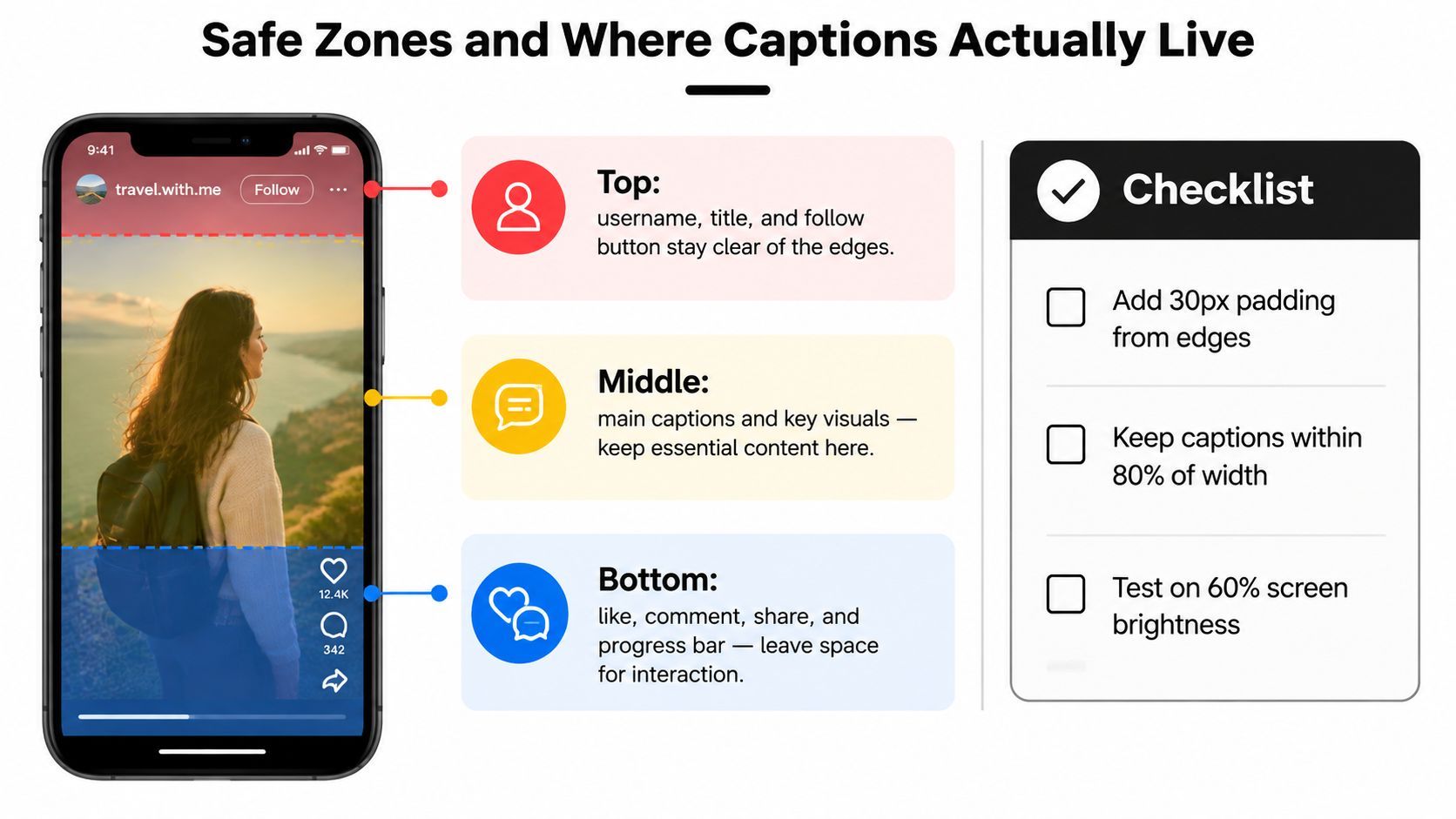
Build a three-zone layout
Treat the frame as three working regions:
- Top: Keep titles, logos, and opening context away from the very edge. Usernames, follow controls, and platform headers can occupy this area.
- Middle: Put the speaker's face, product action, key visual, and most important captions here. This is the most reliable region for essential information.
- Bottom: Leave room for descriptions, audio labels, comments, interaction controls, and progress indicators. Captions anchored too low can disappear under the interface.
A practical overlay template should include a transparent 9:16 frame, a central content rectangle, a top exclusion band, and a bottom exclusion band. Add platform-specific UI examples when you review the final cut, because a clean editing canvas doesn't show what the audience sees after upload.
Caption check: If a viewer must read it to understand the message, don't place it at the bottom edge or in the top-right corner.
Caption placement that survives the feed
Keep the title in the upper third, but not flush against the top. Place subtitles in the central reading area, roughly between the upper and lower interface regions. Keep essential visuals away from the bottom 250 pixels as a working safeguard, especially when the video includes persistent captions or a progress bar.
Avoid placing critical text in the top-right corner on Reels, where sharing and other controls can interfere. Keep text blocks narrower than the full frame so they don't collide with side controls, and review them at actual phone size rather than relying only on a large desktop preview.
If you're building captions from speech, a dedicated guide to closed captioning tech can help your team think beyond burned-in text and consider accessibility, timing, and transcription quality. The editing principle remains the same: captions must be readable without covering the subject or being covered by the app.
Turning Horizontal Footage Vertical Without Losing the Subject
A 16:9 recording contains far more width than a 9:16 frame can display. Converting it is a framing decision, not a simple resize. You are selecting which part of the original composition remains visible, which information gets cut, and where the video will be distributed.
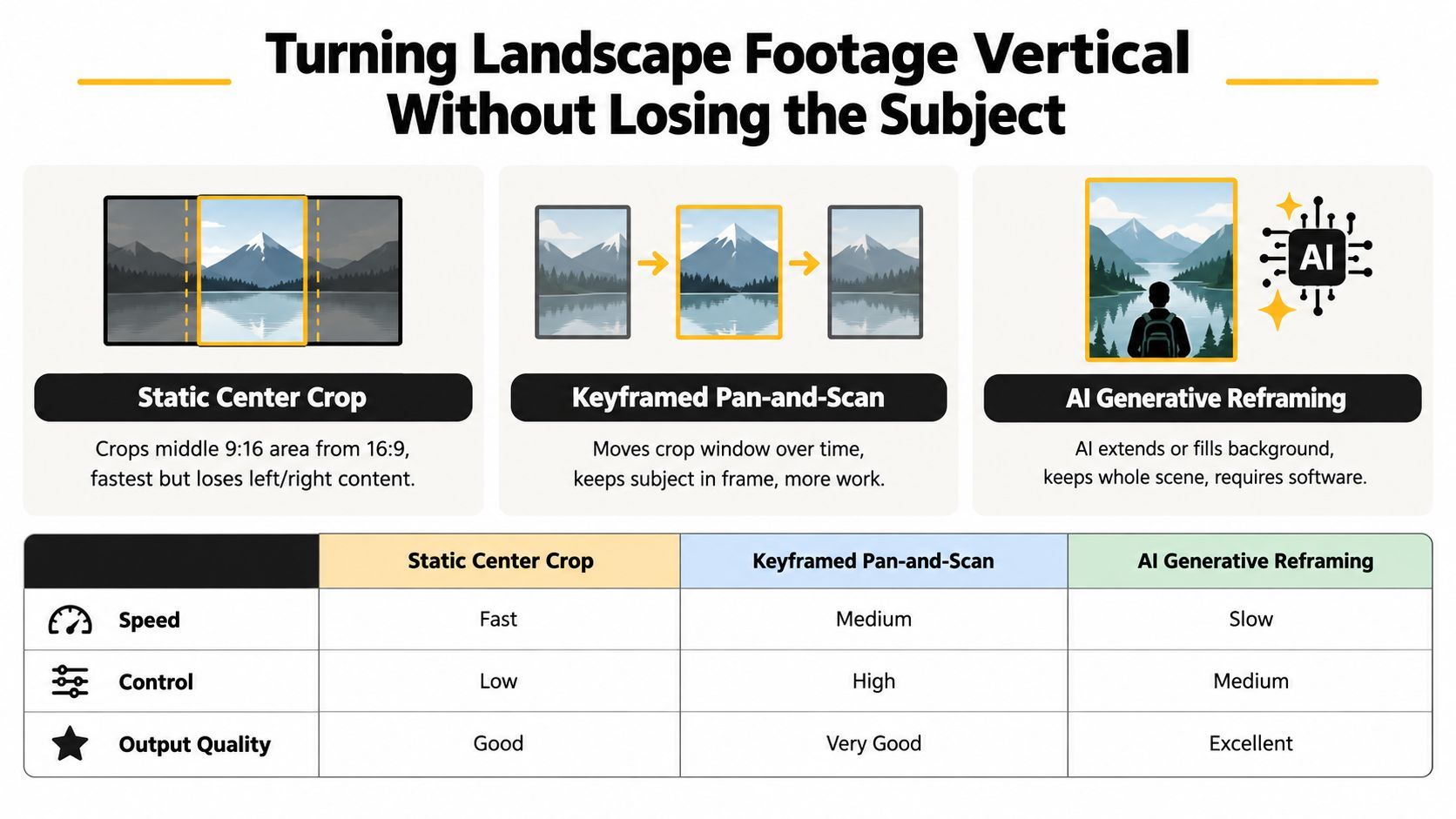
Static center crop
A static crop takes the middle portion of the frame and enlarges it to fill the vertical canvas. It is quick and can work for a single presenter who was framed tightly near the center.
The limitation is that the crop never adapts. If the speaker leans sideways, another person enters, or a product sits outside the middle, the crop may remove the detail that makes the shot understandable. Enlarging the remaining image can also make softness and compression more noticeable.
Keyframed pan-and-scan
Pan-and-scan moves the crop window as the scene develops. An editor can begin on the interviewer, shift to the guest, then follow a product or action while keeping the original recording. This provides direct control and usually preserves the scene better than a fixed center crop.
Review the movement at normal playback speed. A late adjustment can cut off a face, while a rapid adjustment can distract viewers. Interviews with two people, wide b-roll, sports, and action footage often benefit from manual keyframes because the editor can decide what deserves attention at each moment.
Automated and generative reframing
Adobe Premiere Pro's Auto Reframe and Final Cut Pro's smart conform tools can track a subject and reposition the crop. Services such as Opus Clip and ShortGenius-style workflows can speed up adaptation when a team has many source files.
Automated reframing helps when the original footage contains useful material that does not fit a vertical composition. It still needs a full review. A system may follow the most visible face while missing the product, gesture, or second speaker carrying the story. Generative tools can extend or fill background areas, but check the result for visual continuity.
Make the ratio decision before filming when possible. Shoot 9:16 natively when full-screen vertical is the main destination. Choose 4:5 when the content belongs in a feed and a shorter frame suits the distribution context. Use pan-and-scan or automated reframing when a center crop would remove important action. The goal is not to force every source into one format. It is to preserve the subject and the message in the frame each platform will show.
Export Settings and a Quick Resize Workflow
Create a clean vertical master, then derive platform versions from it. For full-screen delivery, use 1080 × 1920. For a 4:5 feed version, use 1080 × 1350. Set the frame rate to 30 fps for ordinary footage, reserving 60 fps for motion-heavy material when the source and platform workflow justify it.
A practical delivery preset looks like this:
- Resolution: 1080 × 1920 for 9:16, or 1080 × 1350 for 4:5.
- Frame rate: 30 fps, with 60 fps for motion-heavy clips.
- Video codec: H.264 for dependable delivery, or H.265 for workflows that support HDR.
- Audio: AAC stereo, with your team's approved audio quality preset.
- Review buffer: Leave a short opening and closing buffer so captions and cuts aren't clipped during upload or trimming.
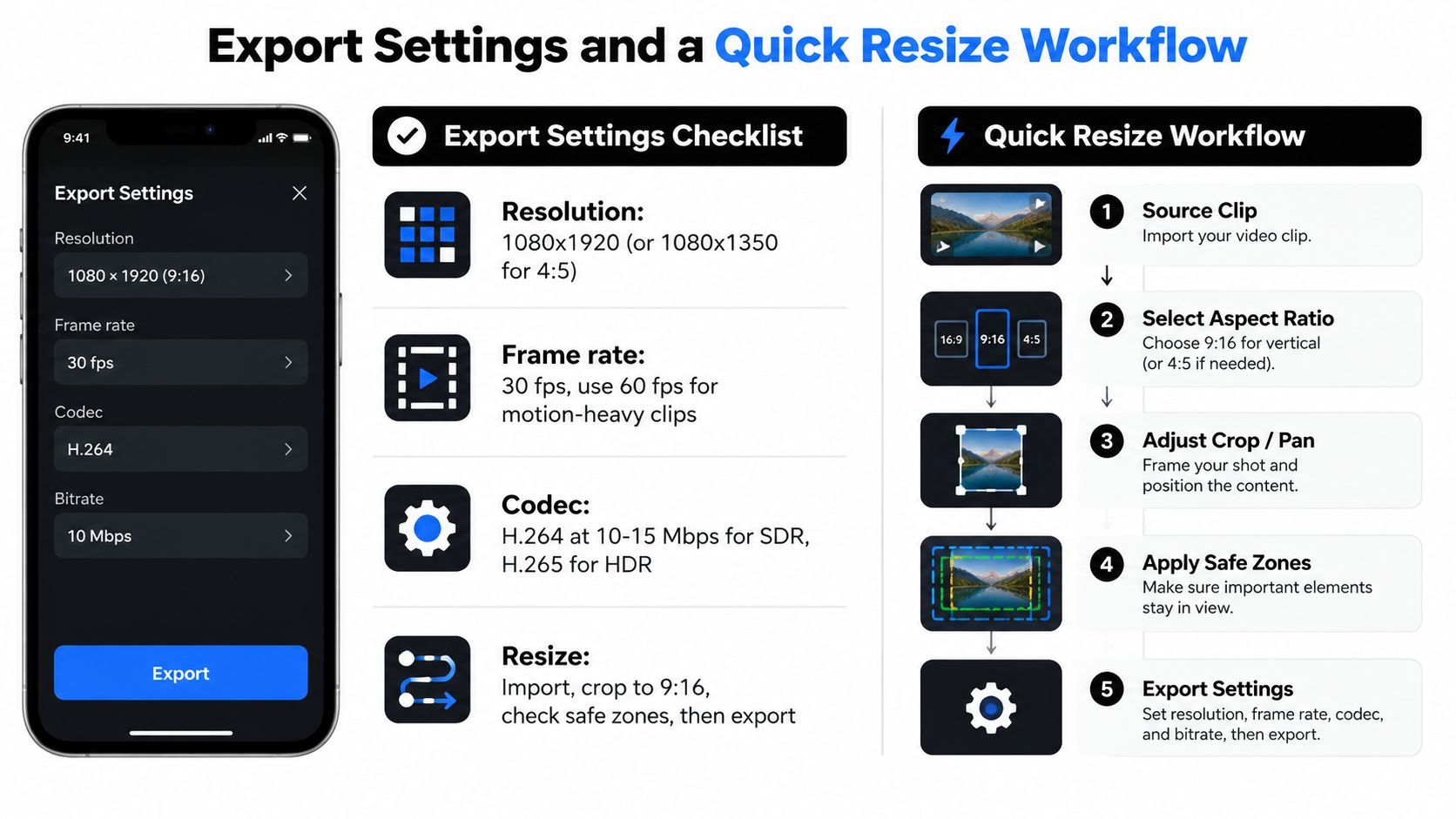
A five-step resizing workflow
- Duplicate the project. Preserve the master and create a clearly named vertical sequence.
- Change the sequence shape. Select 9:16 or 4:5 before repositioning clips.
- Choose the reframing method. Use a center crop for stable single-subject shots, pan-and-scan for movement, and automated reframing for larger batches.
- Turn on the safe-zone overlay. Check titles, captions, faces, products, and calls to action against the intended platform UI.
- Export named versions. Use Adobe Media Encoder, HandBrake, or Compressor with destination-specific presets.
Name files by platform, ratio, and version, such as listing-tour_tiktok_9x16_v02 or launch-post_instagram_4x5_v01. Store the source, project file, captions, overlays, and exports in separate folders. A team member should understand the intended destination without opening every video.
For property footage, DwellShot's vertical video tips offers useful context on preparing visual material for portrait-oriented marketing. Keep the final decision tied to the placement, not just the source image or video dimensions.
Locking In the Right Vertical Habit
Treat aspect ratio as a distribution choice made before production. The frame determines where people stand, how much movement fits, how quickly text appears, and whether a product stays visible after cropping.
A phone-shaped storyboard gives the crew a clear target. For full-screen TikTok, Reels, or Shorts, sketch the 9:16 frame first and keep faces, products, gestures, and planned text inside it. If the destination is a feed placement where 4:5 performs better, create that version deliberately rather than forcing a 9:16 master into a narrower window.
Keep a safe-zone overlay in Premiere Pro, CapCut, or DaVinci Resolve. A persistent template lets editors catch caption collisions, interface coverage, and edge crops during the cut, while reframing is still easy.
Finish with a phone-sized review. Check the opening, first caption, main action, and final call to action with platform interface areas marked. A handoff should communicate the destination, ratio, and framing rule, not say “make it vertical.”
For teams producing multiple versions, ShortGenius supports vertical-first creation, caption and brand treatments, resizing workflows, and multi-platform asset organization. Editorial review still decides whether each crop preserves the intended subject.