10 Essential Transitions for Videos to Master in 2026

Elevate your content with the best transitions for videos. Explore 10 essential types, from cuts to morphs, with pro tips to make your edits stand out.
In the fast-paced world of digital content, grabbing and holding viewer attention is everything. While compelling stories and stunning visuals are key, the unsung hero of engaging video is the transition. The right transitions for videos do more than just connect clips; they set the pace, convey emotion, and guide the narrative. A well-executed transition can make your content feel seamless and professional, while a poor choice can feel jarring and amateurish.
But with so many options, from the invisible power of a match cut to the high-energy thrill of a whip pan, how do you know which to use and when? This guide is your definitive roundup. We will dive deep into 10 essential transition types, exploring not just what they are, but their specific psychological impact and best-use scenarios.
You'll get actionable tips for flawless execution, whether you're editing manually or using modern tools to speed up your workflow. By the end of this article, you'll have a complete toolkit to elevate your editing, create more dynamic content, and turn simple clips into a polished, professional video that captivates your audience from the first frame to the last.
1. The Foundational Cut: The Backbone of Modern Editing
The cut is the most fundamental and direct of all transitions for videos. It is an instantaneous switch from one clip to the next, with no effect or overlay. Far from being boring, the standard cut is the workhorse of modern editing, responsible for the quick pacing and clear storytelling found in everything from blockbuster films to viral TikToks. Its power lies in its invisibility; when done well, a cut feels natural and directs the viewer's attention without distraction.
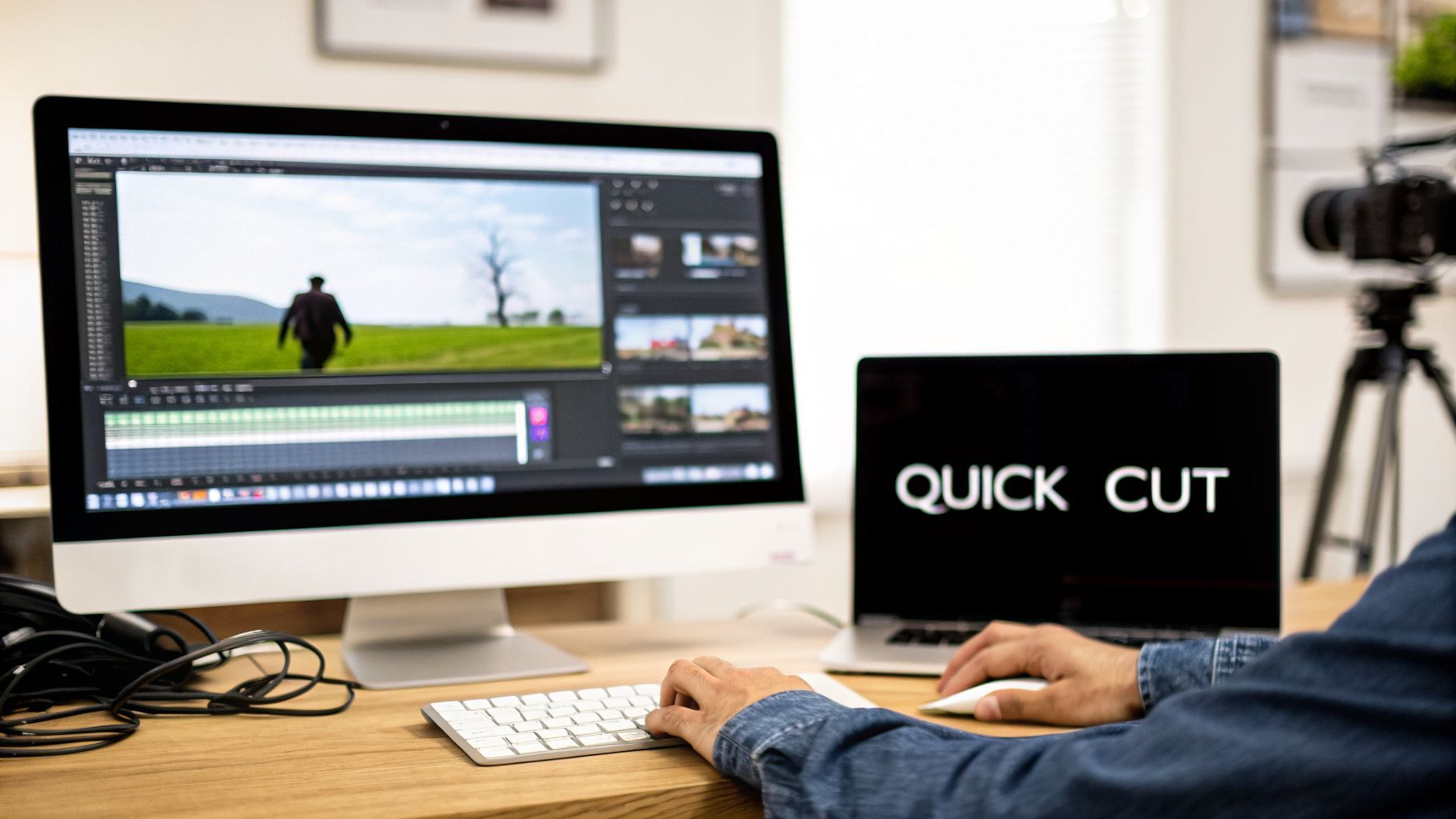
This transition is the most common in professional content precisely because it is clean and efficient. It doesn't draw attention to itself, allowing the story, action, or rhythm to take center stage. Its simplicity makes it the default choice for creating dynamic, fast-paced sequences.
When to Use a Standard Cut
- Pacing: To create a fast, energetic rhythm, especially in short-form content.
- Clarity: For straightforward storytelling in documentaries, news reports, and tutorials.
- Rhythm: To sync visual changes directly with the beat of a song in a music video or dance trend.
- Conversation: To switch between speakers in a dialogue scene, focusing on who is talking or reacting.
Actionable Tips for Effective Cuts
To make your cuts more professional and impactful, focus on what happens around the transition itself. Consider these techniques:
- Sync to the Beat: Align your cuts with strong beats or musical cues in your audio track. This creates a satisfying, rhythmic feel that keeps viewers engaged.
- Match Action: Create a "hidden" transition by cutting between two different shots of the same action. For instance, cut from a wide shot of someone opening a door to a close-up of their hand on the doorknob. The continuous motion makes the cut nearly invisible.
- Use J-Cuts & L-Cuts: Smooth the transition by letting the audio from the next clip (J-cut) or previous clip (L-cut) overlap the visual change. This is a staple in dialogue scenes.
Key Insight: The best cuts are often the ones you don't notice. Their purpose is to advance the story seamlessly, not to be a special effect. Effective editing tools can help you perfect this timing, and you can even find AI-powered tools that help generate video content with these principles in mind.
2. Fade Transition: Signaling a Change in Time and Tone
The fade is a classic, elegant transition for videos that signals a change in time, location, or mood. It works by gradually decreasing the opacity of one clip to zero while simultaneously increasing the opacity of the next, often passing through a solid color like black or white. This gentle, deliberate pace gives the viewer a moment to pause and absorb what they've just seen, preparing them for a new scene or topic.
Unlike the instantaneous cut, a fade is meant to be noticed. It’s a clear directorial choice that serves a narrative purpose, making it a staple in documentary filmmaking, corporate videos, and educational content where structure and clarity are paramount. Its smooth, cinematic quality adds a touch of professionalism and polish.
When to Use a Fade Transition
- Time Skips: To clearly show that time has passed, such as moving from day to night or jumping forward in a story.
- Location Changes: To transition between entirely different settings or locations.
- Topic Segmentation: To create chapter breaks in educational or informational videos, separating distinct ideas.
- Dramatic Effect: To end a scene with a fade-to-black for dramatic emphasis or to open a video with a fade-in for a soft start.
Actionable Tips for Effective Fades
To make your fades more meaningful, control their color and timing with precision. Consider these techniques:
- Control the Duration: Keep your fade duration between 300-500 milliseconds (0.3-0.5 seconds). This is long enough to be noticeable but quick enough to maintain good pacing.
- Fade Through Color: Use a fade-to-black for serious, dramatic, or conclusive moments. A fade-through-white often feels lighter, more optimistic, or can suggest a dream sequence.
- Pair with Audio: Always fade your audio out and in alongside your video fade. An abrupt audio cut during a smooth visual fade is jarring and feels unprofessional.
- Combine with Text: Place a fade before or after a title card or text overlay to introduce a new section. The fade gives the audience a clean slate to read the text.
Key Insight: A fade is a storytelling device disguised as an effect. Use fade-to-black to signal an end or a major shift, and fade-to-white to suggest a beginning, a memory, or a lighter tone. You can explore how even static visuals can be brought to life with such effects when you generate video from images using modern tools.
3. Slide Transition: Guiding the Viewer's Eye
The slide is a clean and modern transition that moves one scene off-screen while another slides into view. As one of the most recognizable transitions for videos in the social media era, it physically guides the viewer’s eye from one piece of information to the next. The direction of the slide-left, right, up, or down-can be used to suggest progression, movement, or a change in topic.
This transition is popular in fast-paced content, especially on platforms like TikTok and Instagram, because it feels native to the user interface of swiping through feeds. Its simplicity provides a clear and direct way to connect sequential ideas, making it ideal for tutorials, product showcases, and list-style videos where clarity is paramount. A well-executed slide feels both satisfying and intuitive.
When to Use a Slide Transition
- Story Progression: To show a sequence of events, like steps in a recipe or a "day in the life" vlog.
- Comparisons: For before-and-after reveals or comparing two different products side-by-side.
- Carousel Content: To mimic the swiping motion of a photo carousel, making video feel more interactive.
- Listicles: To introduce new points in a numbered or bulleted list, with each slide revealing the next item.
Actionable Tips for Effective Slides
To elevate your slide transitions from basic to professional, focus on intention and rhythm.
- Match Direction to Narrative: Use a slide-right to move forward in a timeline or a slide-up to reveal a result. This creates a logical flow that viewers can subconsciously follow. For instance, in a product demo, sliding left-to-right can walk a user through features in a logical order.
- Maintain Consistency: In a video with multiple slides, use the same direction to create a cohesive and clean viewing experience. A consistent directional flow helps establish a predictable rhythm.
- Sync with Audio: Align the moment the slide completes with a distinct beat in your music or a key sound effect. This adds a layer of polish and makes the edit feel more dynamic and intentional.
- Use Push Variations: Instead of a simple slide, a "push" transition (where the incoming clip shoves the outgoing one off-screen) can add more energy and a sense of force to your video's pacing.
Key Insight: The direction of a slide isn't just a visual effect; it's a storytelling tool. A thoughtful slide directs attention and reinforces the narrative, making your message clearer and more engaging. This is especially effective in short-form ads, and you can explore how AI-driven tools help create high-performing UGC ads using these precise techniques.
4. The Dissolve: Blending Time and Mood
The dissolve is a gradual transition where one clip fades out while the next simultaneously fades in, creating a smooth, overlapping effect. Softer than a cut but more direct than a fade to black, these transitions for videos create a sense of connection, passage of time, or a shift in mood. Its gentle blending suggests that the two scenes are related, making it a powerful tool for thematic storytelling.
A dissolve momentarily superimposes two images, which can produce a beautiful and often poignant visual effect. This quality makes it a staple in documentaries showing the passage of years, memory sequences in films, and emotional vlogs where a creator wants to convey a feeling of reflection or continuity between different moments in their life.
When to Use a Dissolve
- Passage of Time: To show a location changing from day to night or seasons shifting.
- Emotional Connection: To link two related emotional moments or memories, like in a lifestyle or wedding video.
- Montage Sequences: To connect a series of related shots in a documentary or narrative sequence without the jarring nature of hard cuts.
- Mood Shift: To signal a move into a dream, memory, or reflective state of mind.
Actionable Tips for Effective Dissolves
To ensure your dissolves are graceful and not clumsy, timing and context are everything. Consider these best practices:
- Mind the Duration: Keep most dissolves short, around 300-500ms, for a clean and professional look. Use longer dissolves (800ms or more) only for significant emotional or temporal shifts to give the moment weight.
- Avoid Visual Clutter: Dissolves work best when transitioning between two relatively simple or complementary shots. Blending two busy, high-action, or high-contrast scenes can look messy and disorienting.
- Layer Your Audio: Enhance the smoothness of a dissolve by having music, narration, or ambient sound flow uninterrupted across the transition. This audio bridge helps meld the two clips together seamlessly.
- Use Sparingly: Overusing dissolves, especially in fast-paced content, can slow the rhythm and make your video feel dated. Reserve them for moments where their gentle, connective quality serves a specific narrative purpose.
Key Insight: A dissolve's power is in its subtlety. It's not just a technical effect; it's a storytelling device that tells the audience, "these two things are connected." Using it intentionally adds a layer of professional polish and emotional depth to your video projects.
5. The Wipe: Directing Attention with Motion
The wipe is a classic video transition where one shot appears to be pushed or wiped off the screen by the next. This effect creates a sense of directional movement, as the incoming clip progressively sweeps across the frame in a linear path or geometric shape. From the iconic wipes in Star Wars to high-energy TikTok trends, this transition is a powerful tool for adding dynamism and purpose to a scene change.
Unlike a simple cut, the wipe is intentionally noticeable. It draws attention to the edit itself, making it perfect for creating a stylized feel, guiding the viewer's gaze, or emphasizing a shift in location, time, or topic. Its explicit movement makes it an excellent choice for adding energy and a little bit of flair.
When to Use a Wipe Transition
- Pacing and Energy: To inject motion into sports highlight reels, action movie trailers, and gaming montages.
- Narrative Flow: To guide the story forward, such as wiping in the direction a character is moving or looking.
- Comedic Timing: To reveal a punchline in a comedy sketch, with the wipe acting as a visual cue for the joke.
- Stylistic Flair: To establish a specific retro or action-oriented aesthetic, particularly in promotional content.
Actionable Tips for Effective Wipes
To ensure your wipes add value instead of feeling dated, focus on making them intentional and impactful.
- Add Sound Effects: Pair your wipe with a "whoosh" or "swoosh" sound effect. This audio-visual sync makes the transition feel more integrated and satisfying.
- Match the Direction: Align the wipe’s direction with on-screen action. If a car drives off-screen to the left, use a wipe that also moves from right to left to follow that motion.
- Vary the Speed: Use a fast wipe for energetic action sequences to maintain momentum. A slower wipe can be used more deliberately to build anticipation before a big reveal.
- Use Shapes Sparingly: Geometric wipes, like an iris (circle) or a star, are highly stylized. Reserve them for moments that need special emphasis or a specific vintage feel, as overuse can quickly look cheesy.
Key Insight: A wipe transition works best when it has a clear purpose. Use its inherent directionality to guide the viewer’s eye, signal a change, or reinforce the energy of the scene. Its strength lies in being a visible effect that actively contributes to the story.
6. Morph/Shape Transition: The Creative Transformation
The morph is a fluid and visually striking transition that smoothly transforms one object, shape, or scene into another. Unlike a hard cut or a simple overlay, a morph creates the illusion of one element literally becoming something else through an organic, animated process. These types of transitions for videos are staples in motion design and high-end brand content, perfect for creating memorable reveals and showcasing creative prowess.
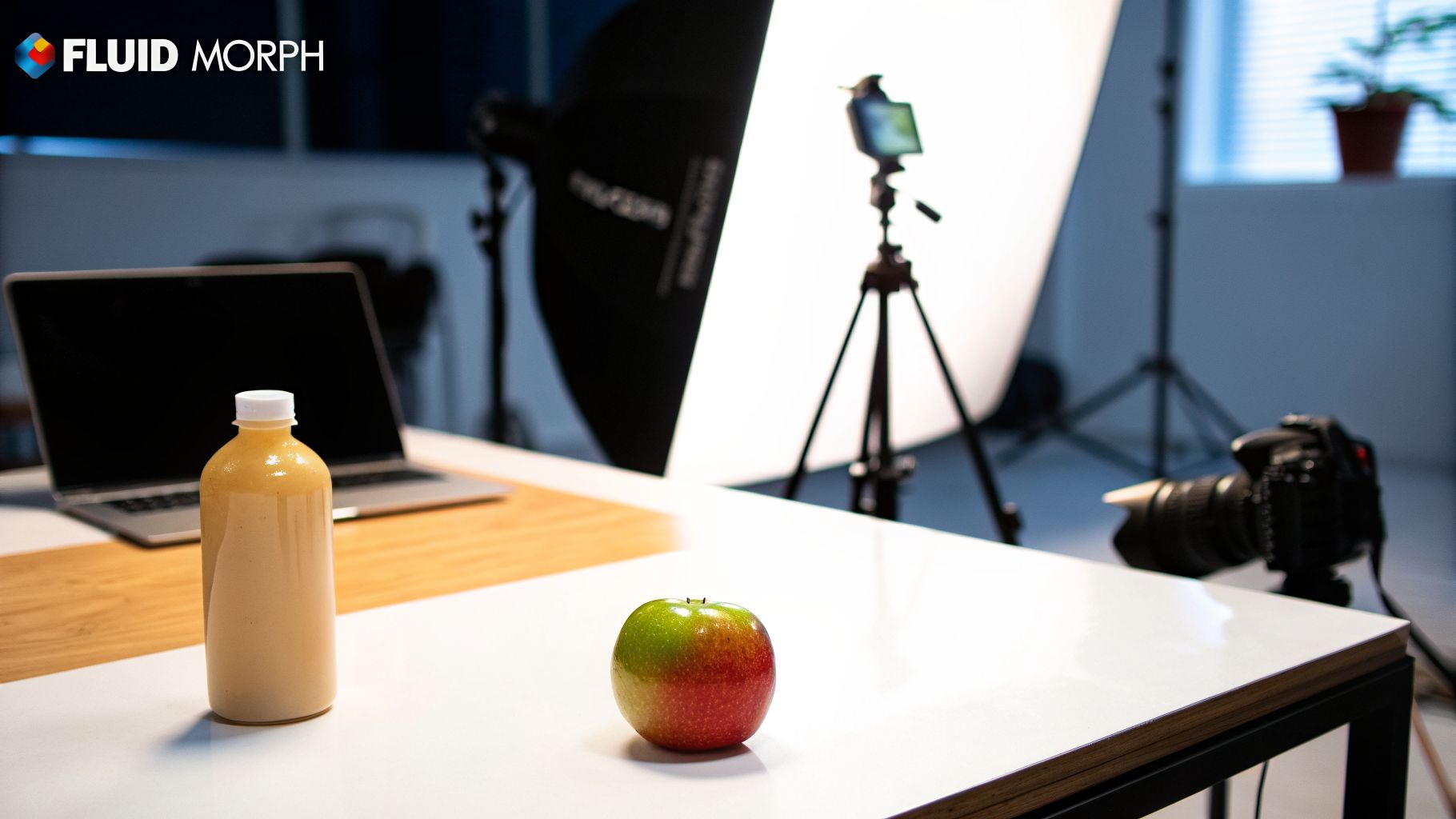
This effect moves beyond a simple scene change to become a storytelling device in itself. Popularized by motion design studios and advanced AI video platforms, the morph is ideal for making a strong visual statement, whether it's transforming a product sketch into the final item or a company logo into a new brand identity.
When to Use a Morph/Shape Transition
- Creative Reveals: To unveil a new product, logo, or design in a dramatic fashion.
- Storytelling: To visually connect two different ideas or concepts, such as turning a seed into a full-grown tree.
- Brand Moments: For high-impact introductions or outros in commercials and brand videos.
- Design-Focused Content: In motion graphics portfolios or design tutorials to showcase skill and creativity.
Actionable Tips for Effective Morphs
To achieve a clean, professional-looking morph, careful planning is key. The goal is a seamless transformation, not a jumbled mess.
- Align Compositions: Position your starting and ending elements in similar locations within the frame. A smoother morph occurs when the main subject doesn't have to travel far across the screen.
- Focus on a Single Element: For maximum clarity, morph one key object at a time rather than the entire scene. This directs the viewer's eye and makes the effect more impressive.
- Amplify with Sound: Pair the visual transformation with dramatic sound design, like a whoosh, swell, or custom sound effect, to give it more weight and impact.
- Use AI for Automation: Creating morphs manually can be time-intensive. Modern editing tools can automate the process, analyzing both clips to generate a fluid transition between them.
Key Insight: A great morph feels like magic. It’s a powerful tool for visual storytelling that can make a brand or product feel dynamic and modern. When executed well, it leaves a lasting impression on the viewer.
7. The Zoom/Scale Transition: Adding Punch and Emphasis
The zoom transition is a dynamic and forceful effect that rapidly scales a scene in or out to reveal the next clip. Unlike a simple camera zoom, this transitions for videos technique often involves keyframing the scale property of both clips to create a seamless motion. It can generate the illusion of traveling through the screen, diving into a detail, or pulling back to reveal a wider context, making it a favorite for adding energy and focus.
This effect commands attention, making it perfect for short-form content where grabbing the viewer is critical. Its ability to create both dramatic and comedic impact has made it a staple in music videos, comedy sketches, and high-energy TikToks. The zoom transition serves as a visual exclamation point, ensuring the viewer looks exactly where you want them to.
When to Use a Zoom/Scale Transition
- Emphasis: To punch in on a specific subject or reaction for comedic or dramatic effect.
- Rhythm: To sync visual movement with strong musical beats, drops, or sound effects.
- Reveals: To zoom out and reveal a surprising or larger context that changes the meaning of the scene.
- Focus: To guide the viewer's eye from a wide shot to a crucial detail before cutting away.
Actionable Tips for Effective Zooms
To make your zoom transitions feel intentional and polished, pay close attention to their timing and execution.
- Sync with Audio: The most effective zooms are timed perfectly with audio cues. Align a fast zoom-in with a cymbal crash, a bass drop, or a punchline to create a powerful audiovisual connection.
- Vary the Intensity: Not all zooms need to be aggressive. A slow, subtle zoom can build tension or add a touch of elegance, while a fast, jarring zoom is great for comedy and action.
- Use Motion Blur: Add motion blur to your zoom effect to make the movement look more natural and less digital. This helps smooth the transition and makes it easier on the eyes, especially with fast motion.
- Combine with a Cut: Often, the best zoom transition isn't a pure effect but a "zoom cut." You zoom in rapidly on the first clip and cut to the second clip, which is already zoomed in and then pulls back. This creates a fluid "in-and-out" motion.
Key Insight: A zoom transition's power is in its ability to direct attention and add energy. Use it purposefully to highlight key moments or to create a rhythmic pulse that keeps your audience captivated. These effects are often available as presets in modern editing software.
8. Cross Dissolve with Motion (Speed Ramp)
The speed ramp is one of the most dynamic transitions for videos, blending a change in playback speed with a smooth dissolve. It involves slowing down one clip to a near-halt, cross-dissolving into the next clip which starts in slow motion, and then ramping back up to normal speed. This technique creates a powerful, cinematic flow, stretching time to emphasize a specific moment or emotion before seamlessly moving on.
Popularized by modern cinematic YouTubers and sports videographers, the speed ramp excels at creating dramatic reveals and highlighting peak action. It gives the editor precise control over the pacing and emotional weight of a scene, turning a simple cut into a deliberate, stylized moment that captures the viewer's attention.
When to Use a Speed Ramp Transition
- Emotional Emphasis: To slow down and linger on an impactful emotional moment, like a reaction or a meaningful glance.
- Action Highlights: For drawing attention to the peak of an action in sports reels, such as a slam dunk or a goal.
- Dramatic Reveals: To build anticipation before revealing a new location, product, or character in cinematic vlogs.
- Musicality: To match the tempo change in a song, slowing down for a bridge and speeding up for a chorus or beat drop.
Actionable Tips for Effective Speed Ramps
To master the speed ramp, focus on the timing and audio synchronization, as these elements are what make the effect feel intentional and polished.
- Sync to Audio: Align the slowest point of your ramp with a significant sound cue, like a cymbal crash, a bass drop, or a sudden silence. This makes the visual change feel motivated by the audio.
- Enhance with Sound Design: Amplify the effect by adding whoosh sounds as the speed changes or applying reverb and echo to the audio during the slow-motion portion. This adds an immersive, dramatic layer.
- Use High Frame Rate Footage: For the smoothest slow-motion, film your clips at a higher frame rate (e.g., 60fps or 120fps). This prevents the footage from looking choppy when you slow it down.
- Ease In and Out: Use "easing" or "bezier" curves in your editing software to make the speed change gradual rather than abrupt. A smooth ramp feels more professional and less jarring to the viewer.
Key Insight: A great speed ramp isn't just about changing speed; it's about controlling time to guide the audience's focus. The combination of slow motion, a soft dissolve, and synchronized audio creates a powerful storytelling device that feels both artistic and purposeful.
9. Whip Pan/Swish Pan Transition
A whip pan, also known as a swish pan, is one of the most energetic transitions for videos, creating a powerful sense of motion and speed. It involves a rapid camera pan that moves so quickly the image blurs into a horizontal streak, effectively "wiping" from one scene to the next. This effect mimics a physical head turn, giving the transition a visceral, high-impact feel perfect for grabbing viewer attention.
This technique has become a staple in action movie trailers and fast-paced short-form content on TikTok and Instagram Reels. Its raw energy makes it ideal for conveying urgency, excitement, or a sudden change in location or thought. The intentional motion blur directs the audience's gaze and connects two otherwise disparate clips with a surge of momentum.
When to Use a Whip Pan
- Action Sequences: To connect fast-paced shots in a fight scene or chase.
- High-Energy Montages: To quickly cycle through multiple clips in a travel vlog or event recap.
- Social Media Trends: For "before and after" reveals or to match popular video formats.
- Comedic Timing: To add a punchline effect by quickly cutting to an unexpected reaction or outcome.
Actionable Tips for Effective Whip Pans
To execute a clean and impactful whip pan, focus on both the camera movement and the post-production details.
- Add a "Whoosh": The visual effect is only half the story. Pair the whip pan with a corresponding "whoosh" or "swoosh" sound effect to make the transition feel more powerful and immersive.
- Match Direction: For a seamless flow, ensure the direction of your whip pan aligns with the movement in your shot. For example, if a car is moving from left to right, whip your camera to the right to follow it.
- Bookend with Stillness: An effective whip pan starts and ends on a relatively stable shot. This contrast between stillness and extreme motion makes the transition pop.
- Sync to Music: Time your whip pans to land on strong beats or crescendos in your background music. This creates a satisfying rhythmic experience that keeps viewers hooked. For social media, where dynamic transitions like the whip pan are key to engagement, consider exploring dedicated social media content creation tools.
Key Insight: A great whip pan is not just about speed; it's about control. You can create the effect in-camera by physically whipping the camera or simulate it in post-production using directional blur and keyframes. Both methods require clear start and end points to avoid a chaotic, disorienting result.
10. The Match Cut: Creating Intellectual and Visual Connections
The match cut is a sophisticated editing technique that joins two distinct scenes by linking them with similar visual elements, actions, or compositions. Instead of a simple effect, it’s a creative choice that creates a "visual rhyme," making the viewer's brain draw a connection between two seemingly different moments. It’s one of the most powerful transitions for videos for storytelling, famously used in cinema to bridge time, space, and ideas.
This transition relies on clever planning and shot composition rather than a post-production effect. By matching shapes, colors, or movements across a cut, you create a seamless and often profound link. This technique can make a cut feel almost invisible while simultaneously packing it with thematic meaning, turning a simple edit into a statement.
When to Use a Match Cut
- Narrative Storytelling: To show the passage of time or connect a character's past to their present.
- Thematic Connections: To link two different ideas or concepts visually, creating a metaphor (e.g., cutting from a spinning roulette wheel to a clock).
- Visual Flow: To create a smooth, almost magical transition in music videos or artistic sequences.
- Educational Content: To connect an abstract concept to a real-world visual example.
Actionable Tips for Effective Match Cuts
To execute a compelling match cut, planning is everything. It often starts before you even press record.
- Plan in Pre-Production: The most successful match cuts are storyboarded or planned in advance. Know what two shots you intend to connect.
- Match Shapes and Lines: This is the most common form. Cut from one circular object (like a plate) to another (like the moon). Look for similar lines, shapes, and forms in your frames.
- Match on Action: Cut from one character starting an action to a different character or setting where a similar action is completed. This creates a strong sense of continuous motion and connection.
- Use Sound to Bridge the Cut: A sound that begins in the first clip and continues or resolves in the second can reinforce the visual match and make the transition even smoother.
Key Insight: A match cut does more than just change scenes; it invites the audience to think. Its purpose is to create meaning and build a deeper connection between different parts of your story, making it a hallmark of thoughtful editing.
Top 10 Video Transitions Comparison
| Transition | 🔄 Implementation Complexity | ⚡ Resource / Performance | ⭐ Expected Outcome | 📊 Ideal Use Cases | 💡 Key Advantages |
|---|---|---|---|---|---|
| Cut Transition | Very low — instant edit, no effects | Minimal — no render overhead, no file inflation | ⭐⭐⭐⭐ — crisp pacing, invisible when matched | Short-form, news, music videos, fast edits | Fast, universal, preserves momentum; use J/L-cuts and beat sync |
| Fade Transition | Low — simple opacity keyframes | Low — trivial CPU/GPU cost | ⭐⭐⭐ — smooth closure, signals change | Documentaries, educational, brand chapter breaks | Timeless, professional; pair video+audio fades for cohesion |
| Slide Transition | Low–Medium — directional motion setup | Low — lightweight transform animation | ⭐⭐⭐ — adds motion and flow without heavy FX | Product showcases, carousel videos, comparisons | Suggests direction/progression; keep direction consistent |
| Dissolve Transition | Low–Medium — overlapping opacity blend | Low — modest render time for overlap | ⭐⭐⭐⭐ — seamless continuity, softer than cuts | Montages, lifestyle vlogs, memory sequences | Implies thematic link; use sparingly in fast content |
| Wipe Transition | Medium — directional/shape masking | Low–Medium — simple masks or presets | ⭐⭐⭐ — bold, stylized reveal | Trailers, action promos, sports highlights | Strong momentum and visibility; pair with whoosh SFX |
| Morph/Shape Transition | High — requires morphing tools or keyframes | High — heavier render, often AI-assisted | ⭐⭐⭐⭐ — highly memorable, creative transformations | Brand reveals, logo animations, design-driven content | Unique branded identity; align source/dest elements, use AI to assist |
| Zoom/Scale Transition | Low–Medium — scaling + timing | Low — modest transform processing | ⭐⭐⭐ — dynamic emphasis, attention directing | Music videos, comedy punchlines, action clips | Emphasizes focal points; sync with beats, vary intensity |
| Cross Dissolve with Motion (Speed Ramp) | Medium–High — timing + speed curves | Medium — temporal resampling can be heavier | ⭐⭐⭐⭐ — cinematic, dramatic emphasis | Sports highlights, cinematic vlogs, music drops | Controls pacing, creates slow-mo reveals; sync to music |
| Whip Pan / Swish Pan | Medium — precise timing, blur handling | Low — simple motion blur or in-camera pan | ⭐⭐⭐⭐ — very energetic and attention-grabbing | TikTok trends, fast vlogs, action edits | High-energy transition; use whoosh SFX and match pan direction |
| Match Cut Transition | High — requires shot planning/composition | Minimal — editorial technique, no effects | ⭐⭐⭐⭐ — sophisticated, "invisible" narrative link | Cinematic storytelling, documentaries, music videos | Elevates storytelling without FX; plan in pre-production |
Putting It All Together: Your Blueprint for Better Video Transitions
We’ve navigated a broad spectrum of techniques, moving from the invisible workhorse of the Cut to the cinematic flair of the Match Cut. Your journey through this guide has equipped you with a diverse toolkit of transitions for videos, each a potential solution for connecting your ideas, scenes, and moments with purpose. The core principle that ties them all together is intentionality. A great transition is never an afterthought; it’s a deliberate choice that serves the story.
The difference between an amateur and a professional edit often lies in how these connections are handled. A simple Dissolve can signal the passage of time with grace, while a high-energy Whip Pan can inject adrenaline and excitement. Choosing the right transition means understanding the emotional and narrative impact you want to create.
Key Insight: Don't just apply a transition because it looks cool. Ask yourself: What feeling am I trying to evoke? How does this choice support the pace and rhythm of my video? The answer will always guide you to the most effective option.
From Technical Knowledge to Creative Application
Mastering transitions for videos is a two-part process. First comes the understanding of what each transition does, which we've covered in detail. The second, more crucial part, is developing an instinct for when and why to use them. This is where you move from a technician to a storyteller.
Here’s a practical blueprint to put these concepts into action:
- Audit Your Next Project: Before you start adding effects, map out your video's emotional arc. Identify key moments where you want the audience to feel a shift in energy, time, or location. These are your prime opportunities for a meaningful transition.
- Create a "Pacing Map": Think of your video's rhythm. Does a section need to feel fast and punchy? Stick to hard cuts or quick Whip Pans. Does it need to be more reflective and calm? A slow Dissolve or a gentle Fade will serve you better.
- Experiment with Contrast: Try placing a very fast transition next to a slow one. Use an organic L-Cut to smooth over a conversation, followed by a jarring Glitch effect to signify a system error or a psychological break. The contrast makes each choice more powerful.
The Modern Creator’s Advantage
The great news is that executing these ideas no longer requires years of motion graphics experience or complex software. The barrier to entry for creating polished, professional-looking video content has been significantly lowered. You can now achieve a perfect Morph or a dynamic Speed Ramp in minutes, not hours.
This accessibility allows you to focus on the most important part: the creative strategy. Instead of getting bogged down in keyframes and effects panels, you can concentrate on the story you’re telling and the audience you’re trying to reach. The tools are here to support your vision, allowing you to produce higher-quality content faster than ever. This is your chance to stand out, create a signature style, and build a deeper connection with your viewers. The only remaining step is to start creating.
Ready to apply these techniques without the steep learning curve? ShortGenius (AI Video / AI Ad Generator) lets you create stunning videos with professional transitions instantly. Its AI-powered engine understands pacing and context, helping you produce high-impact content in just a few clicks. Try ShortGenius today and see how quickly you can elevate your video editing.