10 Best Text on Video Software Tools for 2026

Find the best text on video software for your needs. We review 10 top tools for captions, animated text, and social shorts, with pros, cons, and pricing.
Most videos lose people before the first sentence lands. The hook might be fine, the edit might be clean, but if someone is watching on mute, half the message never reaches them. That's why text on video software stopped being a nice extra and became part of the core publishing workflow.
The pressure to move faster is real. Global digital video ad spend topped USD 191.4 billion in 2024, and that same roundup notes that nearly 89% of businesses reported using video marketing by 2025. Teams aren't just editing videos anymore. They're turning scripts, product copy, lessons, promos, and reposts into captioned assets for multiple channels.
I see the same bottleneck over and over. Recording is quick. Writing is manageable. The slowdown happens when someone has to caption, style, resize, reposition text for different aspect ratios, and fix whatever gets covered by platform UI. That's where the right tool saves time, and the wrong one creates cleanup work.
This guide gets straight to the tools that matter. Some are best for solo creators shipping Shorts every day. Others fit agencies, educators, in-house marketing teams, or editors who need exact control over subtitles, lower thirds, and motion typography. If you need the fastest path from words to watchable video, start here.
1. AI Short-Form Video Generator for TikTok, Reels and Shorts
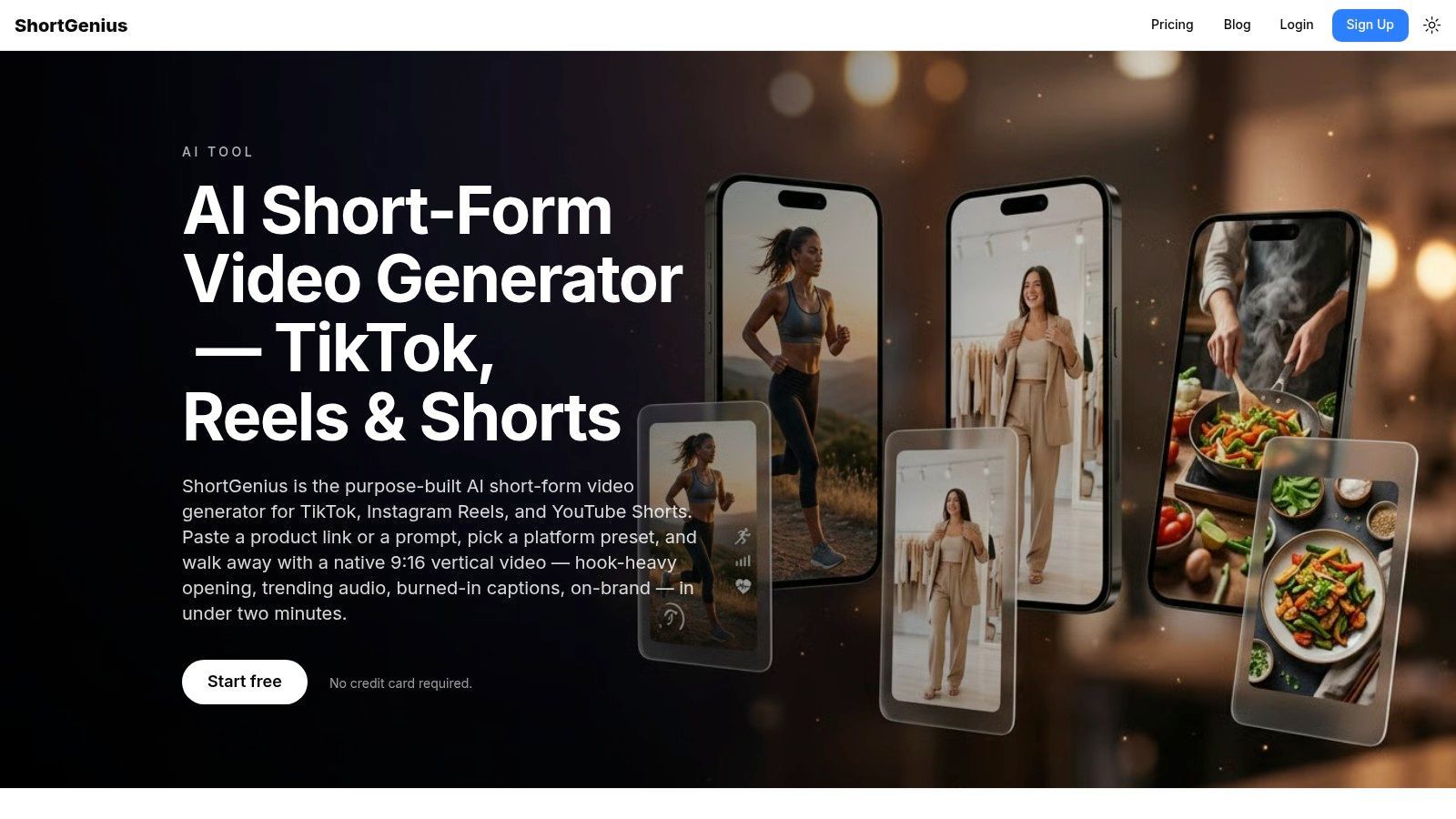
A common short-form workflow looks like this. The script is ready, the footage is usable, and the post still stalls because captions need cleanup, text keeps drifting into the platform UI, and each resize creates another round of manual fixes. AI Short-Form Video Generator is built for that specific bottleneck.
It fits creators and teams whose output lives on TikTok, Reels, and Shorts, where speed matters but text placement matters just as much. The tool focuses on vertical delivery, burned-in captions, and text timing that feels native to short-form platforms. For a solo creator publishing daily, or an agency turning one script into several social variants, that trade-off makes sense. You give up some timeline-level freedom in exchange for faster publishing and less cleanup.
The broader short-form video workflow in ShortGenius also covers scripting, voice, assets, brand kits, and scheduling, which is useful if you want fewer handoffs between tools.
Who it's best for
This is a strong fit for solo creators, social media managers, DTC brands, and agencies producing short-form volume. It works especially well for talking-head clips, product promos, educational content, UGC-style ads, and repurposed posts where readable on-screen text is required every time.
Practical rule: Use burned-in captions when guaranteed readability matters more than subtitle toggles.
What I like here is the bias toward execution. Word-level caption highlighting keeps spoken lines visually active, and the vertical templates reduce the usual second pass where someone has to drag text upward to avoid captions, buttons, or profile UI. That sounds minor until you're producing in batches.
What works and what doesn't
What works:
- Fast production for social shorts: You can go from script to publishable vertical video without stitching together multiple apps.
- Better default text placement: Safe-zone awareness helps more than flashy title effects when the goal is retention.
- Useful for repeatable workflows: Brand consistency, voiceovers, scripts, and scheduling sit in one system, which saves time for teams making lots of variations.
What doesn't:
- Caption review is still necessary: Auto-captions can miss product names, slang, pacing, or speaker intent.
- Burned-in captions limit flexibility: They improve visibility, but they are less useful when a client wants optional subtitle files later.
- Less suited to heavy custom editing: If you need frame-by-frame title animation or full timeline control, a traditional editor will give you more room.
If AI narration and speech-driven caption timing are part of your process, it also helps to understand Whisper text to speech, because transcription and voice quality directly affect how polished the final short feels.
2. Adobe Premiere Pro
Adobe Premiere Pro is still the default answer when text needs to serve a larger edit, not just a social post. If you're cutting ads, brand videos, interviews, product explainers, or longer YouTube pieces, Premiere gives you enough captioning and title control to stay efficient without boxing you into templates.
Its strength is range. You can generate captions, build lower thirds, apply brand fonts, and hand off advanced animation work to After Effects when static text isn't enough. That flexibility is why agencies and in-house teams keep using it even when lighter web tools look faster on the surface.
Best fit
Premiere Pro is ideal for editors who already think in timelines. If you care about sequence control, exact text timing, motion graphics, and a clean handoff between rough cut and final finishing, text on video software begins to feel professional instead of convenient.
- Strong caption workflow: Speech-to-text, editable captions, and formatting options are mature enough for client work.
- Brand control: Essential Graphics is useful for repeatable lower thirds, title cards, and on-brand callouts.
- Deep ecosystem: Frame.io, Adobe Fonts, Adobe Stock, plugins, and After Effects matter when projects get more complex.
The trade-off is obvious. Premiere takes time to learn, and it can feel heavy if all you need is subtitles on vertical clips. But when text is just one layer in a broader post-production process, that extra depth saves headaches later.
Premiere is the tool I trust when a quick social cut turns into six deliverables, three review rounds, and a client asking for animated supers at the last minute.
3. CapCut
CapCut is what a lot of creators reach for when speed matters more than polish hierarchy. It gets text onto video fast, and what's key is that it looks like the internet already looks. That's a huge reason it keeps showing up in creator workflows.
The tool is optimized for social editing behavior. Drop in footage, run auto-captions, choose a text style that feels current, export, post. If you're making TikToks, talking-head breakdowns, commentary clips, meme edits, or quick Reels, that friction level is hard to beat.
Where CapCut wins
CapCut's biggest advantage is momentum. You don't need much setup, and you don't need to think like an editor to get decent-looking text overlays.
- Social-native styles: Animated caption looks and text presets feel made for Shorts culture.
- Cross-device use: Web, desktop, and mobile make it easy to tweak wherever you're working.
- Quick turnaround: Text-to-speech, overlays, and subtitle generation are easy to stack in one session.
Where it falls short is consistency. Auto-captions can be uneven depending on audio quality, and some features behave differently across devices or regions. For one-off creator content, that's fine. For a brand team trying to standardize output, it can get messy fast.
CapCut is best for solo creators who need speed and can tolerate a little improvisation. It isn't the tool I'd pick for strict brand systems or heavily reviewed corporate production.
4. VEED
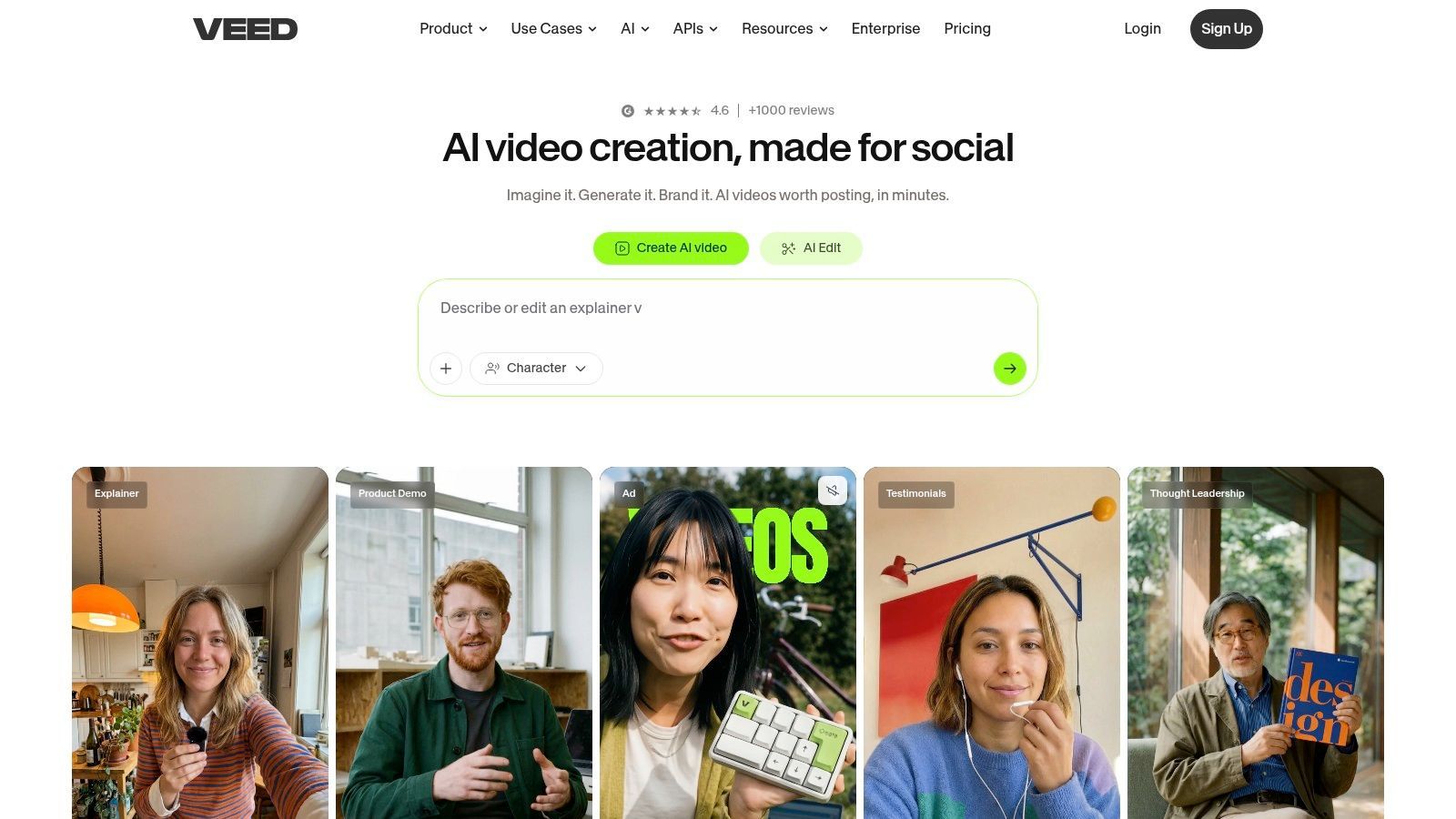
VEED sits in a useful middle ground. It's simpler than a full editor, more structured than a creator toy, and better suited to teams than many mobile-first apps. If your work involves subtitles, translated versions, quick social resizes, and shared review loops, VEED makes sense quickly.
A lot of browser editors promise speed, then fall apart once multiple people touch the same project. VEED handles distributed work better than most. Non-editors can understand it, which matters when marketing teams, founders, account managers, or clients need to review text and approve messaging.
Good for agencies and distributed teams
VEED is strongest when text is tied to publishing operations. Subtitle exports, branded overlays, and social resizing are practical features, not side features.
- Subtitle handling: Auto-subtitles, transcript cleanup, and subtitle file export are useful for teams publishing in several formats.
- Brand support: Brand kits help keep fonts and colors from drifting between editors.
- No-install workflow: Browser access lowers the barrier for contributors who aren't full-time video people.
Its limits show up in motion design. If you want dense kinetic typography or nuanced title animation, VEED won't replace Premiere or Resolve. But if you need a shared text on video software setup for marketing output, training clips, and fast campaign variations, it's one of the easiest places to start.
5. Descript
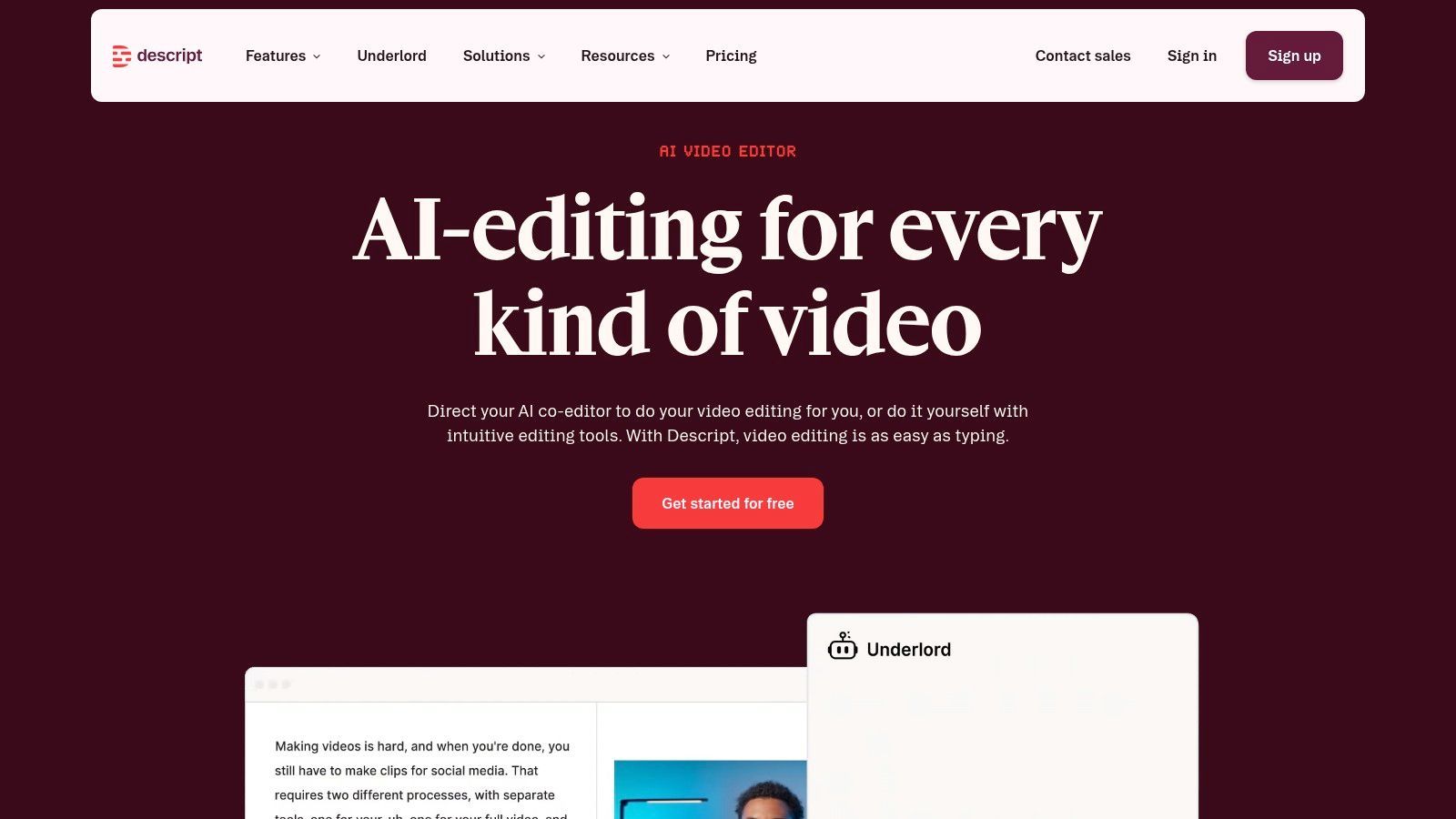
A common Descript job looks like this: record a 45-minute interview, cut it into three Shorts, fix the captions, and send a clean version to a client before the day ends. That workflow is where Descript earns its place.
Descript is built for editors who work from spoken content first and visuals second. Instead of scrubbing a timeline for every trim, you edit the transcript and let the cuts follow. For podcasts, webinars, internal training, founder clips, and course lessons, that can save a lot of time. It also changes who can handle revisions. A producer, marketer, or client can often suggest line edits directly in the text without needing real timeline skills.
Best for transcript-led production
Descript fits solo creators, podcast teams, educators, and small agencies turning long recordings into multiple assets. If your process starts with dialogue and ends with clips, captions, and publish-ready exports, it is one of the more efficient options in this list.
- Edit by transcript: Removing filler lines, repeated phrases, or weak answers is fast because the text drives the cut.
- Caption cleanup: Auto-captions, speaker-based edits, and quick style adjustments are practical for social and training content.
- Repurposing: Pulling short segments from a longer interview is much faster here than in a traditional NLE.
- Team accessibility: Non-editors can usually review wording and structure without getting lost in a full editing interface.
There is a trade-off. Descript is strong at getting spoken content into shape, but it is not the tool I would choose for high-end motion typography, layered title design, or detailed visual compositing. Agencies producing polished ad creative may still cut selects in Descript, then finish in Premiere Pro or Resolve. That split workflow is normal.
The primary value is operational. If VEED is stronger for shared browser-based review and Canva is stronger for template-driven brand assets, Descript is stronger when the transcript is the center of the job. For teams choosing software by use case instead of raw feature count, that distinction matters more than another animation preset.
6. Canva
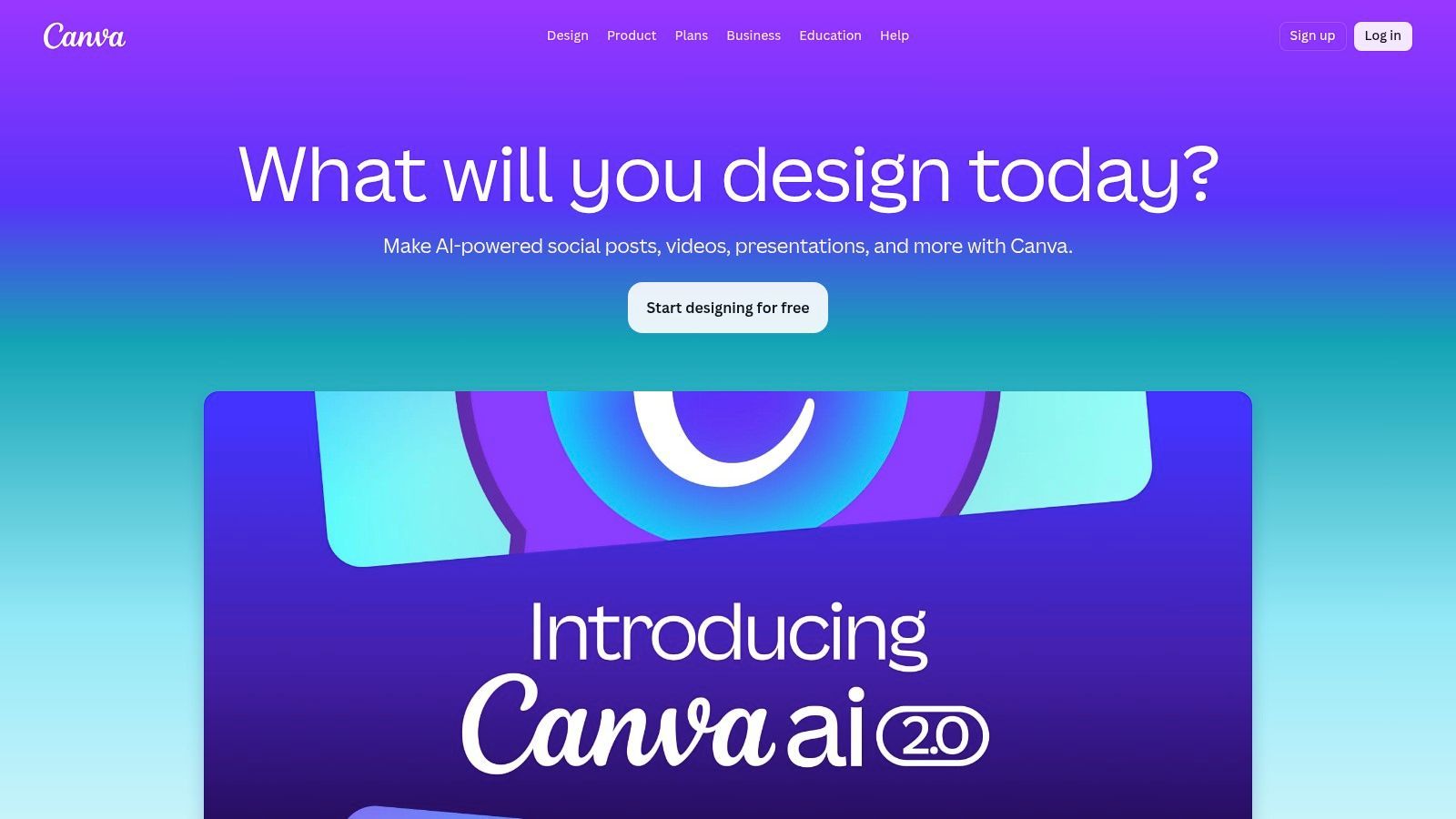
Canva is the pick for teams that already think in brand templates, not edit timelines. If your social manager, marketer, assistant, or educator needs to turn existing brand assets into videos with clean text overlays, Canva keeps the process approachable.
Its biggest advantage is familiarity. People already use Canva for thumbnails, decks, ads, PDFs, and social graphics. Adding basic video text work inside that same environment often beats introducing a separate tool with a steeper learning curve.
Best for branded social content
Canva isn't a caption specialist. It's a design-first video tool that happens to be very handy for text overlays, title slides, quote videos, promo snippets, and educational graphics.
- Template speed: Teams can build repeatable motion text formats without starting from scratch.
- Resize workflow: Switching between 9:16, 1:1, and 16:9 is straightforward.
- Brand consistency: Fonts, logos, colors, and stock assets stay in one place.
The limitation is control. Once you need dense subtitle workflows, transcript editing, or advanced motion typography, Canva starts to feel shallow. But for many businesses, that simplicity is the reason it gets used instead of abandoned.
7. Kapwing
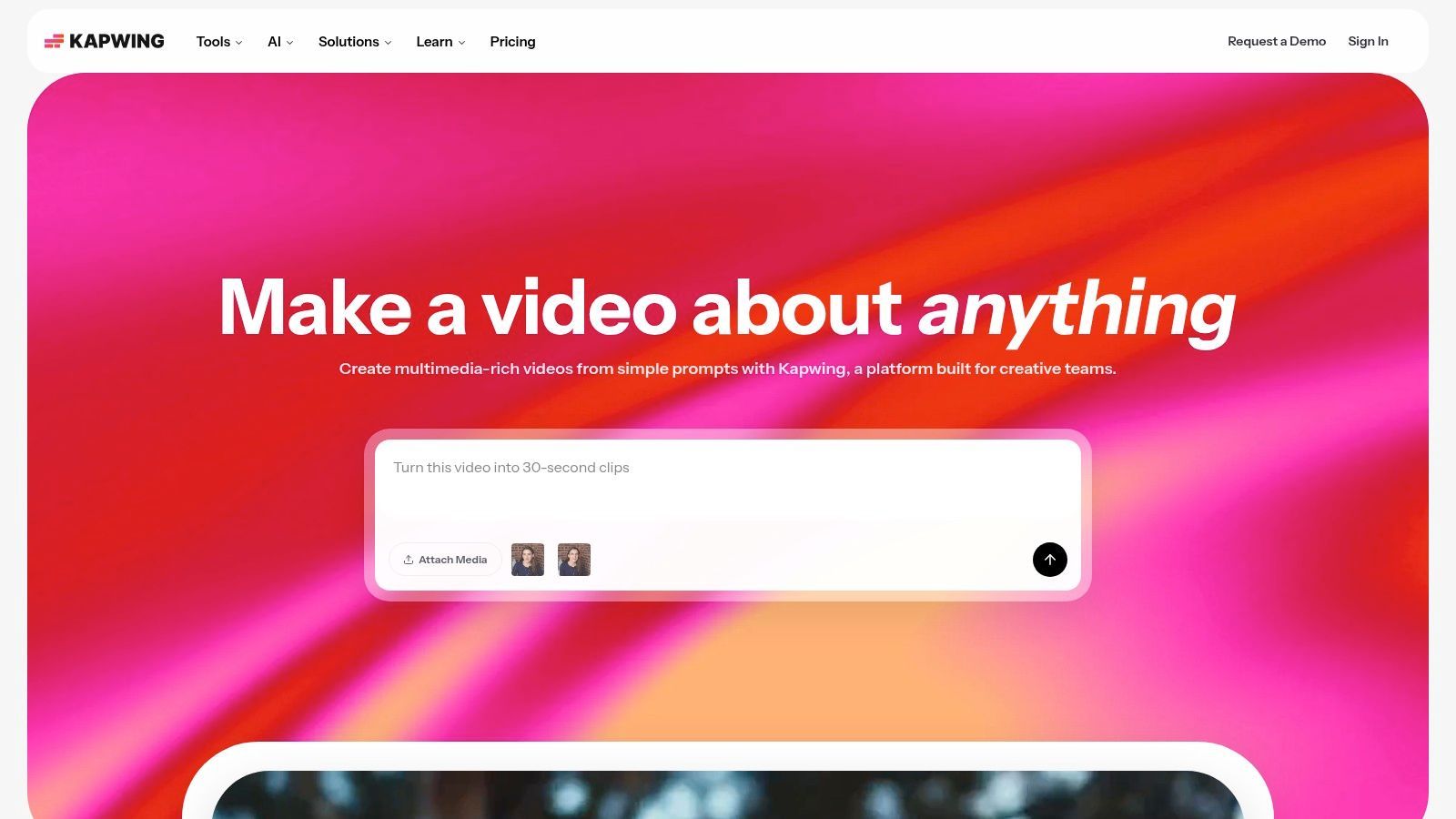
Kapwing has always been useful for people who want subtitle speed without giving up collaboration. It works well when multiple stakeholders need to review wording, tweak captions, export subtitles, and approve versions without opening a heavy desktop editor.
For social teams, publishers, and agencies, that matters more than flashy effects. A lot of text on video software looks fine for one editor and one file. Kapwing is better when the work includes revisions, comments, and distribution across channels.
Where Kapwing earns its spot
Its auto-subtitle workflow is the main draw. You can generate captions, edit the transcript, burn them in, or export subtitle files depending on where the video is going.
- Good review flow: Teams can make text changes in-browser instead of sending screenshots back and forth.
- Useful export options: Hardcoded captions and SRT, VTT, or TXT exports cover most publishing needs.
- Translation support: Helpful when the same asset needs multiple language versions.
Kapwing isn't the deepest editor on this list, and some stronger export options sit behind paid plans. But for collaborative subtitle production, it's one of the cleaner tools to hand to non-specialists.
8. Microsoft Clipchamp
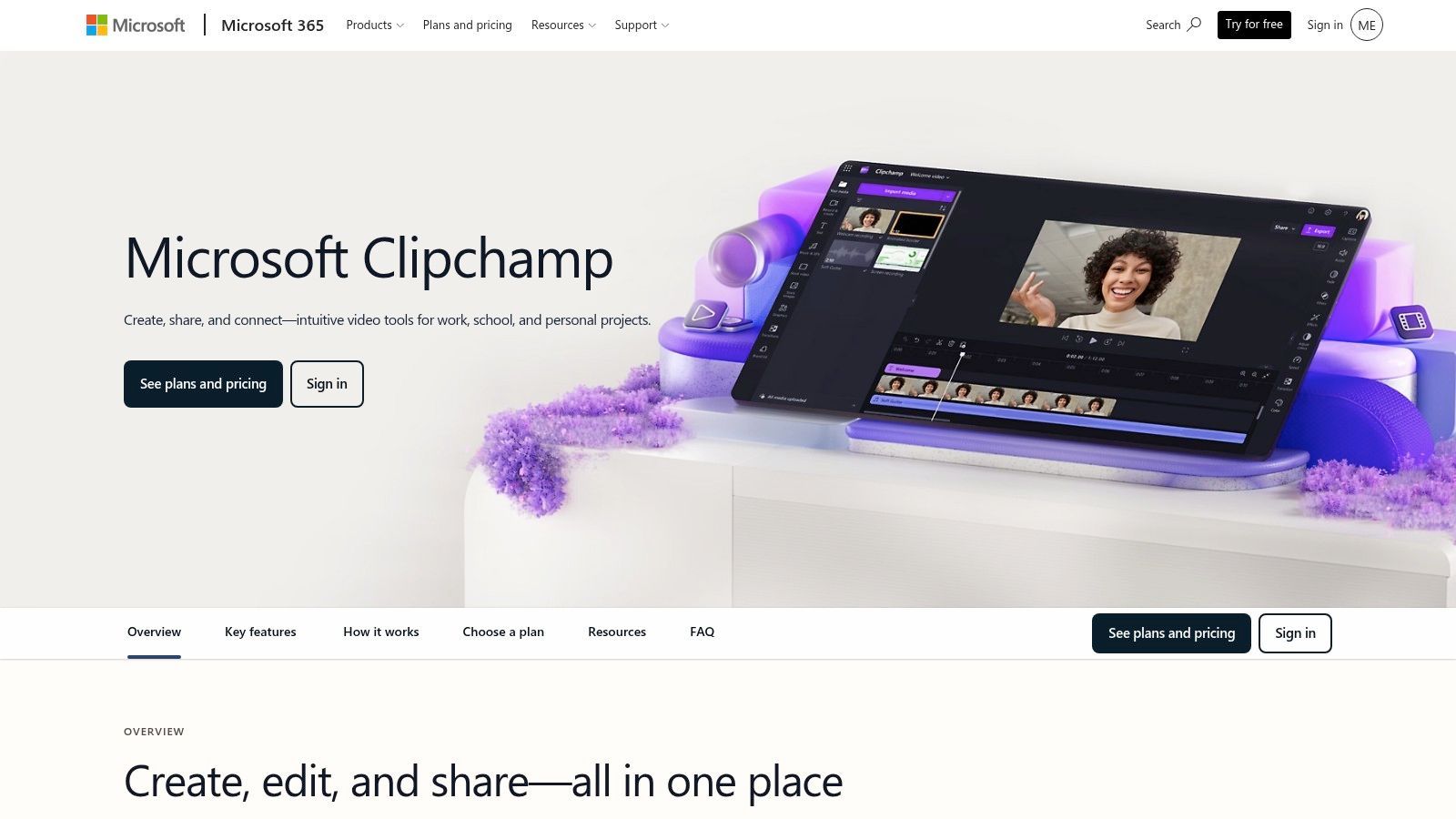
Clipchamp makes sense when the audience is corporate users, teachers, internal comms teams, or anyone already living in Microsoft 365. It doesn't try to win on trend-driven creator aesthetics. It wins by being understandable.
That's underrated. Plenty of teams don't need cinematic text effects. They need clean captions on training clips, internal updates, product walkthroughs, and classroom materials without a long onboarding curve.
Best for practical business use
Clipchamp gives non-editors enough text tools to get useful work out the door.
- Straightforward captions: Auto-captions and timeline text tools are easy to find and adjust.
- Microsoft ecosystem fit: That convenience matters when approvals, file sharing, and daily work already happen in Microsoft products.
- Low-friction learning: New users can usually start editing without much setup.
Its main weakness is creative range. If your brand depends on expressive caption styles or motion-heavy social editing, Clipchamp will feel plain. For internal and educational use, plain is often exactly right.
9. Zubtitle
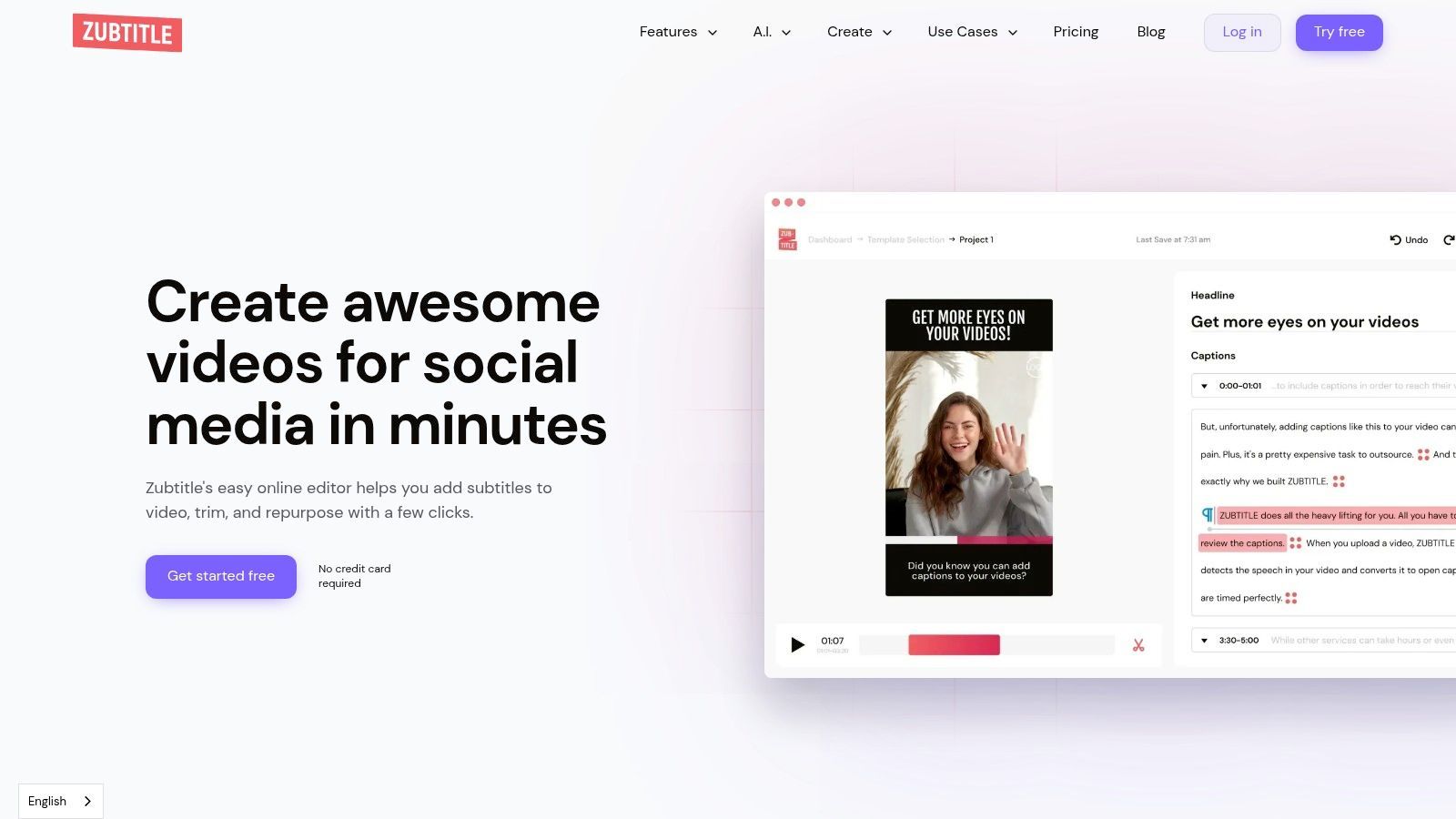
Zubtitle is for people who don't want a full editor. They want captions, a headline bar, maybe a progress bar, a social-friendly frame, and then they're done. In that narrow lane, it's efficient.
I like tools like this when the job is repetitive. Talking-head posts, LinkedIn clips, repurposed podcast snippets, and interview fragments don't always need a broad editing environment. They need a fast caption treatment that looks clean.
Narrow tool, clear purpose
Zubtitle is strongest when captioning is the task, not one step in a larger creative build.
Keep these focused tools for repeatable social packaging. Don't force them into full post-production jobs.
- Fast caption output: Auto-transcription with editable text is the core workflow.
- Social framing: Headline bars, progress bars, and aspect-ratio presets are useful for business content.
- Simple exports: Burned-in captions and subtitle files cover the common next steps.
The trade-off is obvious. Once you need scene edits, layered graphics, or serious visual storytelling, you'll hit the wall quickly. Zubtitle is best used as a finishing utility for short clips.
10. DaVinci Resolve
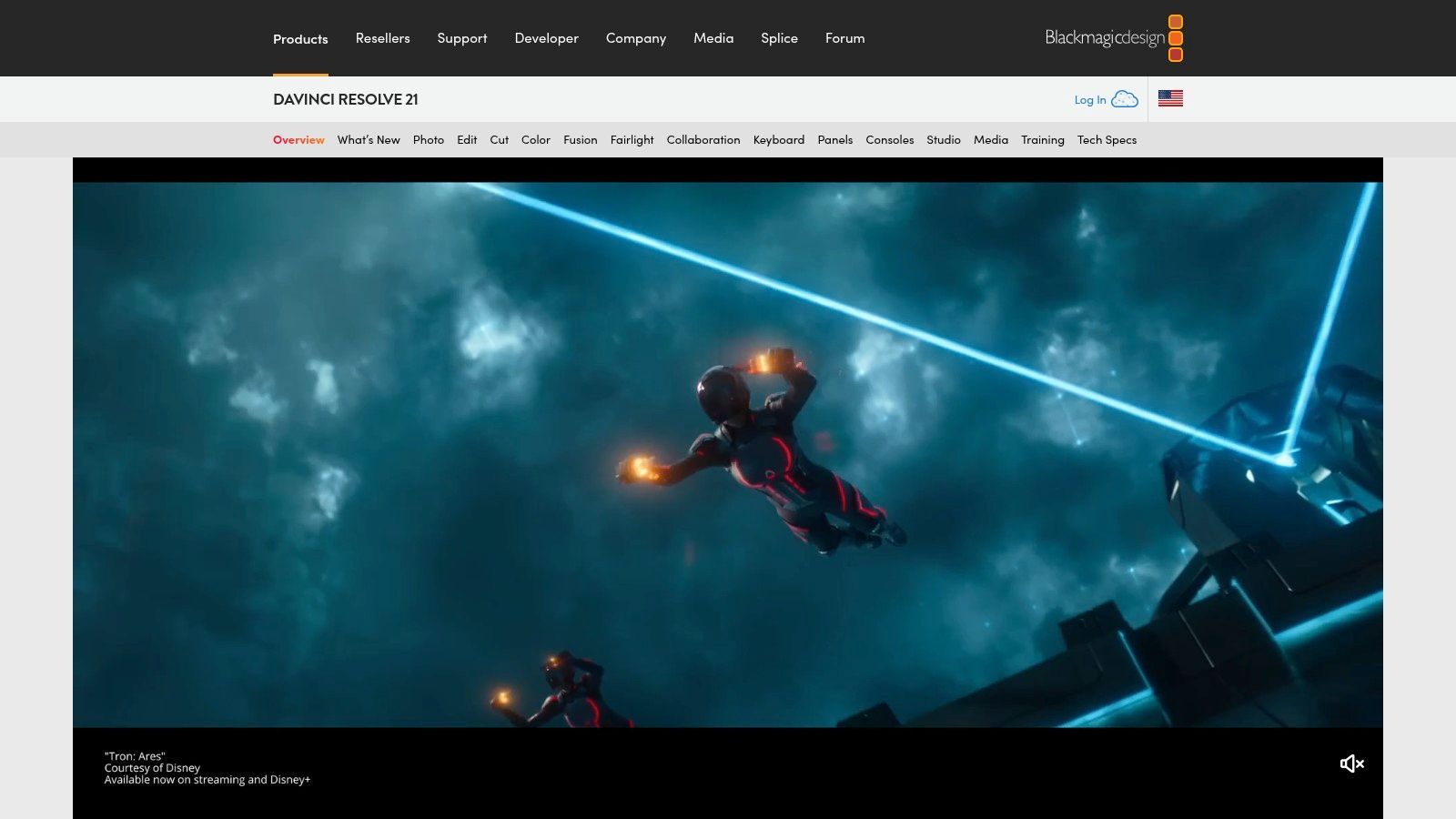
A common Resolve job looks like this. The cut is locked, the color pass is underway, and someone asks for cleaner subtitles, better lower thirds, and a title sequence that feels branded instead of templated. Resolve handles that kind of late-stage text work well because the text tools live inside a serious finishing environment.
For this guide's user-based categories, Resolve fits editors, post teams, and agencies producing polished work rather than fast social batches. It makes sense for brand films, YouTube episodes with higher production value, training videos, documentaries, and client work where text has to match the rest of the finish. If the main job is pumping out captioned shorts at volume, tools earlier in this list are faster.
Why experienced editors keep Resolve in the stack
The advantage is consolidation. Editing, subtitles, color, audio, and motion graphics can stay in one project, which cuts down on versioning mistakes and awkward handoffs between apps. That matters once approvals start changing timing and every text element has to follow.
Resolve also gives you two very different levels of text workflow. The basic title tools are quick enough for normal lower thirds and clean subtitles. Fusion Text+ is where you go for animated typography, tracked callouts, and custom builds that would feel limiting in lighter editors.
- Strong free tier: A lot of creators can handle subtitles, titles, and branded text without paying upfront.
- Serious text control: Fusion Text+ gives editors precise animation, layout, and styling options.
- Good fit for finishing work: Subtitle timing, title revisions, and export control are better than what you get in lightweight social tools.
The trade-off is time. Resolve asks for setup, practice, and a stronger machine than browser-based tools. I recommend it for people who already edit regularly, or teams that need one system for editing and finishing, not for a solo marketer trying to caption five clips before lunch.
Top 10 Text-on-Video Software Comparison
| Tool | Core features | Quality & UX | Best for 👥 | Unique USP ✨ | Pricing 💰 |
|---|---|---|---|---|---|
| AI Short-Form Video Generator, TikTok, Reels & Shorts (ShortGenius) | Vertical-first AI assembly; burned-in captions; word-level caption sync; script→video→voice→schedule | ★★★★★ 🏆 Fast end-to-end short-form scale | Creators & teams scaling multi-channel shorts | ✨ Word-sync captions + one-click trending audio; scheduling & API | 💰 SaaS tiers, creator → team |
| Adobe Premiere Pro | Pro NLE; Speech-to-Text; Essential Graphics; After Effects integration | ★★★★ 🏆 Industry-standard power & extensibility | Professional editors, agencies | ✨ Advanced motion typography & plugin ecosystem | 💰 Subscription (Adobe CC) |
| CapCut | Auto-captions; trend templates; animated text; mobile+web | ★★★★ | Mobile-first creators & quick social edits | ✨ Trend-aligned templates; mobile UX | 💰 Freemium; in-app / paid features |
| VEED | Browser subtitling; brand kit; translation; one-click resize | ★★★★ | Distributed teams & agencies needing fast subtitling | ✨ Web-native translations + easy brand templates | 💰 Freemium → Pro tiers |
| Descript | Edit-by-text transcript; one-click captions; AI assist; karaoke highlights | ★★★★ 🏆 Transcript-first speed for dialogue-driven content | Podcasters, interviewers, explainers | ✨ Text-based editing + dynamic caption highlights | 💰 Freemium; pro plans |
| Canva | Design-led templates; resize + brand kit; animated text | ★★★★ | Non-designers, marketers, social teams | ✨ Massive template + stock library for branded social | 💰 Freemium; Pro subscription |
| Kapwing | Auto-subtitles; translation; collaboration; export controls | ★★★★ | Creator teams & small agencies needing cloud workflow | ✨ In-browser collaboration + subtitle exports | 💰 Freemium; paid plans |
| Microsoft Clipchamp | Azure-powered auto-captions; timeline text; M365 integrations | ★★★ | Corporate/educational teams in Microsoft ecosystem | ✨ Tight Microsoft 365 integration; Azure captions | 💰 Free/basic; premium via M365 or Clipchamp |
| Zubtitle | Fast auto-transcription; animated captions; social presets | ★★★ | Creators needing quick, styled captions for talking heads | ✨ Caption-first presets & progress/headline bars | 💰 Low-volume / pay-per-video; limited free tier |
| DaVinci Resolve | Pro edit/color/VFX; Fusion Text+; native subtitle tracks | ★★★★★ 🏆 Pro finishing & cinematic typography | Filmmakers, colorists, high-end post teams | ✨ Fusion kinetic typography; powerful free tier | 💰 Free core; one-time Studio upgrade |
Choosing Your Perfect Video Text Tool
A creator records six solid clips for Reels, then loses half a day fixing caption timing, resizing layouts, and rebuilding the same text treatment for each platform. That is usually the actual buying decision. The right tool is the one that removes the slowest, most repetitive part of your workflow.
Choose by user type and use case first, not by raw feature count. Solo creators making social shorts usually need speed, presets, and quick caption styling. Agencies and in-house teams care more about review, brand consistency, and producing variations without rebuilding every edit. Corporate tutorial teams often need clear subtitles, screen recording, and simple handoff for non-editors. Once you sort your work that way, the shortlist gets much smaller.
ShortGenius fits teams focused on high-volume short-form production. It is built for script-to-video workflows where captions, voice, overlays, resizing, and publishing all need to happen fast. That matters for creators, media buyers, and social teams producing repeatable TikTok, Reels, Shorts, and UGC ad variations. As noted earlier, it is a strong fit when the bottleneck is turning ideas into platform-ready vertical videos quickly.
Descript makes more sense for dialogue-heavy work. If the source material is a podcast, interview, webinar, training clip, or founder video, editing through the transcript is often faster than hunting through a timeline. The trade-off is control. You gain speed on spoken-word edits, but you give up some of the precision you would get in Premiere Pro or Resolve for advanced motion text and detailed finishing.
Adobe Premiere Pro and DaVinci Resolve are still the better choice when typography is part of the craft, not just a delivery requirement. They take longer to learn, and they ask more from your hardware. In return, they handle the fussy jobs properly: exact lower thirds, custom motion behavior, subtitle styling for client standards, and finishing work that lightweight tools struggle with. For freelancers, agencies, and post teams, that extra control often pays for itself.
VEED, Kapwing, Canva, and Clipchamp sit in the middle. They work well for mixed-skill teams that need decent text tools, fast onboarding, and browser-based collaboration. Canva is strongest when branded templates matter. Kapwing and VEED are practical for cloud review and quick social output. Clipchamp is a sensible pick inside Microsoft-heavy organizations that want simple production without teaching everyone a pro editor.
Zubtitle is narrower, but that is not a bad thing. It is useful for talking-head videos where the main job is getting readable, styled captions out the door fast.
Text readability deserves more attention than it gets. Fancy subtitle treatments can look good in a demo and fail in an actual feed. On mobile, text competes with platform UI, bright backgrounds, and fast scrolling. High contrast, safe placement, restrained animation, and consistent sizing usually beat decorative choices. Teams that get this right spend less time revising and publish more consistently.
A practical way to choose is to match the tool to your current bottleneck:
If speed from script to short video matters most, use ShortGenius.
If spoken-word editing is slowing you down, use Descript.
If brand systems and easy handoff matter more than editing depth, use Canva, VEED, Kapwing, or Clipchamp.
If clients are paying for polish and exact control, use Premiere Pro or DaVinci Resolve.
If you want a broader view of creator-friendly mobile workflows, this roundup of apps for editing Instagram videos is a useful complement.
Pick the tool that removes one expensive step from your process today. That is usually a better decision than paying for a longer feature list you will not use.