How to Share a Large Video File: 6 Best Methods for 2026

Struggling to share a large video file? Discover 6 methods: cloud storage, transfer services & more. Find the best workflow for speed, quality, & security.
You export a final cut, drag it into Gmail, and get the same message every producer has seen: the file is too large. That usually happens right when a client wants the link in five minutes, an editor is waiting on notes, or a partner agency needs footage before the day ends.
The fix isn't to keep fighting email. The fix is to stop treating video delivery like an attachment problem. To share a large video file well, you need the right workflow for the kind of file, the person receiving it, and the level of control you need after it leaves your machine.
Why Your Video File Is Too Big to Email and What to Do
You finish an export, attach it to an email, and the send fails. That usually happens because email was built for documents and quick attachments, not production files that can run from a few hundred megabytes to many gigabytes.
The size limit is only the first problem. Even if a mail service accepts the file, email gives you weak control over versioning, access, expiration, and download behavior. In practice, that creates more work. A client reviews the wrong cut. A freelancer forwards a private link. Someone on mobile cannot open the attachment cleanly.
A better approach is to treat delivery as a workflow choice. The right setup depends on what you are sending, who needs it, how fast they need it, and what happens after they open it. If you need a quick way to create and distribute lighter social edits before sharing the final master, tools for generating short-form video workflows at ShortGenius can reduce the file-size problem upstream.
What professionals do instead
In active production, teams usually choose from four practical options:
- Cloud storage for shared folders, review rounds, and files that need to stay available
- Dedicated transfer services for one-off deliveries where speed and simplicity matter
- SFTP or accelerated transfer tools for source footage, large batches, or controlled technical handoffs
- Physical drives for very large media sets or locations with poor internet service
Each option solves a different problem. A client approval file and a camera original should not follow the same path. One needs easy viewing and clean permissions. The other needs reliability, full quality, and often a chain of custody.
I tell junior producers to use email for instructions, not transport. Send the link, spell out what the recipient should review or download, and send any password through a separate channel if the footage is sensitive.
That keeps the process faster, cleaner, and easier to control.
How to Choose the Right Sharing Method for Your Needs
A bad sharing choice usually shows up at the worst time. The client cannot open the file on a phone. The editor downloads the wrong version. A private cut gets forwarded because the link permissions were too loose. Choosing the method first saves cleanup later.
Start with the recipient, not the platform
Use the workflow your recipient can handle without extra coaching.
An assistant editor can work inside a shared folder with versioned files, sign-in requirements, and nested assets. A client reviewing one cut usually needs a clean link, a clear filename, and a note that says exactly what to approve. A social manager working from a phone may need compressed exports, fast preview access, and a format that does not force a desktop download.
Access control matters just as much as convenience. Among shared files in organizations, 12.8% were visible to the entire company, 28.3% were shared with business partners, and 6.1% were sent to external users, according to Computerworld's reporting on file-sharing usage. That is a practical reminder to set permissions on purpose, especially for unreleased cuts, client work, or licensed footage.
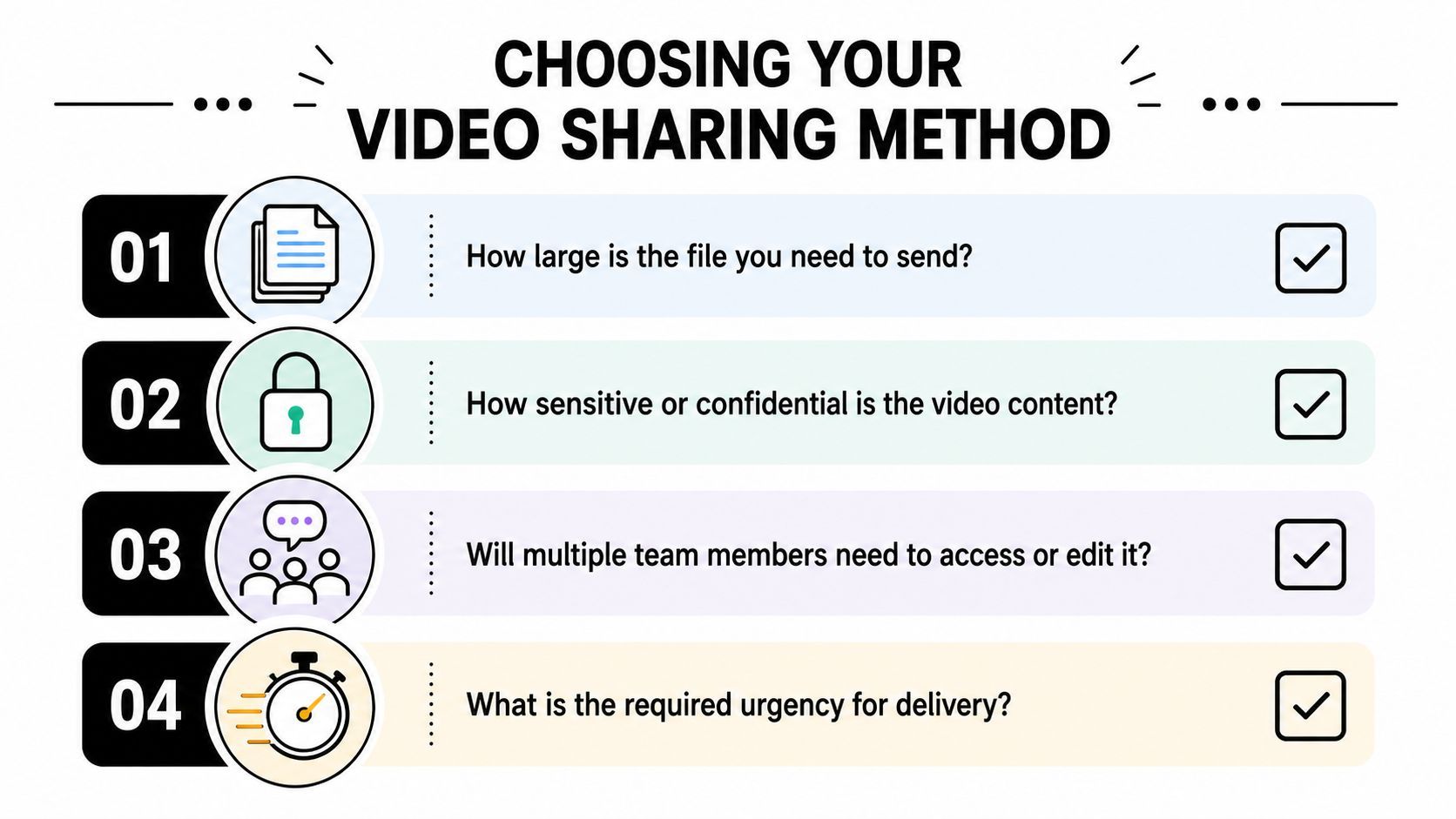
Four decisions that prevent most sharing mistakes
| Question | Why it matters | Best fit |
|---|---|---|
| How large is the file really? | A review export, a ProRes master, and a folder of camera originals each create different upload times and storage demands. | Lightweight exports fit simple transfer tools. Large masters and source media usually need cloud storage or pro transfer methods. |
| Who is receiving it? | The right method for a post team can frustrate a client or brand partner. | Clients need easy access. Editors, agencies, and internal teams can work inside structured systems. |
| Is this one-time or ongoing? | Repeat handoffs create version confusion if each send lives in a separate link or attachment. | One-off deliveries fit transfer services. Ongoing projects fit shared folders with organized permissions. |
| How sensitive is the footage? | A fast link is not enough if the file contains embargoed work, paid media, or internal interviews. | Sensitive files need expiry dates, passwords, download limits, revocable access, or account-based permissions. |
Ask one more question if the recipient is away from a desk: Will they open this on mobile? That changes the right choice faster than many teams expect. A huge mezzanine file may be perfect for post, but useless for a client trying to review on a train between meetings.
Match the workflow to the creative goal
The goal decides the method.
If the team is handing off selects, graphics, transcripts, and revised cuts over several days, use a setup that keeps everything in one place and supports repeat access. If the job is delivering a final approval export, remove friction and make the review step obvious. If the file is headed to a freelancer for immediate turnaround, speed may matter more than long-term folder structure. If the footage is sensitive, accept a slower handoff in exchange for tighter control.
This is less about tools and more about discipline. Good teams standardize filenames, delivery states, review notes, and permissions before the upload starts. If your team is building a repeatable short-form pipeline, a short-form video workflow system can reduce the number of oversized files you need to pass around in the first place, but the handoff still has to match the asset, the recipient, and the risk.
Method 1 Cloud Storage for Collaborative Workflows
A producer exports a new review cut at 6:40 p.m. The client comments at 7:15. The editor swaps in a revised file before 8:00. That handoff falls apart fast if every round lives in a separate email thread.

Cloud storage works best when the file is part of an ongoing process, not a one-time send. Use it when a project has review rounds, multiple stakeholders, supporting assets, or access rules that may change over time. Its primary value is not just file size support. It is control. One location, one version path, one permission model.
When cloud storage is the right call
Choose cloud storage if the recipient needs to come back more than once.
That usually means:
- Creative review cycles with updated cuts over several days
- Shared project folders that include scripts, captions, thumbnails, graphics, and exports
- Team access control where producers, editors, clients, and freelancers should not all see the same files
- Version-sensitive work where the wrong cut creates rework or approval confusion
For this kind of job, a shared folder is better than repeated one-off sends. The team knows where the current cut lives. Comments stay attached to the asset. New rounds do not force everyone to hunt through old messages.
Build the folder like a workflow, not a dump
Cloud storage only helps if the folder makes sense to the recipient. I set these up as if someone will open them on a phone, late, with no context.
A practical structure looks like this:
- Project root folder named for the client, campaign, or deliverable
- Review Exports for files meant to be watched and discussed
- Source Assets for raw footage, audio, graphics, or transcripts when access is needed
- Final Approved for locked masters and delivery files
Naming matters just as much. Use filenames that answer three questions at a glance: what it is, where it is going, and whether it is approved. “ClientX_15s_IGStory_v04_review.mp4” is useful. “final_FINAL2_use_this_one.mp4” is how teams waste an afternoon.
Field note: If the folder does not clearly separate review files from approved deliverables, someone will send the wrong version.
Cloud platforms also help with replacement and continuity. Instead of generating a fresh email every round, the team works from the same project space. Producers can manage permissions, clients can return to prior cuts, and editors keep the revision trail in one place. That matters when feedback arrives from three people who did not watch the same version.
Here's a quick walkthrough of cloud-based sharing in action:
Trade-offs to expect
Cloud storage is strong for collaboration, but it asks for more setup than a basic transfer link.
What works well
- Ongoing review and revision
- Folder organization across many assets
- Permission settings for view, edit, or download access
- Reusable links for recurring collaborators
What often slows teams down
- Access settings can confuse clients if the wrong restriction is applied
- Large uploads may need processing time before preview or playback works well
- Shared folders can expose extra assets if permissions are set too broadly
- Mobile review is inconsistent if the file is too heavy or the preview format is unsupported
The trade-off is straightforward. Cloud storage gives you structure, repeat access, and tighter control, but it rewards teams that plan the handoff properly. Before sending the link, test it like the recipient would. Open it in a private browser, check mobile playback, confirm download permissions, and make sure the folder shows only what they need. Delivery is complete when the right person can use the file without asking what to click.
Method 2 Dedicated File Transfer Services for Simplicity and Speed
Sometimes you don't need a shared workspace. You just need to get one file from your machine to someone else without friction.
That's where dedicated transfer services shine. They're built for direct delivery, not long-term collaboration. Think final export to a client, a screener for approval, or a quick handoff to someone who doesn't need your whole project folder.
How they differ from cloud storage
Cloud storage says, “Here's the project space.” Transfer services say, “Here's the package.”
That difference matters. Cloud tools are better when files evolve. Transfer services are better when the asset is stable and the handoff should be easy.
A simple comparison helps:
| Need | Cloud storage | Transfer service |
|---|---|---|
| Ongoing collaboration | Strong fit | Weak fit |
| One-time delivery | Works | Best fit |
| Folder management | Strong fit | Limited |
| Low-friction recipient experience | Varies by permissions | Usually stronger |
Best use cases for transfer services
These services make sense when speed and simplicity matter more than a persistent folder system.
- Client handoff of a final approved export
- Festival or submission delivery where the recipient just needs the file
- Freelancer exchanges that don't require long-term shared access
- Temporary sends where the link shouldn't stay active forever
For sensitive footage, the fastest option isn't always the best option. Privacy-focused guidance stresses tools like link expiry and password protection, because the bigger risk is often overexposure, not just failed delivery, as discussed in Proton's guide to sending large video files securely.
A transfer link is best when the job is “receive this file,” not “join this workflow.”
Where teams misuse them
The most common mistake is treating transfer services like project management. If the file is going through rounds, the recipient list keeps changing, or related assets need to stay organized together, you'll hit the limits fast.
You'll also create version confusion if every revision becomes a new standalone link floating around in email or chat. That gets messy on client jobs.
Use these services as a digital courier. They're excellent at that. They're weak as a living project environment.
Method 3 Advanced Transfers for Professionals and Massive Files
Some deliveries sit outside normal cloud workflows. You'll run into this with raw footage, recurring server-to-server handoffs, archive transfers, or clients who require a more technical pipeline.
For large video files, the most reliable professional workflow avoids email and leans on cloud storage, SFTP, or accelerated transfer systems, and when network conditions are weak or files are exceptionally large, shipping hard drives is still a valid option, as explained in Promax's guide to sharing large files.
When SFTP or accelerated transfer makes sense
SFTP is useful when you need a controlled handoff between systems rather than a casual share link. It's common in enterprise environments, post pipelines, and recurring deliveries where folders, credentials, and predictable intake matter more than convenience.
Accelerated transfer platforms fit a different situation. Use them when deadlines are tight, files are huge, and standard uploads become a bottleneck. They're not usually the first tool a small team reaches for, but they're worth knowing about if you handle high-end production or broadcast-style delivery requirements.
A practical split:
- SFTP for structured, repeatable, technical transfers
- Accelerated systems for large media under deadline pressure
- Cloud links for normal team collaboration
- Physical drives when bandwidth makes internet delivery inefficient
Why physical drives still matter
If you've got massive camera originals or complete project archives, shipping an SSD or hard drive can still be the cleanest move. It adds logistics, but it can beat waiting on unstable uploads or dealing with failed transfers halfway through a delivery window.
This also matters for ownership and protection. If you're handing off original footage, project files, or commercial assets, the operational side of transfer should sit next to the legal side. Teams working through licensing, takedowns, or asset ownership questions can benefit from resources on safeguarding digital rights before files spread across partners and vendors.
Massive footage changes the question from “How do I send this?” to “What path introduces the least risk and delay?”
The trade-off nobody likes but everyone manages
These methods ask more from the sender and the receiver. They're less friendly, less elegant, and sometimes slower in human terms because they require coordination. But for the right job, they're the most dependable choice.
Don't force a casual tool onto a professional-scale transfer. That's how you lose a day.
Best Practices for Any Sharing Method
The tool matters less than the discipline around it. Teams usually don't lose time because a service exists. They lose time because they send the wrong file, over-compress the wrong version, forget to test access, or create a handoff that only works on their own machine.
Compress with intent, not by habit
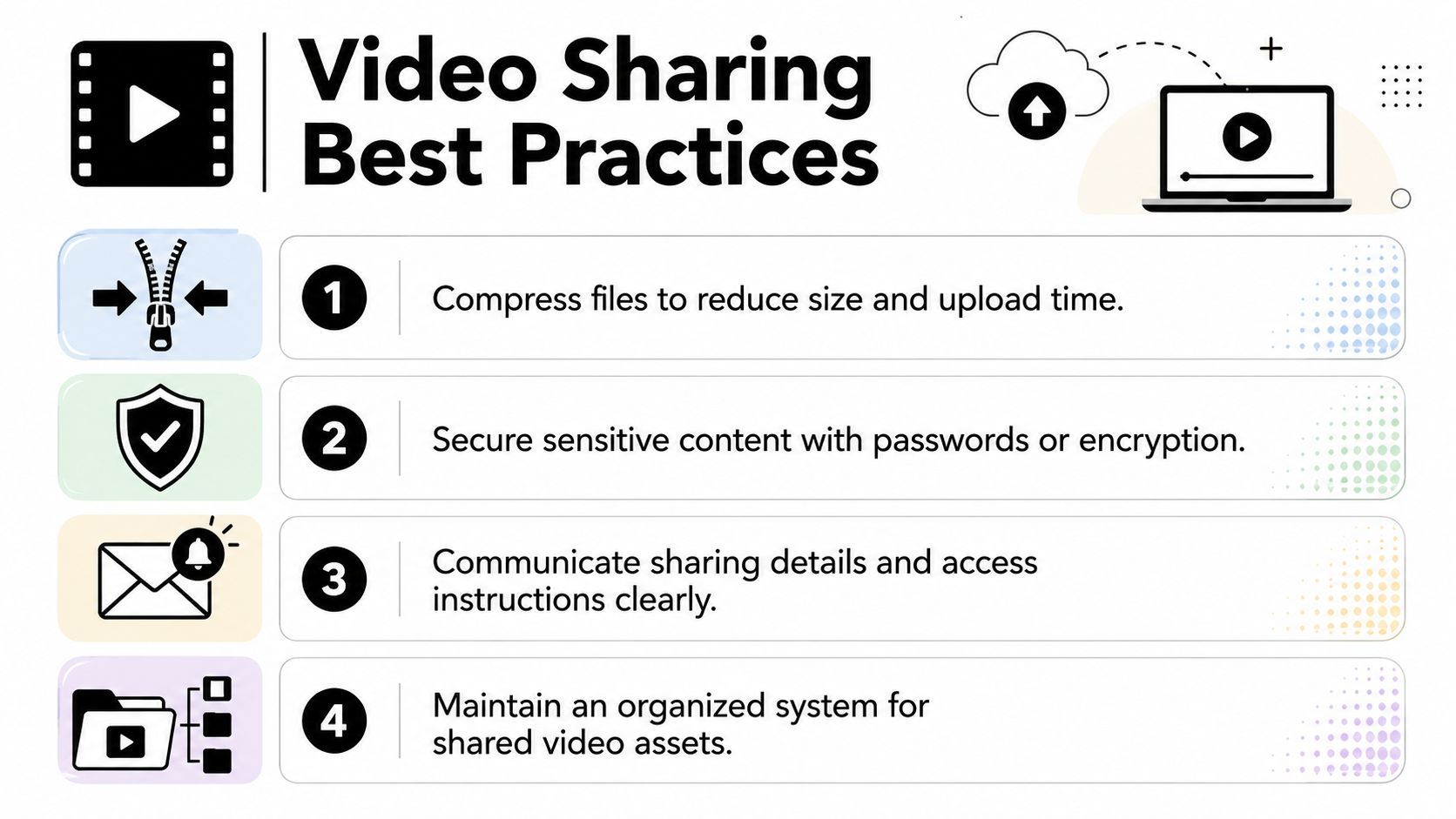
Compression is useful when the purpose is review, speed, or convenience. It's a bad reflex when the recipient needs original quality.
A simple rule helps:
- Use smaller review copies when stakeholders need to watch and comment
- Keep the master untouched for archive, finishing, and final delivery needs
- Tell the recipient what they're receiving so nobody mistakes a proxy for a master
If quality loss would hurt the job, skip unnecessary compression. Not every video should be made smaller just because it can be.
Confirm delivery like a producer
A sent link isn't proof of access. Before you call it done, verify that the recipient can open the file, understands whether it's stream-only or downloadable, and has enough local storage if a download is required.
Use a short checklist:
- State the file purpose so the recipient knows whether it's for review, edit, or final use.
- Mention link behavior such as password protection, expiry, or view-only settings.
- Ask for access confirmation instead of assuming silence means success.
- Flag any expected issues like account sign-in or download size.
Good file delivery is part technical and part communication. Weakness in either one creates delays.
If uploads regularly stall or fail on your side, it's worth fixing the connection before blaming the platform. This guide on how to solve upload reliability problems is a useful operational reference when teams keep hitting slow or unstable transfers.
Build for mobile and cross-device reality
A lot of old advice assumes you're sitting at a desktop with perfect internet and time to babysit uploads. That's not how many creators work now.
Guidance around creator workflows increasingly points to a mobile reality where the challenge is keeping projects moving across devices without repeated uploads, quality loss, or fragmented handoffs, as reflected in this creator-focused discussion of large-video sharing workflows.
That changes a few habits:
- Keep one canonical source location so you're not passing files between phone, laptop, and cloud in circles
- Avoid repeated export-download-reupload cycles because they waste time and create confusion
- Use naming that survives mobile sharing where context is thinner and mistakes are easier
- Separate review links from editable assets so someone on a phone doesn't accidentally get the wrong deliverable
The best workflow is the one that keeps creative momentum intact. If the handoff interrupts review, blocks an editor, or confuses a client, it's not a good workflow even if the upload technically succeeds.
If you're creating videos at volume, the handoff is only one part of the system. ShortGenius (AI Video / AI Ad Generator) helps creators and teams move faster on the production side with AI-assisted scripting, asset generation, editing, voiceovers, and publishing workflows, so you can spend less time wrangling deliverables and more time shipping finished content.