PDF to Video: Create Engaging Content with AI

Pdf to video - Transform PDFs into dynamic videos for social media. Our guide covers AI scripting, voiceovers, and optimization to boost engagement. Master pdf
You spent days writing a sharp whitepaper, a client-ready report, or a useful internal guide. You exported it as a PDF, shared the link, maybe posted it once, and then watched it disappear into the same digital graveyard as every other “valuable resource” people mean to read later.
That’s the main problem with most PDFs. The content is often good. The format asks too much from the audience.
When someone opens a PDF on a phone, sees dense pages, and knows they’ll need to scroll, zoom, and concentrate, most of them bail. The same ideas packaged as a short, well-paced video can travel across feeds, get watched on mute, and effectively reach people who would never click a document.
Why Your Best Content Is Trapped in a PDF
You post a sharp report, buyer guide, or webinar recap as a PDF. It gets a few saves, a few polite clicks, then stalls. The problem usually is not the idea. The problem is that a feed-driven audience rarely consumes information the way a PDF asks them to.
Many product guides, research summaries, and lead magnets contain excellent raw material. They already hold the proof points, frameworks, quotes, and examples that perform well in short-form video. But a PDF is built for reading in a focused session. TikTok, Reels, YouTube Shorts, and LinkedIn feeds reward fast comprehension, visual motion, and clear pacing.
That behavior gap is well documented. HubSpot reports that short-form video delivers the highest ROI of any social media content format and is the format marketers plan to invest in most aggressively, according to its State of Marketing report. If the same insight exists in both a PDF and a strong short video, the video usually gets the attention first.
What this looks like in practice
A B2B marketer publishes a well-designed industry report. The PDF may work as a bottom-funnel asset for people already interested. It rarely works as top-of-funnel distribution on its own. Pull out three strong findings, turn each one into a 20 to 40 second video, add a hard opening line, captions, and one chart with motion, and the exact same research starts earning reach instead of sitting behind a download link.
I see the same pattern with educational content. A study guide in PDF form asks for time, focus, and intent. A short video version can deliver one concept at a time, keep the pacing tight, and give the viewer an easy next step.
The key trade-off is simple. PDFs are good at depth. Social video is good at discovery.
That is why pdf to video should be treated as a repackaging workflow, not a file conversion task. If you dump a dense document into an AI tool and publish whatever comes out, the result usually feels flat. The professional approach is to extract the strongest ideas, rebuild them for feed behavior, and use AI to speed up the repetitive parts.
ShortGenius is useful here because it does more than turn pages into clips. It can help identify the best hooks, generate scene structure, create voiceover drafts, add captions, and shape a version that feels native to short-form platforms. That difference matters. A raw conversion gives you motion. A proper workflow gives you a video people will finish.
Prepare Your PDF for a Flawless Video Conversion
A polished PDF can still produce a weak video draft. I see it all the time with reports that look great in print and fall apart the second an AI tries to turn them into scenes. The problem is rarely the tool. The problem is that print formatting and short-form video structure reward different things.
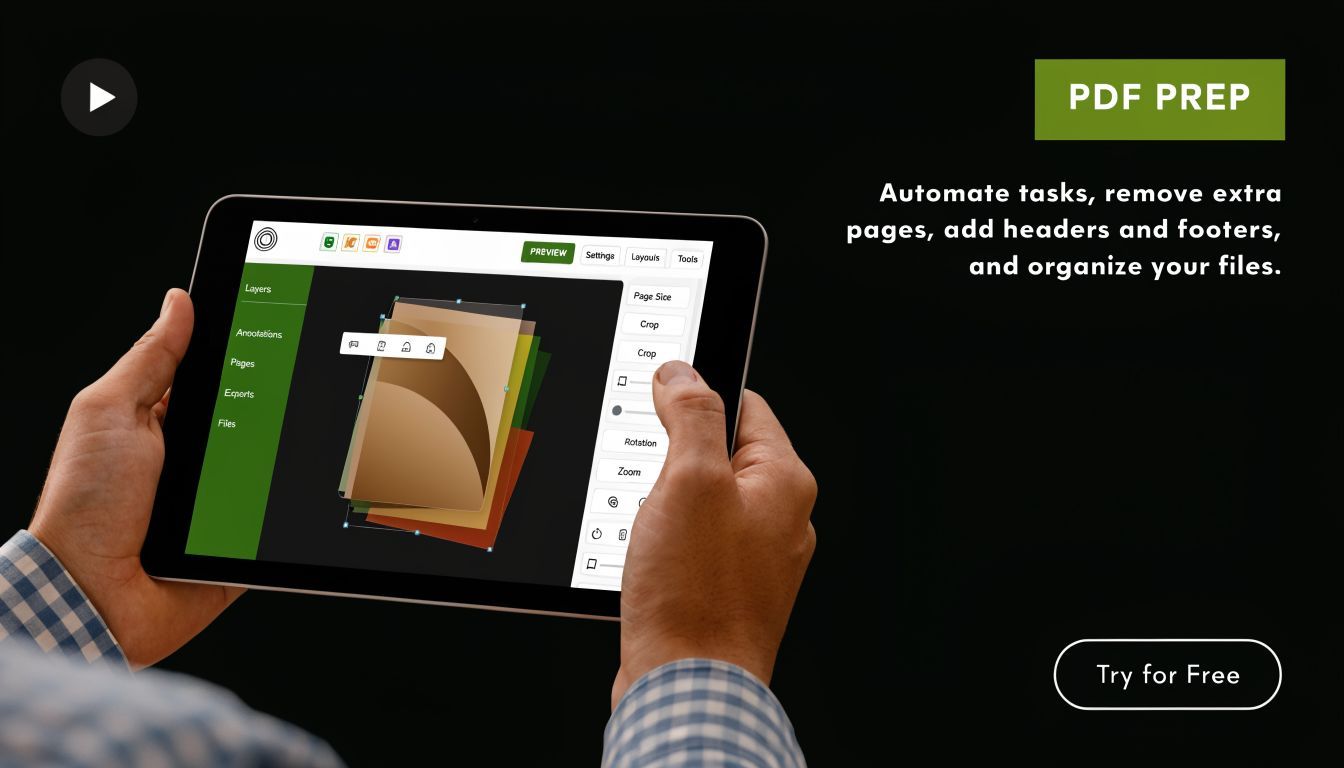
The goal at this stage is simple. Reduce ambiguity before you upload. A clean PDF gives the AI clear inputs, which means better hooks, tighter scene cuts, and fewer cleanup passes later inside ShortGenius's AI video workflow.
Clean structure beats clever design
Documents built for download often rely on design tricks that do not survive conversion. Multi-column layouts, dense sidebars, tiny footnotes, layered charts, and floating callouts may impress a reader on desktop, but they confuse scene generation and produce cluttered visuals.
Each page should carry one clear idea. If a page tries to do three jobs at once, the video usually does none of them well.
I prepare PDFs with a blunt standard. If a page would feel cramped on a phone screen, it is not ready for video.
Use this checklist before upload:
- Split long documents into clear sections: Break the file where the topic changes, not at random page counts. A report might become separate videos for the problem, the finding, the proof, and the recommendation.
- Rewrite heavy paragraphs: Convert long text blocks into short statements, bullets, or pull quotes that can become spoken lines and caption beats.
- Remove repeated clutter: Headers, footers, page numbers, disclaimers, and decorative elements waste screen time and distract the parser.
- Check every visual at mobile size: Charts and screenshots that look acceptable in a PDF often become unreadable in vertical video.
- Give each page one job: A page should map naturally to one scene, one argument, or one visual proof point.
Segment for meaning, not file size
A lot of creators split PDFs only to make the file smaller. That helps performance, but it is not the main reason to segment. The main reason is narrative control.
Short-form video needs clean topic boundaries. A single section should answer one question, prove one claim, or teach one step. If a chunk covers too much ground, the AI summary gets vague and the final edit starts sounding like generic explainer content.
A useful test is this. Could this section work as a 30-second standalone post with a strong opening line? If the answer is no, it probably needs another pass before upload.
That principle also lines up with strong AI for social media marketing. Distribution improves when each asset is built around one clear takeaway instead of a bundle of half-related points.
Prep for spoken delivery before you touch voiceover
Bad voiceover usually starts in the PDF, not in the audio settings. Sentences written for the page tend to run long, bury the point, and sound stiff when read aloud.
Edit for the ear. Use shorter sentences. Cut nested clauses. Move the main claim to the front. If a line would make a presenter stop for breath, rewrite it.
I also remove citations, source notes, and legal language from any page intended for narration. Keep them in the original document if needed, but do not ask the script generator to sort through material that should never be spoken.
Give the model clean chapters, plain language, and one clear point per page. That is how you get a draft that feels edited before the edit starts.
A prepared PDF does more than prevent errors. It gives the AI enough structure to make useful creative choices instead of guesswork.
Generate Your Video Script and Scenes with AI
A clean PDF gives the AI something to work with. A messy one forces it to guess. Once the document is prepared, the main task starts. Turn static information into a script people will genuinely watch, and scenes that earn retention instead of feeling like a narrated slide deck.
Good tools handle three jobs in sequence. They extract text from the PDF, interpret structure such as headings and image blocks, and convert that material into a scene plan with timing, narration, and visual suggestions. That last step matters most. Plenty of converters can turn pages into video. Far fewer can turn a dense document into short-form content that feels native to TikTok, Reels, or Shorts.
What the AI should produce
The first output should be a draft with clear editorial choices.
That means:
- a hook that leads with the payoff
- a script rewritten for spoken delivery
- scene breaks based on ideas, not page count
- visual directions that match the point of each line
If page three contains the strongest insight, use it early. If two pages repeat the same claim, merge them. If a chart is too dense to read on a phone, pull one number from it and build the scene around that instead. AI helps with speed, but scene selection still decides whether the final video feels sharp or lazy.
What the AI is actually translating
PDF-to-video generation usually breaks down into three practical layers.
First, OCR and layout parsing turn the file into usable content. If the PDF is scanned, the tool has to recognize text. If the layout is crowded, it has to decide what is a heading, caption, body copy, or visual asset. The quality of this pass affects everything downstream, which is why OCR accuracy matters. Google Cloud explains how document OCR and layout extraction work in its overview of Document AI OCR.
Second, the system rewrites document language into spoken language. In this step, a good generator earns its keep. Whitepaper prose, report summaries, and slide copy often read fine on a page but sound stiff out loud. The model should cut filler, shorten clauses, and move the main point to the front of the sentence.
Third, it maps each line to a visual treatment. Sometimes that means kinetic text. Sometimes it means screenshots, UI zooms, B-roll, or a light animation across a static graphic. The right choice depends on the source material and the platform.
How to get a stronger first draft in ShortGenius
In ShortGenius's AI video workspace, I get better results when I treat generation like briefing an editor, not pressing a conversion button.
Set the format first. Vertical 9:16 should change scene composition, caption density, and pacing from the start. Then define the job of the video in one sentence. "Turn this PDF into a 45-second founder-led explainer for LinkedIn and Reels" is useful. "Make a video from this document" is not.
These settings consistently improve the first pass:
- Lead with the outcome: Ask for an opening that states the most surprising claim or result in the first line.
- Set scene length on purpose: Short-form explainers usually work better with tighter 3 to 7 second beats than page-by-page pacing.
- Strip weak material: Exclude disclaimers, references, appendix pages, and duplicated charts before scene generation.
- Request visual variety: Ask for a mix of text-led scenes, document zooms, stat callouts, and product or webpage inserts.
- Choose a voice for the script itself: "Direct, specific, creator-style" usually performs better than "professional" or "informative," which often produces bland copy.
Teams building repeatable content should also understand how this fits into a larger publishing system. The guide on AI for social media marketing is useful because it treats scripting, distribution, and iteration as one workflow.
Why AI drafts go wrong
Weak outputs usually fail for one of four reasons.
| Problem | What it looks like | Better move |
|---|---|---|
| The script stays too close to the PDF | It sounds like narration over a document instead of a video script | Ask for summary-first rewriting and spoken phrasing |
| Scene timing follows page count | Low-value pages get the same attention as strong ones | Rebuild scenes around importance, not document order |
| Visual choices are generic | Random stock clips dilute the message | Swap in screenshots, charts, UI, or bold text layouts |
| The hook arrives late | The viewer gets setup before payoff | Rewrite the opening around the strongest claim or question |
I see this constantly with lead magnets, ebooks, pitch decks, and internal reports. The source material is fine. The framing is wrong.
Treat the output like a creative brief
The draft is the start of the edit, not the end of it.
Cut any line that repeats what the visual already shows. Rearrange scenes so the strongest moment lands early. Replace vague phrases with specific ones. If the AI gives you "businesses can improve efficiency," rewrite it to say what changed, who changed it, and why anyone should care.
That is the difference between simple conversion and professional workflow. A converter preserves the PDF. An editor turns it into a short-form asset built for attention, retention, and reuse.
Add Polish with AI Voiceovers and Dynamic Motion
A raw conversion is rarely good enough to publish. It may be accurate. It may even be coherent. That doesn’t mean anyone will finish watching it.
The upgrade happens in the polish layer. Voice, motion, pacing, branding, and emphasis are what turn a converted PDF into a video people remember.
Voiceover is carrying more than the script
Many creators obsess over visuals and treat the narration as an afterthought. That’s backwards for short-form explainers. The voice determines authority, energy, and momentum.
Choose a voice that fits the material. A trend recap can handle a lighter tone. A financial explainer or B2B summary usually benefits from a calmer, sharper delivery. If the tool lets you regenerate individual lines, use that feature aggressively. A single awkward sentence can make the entire video feel synthetic.
Listen for three things:
- Pacing: Fast enough to keep attention, slow enough to understand without rewinding.
- Emphasis: Key phrases should land naturally, not sound uniformly flat.
- Pronunciation: Product names, acronyms, and industry terms often need manual fixes.
“If a line sounds like something nobody would say out loud, rewrite it before you regenerate the voice.”
Motion creates the illusion of fresh content
Static PDFs feel dead because they were built for reading, not watching. Motion fixes that, but only if it supports the message.
Good motion is subtle. Pan across a chart. Zoom into a headline. Animate one key phrase at a time instead of throwing every transition preset at the screen. If every element moves, none of it feels intentional.
Use movement to direct attention:
- Let the hook appear big and clean.
- Highlight one phrase while the voiceover says it.
- Reveal supporting points in sequence instead of dumping everything on screen at once.
- Add mild camera movement to still images so the frame never feels frozen.
Branding should be visible, not loud
You don’t need a logo in every corner or your full brand palette on every scene. Strong branding in pdf to video work usually comes from consistency, not volume.
Keep a few repeatable elements: font treatment, text box style, subtitle look, intro behavior, and closing frame. That’s enough to make a series feel unified across platforms.
A practical finishing pass often looks like this:
- Trim long pauses and any dead air between scenes.
- Rewrite robotic lines.
- Replace weak visuals on the highest-value scenes.
- Add captions designed for mobile viewing.
- Apply the brand kit only after the core pacing feels right.
That order matters. Individuals often style too early and end up polishing scenes they should have cut.
Optimize and Schedule Your Video for Social Media
Publishing the video as-is is usually a wasted opportunity. A converted PDF can become one asset, but the smarter move is to turn it into a small content set optimized for each platform.
The production speed is there now. A 10-page PDF can become a fully rendered video with transitions and shareable links in less than 5 minutes, and some free plans offer up to 10 minutes of video output per month, according to this video breakdown of AI PDF to video tools. The bottleneck is no longer creation. It’s adaptation.
Format for the feed you’re entering
A strong LinkedIn explainer and a strong TikTok clip don’t behave the same way, even when they come from the same source document.
Use different cuts for different contexts:
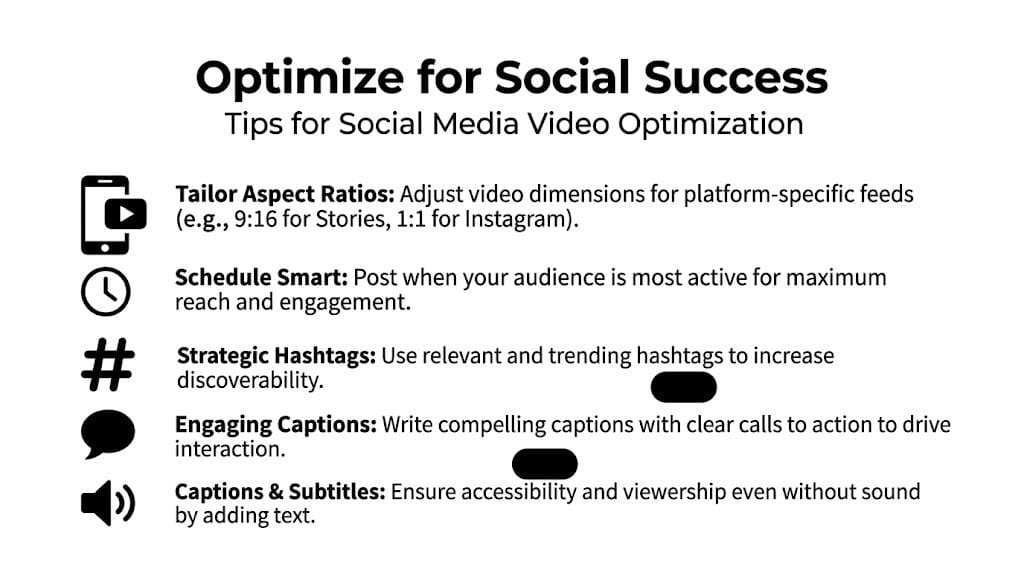
- Vertical video: Best for TikTok, Reels, Shorts, and Stories. Prioritize large text and tighter framing.
- Square video: Useful when you want more real estate for on-screen text in feed placements.
- Widescreen video: Better for YouTube explainers, embedded pages, and internal presentations.
Hard-coded captions matter because many viewers will never turn sound on. Captions also help clarify technical terms, names, and fast transitions. Keep them readable. Don’t crowd the lower third with too much text and too many graphic elements at once.
Edit for momentum, not completeness
Creators who came from document culture often stumble. They try to preserve every point from the PDF.
Social video doesn’t reward completeness. It rewards clarity and tension.
A better approach is to make each version answer one question or deliver one payoff. One clip can handle the big insight. Another can isolate the most surprising chart. A third can turn one section into a list-style breakdown. You’re not shrinking a document. You’re extracting watchable units from it.
Field note: The best social cut often removes the background section the PDF author thought was essential.
Schedule like a campaign
Once you’ve got multiple edits, publish them like related assets instead of random uploads. Space them across platforms, test hooks, and vary captions and thumbnails.
If YouTube is part of the distribution plan, timing still matters. This breakdown of the best time to upload YouTube videos is a helpful reference when you’re deciding when a long-form or Shorts version should go live.
A practical schedule from one source PDF might look like this:
| Asset type | Best use |
|---|---|
| Hook-led short clip | Awareness and scroll stopping |
| Chart breakdown | Authority and saves |
| Quote or takeaway clip | LinkedIn and X repurposing |
| Longer explainer cut | YouTube and landing pages |
The win is an advantage. One document becomes an actual publishing rhythm instead of a forgotten download link.
Troubleshooting Common PDF to Video Problems
You upload a 28-page report, click generate, and get a video that sounds stiff, skips the chart that matters, and turns a clean table into visual noise. That failure pattern is common. PDF to video tools are fast, but they are still making guesses about layout, hierarchy, and meaning.
The fix usually starts upstream. A bad output often points to a bad input, or to the wrong conversion strategy for that document type.
When the output looks broken
Start by identifying what failed. Different problems need different fixes, and rerunning the same PDF through the same workflow rarely improves anything.
If text comes out wrong, the PDF is often a scan, a flattened export, or a low-quality screenshot stitched into a document. OCR can recover some of it, but it will miss headers, merge columns, and misread small labels. Re-exporting from the original file with selectable text usually solves more than prompt tweaking ever will.
If visuals disappear, the layout is usually the problem. Layered elements, floating icons, overlapping callouts, and unusual templates confuse many converters. In ShortGenius, I treat those pages as source material, not finished scenes. Pull out the chart, screenshot the graphic, or upload the visual separately so the AI builds around the asset you care about.
A quick triage approach works well:
- OCR errors: Replace scanned or flattened pages with a clean text-based export.
- Missing charts or icons: Upload key visuals as separate assets instead of relying on page parsing.
- Slow, robotic pacing: Cut each scene to one idea and rewrite narration for spoken rhythm.
- Scenes in the wrong order: Build the sequence around the story, not the original page order.
Dense PDFs break for predictable reasons
Research reports, whitepapers, financial decks, and technical manuals fail more often because the page was designed for reading, not watching. A viewer can scan a dense page for 20 seconds. A short-form video has to communicate the point in two or three.
Tables are a good example. PDF extraction tools often struggle with merged cells, multi-column layouts, and nested formatting. The National Institute of Standards and Technology examined document conversion quality in its Table Understanding benchmark work and found that complex tables remain a difficult case for automated systems, especially when structure matters as much as text content. If your video depends on exact table fidelity, full automation is the wrong bet.
What works for complex documents
The practical fix is selective reconstruction.
Instead of asking ShortGenius to convert an entire dense page as-is, isolate the part that earns screen time. Turn one chart into one scene. Turn one finding into one line of narration. Turn one table row into a visual callout with motion and voiceover. That is how static information becomes watchable.
For equations, compliance notes, or financial figures, preserve precision only where the audience needs it. Everything else should be translated into plain language and rebuilt for motion. I usually let AI draft the connective tissue, then manually rebuild the high-risk scenes where a wrong number or mislabeled visual would hurt credibility.
The best PDF to video workflow is rarely direct conversion. It is controlled extraction, scene by scene.
If a document is highly technical, split the job in two. Use AI to get the structure, script options, and first-pass scene flow. Then replace the fragile parts manually inside ShortGenius with approved visuals, corrected labels, and tighter narration. That hybrid workflow is faster than editing from scratch, and far safer than trusting a one-click export with material that was never designed for video in the first place.
Frequently Asked Questions About PDF to Video
Can I make pdf to video content with a free tool
Yes, especially for testing ideas, social clips, or simple explainers. Free tools are useful when you want to validate a workflow before committing to a paid stack. The trade-off is usually fewer generation minutes, less control over branding, fewer voice options, or weaker editing tools.
How long should the final video be
Don’t base video length on page count alone. Base it on the number of distinct ideas worth watching. Some pages deserve a full scene. Others should disappear entirely. If a PDF contains several strong angles, split it into multiple short videos instead of forcing one complete summary.
Can I edit the AI-generated script and scenes
You should. The draft is the starting point, not the product. Rewrite the hook, shorten any line that sounds stiff, swap weak visuals, and cut scenes that repeat the same point. The best results come from human editing layered onto AI speed.
What if my PDF contains copyrighted material
You still need rights to use the text, images, charts, and branded assets that appear in the source file. Converting a PDF into a video doesn’t remove copyright obligations. If you didn’t create the material or license it, get permission or replace it with original assets.
Are tables and research PDFs a bad fit
They’re harder, not impossible. If a PDF depends on dense tables, equations, or complex page layouts, don’t expect automated conversion to preserve everything cleanly. Pull out the essential insight, simplify the visuals, and rebuild the most important scenes by hand.
What makes a converted video feel professional
Usually the small things. Clean hooks. Natural voice delivery. mobile-friendly captions. Intentional motion. Strong scene selection. Most viewers won’t care that the source started as a PDF. They’ll care whether the final video feels clear and worth finishing.
If you want one workflow that handles scripting, scene generation, voiceovers, editing, resizing, and publishing in one place, take a look at ShortGenius (AI Video / AI Ad Generator). It’s built for turning raw ideas and existing assets into repeatable short-form output without stitching together a stack of separate tools.