How to Make a Playlist on YouTube: The Complete 2026 Guide

Learn how to make a playlist on YouTube for desktop and mobile. This guide covers setup, management, SEO tips, and advanced strategies for growing your channel.
You've probably reached the same point most active creators hit. The channel isn't empty anymore, but it also doesn't feel organized. Videos are stacked in upload order, Shorts sit next to tutorials with no context, and a viewer who finishes one video has to decide what comes next without much guidance from you.
That's where playlists stop being a housekeeping feature and start becoming channel architecture. If you want to make a playlist on YouTube well, you're not just grouping videos. You're shaping viewing paths, clarifying what your channel is about, and deciding how different audiences move through your library.
Why YouTube Playlists Are Your Secret Growth Tool
A lot of creators learn the mechanics first. Click save. Name the playlist. Choose privacy. Done.
That's useful, but it misses the bigger question. A commonly underserved question is how to make a YouTube playlist useful for discovery and session depth, not just how to create one. That gap matters because YouTube Help explains the mechanics, but it doesn't tell creators when a playlist strategy is likely to outperform a simple upload list, especially now that Shorts can be included too, as discussed in this analysis of the playlist strategy gap.
Here's the practical difference:
- An upload list shows what you published.
- A playlist shows what a viewer should watch next.
- A playlist system shows YouTube and your audience how your channel is structured.
When I audit channels, the problem usually isn't a lack of content. It's a lack of pathways. A viewer lands on a strong tutorial, interview, review, or Short, but there's no clean next step. That kills momentum.
Practical rule: If a viewer has to hunt through your uploads to continue learning, binging, or buying, your playlist strategy is underbuilt.
Playlists also help you separate intent. New viewers often need a beginner path. Returning viewers may want advanced material. Warm prospects may need a sequence that moves from education to offer-related content. Those shouldn't all live in one messy stream.
What playlists actually do for a channel
A good playlist can serve several jobs at once:
- Topic clarity for viewers who need a fast read on your channel
- Session guidance so one video naturally leads to another
- Catalog control for channels with mixed formats, including Shorts and long-form
- Audience segmentation when your channel serves more than one use case
The mistake is treating playlists like folders. Folders store. Playlists direct.
If your channel has more than a handful of videos, playlists become one of the easiest ways to turn a pile of uploads into an intentional library.
Creating Your First Playlist on Desktop
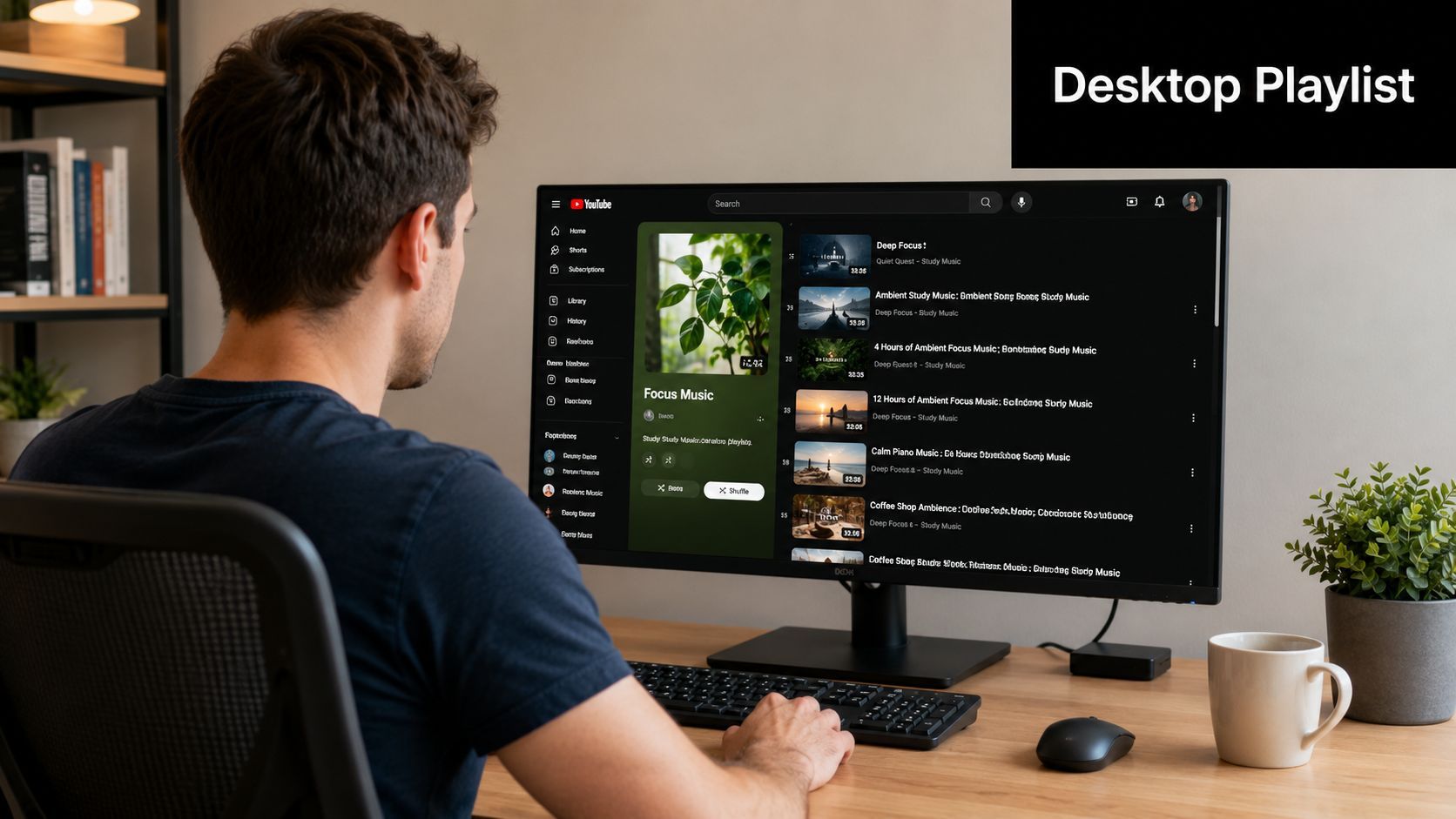
On desktop, creating a playlist is simple. Using it well starts with understanding what YouTube playlists are.
According to YouTube Help on desktop playlist management, playlists are a built-in platform feature, not a separate publishing format. Anybody can create them, add videos or Shorts, choose public, private, or unlisted visibility, and later edit or delete them. YouTube also lets you filter playlist contents by All, Shorts, or Videos, which is useful when a single content theme spans multiple formats.
The fastest desktop workflow
If you're already watching one of your own videos, use the built-in save flow.
- Open the video or Short.
- Click Save.
- Choose Create new playlist.
- Enter a playlist name.
- Set privacy.
- Confirm creation.
That's the fastest route when you're building around an existing piece of content.
Public means anyone can view it. Unlisted means only people with the link can view it. Private means only you can view it.
Those privacy settings aren't minor. They change how the playlist functions on your channel.
Choosing the right privacy setting
Use this as a practical guide:
| Playlist visibility | Best use case | Watch-out |
|---|---|---|
| Public | Channel organization, discovery, sharing | Viewers can judge the playlist immediately, so the title and ordering matter |
| Unlisted | Client review, internal approvals, selective sharing | It won't help much on your channel page if nobody sees it there |
| Private | Planning, drafts, internal workflows | Easy to forget and accidentally leave hidden |
For most creators, public should be the default for finished playlists that support channel growth. Unlisted is useful when you're testing structure or sending a sequence to a partner, editor, or client before exposing it on the channel. Private works best as a staging area.
What to add first
Don't start by asking which videos are vaguely related. Start by asking what job the playlist needs to do.
A first playlist usually works best in one of these forms:
- Start here playlist for new viewers
- Core topic playlist around your main channel theme
- Series playlist for connected episodes or lessons
- Shorts cluster when your short-form content supports a clear theme
This walkthrough shows the desktop flow in action:
What works better than random grouping
A weak playlist says, “these are all about marketing.”
A stronger playlist says, “if you want to learn YouTube thumbnails, start here, then watch this next, then this.”
That's the shift. On desktop, the buttons are easy. The strategic part is deciding whether you're building a sequence, a category, or a viewer journey.
Making and Managing Playlists on Mobile
Mobile is where a lot of playlist mistakes happen because the app is built for speed. Fast is great until the wrong video ends up in the wrong collection.
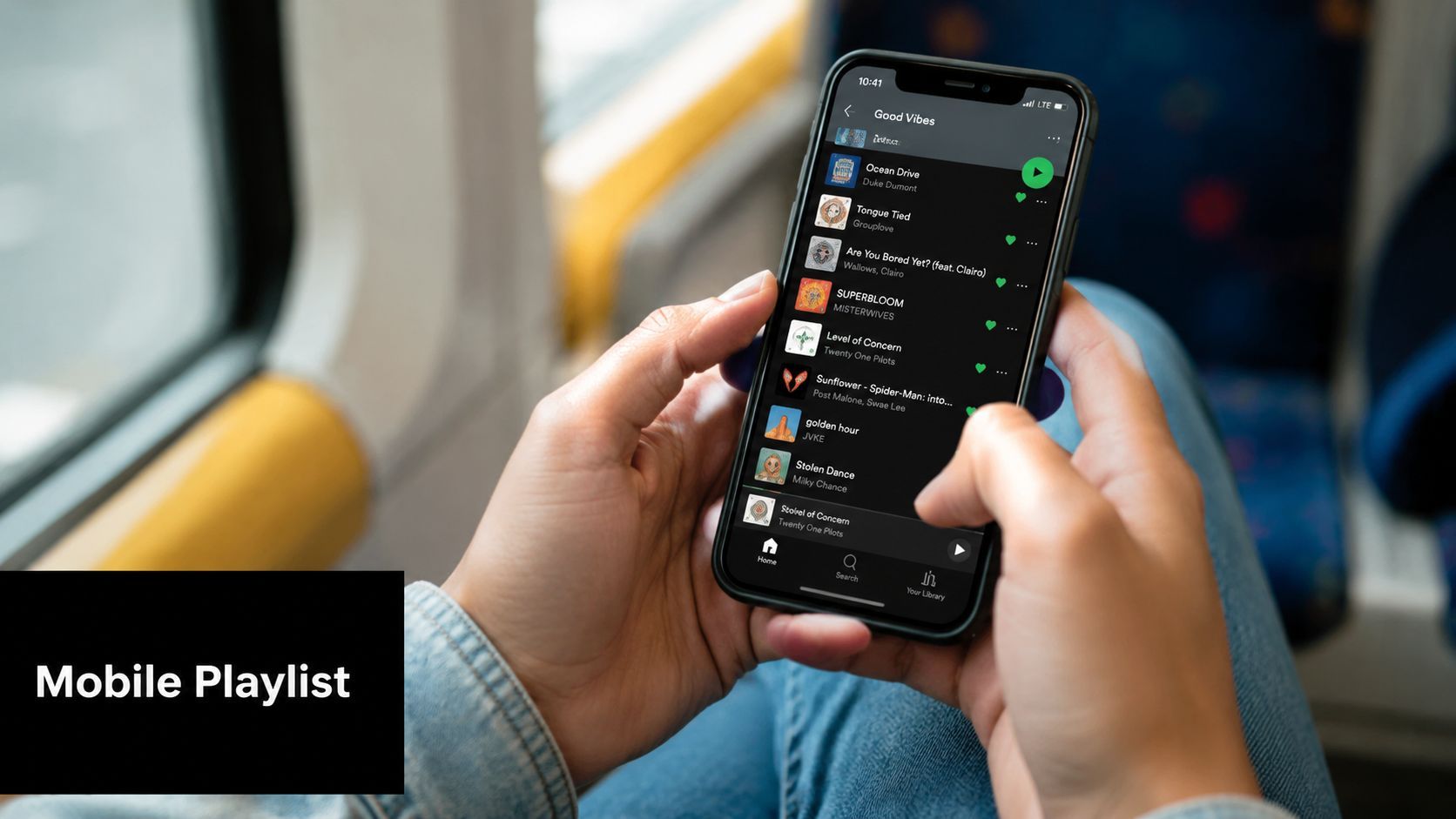
According to YouTube Help for Android playlists, the creation flow is a three-step path. Tap Save on a video or Short, choose Create new playlist, then name the playlist and set privacy. You can also create playlists from the You tab by selecting videos from watch history, which is helpful when you're backfilling a topic after reviewing content on the go.
The mobile control points that matter
The biggest trap is the default save behavior. If you tap Save, YouTube may add the video to the last-used playlist or to Watch Later unless you explicitly tap Change.
That matters more than it sounds. One misplaced save can throw off a curated learning path, a product funnel, or a public series page.
Check the confirmation pop-up every time. On mobile, that's the moment where organization either stays clean or quietly goes off track.
The second trap is privacy. You set it at creation time, and if you choose private, only you can view the playlist. That breaks public promotion and can also frustrate team workflows if someone expects the playlist to be shareable.
A better mobile habit
When you make a playlist on YouTube from your phone, use this quick routine:
- Name it with purpose so you know the exact viewer intent
- Set privacy deliberately before tapping create
- Use Change when saving instead of trusting the default destination
- Review the playlist after adding to catch misfiled videos immediately
When mobile is better than desktop
Desktop is better for deeper restructuring. Mobile is often better for quick capture.
If you're at an event, reviewing content on a train, or tagging videos during approval, the app is fast enough to build themed playlists in real time. It's also useful for curating from watch history when you've already vetted content and want to organize it without reopening everything on a laptop.
For active channel managers, mobile works best as a capture and maintenance tool, not as the main place where you design a playlist strategy from scratch.
Optimize Your Playlists for Discovery and Watch Time
Creating a playlist is the easy part. Optimization is where playlists start doing real work for the channel.
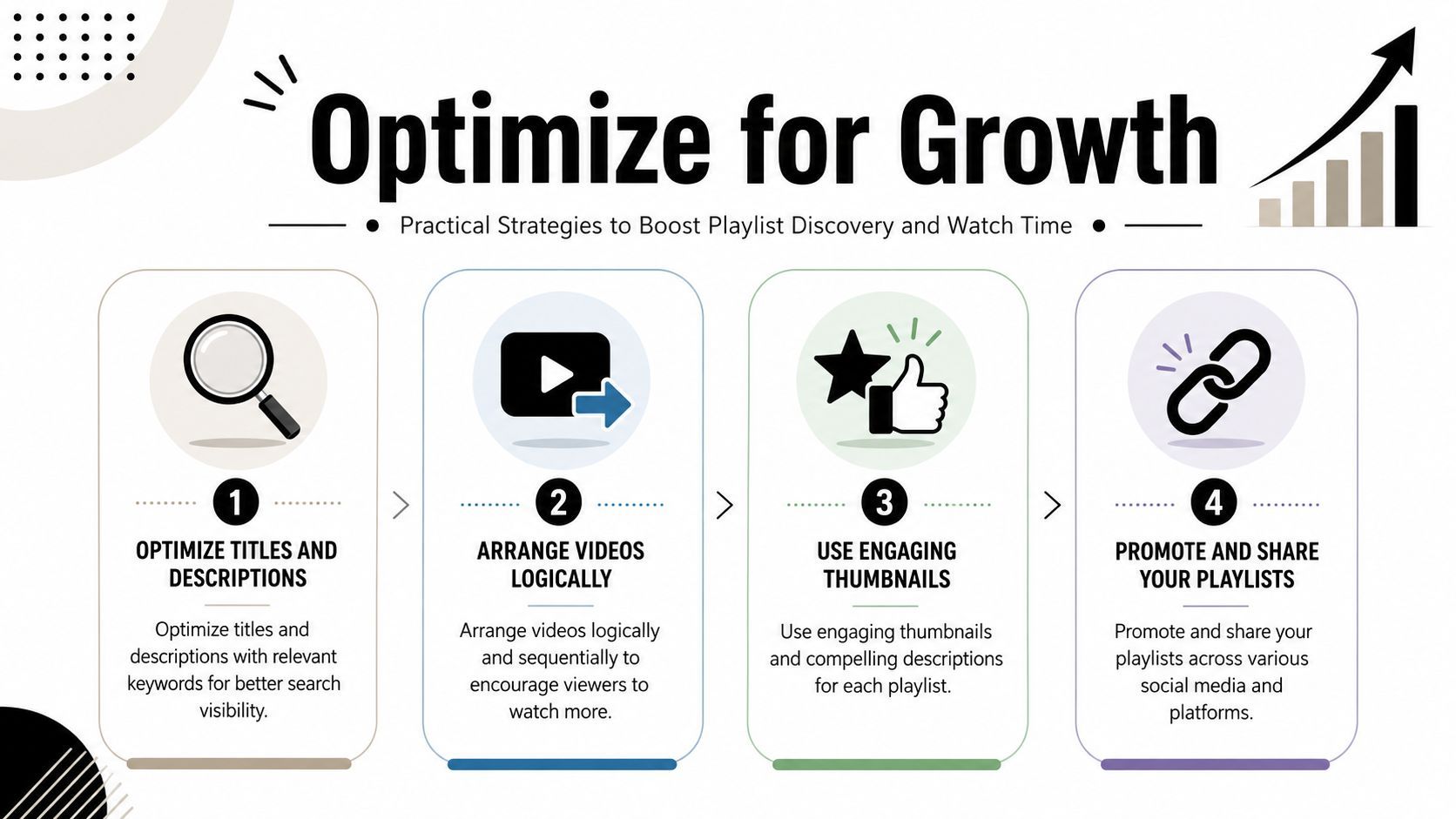
Industry guidance commonly recommends building playlists with 8 to 12 videos to create a coherent viewing journey, and arranging videos in logical order is often framed as a way to increase watch time significantly, as noted in this playlist optimization guide. I don't treat that range as a rigid rule, but it's a useful target because it forces you to build something substantial enough to feel intentional.
Titles that match viewer intent
Playlist titles shouldn't be clever first. They should be clear first.
If the playlist is for beginners, say that. If it's a step-by-step setup sequence, say that. If it's a product comparison library, say that. Most creators underwrite playlist titles and then wonder why viewers don't click them from the channel page.
Good playlist titles usually do one of three things:
- Name the topic clearly
- Signal the audience level
- Describe the outcome
“Email Marketing” is vague. “Email Marketing for Beginners” is better. “Email Marketing Setup Tutorials” is better still if the videos support that promise.
Descriptions and thumbnails still matter
A playlist description gives YouTube and viewers extra context. It also helps you define the promise of the playlist in plain language.
Use the description to explain:
- who the playlist is for
- what problem it solves
- what kind of order the viewer should expect
If your playlist appears on your channel homepage, the thumbnail matters too. A weak thumbnail makes the whole collection feel like an afterthought. A clean visual style helps viewers recognize that the playlist is a designed path, not a random pile of uploads.
The best playlists feel edited. The viewer should sense intention before they click the first video.
Ordering strategy decides whether people continue
This is the part creators skip most often.
Use chronological order when the viewer needs each step in sequence. That works for courses, challenges, episodic storytelling, and tutorials with dependencies.
Use thematic order when each video can stand alone but the topic is unified. That works for reviews, niche education, and explainers.
Use intent order when the playlist is part of a funnel. Start with broad, useful material. Move toward more specific, decision-stage content only after the viewer has context.
Here's a simple comparison:
| Playlist type | Best ordering method | Usually works for |
|---|---|---|
| Series | Chronological | Lessons, vlogs, documented builds |
| Topic hub | Thematic clustering | Tutorials, reviews, educational libraries |
| Funnel playlist | Intent progression | Coaches, agencies, product-led channels |
What doesn't work is dropping your most recent uploads into a playlist and assuming it's optimized. A playlist needs internal logic. If the order feels arbitrary, viewers feel it.
Advanced Playlist Strategies for Content Creators
Most playlist advice assumes one ideal model. Build a series. Put the videos in order. Call it done.
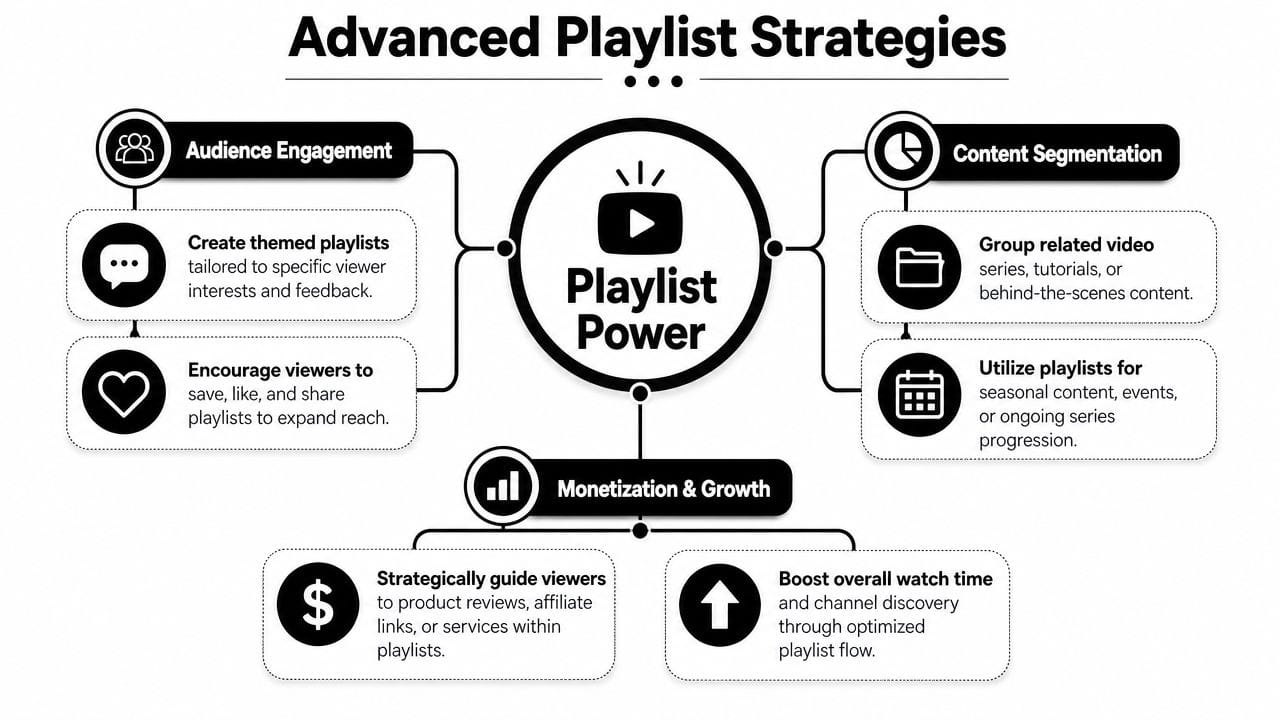
That works for some channels. It falls apart for creators with mixed catalogs, multiple audience types, or business goals beyond simple binge-watching. Public guidance often leans hard on a sequential, “Netflix-style” series approach, but it rarely answers how to handle mixed catalogs or multi-audience channels. That's the gap highlighted in this discussion of playlist architecture for marketers and educators.
The educator's library
An educator often has one broad topic but several viewer stages.
A beginner wants foundational tutorials. An intermediate viewer wants implementation details. An advanced viewer wants troubleshooting, edge cases, or strategic application. If all of that sits in one playlist, newer viewers get overwhelmed and advanced viewers get bored.
The better setup is a tiered library. One playlist for getting started. One for implementation. One for deeper use cases. Same topic, different intent.
The marketer's funnel
A marketer or service business usually needs playlists to do more than retain viewers. The playlist has to support action.
That often means building a path like this:
- Awareness videos that answer broad questions
- Consideration videos that compare approaches or explain trade-offs
- Decision-stage videos that show process, examples, or service fit
This isn't about forcing every viewer toward a sale. It's about removing friction for the people who already want the next step. On business channels, playlists work best when they separate educational intent from commercial intent without making the whole channel feel like a pitch.
A funnel playlist should still feel useful if the viewer never buys anything. If it only works as sales content, people drop out early.
The creator with a mixed catalog
Most channels struggle here.
You might publish commentary, tutorials, Shorts, livestream clips, and product demos. Chronological organization doesn't help much because different viewer types want different experiences. Topic clustering helps, but only if the clusters reflect real audience behavior.
In practice, mixed catalogs usually need at least three playlist layers:
- Audience-entry playlists for newcomers
- Topic playlists for repeat viewers exploring a niche
- Format-specific playlists when Shorts, clips, or long-form each serve a different role
Shorts playlists with purpose
Now that Shorts can live inside playlists, creators have more flexibility. That doesn't mean every Short deserves to be stuffed into every relevant collection.
Shorts work well in playlists when they do one of two jobs. They either preview a larger topic or support a topic with quick examples, hooks, or highlights. They work poorly when they interrupt a deep learning sequence and break the pace.
If a playlist is meant for education or funnel progression, test whether Shorts add context or just add noise. On many channels, the answer is different for each playlist.
Integrating Playlists Into Your Content Workflow
A playlist system starts to pay off when it becomes part of publishing, not a cleanup project you save for later.
On a managed channel, every upload needs a placement decision before the tab gets closed. The questions are simple: Does this video extend an existing series, serve a specific viewer path, or sit outside the current playlist structure for now? Making that call early keeps the library usable. Delaying it creates a backlog, and backlog turns playlist strategy into archive maintenance.
I treat playlists as part of packaging. Title, thumbnail, description, end screen, and playlist assignment all shape what the viewer does next. If a video goes live without a clear home, you lose one of the easiest ways to direct session flow.
A practical workflow usually looks like this:
- At upload time, place the video in the strongest existing playlist for that topic or series
- After publishing, decide whether it also belongs in a second playlist built for a different intent, such as beginner education or product consideration
- During weekly review, reorder playlists when a new upload weakens the sequence or introduces a better entry point
- During monthly cleanup, merge overlapping playlists, rename vague ones, and remove thin collections that do not support a real viewer journey
This matters more as volume grows. Batched production, delegated publishing, and scheduling tools all make output faster, but they also make misfiled content easier to miss. A documented playlist rule set solves that. The person uploading should know which playlists are tied to discovery, which ones support retention, and which ones move viewers toward a series, offer, or deeper topic.
Teams building repeatable content systems often map those lanes before production starts. A tool such as ShortGenius can help organize scripting, production, and scheduling, but the playlist logic still needs an owner. That owner decides what each playlist is designed to do, how new videos enter it, and when the structure needs to change.
The best sign your workflow is working is simple. New videos strengthen the channel the day they publish because they already fit a larger viewing path.