How to Schedule YouTube Shorts and Stay Consistent

Learn how to schedule YouTube Shorts step by step in YouTube Studio or with tools like ShortGenius, plus timing, playlist, and metadata tips.
You film a batch of Shorts on a productive afternoon, edit them late into the evening, and promise yourself you'll upload one every day. Then work gets busy, a client call runs long, or you forget. The batch sits in a folder while your publishing streak disappears.
Learning how to schedule YouTube Shorts solves the operational problem, but the useful question is bigger than finding the Schedule button. You need to decide whether each file qualifies as a Short, when your viewers are active, whether YouTube Studio is enough for your workflow, and how each upload fits into a series rather than standing alone.
Why Scheduling Shorts Beats Manual Uploads
Manual publishing turns every Short into a daily interruption. You open YouTube Studio, upload the file, add the details, wait through the checks, choose visibility, and publish. That process is manageable for an occasional video. It becomes fragile when you're trying to maintain a repeatable cadence from a batch of content.
Scheduling separates production from distribution. You can record several related videos in one session, finish their edits while the topic is fresh, and place them across a calendar. YouTube's own scheduling workflow then publishes each video automatically at the date, time, and time zone you select, as described in YouTube's native Shorts scheduling guidance.
Practical rule: Create in batches, review in batches, but publish according to a deliberate calendar.
A scheduled workflow usually looks like this:
- Audit the files: Confirm that each video has the right shape and length to enter the Shorts workflow.
- Prepare the metadata: Write the title, description, hashtags, playlist assignment, and visibility settings before the publishing day.
- Choose the timing: Use the Audience heatmap first. Use broad benchmarks only when your channel lacks enough data.
- Schedule and review: Confirm the selected time zone, scheduled status, title, thumbnail treatment, and playlist.
- Measure the result: Compare performance across several adjacent posting windows instead of judging one upload in isolation.
Consistency matters because your audience can encounter a reliable flow of content without requiring you to be online every day. It also protects your creative time. A missed upload is often not a content problem. It's a workflow problem, and scheduling gives that problem a concrete fix.
The rest of the process depends on four decisions: whether the video is a Short, whether native YouTube tools fit your needs, whether a cross-platform scheduler earns its place, and which metrics should influence the next batch.
What Qualifies as a Short Before You Schedule
Scheduling only helps if the file is eligible for the Shorts format. The current rule set centers on aspect ratio and duration. Google announced that videos uploaded on or after October 15, 2024, with a square or vertical aspect ratio and a maximum length of three minutes would be categorized as Shorts, with a further policy update date of December 8, 2025 for that same three-minute rule, according to the YouTube Shorts format history.
That means a vertical four-minute video shouldn't be treated as a standard Short just because it looks like one. It may upload successfully, but it won't meet the stated Shorts classification rule. A square video can qualify on shape, while a horizontal video belongs to a different publishing and viewing context.
Audit the batch before opening the calendar
Before uploading, inspect every file for three things:
- Orientation: The video should use a vertical or square aspect ratio.
- Length: Keep the file within the three-minute Shorts limit.
- Upload timing: The classification rule applies to videos uploaded on or after the dates specified in Google's format updates, so old assumptions about the previous limit can mislead your planning.
This check is especially important when a batch combines clips from different projects. A creator may export most videos for Shorts, then accidentally include a longer vertical explainer or a horizontal cut. If you schedule without checking, your calendar can look organized while the underlying format mix is wrong.
Shorts itself has changed quickly. The format launched first in India on September 15, 2020, expanded worldwide on July 12–13, 2021, and later moved to the broader square-or-vertical, up-to-three-minute definition described above. That history matters because the answer to how to schedule YouTube Shorts isn't permanently fixed. YouTube can change how it classifies files, so check the current upload guidance when a batch uses an unusual duration or format.
Treat eligibility as a gate, not a detail to solve after scheduling. Once every file passes the format check, the publishing workflow becomes predictable.
Scheduling Shorts Natively in YouTube Studio
YouTube Studio works well when YouTube is the only destination. Uploads, metadata, checks, visibility, and publication timing stay in one place, so a solo creator does not have to connect another service or reconcile separate publishing statuses. The trade-off is limited cross-platform control. A batch intended for several networks will still need separate preparation and release steps.
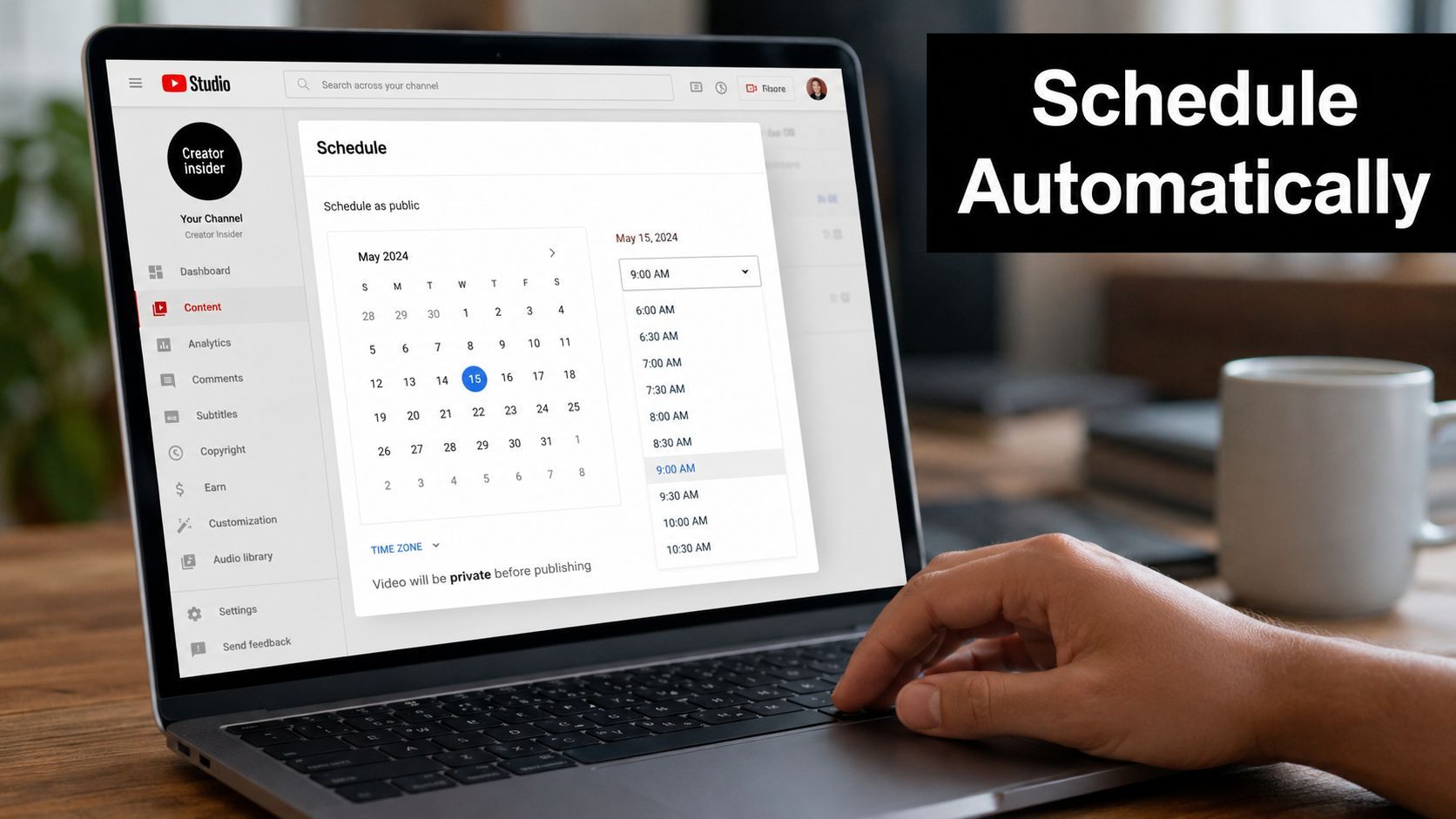
The desktop workflow
Open YouTube Studio, select Create, then choose Upload videos. Select the prepared Short and let the upload proceed through the details, video elements, and checks screens.
On the details page, write a clear title and describe what the clip covers. Add hashtags only when they accurately match the video. Select a playlist if the Short belongs to a recurring series, so the upload joins the right viewing path from the start.
At Visibility, choose Schedule. Set the future publication date, exact time, and time zone. YouTube provides all three controls. A scheduling workflow guide also reports that Shorts can be scheduled up to 6 months in advance in YouTube Studio, as explained in this scheduling workflow guide.
Check the time-zone field deliberately. A date and time that look right on your laptop can publish at an unsuitable local hour if the selected zone matches your location instead of your audience. Confirm the displayed zone before selecting Schedule.
Afterward, open Content and find the video marked as scheduled. You can reopen its details, change the publication time, update metadata, or cancel the schedule by changing its visibility. Save the edit, then verify that the status shows the action you intended.
Give the queued upload one final review. Check the first frame, title, description, playlist, audience settings, and selected time before leaving it scheduled.
A short visual walkthrough can help while you follow the upload screens:
Native workflow: Upload the eligible file, complete its details and checks, select Schedule under Visibility, choose the date, time, and time zone, then confirm the scheduled status in Content.
For a creator publishing only to YouTube, native scheduling is usually enough. It is direct, editable, and connected to the destination. Agencies or creators releasing the same batch across several platforms may prefer a third-party workflow for shared calendars, approvals, and coordinated publishing, even though that adds another service to configure and monitor.
Picking the Right Posting Time for Your Audience
A Short can be ready for publication and still meet a quiet audience. Scheduling solves the how, while channel analytics should determine when.
Open Analytics in YouTube Studio, select the Audience tab, and review the When your viewers are on YouTube heatmap. The darkest blocks show periods when more of your viewers are active. Schedule the Short roughly 45–60 minutes before the strongest window, giving the upload time to process, notifications to propagate, and the video to start entering the feed as activity increases. The same buffer is described in this timing guide for YouTube Shorts.
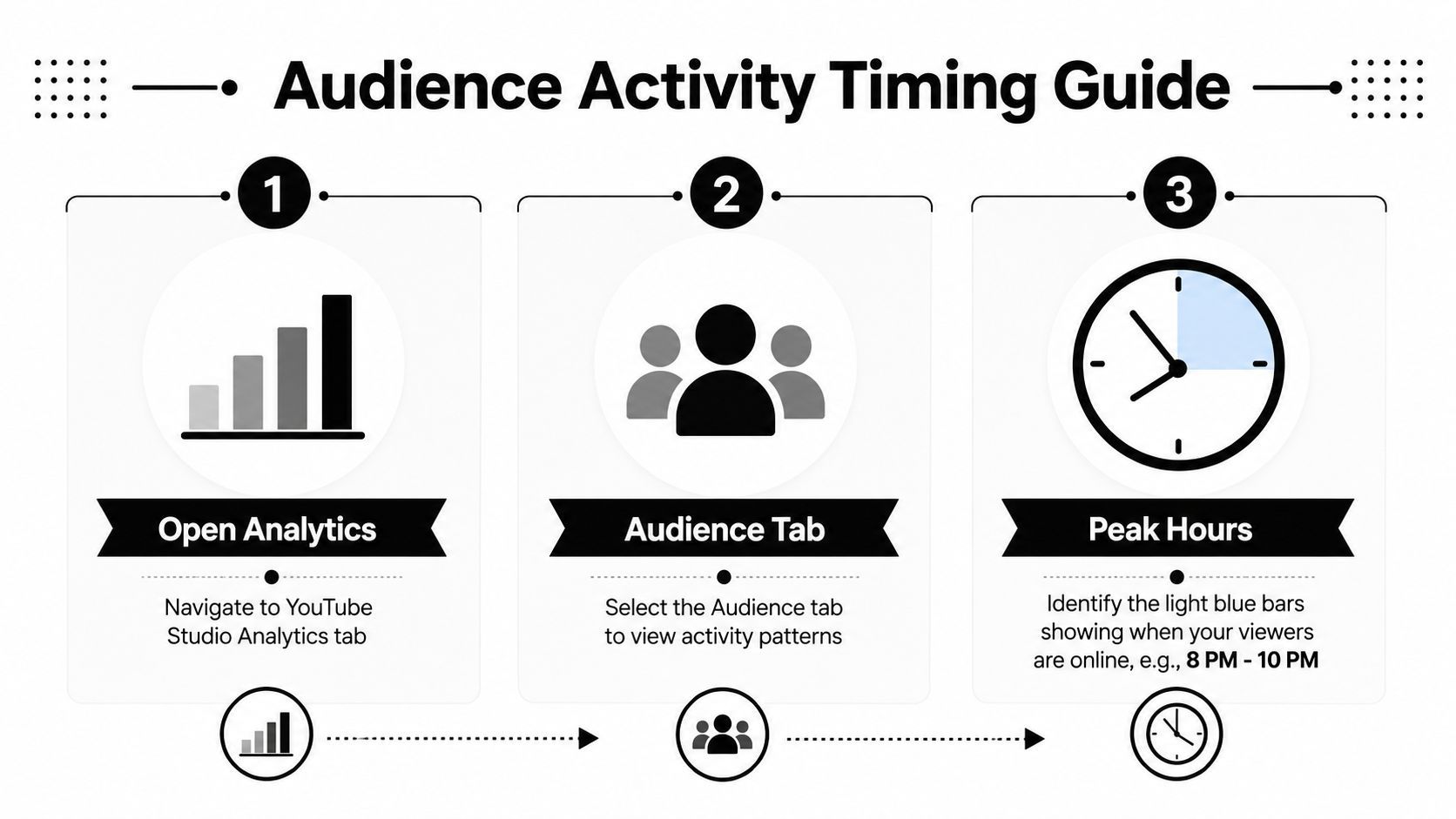
Read the heatmap as a local signal
The heatmap measures viewer activity, not your own work hours. If viewers are concentrated in another region, using your home time can place a Short in a low-activity period for the audience you want to reach.
Build a short list of candidate windows from the heatmap. Do not treat its darkest block as a permanent rule. Activity can shift by weekday, series, topic, and season, so test posting time with the content rather than judging timing in isolation.
A newer channel may not have enough audience history for a useful heatmap. In that case, use a general benchmark only to create an initial test calendar. Buffer's analysis of 1.8 million videos identified Friday at 4 p.m. as the strongest default Shorts slot, followed by Friday at 6 p.m. and 7 p.m., according to the published Shorts timing analysis. Once your own data becomes reliable, let it replace that starting point.
Avoid the creator-time-zone mistake
A common scheduling error starts with a generic “best time” article. The recommended hour may describe another market, and the same clock time can correspond to very different viewer behavior in another region.
Write the intended audience region beside each calendar entry. Then verify that YouTube Studio's selected time zone matches the audience window you are testing. This simple check prevents an operational mistake when you batch content several weeks ahead.
Timing can help a solid Short meet an active audience sooner. It cannot fix weak retention or an unclear opening. Use the heatmap to place a well-made video in a sensible window, then compare results across several uploads before changing the schedule.
When Third-Party Tools Are the Smarter Choice
YouTube Studio handles a straightforward YouTube workflow well: upload a Short, add its details, choose a date, and schedule publication. The trade-off changes when one batch needs different captions, formats, approval steps, calendars, or social destinations.
Native scheduling keeps publishing close to the channel, while third-party platforms focus more on cross-posting and queue management. Compare them based on time-zone setup, batch volume, post-scheduling edits, and who owns the workflow, whether that is one creator or an agency. This comparison of YouTube scheduling approaches outlines the main differences.
Native versus third-party scheduling
| Factor | YouTube Studio (Native) | Third-Party Tools (e.g., ShortGenius) |
|---|---|---|
| Time-zone handling | Direct control inside YouTube's publishing interface | Centralized planning can help when calendars span platforms and regions |
| Bulk uploads | Suitable for preparing multiple YouTube uploads | Often designed around queues, calendars, and batch management |
| Editability | Edit the scheduled item in YouTube Studio before publication | Edit and organize content within the connected workflow, depending on the tool |
| Cross-platform publishing | Focused on YouTube | Built for coordinating YouTube with other social channels |
| Solo creator fit | Strong when YouTube is the main channel | Useful when one batch also needs multi-platform distribution |
| Agency fit | Can require more manual coordination across accounts and clients | A shared planning environment may reduce handoffs and calendar fragmentation |
For a solo creator publishing only on YouTube, a third-party scheduler can add work instead of removing it. You have another account, another connection to maintain, and another queue to check before a post goes live.
An agency or social media manager faces a different constraint. If one concept becomes a YouTube Short, TikTok post, Instagram video, Facebook post, and X asset, a shared calendar can reduce repeated uploads. It also shows which variation belongs on each channel and when it is scheduled.
ShortGenius supports that multi-platform workflow with AI-assisted scriptwriting, image and video creation, voiceovers, editing, themed project organization, and scheduling for YouTube, TikTok, Instagram, Facebook, and X. It fits best when content production and distribution are managed together, not when the only requirement is YouTube's native Schedule button.
Do not buy a cross-platform scheduler for a YouTube-only problem. Use one when coordination, queue visibility, or repeated multi-channel publishing is slowing the workflow.
A practical setup can combine both options. Keep final YouTube checks in Studio for a new format or important launch, and use a third-party calendar for batch organization and cross-platform timing. Choose based on the bottleneck you need to remove, not on the number of features listed by either tool.
Organizing Scheduled Shorts into Series and Playlists
A calendar tells you when videos go live. A series tells viewers why they should watch another one.
Group related Shorts around a clear theme, recurring question, process, or audience problem. Instead of scheduling disconnected clips, build a sequence in which each upload has a recognizable role. One Short can introduce the problem, another can demonstrate the method, and a later one can address a common mistake.
Assign each video to the appropriate playlist before scheduling. The playlist gives viewers a path through related content, and it keeps your channel easier to browse after several uploads have accumulated. Don't add a video to a playlist merely because it exists. The grouping should make sense to someone who discovers one clip without knowing the rest of the series.
Use a repeatable metadata pattern
Create a naming convention that helps viewers recognize connected episodes without making every title sound identical.
- Title: Lead with the specific topic, then add a consistent series marker when it helps recognition.
- Description: Put the main subject and useful context near the beginning, then add the next action or related playlist.
- Hashtags: Use only relevant tags. Repeating broad tags that don't describe the clip makes the metadata less trustworthy.
- Visual identity: Keep a recognizable treatment across the series, while ensuring each Short still has a clear first-frame idea.
The same principle applies if you use AI to accelerate production. A useful overview of top AI video creation tools can help you compare options for scripts, visuals, narration, and editing, but automation shouldn't erase the distinctions between episodes.
Review the scheduled calendar as a viewer would. Can someone understand the series from the titles alone? Do the playlists form sensible viewing paths? Does each Short deliver a standalone payoff while still making the next video relevant?
Scheduling becomes much more valuable when it reinforces that structure. You aren't just filling empty publishing slots. You're building a catalog that stays coherent after the initial release window passes.
Measuring What Works and Adjusting Your Schedule
Don't treat a scheduled time as a permanent answer. Treat it as a test variable.
Publish consistently across 2–4 adjacent time windows, then compare Shorts-specific views, watch time, retention, and traffic source across several uploads. An independent guide recommends sorting top-performing Shorts by posting time to reverse-engineer the windows that repeatedly produce strong early velocity, while benchmark research flags 3–7 a.m. as a weak period and identifies stronger clustering around midday and evening windows, particularly from Friday through Sunday in major markets, as reported in this Shorts scheduling analysis.
The exact minute is rarely the main lever. Watch time, retention, and engagement can outweigh a small timing difference, and a strong Short may surface days after publication. If a video underperforms, inspect its opening, pacing, topic, and audience response before blaming the calendar.
For your next batch:
- Audit every file for Shorts eligibility.
- Choose a few audience-based time windows.
- Schedule each upload with the correct time zone.
- Group related videos into playlists.
- Review performance and adjust the next batch.
ShortGenius (AI Video / AI Ad Generator) can help you turn ideas into finished Shorts, organize them into themed series, and schedule posts across YouTube and other social platforms from one workflow. Visit ShortGenius (AI Video / AI Ad Generator) to prepare your next batch and build a more consistent publishing calendar.