How to Schedule Instagram Reels the Right Way in 2026

Learn how to schedule Instagram Reels on mobile, desktop, and third-party tools in 2026, plus prep tips, best times, and fixes for common issues.
You're halfway through building a Reel, the caption is decent, the cover still needs work, and your phone is about to die. The posting window you want is across time zones, which means “I'll just upload it later” usually turns into missed consistency and a weaker calendar.
That's where how to schedule Instagram Reels stops being a convenience question and becomes an operating system for content. If you manage more than one account, or you're posting for an audience that's awake while you're not, scheduling is what keeps the work repeatable instead of chaotic.
Why Scheduling Reels Changes Everything
A creator on a Tuesday night usually has two tabs open, a video draft on one screen, and a client asking when the Reel will go live on the other. That's the moment scheduling stops being a nice extra and starts acting like a workflow fix. The goal is not to avoid manual posting for its own sake, it is to make publishing predictable enough that a content team can plan around it, review it, and make changes before anything goes live.
Strong scheduling habits come from cadence, time zone alignment, and batch production. Reels perform best when the posting habit matches the audience's routine, not the creator's convenience window. Timing studies support that approach, but the value shows up in day-to-day production. A team that knows what goes out, when it goes out, and who still needs to sign off spends less time chasing posts and more time improving them.
Practical rule: schedule for the audience's wakeful hours, not the creator's convenience window.
For teams, that changes the work itself. Instead of scrambling to publish whenever someone remembers, you can batch a week of Reels, lock the calendar, and keep approvals moving without the “did we post this yet?” panic. It also makes rescheduling less painful when a campaign shifts, a client changes direction, or a post needs to wait for a better slot.
There is another payoff people miss until they have managed a few accounts at once. Scheduling gives you a cleaner way to compare posting windows, track which accounts are drifting by timezone, and see whether a pattern holds when the same Reel is posted under different conditions. That kind of testing is only useful if the calendar stays organized enough to trust what happened.
This guide focuses on the mechanics that matter after the upload is ready. The goal is a process a solo creator can use in the app and a five-person agency can still live with on a shared calendar. Tools such as ShortGenius also help keep the Reel workflow organized before scheduling starts, which matters when script, edit, and export all need to stay in sync.
Prepare Your Reel Before You Schedule Anything
The most common scheduling mistake is simple, the Reel isn't ready when someone opens the scheduler. Once content is queued, fixing the basics becomes slower, and in some workflows it means rebuilding the post from scratch. That's why the prep work has to happen before you click anything.
Start with the file itself. Make sure the video is in the vertical 9:16 format, keep a clean master copy of the original file, and confirm the version you're uploading matches the final cut you want to publish. If you're using a creation workflow, tools like ShortGenius can help unify script, visuals, voiceover, and export before the Reel ever reaches a scheduler.
Then handle the pieces that are easiest to forget under deadline pressure.
- Cover selection: Pick a thumbnail that still reads clearly when it's compressed into the feed grid.
- Caption draft: Write the caption in a separate doc first, then paste it in once the Reel is uploaded.
- Hashtags and tags: Keep them ready, especially if you're coordinating with collaborators or campaign tags.
- Audio rights: Check whether the track is appropriate for commercial use before you schedule.
- Location and collaborators: Add them up front so you're not forced into a messy edit later.
A backup copy matters more than it might seem. If a scheduled post needs to be rebuilt, having the original file, caption, and cover saved together saves time and prevents version drift. That's especially useful for teams that produce in batches and need every Reel to stay consistent across accounts.
Keep one “ready to schedule” folder for each brand. That habit cuts down on last-minute guesswork more than any feature inside the app.
Schedule Reels Natively on Mobile and Desktop
Native scheduling is enough for a lot of accounts, but the flow is easy to miss if you haven't used it recently. Instagram's help center says the schedule controls appear on the final screen before publishing, not somewhere obvious in the middle of the edit flow (Instagram Help Center). That detail matters because people often assume they need a separate planner when they really just need to tap the right menu.
On mobile, the sequence is straightforward. Create or upload the Reel, tap More options on the final pre-publish screen, enable Schedule this reel, choose the date and time, tap Done, then tap Schedule. The specific labels matter because the scheduling switch lives at the end of the publishing flow, not in the earlier creative steps.
Mobile vs desktop workflow
The mobile path works well for solo creators who finalize content on the phone. It's also the simplest way to queue one-off posts quickly, especially if you're checking the final edit right before publishing.
The desktop route is better for calendar planning. Meta Business Suite gives you a broader planning surface, which is easier when you're looking at a week or month instead of a single post. That's usually the better fit for brand teams that need approval, visibility, and a shared content view rather than one-off posting.
The main trap is the device time zone. Instagram ties the scheduled publish time to the device's local settings, so a phone that's set to the wrong region can push the Reel at the wrong hour. That's the kind of mistake that only shows up when a campaign is already queued, so multi-region teams need to verify the device setting before confirming the slot.
If you want the least friction, use native scheduling for a simple queue and move to a planner when you need visibility across accounts. The best surface is the one that matches how your team approves and publishes content, not the one with the fewest clicks.
Third-Party Schedulers Worth Considering
Native tools get the post queued, but they don't solve the operational mess that shows up once you're managing more than one account. That's where third-party schedulers earn their place. The difference isn't just “can it schedule,” it's whether the tool helps you keep drafts organized, handle edits, and avoid calendar chaos.
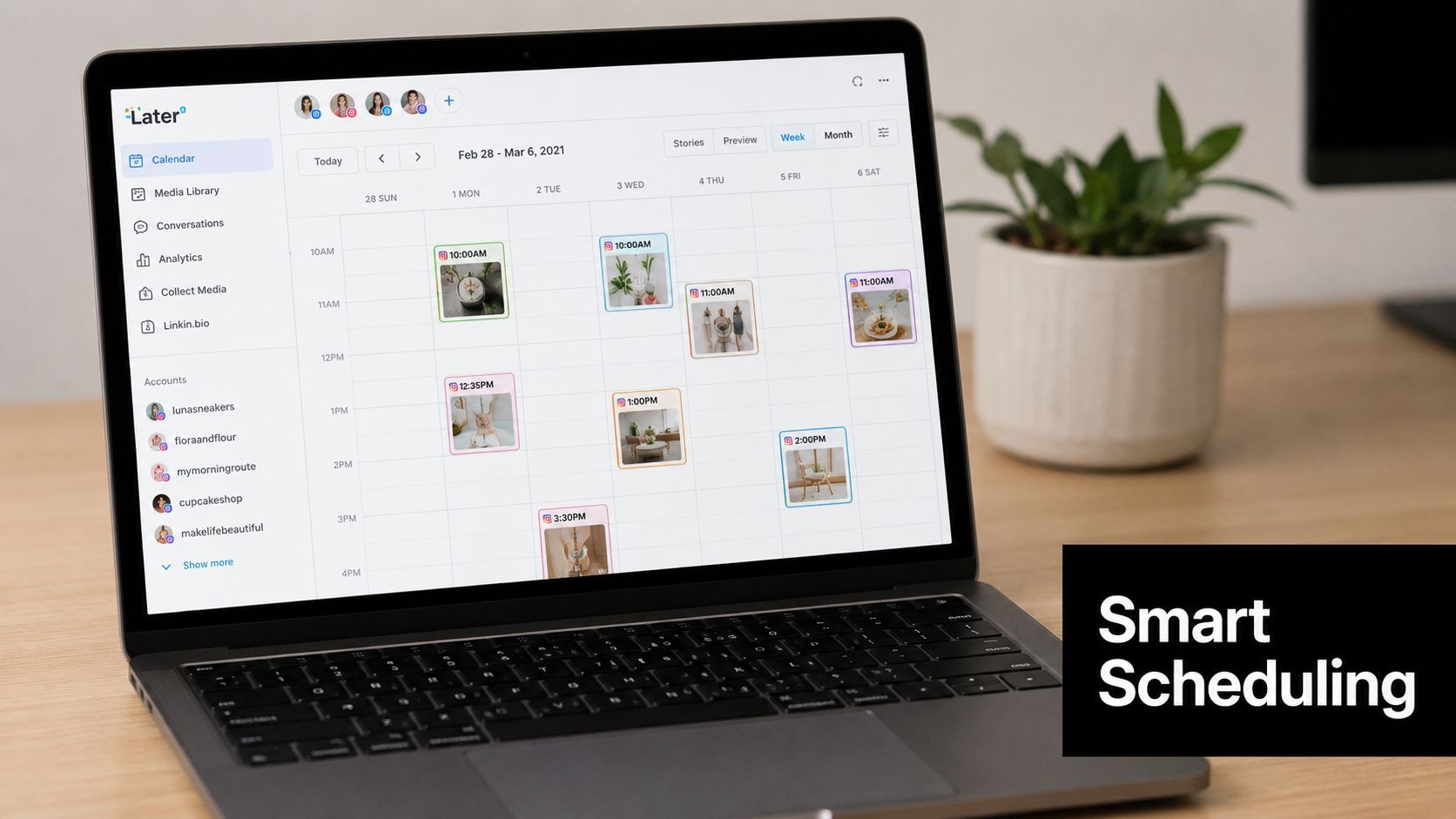
Hootsuite and Sprout Social are the most natural fits for approval-heavy workflows. They're useful when one person drafts, another reviews, and a third owns the publishing calendar. Later is easier to live with if your team thinks visually and wants a grid that makes gaps obvious at a glance. Buffer is the cleanest choice when the main need is simple scheduling with recommended posting times, without a cluttered interface.
| Tool | Multi-Account Calendar | Suggested Posting Times | Recurring Slots | AI Content + Scheduling |
|---|---|---|---|---|
| Hootsuite | Yes | Yes | Yes | Limited, workflow dependent |
| Sprout Social | Yes | Yes | Yes | Yes |
| Later | Yes | Yes | Limited | Yes |
| Buffer | Yes | Yes | Limited | Yes |
| ShortGenius | Yes | Yes | Yes | Yes |
ShortGenius sits in a different bucket because it combines creation and scheduling in one place. It can handle scriptwriting, image generation, video assembly, voiceovers, and auto-scheduling to Instagram, along with other social channels. That matters if your bottleneck isn't just timing, but the entire path from idea to published Reel.
The right scheduler usually matches the bottleneck you're already feeling, not the one you wish you had.
If you're choosing between tools, ask one practical question, what breaks most often in your current workflow. If it's approvals, pick the platform that keeps feedback in one place. If it's planning, pick the calendar that makes the week visible. If it's production, pick the tool that gets from draft to scheduled post without forcing five separate apps into the loop.
Best Times to Post and How to Test Your Own
A scheduling tool is only as useful as the timing plan behind it. If you reuse a generic chart and never check your own audience, you end up posting at hours that look convenient instead of hours that perform.
The broad pattern is clear enough to use as a starting point. Analysts at Buffer found stronger Reel engagement on Wednesdays and Thursdays in the 6 p.m. to 11 p.m. window in their Buffer's 2026 Instagram timing analysis. Adobe's Reel analysis found a crowded noon ET posting window, with nearly 1 in 10 Reels posted there, and it also pointed to useful pockets outside that peak in their Adobe's Reel timing analysis.
Build a timing test, not a guess
Use one Reel format and schedule it across three windows, then compare the results inside Instagram Insights. Evening, morning, and a lower-competition off-peak slot give you a clean read on whether your audience responds better when they are winding down, starting the day, or scrolling at quieter times.
Adobe's timing analysis also makes morning testing worth the effort. The report says Reels posted on Mondays generate the highest average views at 16.7 million, and 3 a.m. ET posts reach 22.2 million views on average. It also says Reels posted on Fridays earn the highest average likes at 1,030K, with 6 a.m. ET posts reaching 1,237K likes on average. Those figures are specific to that dataset, so treat them as test prompts, not rules.
If you want a framework for setting up those tests, the instagram engagement testing tips guide from Sup Growth is a useful companion. It helps you compare post windows without turning the process into a spreadsheet exercise that nobody wants to maintain.
What to watch in the results
Start with reach, likes, and saves. Those metrics tell you whether the Reel was discovered, not just seen by people who already follow you. If one slot keeps winning, make it the default for the next batch, then keep testing nearby hours instead of jumping to a totally different schedule.
For global accounts, scheduling makes this manageable. You do not need to manually post at odd hours to test them. Queue the Reel in the device's local time and let the calendar do the work. That is the value of scheduling, it turns timing into something you can measure instead of guess.
Fixing the Most Common Scheduling Problems
Most scheduling failures look random at first, but they usually come from a small set of repeat problems. The quickest way to recover is to identify the symptom before you touch the post again. Re-uploading blindly often makes the mess worse.
Scheduled post never publishes
If the Reel stays queued and never goes live, check the app version, account permissions, and whether you're using the correct publishing surface. In practice, this usually shows up when a business account loses access in Meta Business Suite or when the app hasn't synced properly. The fix that holds up is boring but effective, reconnect the account, confirm permissions, and try scheduling again from the surface you trust most.
Editing wipes the schedule
If a small caption edit makes the scheduled post disappear from the queue, stop trying to patch it in place. Some workflows tolerate caption, location, or timing changes better than others, but edits can still knock the post out of its scheduled state. If that keeps happening, move the final editing pass earlier in the workflow, before the post is queued.
Time zone surprises
If a Reel fires at the wrong hour, check whether the device region changed. This often happens during travel or when a team member queues content on a phone that isn't set to the account's intended local time. The simplest fix is to confirm the device time zone before scheduling, especially for accounts that publish in multiple regions.
Drafts and badges get stuck
A stuck Scheduled badge or a draft that vanishes after an app update usually points to sync trouble, not content trouble. Refresh the app, check the post list inside the relevant account, and confirm the Reel still exists in the scheduler before rebuilding it. If the same problem keeps recurring, switch that account to a tool with a more stable draft management flow.
When native scheduling gets flaky, third-party platforms often handle revision and queue management more cleanly. That's why teams with repeatable pipelines usually keep a backup scheduler in the stack. They're not chasing extra features, they're protecting the publishing process from small failures that waste time.
Your Reels Scheduling Checklist and Next Step
The most useful way to think about how to schedule Instagram Reels is as a routine, not a one-time action. Finalize the video, caption, hashtags, and cover first. Choose native Instagram, Meta Business Suite, or a third-party scheduler based on how many accounts and approvals you manage. Then start with a tested timing baseline, usually weekday evenings, and keep the off-peak windows in your test rotation.
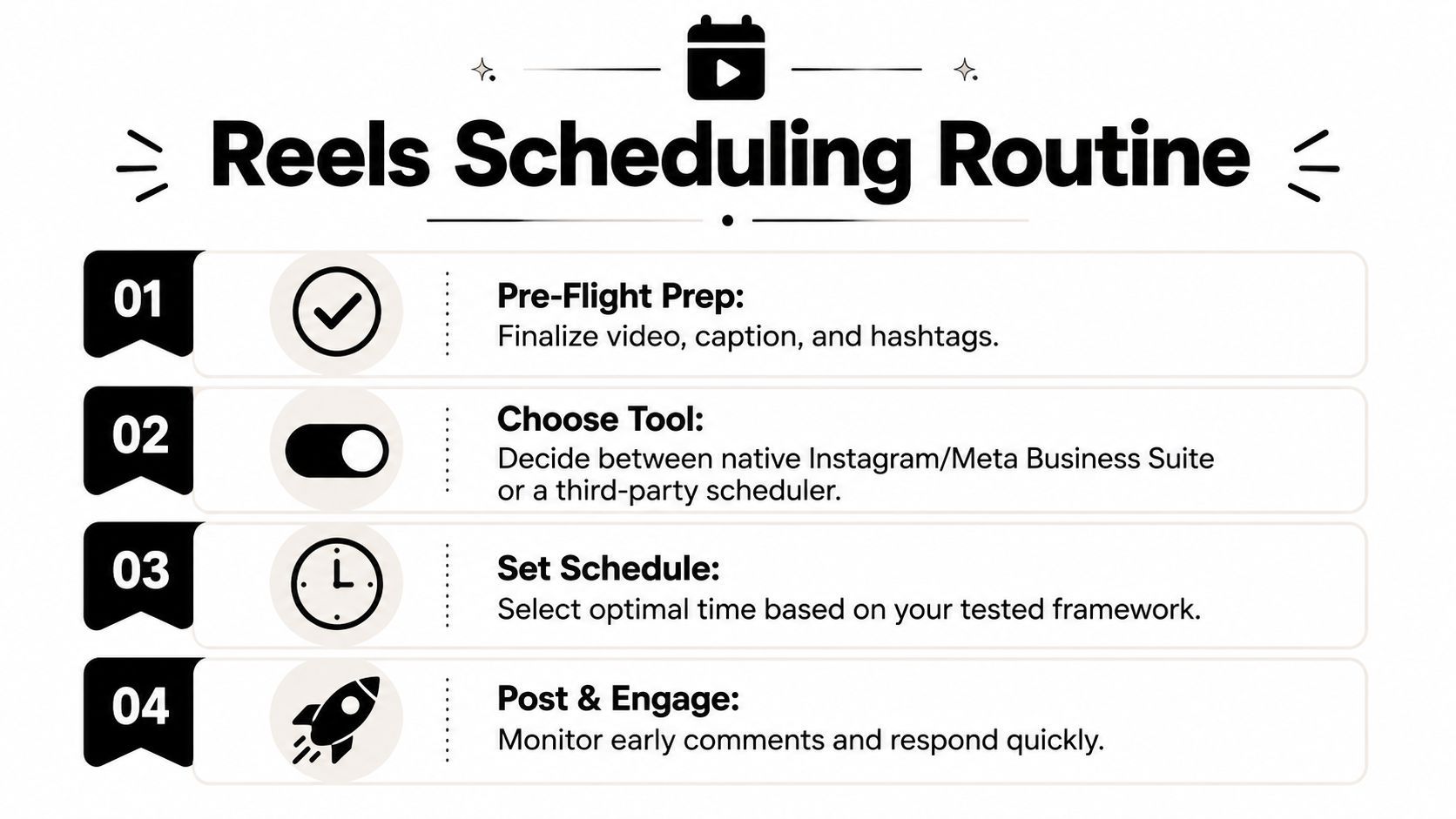
The win comes after publishing. Check Instagram Insights again after the Reel has had time to circulate, then compare the next scheduled post against the one before it. Scheduling is the start of the measurement loop, not the finish line.
If you want the next batch to be easier, build your calendar around a repeatable prep template and a simple test log. That's how scheduling stops being admin work and starts becoming a system.
If you want a faster way to turn ideas into scheduled Reels, ShortGenius (AI Video / AI Ad Generator) can help you move from script to finished video to scheduled post in one workflow. It's built for teams that need creation, editing, and auto-publishing in the same place, which makes it a practical fit for the scheduling process covered here.