How to Create a Link for a Video: 2026 Sharing Guide

Learn how to create a link for a video using YouTube, Google Drive, or professional tools. Our 2026 guide covers secure sharing and privacy best practices.
You finished the video. The edit is clean, the captions are in place, and now someone asks the deceptively simple question: “Can you send me the link?”
That's where teams often slow down. A video link isn't just a copied URL. It decides how the video looks, who can access it, whether it feels professional, and whether you'll learn anything from the people who click it.
The mechanics are easier than they used to be. Video hosting became mainstream in the late 2000s with platforms like YouTube, and by 2026 the basic workflow is standardized across major platforms: upload the file, set access to something like “anyone with the link,” then copy the URL, as shown in this YouTube walkthrough on video link sharing. The hard part now isn't finding the share button. It's choosing the right workflow for the job.
Why Creating the Right Video Link Matters
A link can help a video travel, or it can limit its impact.
If you send the wrong type of link, people hit friction fast. They run into permission requests, branded pages that don't match the campaign, ugly URLs in emails, or a player that feels fine for internal review but weak for customer-facing use. Most problems blamed on “distribution” start one step earlier, at hosting and link setup.
That's why how to create a link for a video is really a workflow decision. You're choosing between reach, privacy, speed, control, and measurement. A YouTube link works well when discoverability matters. A Google Drive link is often enough for internal review. A dedicated video platform makes more sense when presentation, embeds, and analytics matter.
Practical rule: Pick the platform based on the job the video has to do, not the platform you already happen to use.
Another common mistake is treating link creation like the last checkbox in production. In practice, it affects the entire handoff. If your team creates voice-led explainers, tutorials, or product demos, it helps to think about narration, playback context, and sharing together. That's one reason I like keeping resources such as blog posts on voice technology in the workflow. Voice quality changes how polished the shared asset feels once the link lands in someone's inbox or chat thread.
The good news is that the core process is simple. The useful part is knowing which version of “simple” fits the moment.
Choose Where Your Video Will Live
A bad hosting choice creates problems before anyone clicks play. The wrong platform can force login requests, strip out branding, limit embed options, or leave the team with no useful viewing data after the send.
That is why hosting comes first. Where the file lives determines what kind of link you can create, how the video appears to the viewer, and what you can measure after distribution.
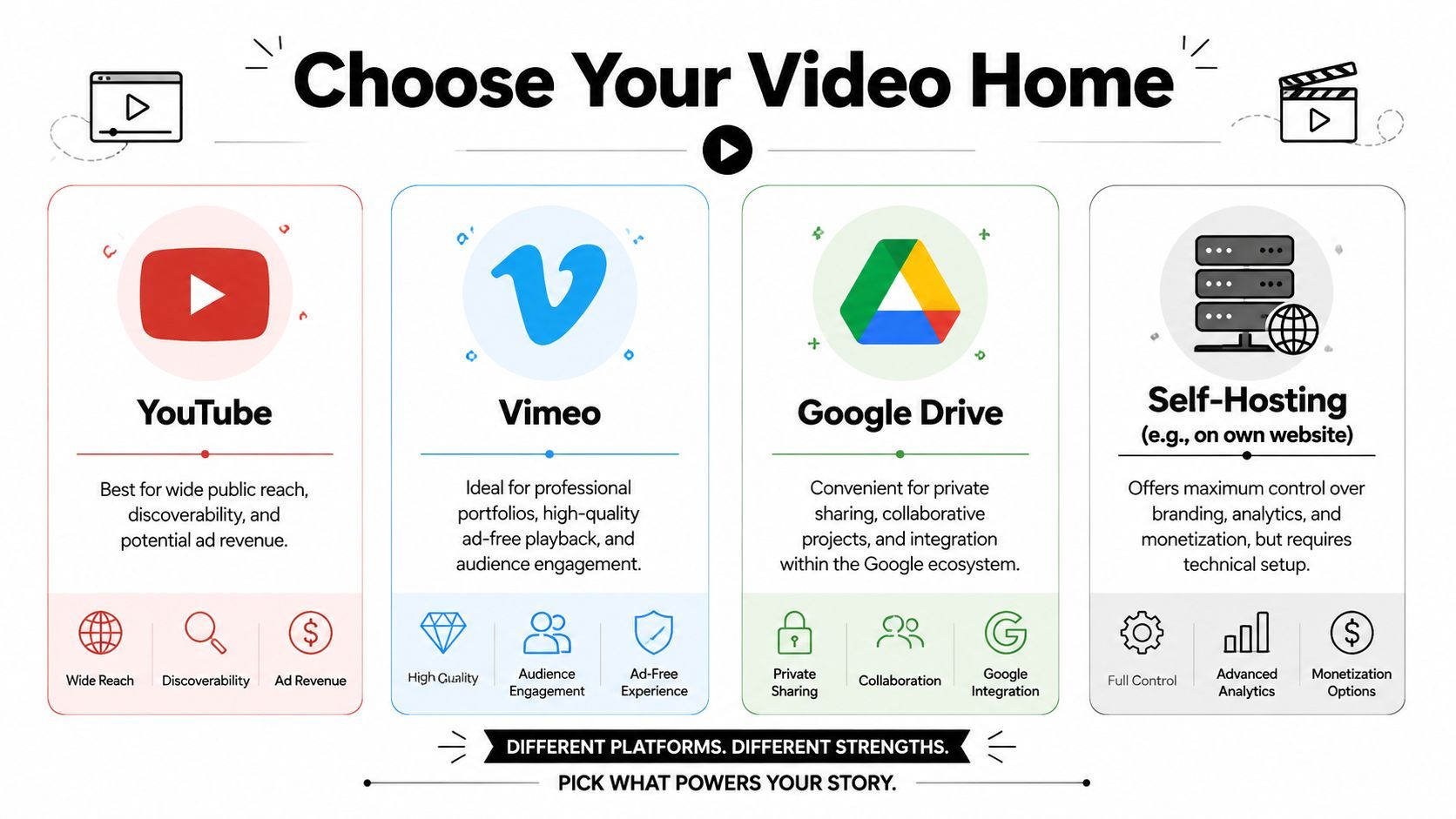
Four practical hosting paths
Teams new to video distribution often overcomplicate this. In practice, most hosting decisions fall into four categories, and each one produces a different kind of link experience.
| Platform Type | Best For | Pros | Cons |
|---|---|---|---|
| Public video platforms | Public reach, search visibility, easy sharing | Familiar player, simple sharing, potential discoverability | Less control over surrounding experience, public platform context |
| Cloud storage | Internal review, client approvals, quick private delivery | Fast setup, simple permissions, often already in use | Weaker presentation, limited marketing features |
| Specialized video platforms | Professional sharing, branded playback, controlled embeds | Better presentation, stronger privacy and embed controls | Usually requires another tool and workflow |
| Self-hosting | Full control over brand and site experience | Maximum control over page context and monetization | More technical setup and maintenance |
What works well in each category
YouTube and similar public platforms work best when reach matters more than control. The player is familiar, the link is easy to share, and the video can keep getting views after the original campaign ends. The trade-off is that the viewing environment belongs to the platform. Suggested videos, platform branding, and off-page distractions are part of the package.
Google Drive and other cloud storage tools are a practical choice for internal review, draft delivery, training clips, and one-off client approvals. They are fast because many teams already use them, and permissions are usually simple to set. The trade-off is presentation. A Drive link can work fine for review, but it rarely feels polished enough for a campaign, sales send, or embedded website experience.
Specialized video tools make sense when the link is part of a repeatable distribution process. They give teams more control over the player, embeds, privacy, and brand presentation, and they usually offer better analytics once views start coming in. That extra control costs money and adds another step to the workflow, so it is usually justified only when video is doing real marketing, sales, or customer education work.
Self-hosting is the highest-control option and the highest-maintenance one. It gives the team ownership of the page experience, player context, and technical setup. I recommend it only when there is a clear reason to own delivery end to end, such as custom product experiences, tight brand control, or platform restrictions you cannot accept.
The right host matches the job. Public reach, private review, polished delivery, and full control each call for a different setup.
A simple selection filter
Use this filter before uploading the file:
- Need public visibility: Choose YouTube or another public platform.
- Need private review: Use Google Drive or a tool with access control.
- Need polished embeds and better reporting: Use a specialized video host.
- Need full control of the website experience: Choose self-hosting only if your team can support the technical overhead.
This decision saves rework. If the team uploads first and asks hosting questions later, the usual result is a second upload, a new URL, and old links that continue circulating in email threads, docs, or campaign assets.
How to Generate Share and Embed Links
Once the video is uploaded, the link part is usually straightforward. The details matter, though, because a share link and an embed link solve different problems.
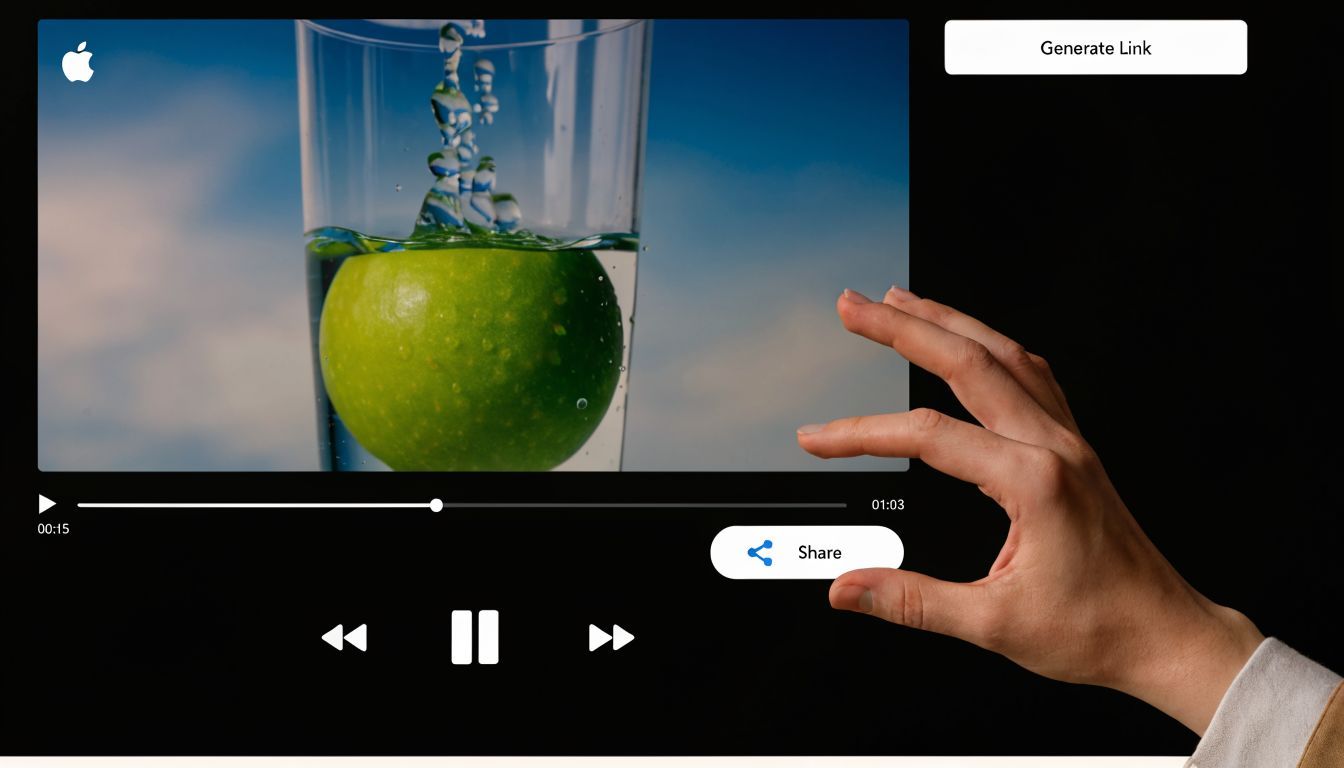
Create a standard share link
A share link is the URL you paste into email, Slack, a text message, a social post, or a CRM note.
For most platforms, the workflow looks like this:
- Upload the file to the platform you chose.
- Open sharing or privacy settings and set the right access level.
- Copy the generated link from the Share button or file menu.
- Test it in a private browser window before sending it.
On YouTube, this usually means opening the video, clicking Share, and copying the URL. On Google Drive, it usually means right-clicking the file, opening Share, adjusting access, and then copying the link.
The testing step matters more than people think. A link that works for you while logged in may fail for everyone else.
Use an embed code when the video should live on a page
An embed code is different. It's HTML that places the video player directly inside a webpage.
Use an embed when:
- The page needs to keep visitors on-site
- The video supports a blog post, landing page, or help article
- You want the video to feel like part of your website experience
Use a normal share link when:
- You're sending the video one-to-one
- The video is meant for quick access in chat or email
- You don't control the destination platform
If the destination is a message, use a URL. If the destination is a webpage, use an embed.
Common mistakes during link generation
Teams usually run into the same issues:
- Wrong permission level: The viewer gets an access request instead of the video.
- Copying the page URL instead of the share URL: Some platforms create a cleaner, intended sharing link.
- Using an embed where a link would be faster: This slows down simple distribution.
- Skipping a mobile check: A link that looks fine on desktop may feel clumsy in messaging apps.
The actual clicks are simple. The judgment call is what separates a usable link from one that causes support messages.
Optimize Links with Shorteners and Tracking
A video link usually starts as a file path or platform URL. By the time it reaches email, social, paid campaigns, and reporting, it needs to do more than open the video. It needs to look clean, signal trust, and tell you which distribution choice produced the click.
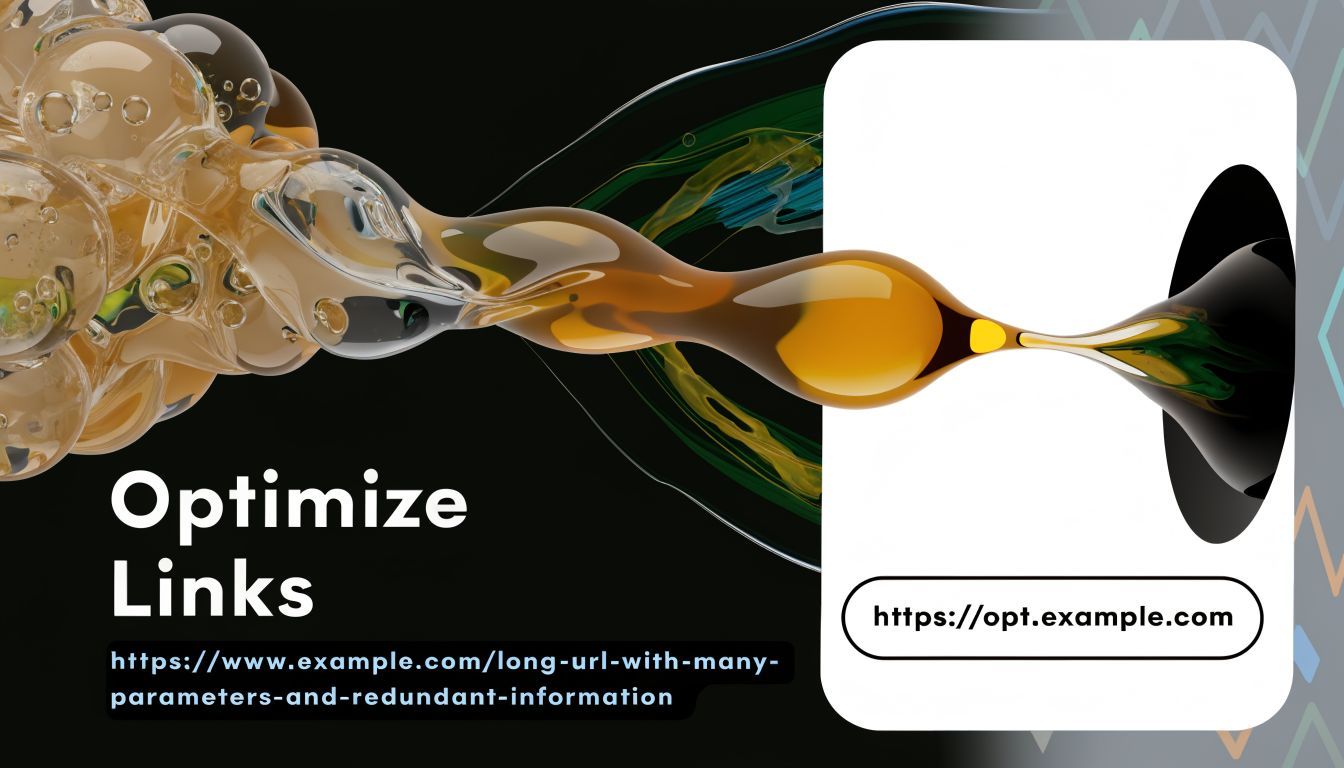
Clean up the link before you publish it
Long platform URLs create friction fast, especially in SMS, creator bios, PDFs, sales decks, and printed materials. A shorter link is easier to scan, easier to paste, and less likely to break when someone copies it across apps.
Shortening is still a judgment call. A recognizable YouTube or Vimeo URL can earn more trust than a generic redirect, especially for cold audiences. A branded short link works better when the original URL is cluttered with tokens, folders, or tracking parameters. Teams that want short links tied to publishing workflows often use a tool like ShortGenius to keep creation, sharing, and link control in one place.
Use this rule in practice:
- Keep the original URL when platform recognition supports trust
- Use a short or branded link when readability, presentation, or offline sharing matters more
- Avoid stacking redirects when page speed and attribution accuracy matter
Add tracking before the link goes live
A clean link helps distribution. Tracking helps decisions.
UTM parameters show where each click came from, such as email, LinkedIn, Instagram bio, partner placements, or SMS. Without them, one video can collect traffic from five channels and still leave your team guessing which placement earned attention.
In my experience, the bottleneck is rarely creating one link. It is keeping channel versions organized once the same video is reused across campaigns, audiences, and reporting periods. That is where teams lose visibility. The Instagram bio link is different from the newsletter link, which is different from the paid social version, and each one should answer a specific performance question.
Build a repeatable link system
Treat video links like campaign assets, not one-off copies from the hosting platform.
That system usually includes:
- Channel-specific variants: separate links for email, organic social, paid social, sales outreach, or partner distribution
- Consistent UTM naming: source, medium, and campaign labels that stay readable in reports
- Redirect ownership: the ability to update a destination without changing the public-facing link
- Performance review: click data, watch behavior, and downstream actions tied back to the original placement
For a lightweight reporting layer, tools that track performance with Linkie bio tools can help connect clicks to audience behavior without building a custom dashboard.
The common failure point is operational, not technical. Someone grabs a fresh platform URL every time the video is posted, tracking gets added inconsistently, and reporting turns into cleanup work after the campaign ends. A simple link system prevents that mess and makes distribution easier to measure.
Manage Privacy Settings and Thumbnails
Not every video should be accessible in the same way. Privacy settings decide who can watch. Thumbnails decide whether they want to.
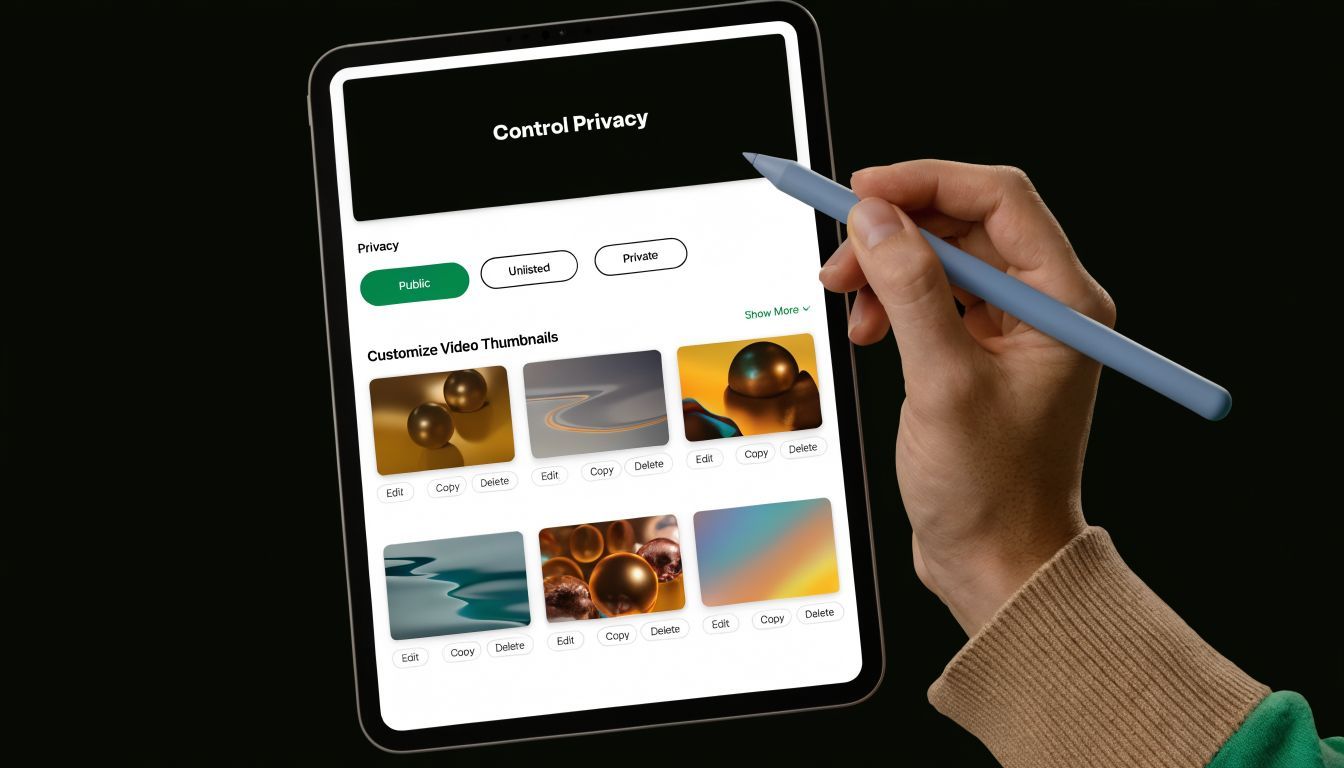
Match privacy to the actual use case
Most platforms give you some version of three access levels.
Public works when the goal is open distribution. Anyone can view the video, and in many cases the content can also be discovered beyond the direct link.
Unlisted or shareable by link is often the most practical middle ground. The video isn't broadly discoverable, but people with the URL can watch it. This is usually the right choice for client reviews, sales follow-ups, portfolio examples, and private campaign assets that still need easy access.
Private is for tighter control. Use it when access should be limited to named users, invited accounts, or a very small internal group.
Here's the trade-off in plain terms:
- Public: Easiest access, least control
- Unlisted: Best balance for many professional use cases
- Private: Strongest control, most friction for viewers
Choose the highest-friction privacy setting the audience will actually tolerate. Any stricter, and people stop watching. Any looser, and you lose control.
Thumbnails do more work than most teams realize
A thumbnail is the first editorial choice the viewer sees. If it looks accidental, the video feels accidental too.
Good thumbnails usually do three things:
- Show a clear focal point: One face, one product, or one visual idea
- Signal what the video is about: The image should match the promise of the content
- Stay readable at small sizes: Many viewers will first see it on mobile
Avoid the default frame grab unless it looks well-composed. It often catches a blink, a transition frame, or a washed-out scene that lowers clicks before the viewer even knows what the video covers.
If your thumbnail looks cramped or blurry because the source video was exported in the wrong format, it helps to fix the asset upstream. This guide on how to adjust video dimensions is useful when the image or frame ratio doesn't fit the platform cleanly.
A practical review pass before sending
Before you share the final link, check these items:
- Access test: Open the link while logged out
- Thumbnail check: View it on desktop and mobile
- Title sanity check: Make sure the video name is client-safe and audience-appropriate
- Surrounding page context: Confirm the host platform doesn't create the wrong impression
A polished link isn't only accessible. It feels intentional before playback even starts.
Strategic Placement for Maximum Impact
A video link earns its keep at the point of placement. The same asset can drive signups on a landing page, reduce support tickets in a help article, or stall in a crowded social post because it reached the viewer in the wrong context.
Match the placement to the job.
If the viewer needs framing, use an embed on a page that carries the argument forward. Blog posts, product pages, onboarding docs, and sales leave-behinds work well because the copy answers the questions the video cannot answer alone. If the video is already clear on its own, a direct link usually performs better in email, chat, SMS, or a social profile where speed matters more than extra explanation.
A few placements tend to outperform their simplicity:
- Blog posts: Best for search-driven traffic and educational videos that benefit from surrounding copy
- Email campaigns: Strong for launches, demos, onboarding, and nurture flows where the click has clear intent
- Email signatures: Useful for evergreen assets such as brand intros, case studies, or short product tours
- QR codes: Good for packaging, in-store displays, print collateral, trade shows, and physical handouts
- Sales follow-ups: Effective when a rep needs to answer one specific objection without setting another meeting
There is also a distribution play beyond owned channels. Teams that produce original, niche-specific videos can pitch relevant publishers to embed the asset and credit the source. Julian Goldie's explanation of video link building outlines the approach. Results vary by topic, outreach quality, and how usable the video is for the publisher, so this fits teams treating video as part of search and authority-building, not only campaign content.
Placement decisions shape measurement too. An embedded video on a product page should be judged by downstream conversions. A direct link in a sales email should be judged by reply rate, meeting rate, or deal movement. Use one URL strategy for every channel, and reporting gets muddy fast.
The practical standard is simple. Before sharing any video, decide where it should appear, how much context the viewer needs, and what success looks like in that channel. A created link is only the starting point.