How to Add Subtitles on TikTok the Smart Way

Learn how to add subtitles on TikTok with our step-by-step guide covering auto-captions, manual editing, and third-party tools for better reach.
You post a TikTok you're sure will land. The hook is sharp, the edit is tight, and the first comments start arriving. Then someone writes, “Couldn't hear it.” Your video is being watched in a coffee shop, on a loud commute, in an open-plan office, or beside a sleeping child. The content isn't failing because the idea is weak. It's failing because the message depends on audio that many viewers can't use.
Learning how to add subtitles on TikTok fixes that gap, but tapping the caption button and publishing isn't a complete workflow. Native captions are useful, yet they can mishear names, slang, and fast speech. TikTok also handles posted videos differently from LIVE streams, where native real-time subtitles still aren't available. The practical system is simple: generate captions, review every line, style them for mobile viewing, and use another workflow when TikTok's own tools don't cover the job.
Why Subtitles Decide Whether Anyone Watches Your TikTok
Audio often disappears before your hook gets a chance. A commuter may be standing beside a train announcement, a parent may be scrolling with a sleeping child nearby, and someone in a shared office may never turn sound on. Subtitles let those viewers understand the premise immediately instead of waiting for the audio or abandoning the video.
That makes captions more than a visual accessory. They're distribution plumbing. A viewer can read the first sentence, understand the promise, and decide to stay. Spoken words also become visible search context, which helps viewers recognize whether a tutorial, product explanation, or opinion matches what they're looking for.
TikTok's own caption rollout reflects this broader role. The platform launched built-in auto-captions in April 2021, initially supporting American English and Japanese, then expanded the feature to additional languages. TikTok described the change as an accessibility measure, particularly for viewers who are hearing impaired. Creators enable captions during editing, while viewers can turn them off from the share panel, so native subtitles function as a viewer-controlled accessibility layer, not merely text permanently burned into the video. TikTok's original auto-captions announcement documents that distinction.
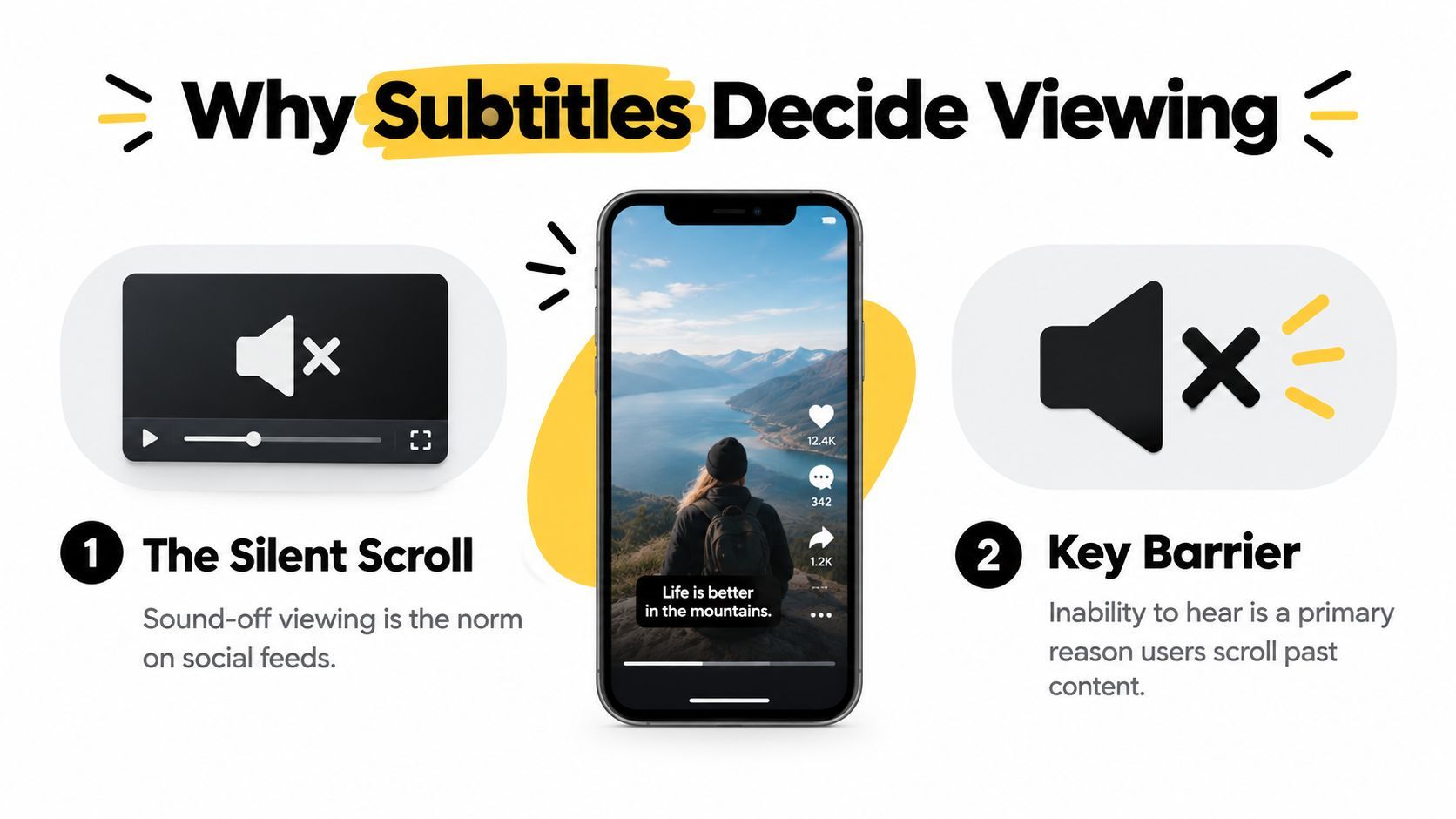
Captions help people follow the idea
Subtitles also make information easier to scan. A viewer can catch a product name, recipe ingredient, technical term, or call to action without replaying the clip. That matters when the spoken delivery is quick or the edit moves between scenes.
Practical rule: If your point matters, put it where viewers can read it.
Captions support deaf and hard-of-hearing viewers, make speech easier to follow in noisy environments, and give your posts a more deliberate presentation. They won't rescue a weak concept or replace a strong opening, but they remove an avoidable reason to scroll.
The limitation is equally important. Auto-captions are not proofread copy, and they don't solve live broadcasting. Treat them as a first draft for uploaded videos, then apply a review pass before publishing.
Turning On TikTok Auto-Captions the Right Way
Start with a recorded clip or a video from your camera roll. After you reach TikTok's editing screen, look for the Captions option in the editing tools. Depending on your app version and device, it may appear as a caption control or inside the text and editing menu.
TikTok may show a first-time consent or opt-in prompt before it processes the speech. Accept it if you want the app to transcribe the clip. If you dismiss that prompt, the caption control may not behave as expected, so don't mistake the extra confirmation for a failed upload.

Choose the spoken language when TikTok offers the language selector. This step matters because the speech model needs the right language context. TikTok broadened its caption and translation support in July 2022, initially covering nine languages, English, Portuguese, German, Indonesian, Italian, Korean, Mandarin, Spanish, and Turkish. TikTok's language expansion announcement describes the feature as a way to make publishing more practical for international audiences.
Once processing finishes, the generated text appears over the video as a caption layer. Read it while the clip plays, then use the available editing controls to correct wording, change the appearance, and adjust where the text sits on screen. Keep captions away from TikTok's interface areas and from important visual details such as a product label or a speaker's face.
Small setup issues can waste time
The caption tool can look different after an app update, and language settings may need checking again. If the control is missing, confirm that TikTok is updated and that the selected language is supported in your current app environment.
Generation is also a processing step, not an instant overlay. Give the app time to analyze the audio, especially when the clip contains music, several speakers, or unclear sound. A delay doesn't mean the feature has failed.
The main mistake is publishing as soon as the transcript appears. TikTok's auto-captions create a useful draft, but the draft still needs a human review. That review is where you catch the errors that make a polished video look careless.
Editing Captions for Accuracy, Timing, and Style
The caption editor should be treated like a quality-control station. After TikTok generates the transcript, tap the caption block or its edit control and move through the text from the beginning to the end. Don't skim for obvious mistakes only. A single wrong word can change the meaning of an instruction, product claim, or punchline.
Start with words speech recognition commonly mishandles:
- Names and brands: Replace phonetic guesses with the correct spelling, especially when the name appears in the hook.
- Homophones: Check words such as “their,” “there,” and “they're” by reading the entire sentence, not just the isolated caption.
- Technical vocabulary: Review industry terms, model names, ingredients, software features, and abbreviations manually.
- Cross-talk: Separate overlapping speakers or rewrite the segment if the transcript has collapsed two voices into an unreadable string.
Independent research shows why this pass isn't optional. In a sample of 300 TikTok videos, 19.7% contained at least one captioning error. Among those videos, the mean word error rate was 7.9%, with observed rates ranging from 0.5% to 35.7%. The ACM study on TikTok captioning accuracy supports a practical conclusion: automation saves typing, but it doesn't remove proofreading.
Make each caption easy to track
Break long blocks into short, timed segments. Drag the edges on the timeline so each line appears when the speaker says it, rather than several words late or early. A caption that arrives after the sentence has finished forces viewers to reread the previous moment and can clash with a scene change.
Aim for no more than two lines on screen. Keep each segment compact enough that viewers can read it without losing the visual action. If a sentence is long, split it at a natural phrase rather than cutting between a verb and its object.
Style should support comprehension. Bold white text with a dark outline remains dependable over changing backgrounds. A keyword highlight can work for emphasis, but don't highlight every word or the screen becomes visually noisy. Use a consistent font, color treatment, and placement across your posts so viewers recognize your content without the captions competing with it.
Watch the finished video at normal speed with the sound off.
During that playback test, look for captions that need a second read, overlap a cut, cover a face, or disappear before the idea is complete. Also check the first caption. It should make sense immediately, because viewers shouldn't have to wait for the speaker's audio to understand why the video deserves attention.
When Native Captions Are Not Enough
Native TikTok captions are the right starting point for many solo creators. They're built into the publishing flow, require no separate export, and let viewers control whether the captions appear. The trade-off is limited control over transcription, styling, and more complex audio.
TikTok's Ads Manager Video Editor offers a different workflow. Open Video Editor, select the Narration tab, use Add Script if no voiceover is detected, switch on the Caption toggle, choose the subtitle language, and generate the captions. TikTok says the editor automatically creates sentence and line breaks, and generation takes about one minute. Afterward, you can change the font, color, alignment, and other subtitle settings. TikTok's Video Editor caption instructions provide the platform's exact process.
Third-party tools add another layer of flexibility. AI-assisted editors can be useful for batch work, multilingual versions, technical scripts, and frame-level timing. They also introduce an extra export and upload step, and some features require a paid tier. For teams handling sensitive client material, review where files are processed before sending footage to an external service. Resources such as OohYeah's guide to accessibility support can also help teams think beyond transcription and account for the wider viewing experience.
| Feature | Native TikTok Captions | TikTok Ads Manager Video Editor | AI Third-Party Tools, ShortGenius, Captions, VEED |
|---|---|---|---|
| Best fit | Solo creators publishing directly in TikTok | Teams preparing structured ad or campaign assets | Brands and creators needing batch, multilingual, or advanced editing workflows |
| Workflow | Generate inside the TikTok editor | Add a script or use detected narration, then generate | Transcribe and style externally, then export or render |
| Language handling | Choose from supported in-app options | Choose a subtitle language during generation | Often supports broader project workflows, depending on the tool |
| Timing control | Basic corrections and placement | More structured editing controls | More detailed timing and transcript editing |
| Styling | Convenient but limited | Editable font, color, alignment, and related settings | Usually broader design and animation controls |
| Main drawback | Still requires a manual accuracy check | Adds Ads Manager friction for organic posting | Extra export step and possible subscription cost |
Choose the simplest tool that meets the actual requirement. Native captions suit one-language talking-head videos posted regularly. Ads Manager makes more sense when a team already works there. A third-party workflow earns its place when volume, localization, or visual control justifies the added handling.
Subtitles for TikTok LIVE and Common Pitfalls
Auto-captions solve a posted-video problem, not every TikTok publishing problem. TikTok's current help material covers subtitles and closed captions for uploaded content, while recent coverage continues to identify a gap for native real-time subtitles during TikTok LIVE. TikTok's help page on subtitles and closed captions is the place to check the platform's current feature behavior before planning an accessibility-dependent live event.
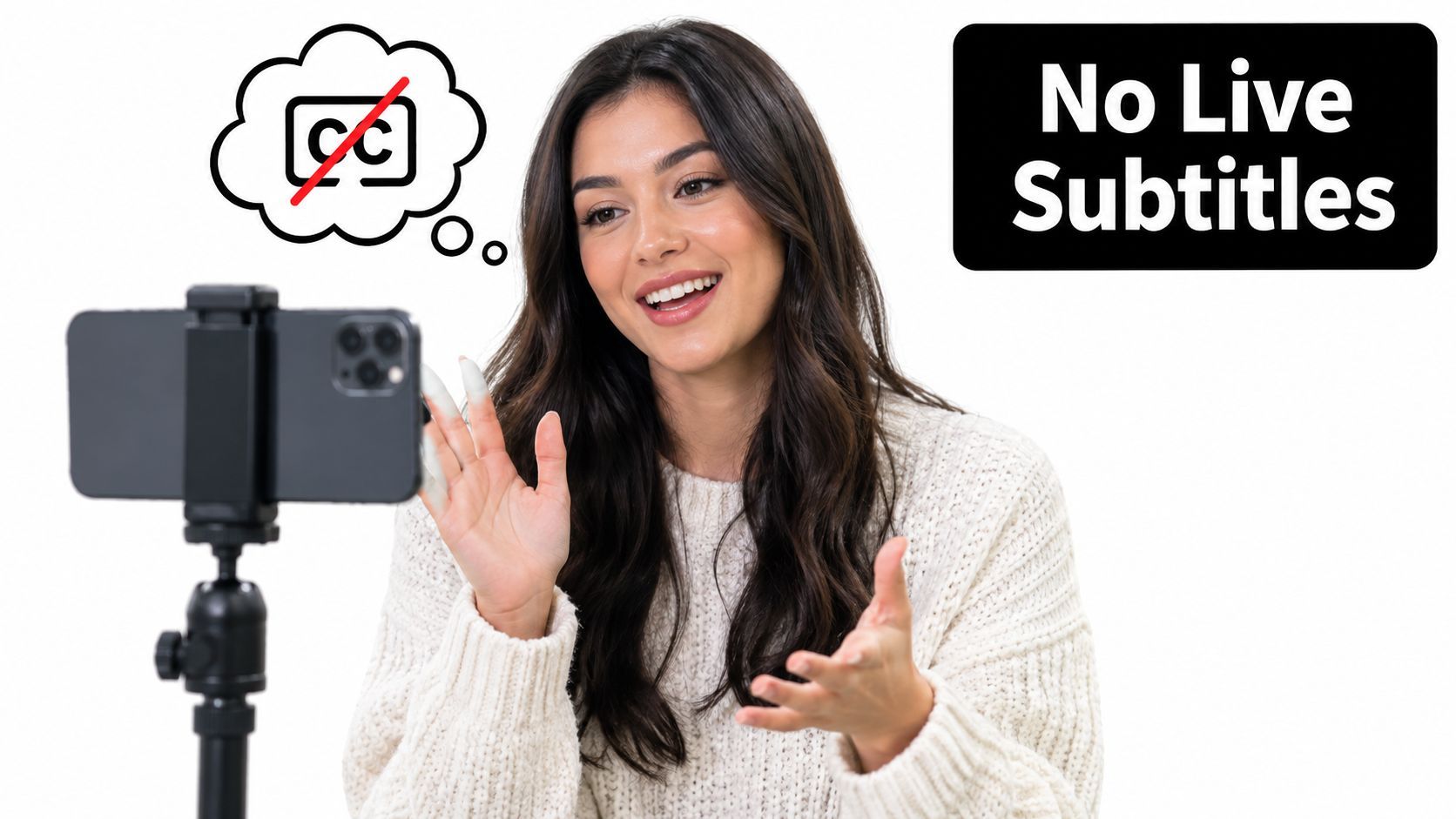
For a live Q&A, lesson, product demonstration, or interview, creators may need a third-party setup such as StreamYard, OBS paired with WebCaptioner, or a caption add-on from Restream. Test the full signal path before going live. An overlay that looks correct in the broadcasting software can still be cropped or hidden by the TikTok layout.
The failures I'd check first
- Music becomes fake dialogue: Lower or remove background music during speech, then regenerate the transcript.
- Fast delivery turns into omissions: Slow the delivery during the recording, or edit the transcript against the original audio instead of trusting the generated sentence.
- Names are wrong: Add the correct spelling manually every time a person, product, or place is introduced.
- Timing drifts after trimming: Generate captions after the final cut, not before. If you shorten the video later, replay the entire caption track.
- Stitched or duet audio gets confused: Review which speaker TikTok has transcribed and add manual text for the responding creator when the native track misses it.
- Promotional wording disappears: Check captions and on-screen text against any brand or disclosure language before publishing.
These problems aren't reasons to abandon automation. They're reasons to define where automation ends. For ordinary uploads, the finish line is a clean transcript that matches the audio and remains readable with sound off. For LIVE, the finish line begins with a separate captioning plan because TikTok's native workflow doesn't cover real-time speech.
Best Practices That Make Captions Work
A viewer should be able to follow the story with sound off without racing through the text. Keep each caption visible long enough to read, then remove it as the speaker moves on. Short segments, natural sentence breaks, and accurate timing work better than placing a full transcript in one large block.
Use sentence case instead of all caps. Capital letters across every line make captions feel like alerts and slow visual scanning. Keep text in the lower third, then preview the finished TikTok with interface elements visible. Buttons, descriptions, and the creator label can cover captions that looked correctly placed during editing.
Design for changing backgrounds
Prioritize contrast over elaborate branding. White text with a dark treatment is dependable, while yellow on black can suit some visual identities. Branded gradients may disappear over skin tones, bright walls, product packaging, or busy footage. Scrub through the entire clip, because a style that works on the opening frame can fail later.
Use a simple visual system:
- An opening hook: Show the main promise or question before the spoken explanation develops.
- Short reading units: Divide long speech into compact phrases so the frame never feels crowded.
- Consistent placement: Keep captions stable, moving them only when they block an important visual.
- Manual emphasis: Highlight words that carry the idea, such as a warning, result, or product name.
- A silent playback check: Watch at normal speed without audio and confirm that the sequence remains understandable.
Run one final review at normal playback speed. Check names, technical terms, punctuation, line breaks, and moments where text changes. Auto-captions commonly fail on proper nouns, fast delivery, overlapping voices, and edited audio. Correcting those details is what separates readable captions from amateur-looking ones.
Accessibility also extends beyond transcription. Add meaningful alt text to cover images where the platform or publishing workflow supports it. If the same file will be reused for Reels and Shorts, consider burning captions into the export. Native caption behavior differs across platforms, while visible subtitles give you more control over the final message.
For repeated short-form production, ShortGenius can generate short videos, add auto-captions with word-level highlighting, export TikTok-ready vertical files, and support direct posting or scheduling. Review the rendered result before publishing, especially names, technical language, and timing. Its workflow can also combine video creation, automatic subtitles, editing, vertical export, and publishing tools in one workspace.