How to Add Robot Voiceover on TikTok in 2026

Learn how to add robot voiceover on TikTok using built-in text-to-speech and AI voice tools, plus tips for cadence, captions, and publishing.
You want narration on your TikTok, but you don't want to record your own voice. Maybe you're demonstrating a product, building a faceless channel, or explaining a tutorial from behind the camera. You add text, search for the voice option, and then discover that the result either sounds rushed, lands on the wrong visual, or the feature isn't available on your account at all.
The reliable answer depends on what you need. TikTok's native text-to-speech is quick and convenient, while an external workflow such as ShortGenius gives you more control over voices, scenes, captions, formatting, and publishing. This guide covers both, including the points where TikTok's simple happy path usually breaks.
Why a Robot Voiceover Works on TikTok
TikTok introduced built-in text-to-speech in 2020, initially presenting it as an accessibility feature that could read on-screen text aloud for people who needed help reading or preferred listening. It later became a recognizable creative format for comedy, storytelling, tutorials, product demonstrations, and faceless narration. The voice sounds synthetic by design, which can make a clip feel playful, direct, or immediately familiar.
The important detail is how TikTok builds the narration. Text-to-speech is attached to a text layer, not imported as a conventional audio file. You write the words on screen, select that layer, and ask TikTok to read it aloud. That explains why timing, text placement, and script length matter so much. The text isn't just a caption. It's also the source material for the voice.
Practical rule: Write the text layer as a spoken script, not as a paragraph you happened to paste into a video editor.
That setup suits a creator who wants to publish quickly from a phone. You can record or upload footage, add a few concise lines, choose a voice, and publish without recording a microphone track. If you're casting a more polished educational or training narrator, the principles in this guide to finding the right e-learning narrator are useful here too, especially matching vocal style to the audience and subject.
There are two sensible workflows:
- Native TikTok text-to-speech: Fast, mobile-first, and suitable when the option and voice you want are available.
- External AI voiceover: Better when you need voice swaps, consistent branding, multilingual production, more detailed editing, or a fallback for missing regional features.
Neither route automatically fixes a weak script. A robot voice can make an unclear hook sound even less natural. The strongest results come from short phrases, deliberate timing, readable captions, and a voice that fits the footage.
Adding a Robot Voiceover with TikTok Text-to-Speech
Start in TikTok's creation screen by tapping the Add post (+) button. Record a vertical video or upload footage from your phone. Once the video is on the timeline, tap Text, type the first spoken phrase, and place the text where it won't cover the product, face, demonstration, or other important visual.
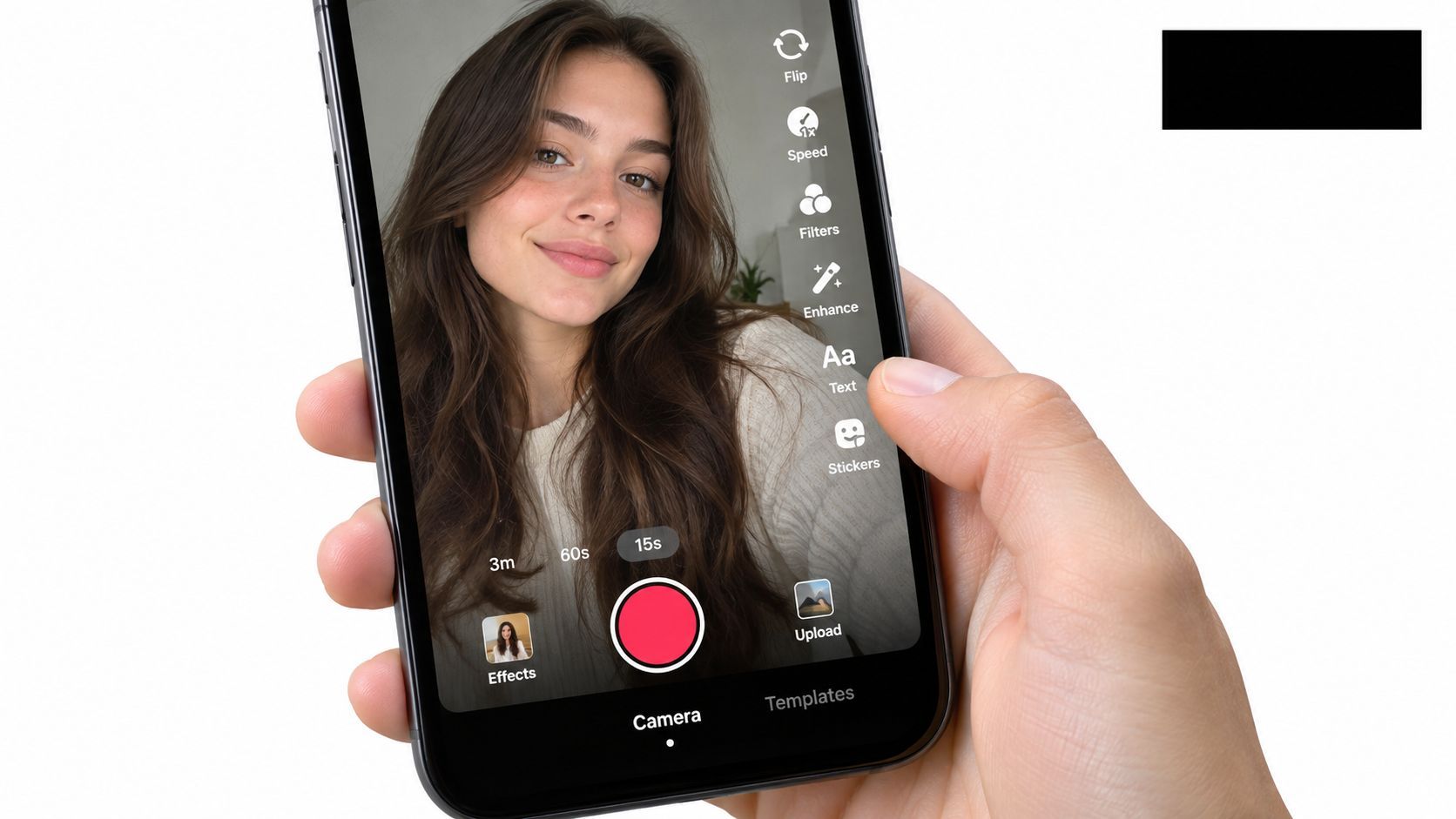
Keep the text tight. One text block should usually represent one visual beat, such as an opening claim, a product feature, or a final instruction. Tap the text layer, choose Text-to-speech, and audition the available voices. TikTok generates the spoken track from that selected layer, so changing the wording means changing the source of the narration.
Align each phrase with the footage
Tap the text layer again and adjust its duration on the timeline. Make the phrase appear when the relevant visual begins, rather than leaving one large block visible for the entire clip. If the narration describes a close-up, the text should start close to that close-up. Misalignment makes even a clear voice feel broken.
For creators comparing native TikTok narration with broader speech synthesis for creators workflows, the difference is control. TikTok keeps the process simple, but it also keeps the script, timing, and voice inside the app's text-layer system.
Use punctuation to create natural breaks. A short sentence followed by a period generally sounds cleaner than a long sentence packed with commas. Preview the video before publishing, because the synthesized voice may finish before the text disappears or continue after the next visual has started.
TikTok's auto-generated captions serve a different function from text-to-speech:
- Text-to-speech reads selected text aloud.
- Auto-generated captions display spoken dialogue for viewers.
That distinction matters for accessibility. A viewer may listen to the narration, watch without audio, or rely on readable text. Using both can support all three behaviors, provided the captions don't cover the subject or compete with the text-to-speech layer.
Watch this short visual walkthrough for the native editing flow before you build your own version.
Native TikTok text-to-speech works best for quick posts with one voice and uncomplicated timing. It becomes less convenient when you need multiple speakers, extensive revisions, a reusable brand voice, or the same finished asset adapted for several social networks.
Creating a Robot Voiceover in ShortGenius and Publishing It
A separate workflow helps when TikTok does not show the voice option you need, or when the clip is part of a repeatable publishing system. In that setup, start with the script and voice first, then cut the visuals to match the narration. That order matters. It avoids the common problem where the scene timing looks fine on mute, then falls apart once the synthetic voice starts reading.
A practical sequence looks like this:
- Draft a short script built around one clear point.
- Generate the narration and listen for awkward pronunciation.
- Build the scenes or footage around the spoken pacing.
- Add captions that follow the voice line by line.
- Cut dead air, slow openings, and extra transitions.
- Export or resize the final video for TikTok's vertical frame.
- Schedule or publish through the ShortGenius video workflow.
This approach works well for recurring content. An e-commerce team, for example, can keep the same structure for a daily product series, swap the product shot, update the script, and test a different narration voice without rebuilding the full edit. Because the script, voice, scenes, and captions sit in one project, the team can revise faster when a line sounds too stiff or a visual lands late.
That is the trade-off. TikTok is quicker for a one-off post made on a phone. An external editor adds another step, but it is easier to manage when you need approvals, repeatable formatting, voice swaps, or the same finished piece adapted for more than one channel.
Keep the external master clean
Build in a vertical canvas from the start and keep captions inside the safe area. Check the mix before export. If the voiceover has to carry the explanation, music should sit under it, not fight it. I also recommend generating the full voice track before making detailed cuts. Once the narration timing is locked, trimming becomes simpler and the visuals stop drifting away from the spoken line.
External generation is also the fallback when TikTok gives you one unsuitable voice, limits the voices available in your region, or makes multi-speaker timing harder than it should be. In those cases, create the finished video outside the app and upload it as a complete asset. That gives you more control over the final result and fewer surprises at publish time.
Matching Cadence and Captions Like a Pro
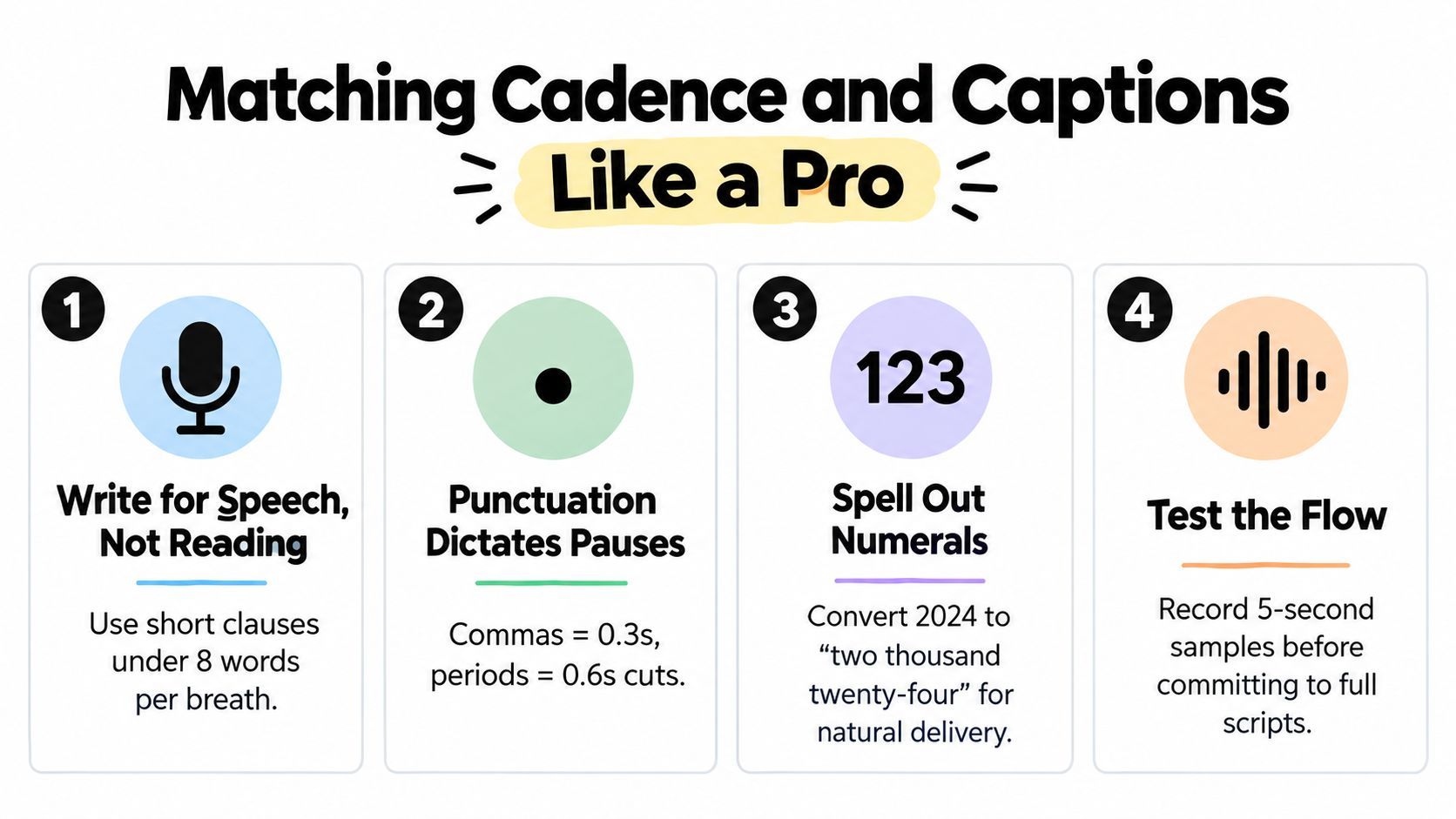
The robot effect usually starts in the script, not the voice model. Prose written for a blog post contains long clauses, dense transitions, and punctuation that makes sense to the eye but not to the ear. Rewrite each line so the listener can understand it while watching the visual.
Use short clauses, purposeful periods, and one text block per visual beat. If pronunciation matters, write numerals as spoken words. Acronyms can also need phonetic treatment, especially when the voice reads them as one word or pauses in the wrong place.
Remove the usual robotic artifacts
Several editing mistakes repeatedly make synthesized speech sound worse:
- Excessive speed: The voice races through information before the viewer can process the visual.
- Long unpunctuated sentences: Without clear stops, the delivery becomes flat and breathless.
- Ambiguous acronyms: The engine may pronounce an abbreviation as a word.
- Early text layers: The text appears before the synthesized audio reaches that phrase.
- Overloaded visual beats: Too much narration competes with too many actions on screen.
Preview the result on headphones and phone speakers. Headphones reveal clicks, awkward transitions, and pronunciation problems, while phone speakers show whether the words remain intelligible in ordinary viewing conditions. If the voice sounds acceptable only with headphones, lower the music and simplify the narration before changing the voice.
Treat captions as part of the edit
Add synchronized captions even when the narration is obvious. TikTok creative research cited by Adobe associated captions with a 58% increase in recall, a 25% increase in perceived uniqueness, a 95% increase in brand affinity, and a 31% improvement in likeability in the cited U.S. research (Adobe's documented TikTok AI voice workflow). These are directional creative benchmarks, not guaranteed results for an organic post.
Caption density matters. Use readable chunks that follow the spoken phrase, highlight the key idea, and leave enough of the screen visible for the viewer to understand the action. Don't turn every word into a large animated block if the video already contains labels, product packaging, or interface elements.
Test one variable at a time. Keep the video concept constant while comparing hook wording, voice, pacing, caption density, or music level. Evaluate retention, completion, shares, and conversions alongside likes, because a voice that attracts attention but loses viewers before the explanation isn't doing its job.
Troubleshooting Missing Voices and Regional Limits
You followed the normal path, tapped the text layer, and Text-to-speech isn't there. Don't assume you've missed a hidden button. TikTok's voice availability can vary by app version, region, account, device, and language.
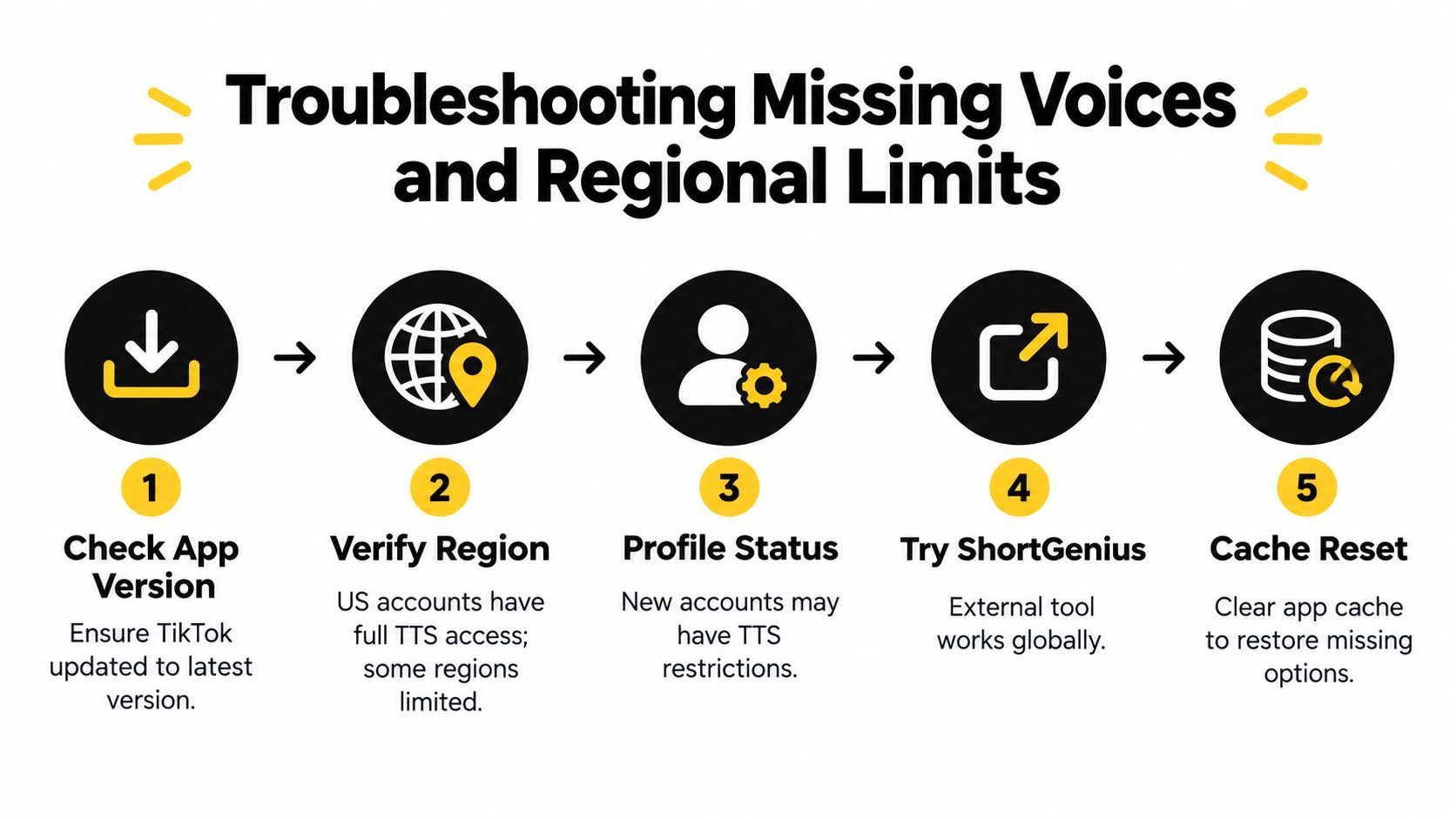
Use this decision tree:
- Update TikTok first. Install the latest app version, restart it, and reopen the creation screen. An outdated build can leave newer editing options unavailable.
- Check the region and language. Voice libraries aren't uniform. English generally has the broadest selection, while some supported languages may offer only one voice.
- Test another video and text layer. Confirm that you've selected the text layer itself, not the general editing canvas. If the option remains absent, test on another supported device if one is available.
- Review account limitations. Account status and feature rollout differences can affect what appears. If the control is missing across projects, treat native TTS as unavailable for that account.
- Use an external fallback. Generate the narration in ShortGenius, assemble it with the video, and upload the finished vertical file to TikTok.
TikTok may provide only one voice per video, and its native editor doesn't support dialogue or multilingual narration in a single clip in the way many creators expect. That makes external production the practical choice for conversations, alternating speakers, or a video that needs different language versions.
Regional variation isn't a minor inconvenience if you're publishing for a global audience. It changes the production decision. Use native text-to-speech when the option is present and sufficient. Move the voice generation outside TikTok when the missing feature, limited language support, or single-voice restriction would force you to redesign the video.
Publishing Checklist and Final Tips
Treat disclosure as part of publishing, not as an afterthought. TikTok states that realistic AI-generated audio, including AI-generated speech, must be labeled. You can disclose it through the post's AI-generated-content setting, a sticker, on-screen text, or the description, and you shouldn't clone a recognizable person or make a real person appear to say something they didn't say (TikTok's AI-generated content guidance).
Before posting, verify four things:
- Format: Export a clean 9:16 master.
- Clarity: Make the voice intelligible over music and effects.
- Opening: Communicate the topic in the first two seconds, before the full explanation develops.
- Validation: Judge the format using retention, completion, shares, and conversions, not likes alone.
TikTok's cited ad research found voice-over audio produced 71% higher recognition than ASMR audio, while voice effects produced a 1.7-times stronger consideration lift than a plain natural voiceover. Those are advertising benchmarks, not promises for organic videos. A robot voice is a creative differentiator worth testing, not proof that every post should use one.
ShortGenius (AI Video / AI Ad Generator) combines scriptwriting, AI video assembly, captions, natural voiceovers, resizing, scene and voice swaps, brand kits, and multi-channel scheduling in one workflow. If native TikTok text-to-speech is missing or too limited for your series, visit ShortGenius (AI Video / AI Ad Generator) and turn your next script into a TikTok-ready voiced video.