Edit Software for GoPro Comparison Guide

Discover the best edit software for GoPro with side-by-side features, pricing tiers, workflows, and social export presets in one comprehensive guide.
Your GoPro card is full again. There's a folder of shaky clips, a few clean moments, and no obvious path from raw action footage to something you can post before the moment goes stale. This is the core problem with edit software for GoPro. The software choice isn't just about trimming clips, it decides whether you spend an hour polishing one edit or build a workflow that turns the same footage into a stream of publishable clips.
| Software | Stabilization | Dewarping | Color / LOG Support | Proxy Workflow | Max Resolution | Pricing |
|---|---|---|---|---|---|---|
| GoPro Quik | Basic, action-first tools | Limited, geared to simple fixes | Straightforward editing | Mobile-first rather than deep proxy work | Depends on workflow, positioned for consumer editing | Free consumer pathway |
| Adobe Premiere Pro | Deep control for action footage | Strong manual correction options | Strong professional color workflow | Supported | Supports high-end output, up to 8K in comparison guides | Subscription |
| Final Cut Pro | Strong for Apple-based workflows | Solid correction options | Professional color tools | Supported | Supports high-end output, up to 8K in comparison guides | One-time license model |
| DaVinci Resolve | Strong, especially for pro finishing | Strong manual correction options | Deep color control and advanced grading | Supported | Supports high-end output, up to 8K in comparison guides | Free tier and paid tier |
| Filmora | Action-cam friendly tools | Useful for common GoPro fixes | Good for fast edits | Less robust than pro NLEs | Listed at 8K in comparison guides | Subscription and tiered options |
| Shotcut | Basic editor for simple workflows | Limited compared with pro tools | Basic color tools | Limited | Commonly positioned as a lighter editor | Free |
Introduction to Editing Software for GoPro
A creator finishes a river run, a mountain bike descent, or a family trip and sees the same problem each time. The footage looks strong on the camera, but once it moves to a laptop or phone, it often needs cropping, stabilization, and cuts before it is ready to publish. That is why the right edit software for GoPro matters, because the edit has to handle both the image and the workflow.
GoPro's consumer path now centers on Quik, its official video and photo editor. The app page emphasizes automatic edits, trims, and sync tools for fast turnaround, which fits GoPro shooting patterns where clips are captured in high volume and often on the move. That shift shows a broader change in expectations. Many creators now want an editor that can turn raw action footage into something publishable quickly, without forcing every clip through a heavy desktop process.
Why the workflow changed
Action-camera shooters rarely need a blank timeline and a full post-production rebuild from scratch. They usually need a fast way to stabilize, trim, and share, then a more serious path when the project turns into a highlight reel, branded social post, or multi-camera sequence.
Practical rule: If the clip is meant to be posted quickly, choose a tool that reduces decisions. If it is meant to become a polished story, choose a tool that preserves control.
Independent comparison guides place Adobe Premiere Pro, Final Cut Pro, DaVinci Resolve, and GoPro Quik among the main GoPro editors, and they show a clear ladder from quick consumer edits to pro-grade timelines with 4K and even 8K output options depending on the editor. That split explains the key decision. You are not choosing one universal app, you are choosing between convenience, control, and how much of your footage you want to turn into finished content. For creators who also want to repurpose clips at high speed, that decision increasingly includes whether a workflow can feed tools such as ShortGenius for rapid short-form versions without redoing the edit from scratch.
Key Features of GoPro Editing Software
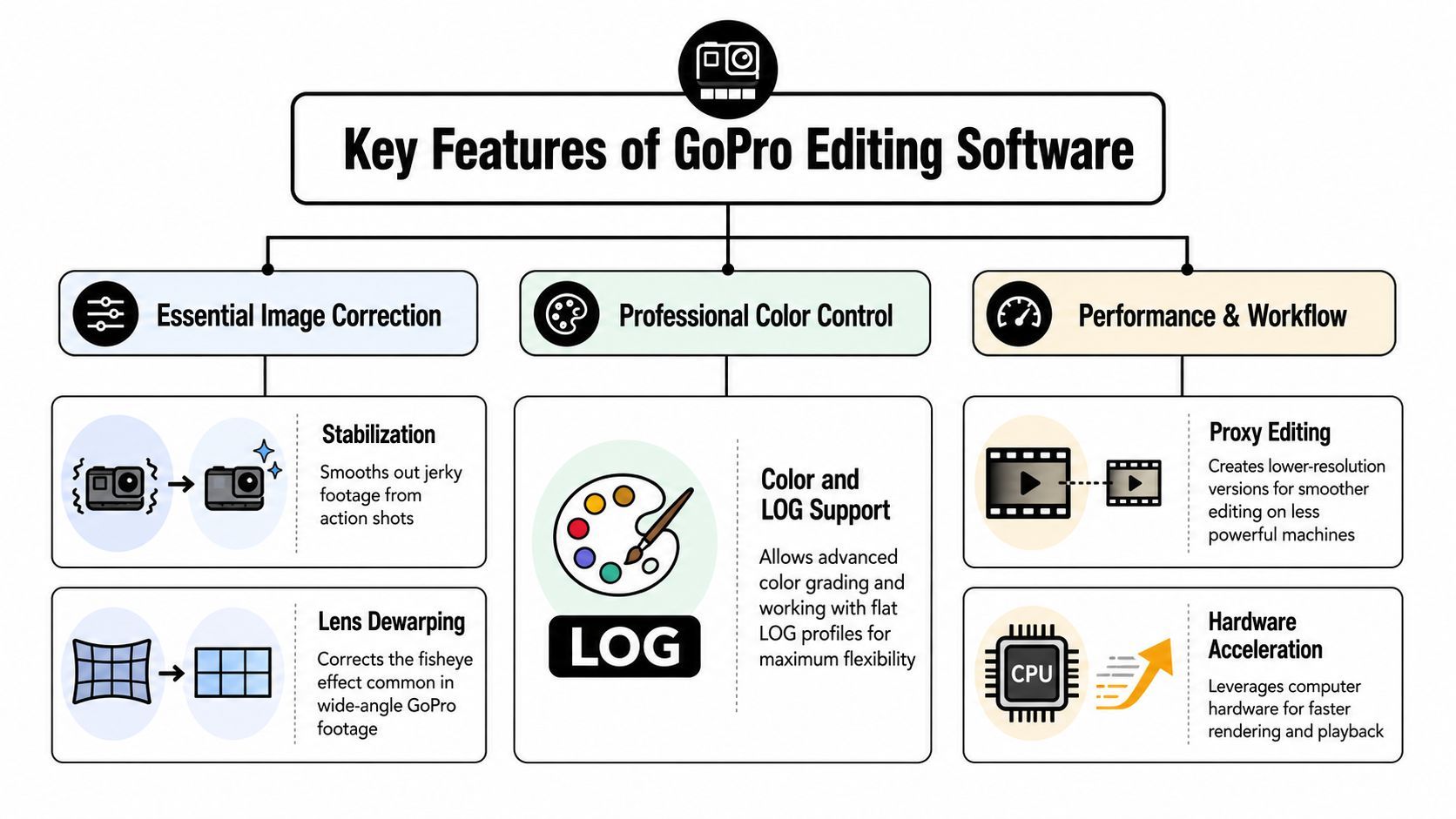
Image correction is the first filter
A rough trail run clip rarely fails because of framing alone. It usually fails because the image still carries the motion, lens shape, and camera angle of the ride. For GoPro footage, stabilization and lens distortion correction sit at the top of the list, and comparison sources keep them alongside speed ramping, multicam, and 360-degree editing as the features that matter most in action-camera workflows. That matches the way these clips are shot, because the camera moves with the subject instead of sitting still.
A shaky downhill shot becomes usable when stabilization removes the worst of the wobble. A super-wide clip becomes easier to watch when dewarping reduces the fisheye look. Without those two fixes, even a sharp 4K clip can still feel amateurish because the perspective itself keeps pulling attention away from the action.
Color and performance separate casual tools from finishing tools
GoPro footage also benefits from color control, especially if you shoot flat profiles or mix angles from different cameras. Pro editors handle that work better because they are built for correction, grading, and matching, not just trimming. That is why tools like DaVinci Resolve and Premiere Pro stay in the comparison guides for more demanding workflows, while lighter editors are usually better suited to quick turnaround. For a broader software comparison lens beyond GoPro workflows, compare video editors for 2026 shows how consumer and pro editors diverge on usability, timeline depth, and export control.
Useful shortcut: If your clips already look close to final and you just need a fast publish, a lightweight editor is enough. If the footage needs matching, balancing, or multiple passes, you will want a full NLE.
The other hidden feature is proxy media. For action-camera footage shot at 4K/5.3K, proxies keep the timeline responsive enough to cut without constant stutter. Independent guidance points to proxy and hardware-assisted playback support in DaVinci Resolve, Adobe Premiere Pro, and Final Cut Pro, while consumer tools are described as less capable for long or complex timelines. That difference decides whether the edit stays usable while you are working or turns every scrub into a delay.
What actually matters in practice
- Stabilization first: It cleans up the motion before you spend time on color or captions.
- Dewarping next: It makes wide-angle footage readable, especially in close action shots.
- Proxy support matters later: It does not make a clip look better, but it keeps the timeline usable.
- 360 editing is no longer niche: It has become part of the normal GoPro toolset for creators who want social-ready reframes, as shown in GoPro's 360 update.
The non-obvious conclusion is simple. For GoPro, the best editor is not the one with the most buttons. It is the one that fixes the image fast enough that you still have time left to package the clip for the platform you are posting to, or to hand it off into a repurposing workflow such as ShortGenius without rebuilding the cut from scratch.
Comparing Top GoPro Editing Software
GoPro editing tools split into two working models. One is built for quick turnaround and minimal setup, the other for full post-production control. Independent guides keep Premiere Pro, Final Cut Pro, DaVinci Resolve, and GoPro Quik at the center of that comparison, while Filmora and other lighter editors fill the middle ground for creators who want more control than a mobile app without committing to a full cinema workflow.
A wider software comparison lens helps explain why that split matters. The compare video editors for 2026 discussion is useful because it shows how consumer and pro editors diverge on usability, timeline depth, and export control, and those differences shape GoPro workflows just as much as feature lists do.
Feature Comparison of GoPro Editing Software
| Software | Stabilization | Dewarping | Color/LOG Support | Proxy Workflow | Max Resolution | Pricing |
|---|---|---|---|---|---|---|
| Adobe Premiere Pro | Strong | Strong | Strong professional grading | Yes | Up to 8K in comparison guides | Subscription |
| Final Cut Pro | Strong | Strong | Strong professional grading | Yes | Up to 8K in comparison guides | One-time license |
| DaVinci Resolve | Strong | Strong | Deepest color control in this group | Yes | Up to 8K in comparison guides | Free and paid tiers |
| GoPro Quik | Basic, fast-turnaround oriented | Basic | Limited compared with pro NLEs | Not positioned as a proxy-heavy NLE | Consumer editing pathway | Free |
| Filmora | Action-cam friendly tools | Useful for common correction | Good for fast edits | More limited than pro NLEs | Listed at 8K in comparison guides | Tiered pricing |
| Shotcut | Basic | Limited | Basic | Limited | Commonly used for simpler timelines | Free |
Premiere Pro and Final Cut Pro stand out when the project is about control. Their proxy support keeps long timelines workable, which matters when you are mixing several GoPro clips, adding stabilization, and making more than one reframing pass. DaVinci Resolve belongs in the same tier, but its strongest advantage is color work, so creators who care about finishing often treat it as a finishing-first tool.
GoPro Quik sits in a different category. It is not the answer for a dense timeline or advanced correction. It is the answer when you need to get from camera to social post without building a post-production system around the edit.
Filmora is the bridge tool. CyberLink's overview highlights action-focused features like speed ramping, reframing, stabilization, and templates for action-cam footage, which makes it more useful than a generic basic editor when the goal is a publishable clip rather than a grading exercise. That is why it often lands in the middle of buying decisions.
The non-obvious takeaway is that “GoPro software” is not one category. It is a stack. Quik handles the fastest edits, Filmora covers practical creator work, and the pro NLEs handle the footage when the camera work needs to be treated like a real production asset, including cases where you want to cut once and repurpose the result through a workflow such as ShortGenius without rebuilding the edit from scratch.
System Requirements and Pricing for GoPro Editors
Hardware changes the editor more than feature lists do. A GoPro editor can feel limited if the computer cannot handle 4K/5.3K footage, especially once stabilization, reframing, and color work enter the timeline. That is why proxy support matters so much. Proxy and hardware-accelerated playback keep pro editors usable on real machines, rather than only on ideal test setups.
Match the editor to the machine
On a laptop, lighter tools or pro editors used with proxies are the safer choice. They keep the timeline responsive and reduce the pauses that turn small trims into slow work. On a mid-range desktop, Filmora or Resolve Free can handle a more ambitious GoPro project if the media load stays reasonable.
A high-end workstation is where Premiere Pro, Final Cut Pro, and DaVinci Resolve make the most sense. These tools are built to carry more of the load directly, and proxy workflows make them easier to scale when a project grows from a few clips into a longer assembly.
Practical rule: If your computer slows down before grading even starts, the workflow needs adjustment first.
Pricing logic matters too
Quik is the low-friction starting point because it is GoPro's own consumer editing path. That makes it the natural fit when price and speed matter more than timeline depth. Premiere Pro is the subscription-heavy option for people who already work inside the Adobe ecosystem. Final Cut Pro is the cleaner one-time license choice for Mac-based editors who want serious control without a recurring plan. DaVinci Resolve stands out because its free tier still belongs in the same conversation as paid pro tools. For rapid repurposing, Quik can also sit at the front of a workflow that later hands clips to ShortGenius for fast social variations without rebuilding the edit from scratch.
The budget decision usually follows the same logic as the hardware decision. Free and lightweight tools work when the footage only needs a clean trim. Paid NLEs make sense when edits are frequent, timelines are complex, or the footage has to survive multiple revision passes.
Export Presets for Social Platforms
Export settings matter because a GoPro clip that looks strong in the editor can still fail on the platform. The key trick is to match the export to the feed, not just to the source footage. If you're turning wide GoPro footage into social content, vertical framing and clean compression do more work than a fancy timeline effect.
TikTok and Reels want vertical first
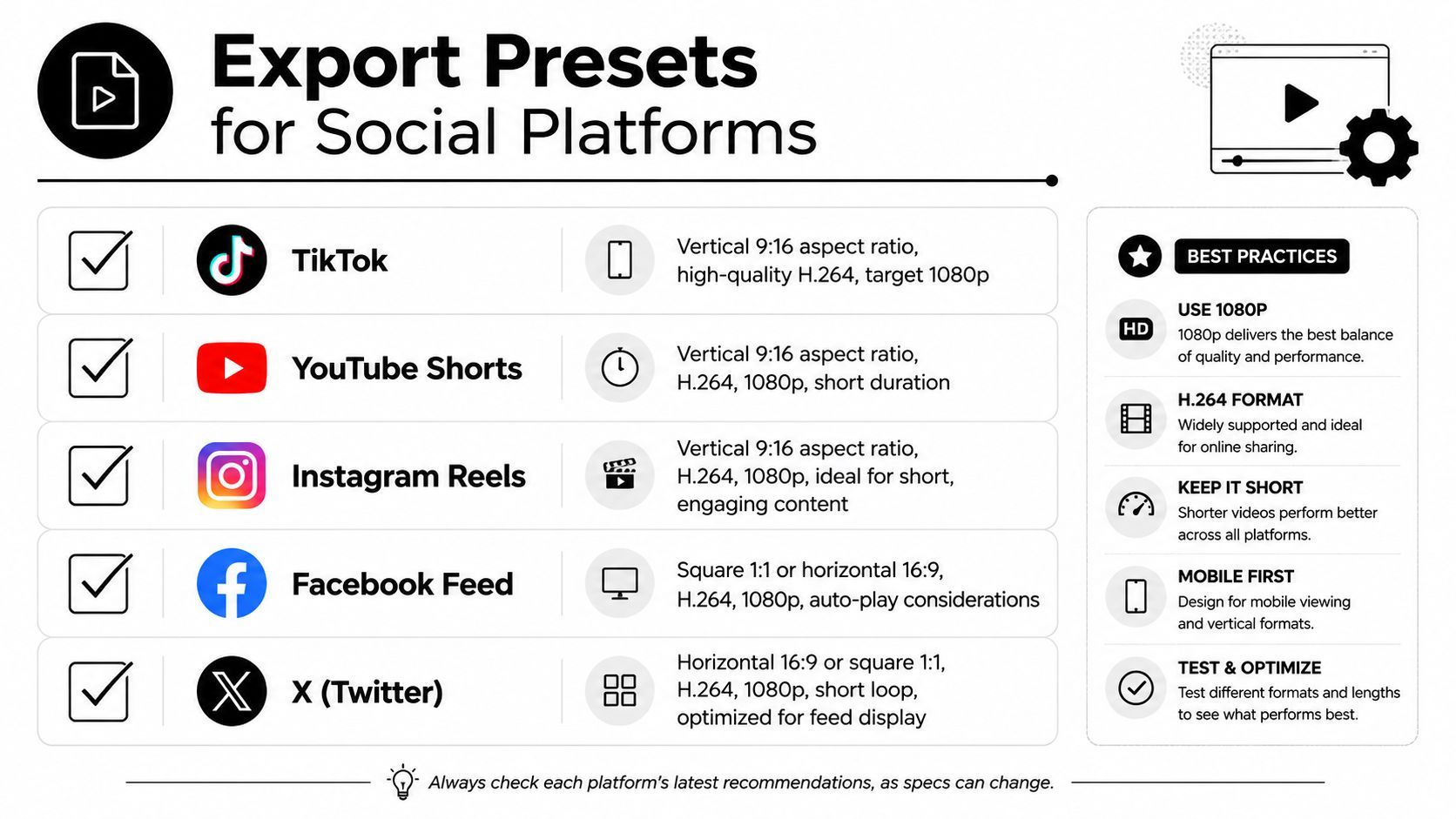
For TikTok and Instagram Reels, the safe path is vertical 9:16, H.264, and 1080p. That format gives you a clean frame for captions, action reframing, and on-screen text without wasting space on unused horizontal areas. YouTube Shorts follows the same basic logic, because the format is built around fast vertical viewing.
Feed platforms need flexibility
Facebook Feed and X can handle both square and horizontal formats, but the export should still be simple and clean. Square 1:1 or horizontal 16:9 works best when you want the clip to survive feed previews without awkward cropping. H.264 remains the common choice for compatibility, and 1080p is the practical target for broad playback across devices.
Build the presets once
A preset in Premiere, Resolve, Final Cut, or Filmora saves time because you stop rebuilding the same output settings for every cut. That matters if you're repurposing a single GoPro session into several clips. Each platform gets its own version, and the edit stays consistent from one upload to the next.
- TikTok: Vertical 9:16, H.264, 1080p, designed for punchy opening frames.
- YouTube Shorts: Vertical 9:16, H.264, 1080p, short-form pacing.
- Instagram Reels: Vertical 9:16, H.264, 1080p, caption-friendly framing.
- Facebook Feed: Square 1:1 or horizontal 16:9, H.264, 1080p, optimized for autoplay.
- X: Horizontal 16:9 or square 1:1, H.264, 1080p, concise and feed-ready.
The point is not to over-engineer the export. It's to remove friction so the clip looks intentional wherever it lands.
Workflow for Editing and Repurposing GoPro Clips
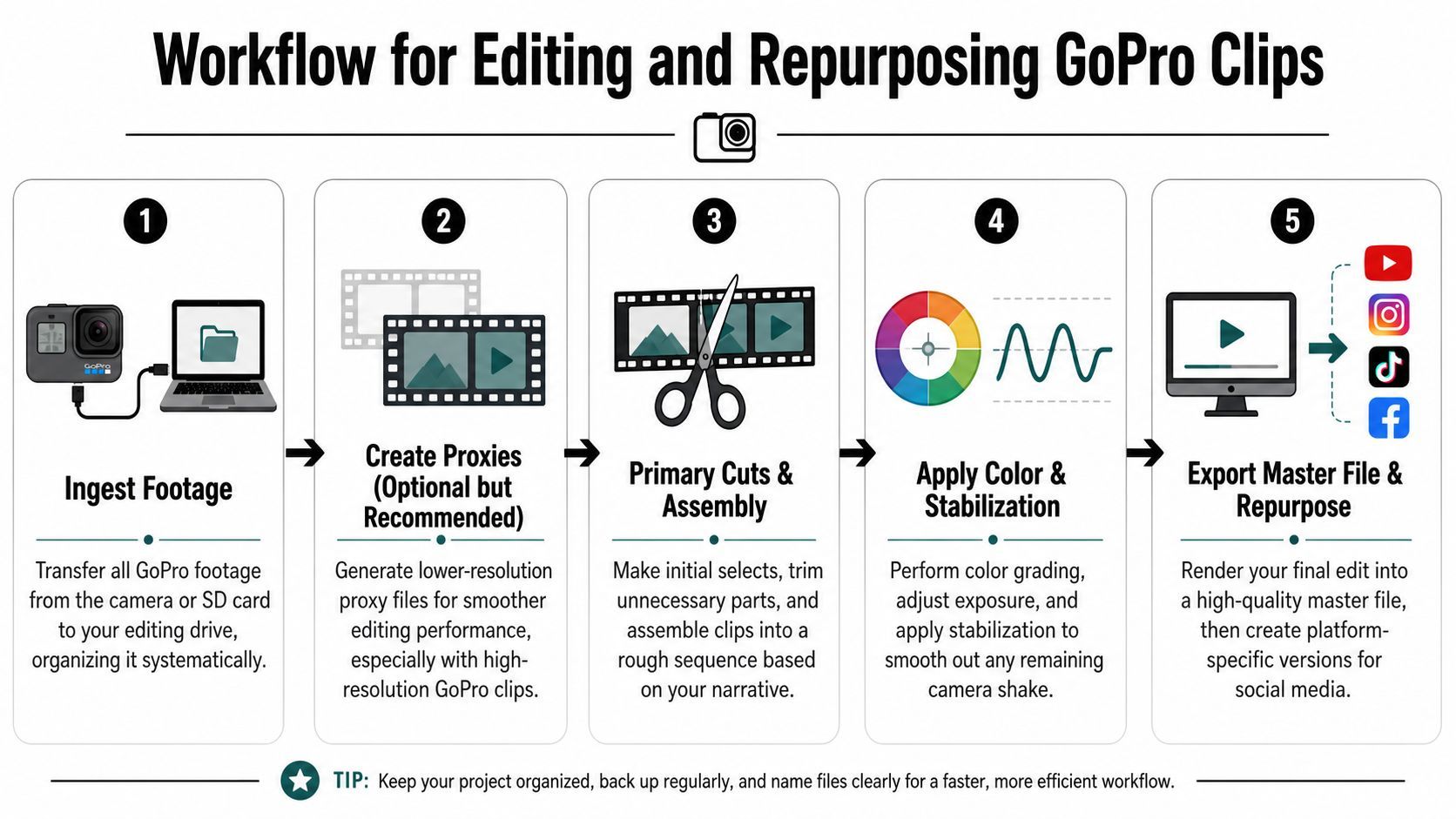
GoPro footage becomes useful when the process is treated as a sequence of decisions, not a single pass through a timeline. The order matters. Stabilizing clips before you know which shots will make the cut wastes time, and grading before the edit is locked usually means revisiting work that never needed to happen yet. A cleaner workflow starts with file organization and ends with versions built for specific platforms.
A workflow that keeps the footage moving
- Ingest footage. Copy the files from the camera or SD card into a structured drive layout so the clips are easy to find and not spread across random folders.
- Create proxies. This is optional, but it helps a lot when the source files are heavy or the computer is not built for fast playback.
- Make primary cuts. Pull selects, remove dead time, and shape the rough story before touching advanced effects.
- Apply color and stabilization. At this stage, the footage is finished, balanced, and cleaned up.
- Export a master and repurpose. Render the main version first, then turn it into outputs for the platforms where it will be watched.
The repurposing step matters more now because GoPro has pushed editing toward format-specific delivery, especially with 360 video reframing for social output. The practical result is clear. The edit is no longer only about correcting a shot, it is about turning raw action into clips that work in feed formats.
Where ShortGenius fits
If the workflow ends with one master export, time gets left on the table. ShortGenius fits after the main edit as a repurposing layer, where quick trim, captioning, resize, scene swapping, and scheduling help turn one GoPro edit into multiple platform versions. That setup matters when the bottleneck is not the core edit, but getting variants out quickly.
Practical rule: Finish the main story once, then let the repurposing layer handle platform formats and posting cadence.
The cleanest setup usually combines a pro editor for the base cut with a fast output system for social versions. That split keeps quality high without turning every clip into a fresh manual project.
Recommendations and Ideal Users for GoPro Editors
A phone-sized shooting schedule calls for an editor that turns clips around quickly. GoPro Quik fits that use case because it is GoPro's own consumer editor and is built around mobile-first turnaround. Creators who need a fast path from import to post will get the least friction here.
DaVinci Resolve makes the strongest case for footage that needs grading, multicam work, or more careful finishing. Its free tier keeps the entry point accessible, while still giving editors room to handle more demanding GoPro projects without moving up to a paid tool too early.
Premiere Pro fits GoPro clips that sit inside larger creative projects and need deeper timeline control. Final Cut Pro is a strong Mac-based option for editors who want professional capability with a simpler licensing model. Filmora suits creators who want action-camera tools without committing to a full pro NLE, and Shotcut is adequate for basic edits where budget matters more than advanced workflow features.
Short-form teams need a second layer after the main edit. ShortGenius belongs there as the repurposing layer, handling trim, captions, resize, scene swaps, and scheduling after the base cut is finished. That setup matters because the hard part is often not making one clean master, it is turning that master into several platform-ready versions without reopening the whole project.
The clearest workflow is a split workflow. Use a pro editor for the core cut, then use a fast output system for social versions and posting cadence. That approach keeps the main edit controlled and lets repurposing happen without forcing every clip into a new manual project.