How to Combine Multiple Videos Into One the Right Way

Learn how to combine multiple videos into one with a clean workflow for import, arrange, trim, export, captions, and multi-platform sizing.
You've recorded the pieces: a talking-head introduction, a screen demonstration, a product close-up, a customer clip, and a call to action. In the timeline, they look fine. Then you export, upload to TikTok, reuse the file for Reels, crop it for Shorts, and place it on YouTube. Suddenly, the speaker's face is cut off, captions sit under interface controls, the music jumps between scenes, and the final upload looks softer than the edit.
That's why learning to combine multiple videos into one isn't only about placing clips end to end. It's a delivery problem. You need one coherent sequence, a dependable master file, and platform-specific versions that preserve the subject, sound, captions, and intended pacing.
Why Combining Clips Is Really a Delivery Problem
Most editors start with the timeline. A better workflow starts with the destinations.
A merged file may travel through TikTok, Instagram Reels, YouTube Shorts, Facebook, and standard YouTube placements. Each destination can favor a different aspect ratio, viewing context, and compression outcome. Deloitte's 2025 Digital Media Trends report found that consumers spend approximately six hours per day with media and entertainment, distributed across streaming, social platforms, gaming, music, and podcasts. The same report stated that social platforms attract more than half of U.S. advertising spending, which makes a reusable, channel-ready video asset valuable rather than optional.
A creator might combine an introduction, demonstration, testimonial, captions, music, and a call to action into one master. The mistake is treating that master as the final upload everywhere. It should be the clean source from which you make versions with different framing and, when necessary, different pacing.
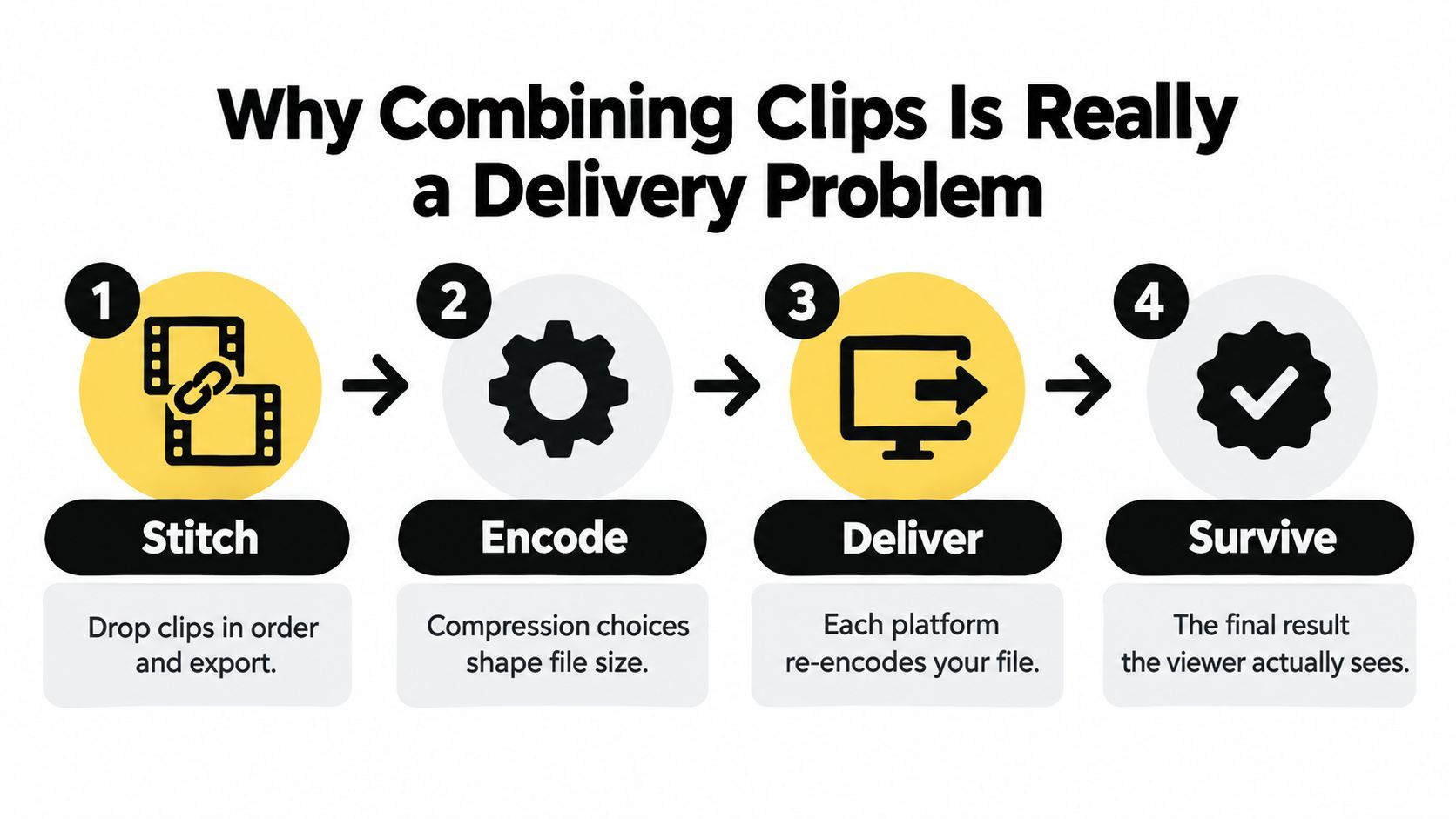
The pipeline that avoids expensive rework
A reliable sequence looks like this:
- Inspect every source for technical compatibility.
- Normalize clips that disagree on frame rate, dimensions, codecs, or audio layout.
- Assemble the clips in narrative order and remove unusable handles.
- Reframe the composition for each destination instead of forcing every platform into one canvas.
- Caption and level the finished sequence.
- Export one high-quality master and derive platform files from it.
- Validate the files by watching and listening on the devices your audience uses.
The history of editing points in the same direction. In the early 1950s, helical-scan videotape and rotary-head technology made practical tape editing possible, which led to linear editing. The Ampex Editec appeared in 1963, and the CMX 600 arrived in 1971 as the first nonlinear editing system, allowing editors to access and rearrange segments without recopying an entire sequence. Timeline editing, clip bins, and random access solved the assembly problem. Modern publishing adds another requirement: the assembled timeline must survive several delivery environments.
Practical rule: Assemble once, but don't assume you should publish one identical canvas everywhere.
Prepare Files Before You Merge Anything
The fastest way to create a bad merge is to drag every file into an editor without checking what's inside them. Before you arrange a shot, inspect its container, codec, resolution, frame rate, time base, duration, audio streams, sample rate, and channel layout.
If the streams match, a packet-level join can avoid another generation of encoding. FFmpeg's concat demuxer documentation requires matching streams, including codecs and time bases. It also adjusts timestamps so the first file starts at zero and later files follow it. Inaccurate durations or audio and video streams with different lengths can still create gaps, so compatibility isn't something to assume from file extensions alone.
Run this compatibility check first
| Parameter | Why It Matters | What to Standardize On |
|---|---|---|
| Container and codec | Incompatible streams can prevent a direct join or trigger an unnecessary conversion | One delivery-friendly container and codec |
| Resolution and dimensions | Different canvases cause scaling, cropping, or visible jumps | One working canvas for the master |
| Frame rate | Mixed rates can create uneven motion and timestamp problems | A constant frame rate |
| Scan type | Interlaced footage can produce combing or motion artifacts | Progressive video |
| Pixel format | Inconsistent formats can change color handling or block a direct merge | One pixel format |
| Audio sample rate and layout | Mismatches can cause conversion, missing channels, or sync issues | One sample rate and channel layout |
| Duration and time base | Incorrect timestamps can create gaps or drift | Verified durations and consistent timing |
When the files disagree, normalize them before joining. Convert the material to a shared canvas, progressive scan, constant frame rate, pixel format, audio sample rate, and channel layout. The concat filter is appropriate when the sources require decoding and re-encoding, but it brings a quality trade-off and should be controlled rather than left to inconsistent defaults.
This audit also protects the business side of production. If you're building a repeatable creator operation, a guide to building creator revenue can help connect production choices with monetization planning. The technical habit is simple: create a known input profile before you scale output.
Before you join: If two clips don't share compatible stream parameters, normalize them first. A forced lossless join isn't lossless when the inputs were never compatible.
Build the Sequence in ShortGenius or Any Editor
The software changes, but the assembly logic doesn't. Whether you're working in ShortGenius, CapCut, Adobe Premiere Pro, or DaVinci Resolve, the essential moves are import, order, trim, transition, and export.
Start by importing all clips into one project. Name or group them by role, such as hook, explanation, demonstration, testimonial, and call to action. That prevents a common mistake: editing in the order files were recorded instead of the order viewers need to understand the message.
Use the same five moves in different tools
In ShortGenius, bring the generated scenes, b-roll, voiceover, music, and captions into one project. Arrange scenes in the intended story order, trim pauses and duplicate ideas, swap a weak scene when necessary, then resize the project for the target delivery canvas. Its workflow is particularly suited to creators assembling short scripted scenes and supporting footage without moving between separate production tools.
In a traditional editor, place the clips in bins first, then create a sequence using the intended master settings. Premiere Pro gives you detailed control over nested sequences, audio tracks, and frame-level trims. DaVinci Resolve is useful when color, sound, and finishing need equal attention. CapCut keeps the mechanics accessible for fast social edits, but you still need to check the project frame rate and canvas rather than trusting automatic settings.
Trim for meaning, not just duration. Remove the first breath before a speaker begins, tighten repeated phrases, and leave enough room for a caption to appear without colliding with the next cut. Use a hard cut when the visual action or sentence continues naturally. Add a short dissolve only when the change in time or place needs a softer hand.
The sequence below illustrates the same core workflow in a visual format. Use it as a reference for the order of operations, not as a substitute for checking the actual export.
Don't build separate edits from scratch for every platform. Build a clean master timeline with flexible source material, then create destination versions from that sequence. That keeps the story, brand language, and caption wording consistent while still giving each channel an appropriate frame.
Choose Crop, Pad, or Reframe for Each Platform
A universal export sounds efficient, but it often creates a compromise nobody enjoys watching. A wide clip placed into a vertical frame may crop out a face or product. A vertical clip padded into a wide canvas may preserve the image while making the subject too small. A square crop may remove the demonstration that made the clip useful.
The major canvas choices are 9:16 vertical, 1:1 square, 4:5 portrait feed, and 16:9 horizontal. Short-form destinations commonly favor vertical presentation, while standard YouTube and desktop placements commonly use horizontal format. Platform guidance collected by ContentStudio's social media video specifications guide reflects the practical issue: the same footage can require different dimensions and composition decisions across destinations.
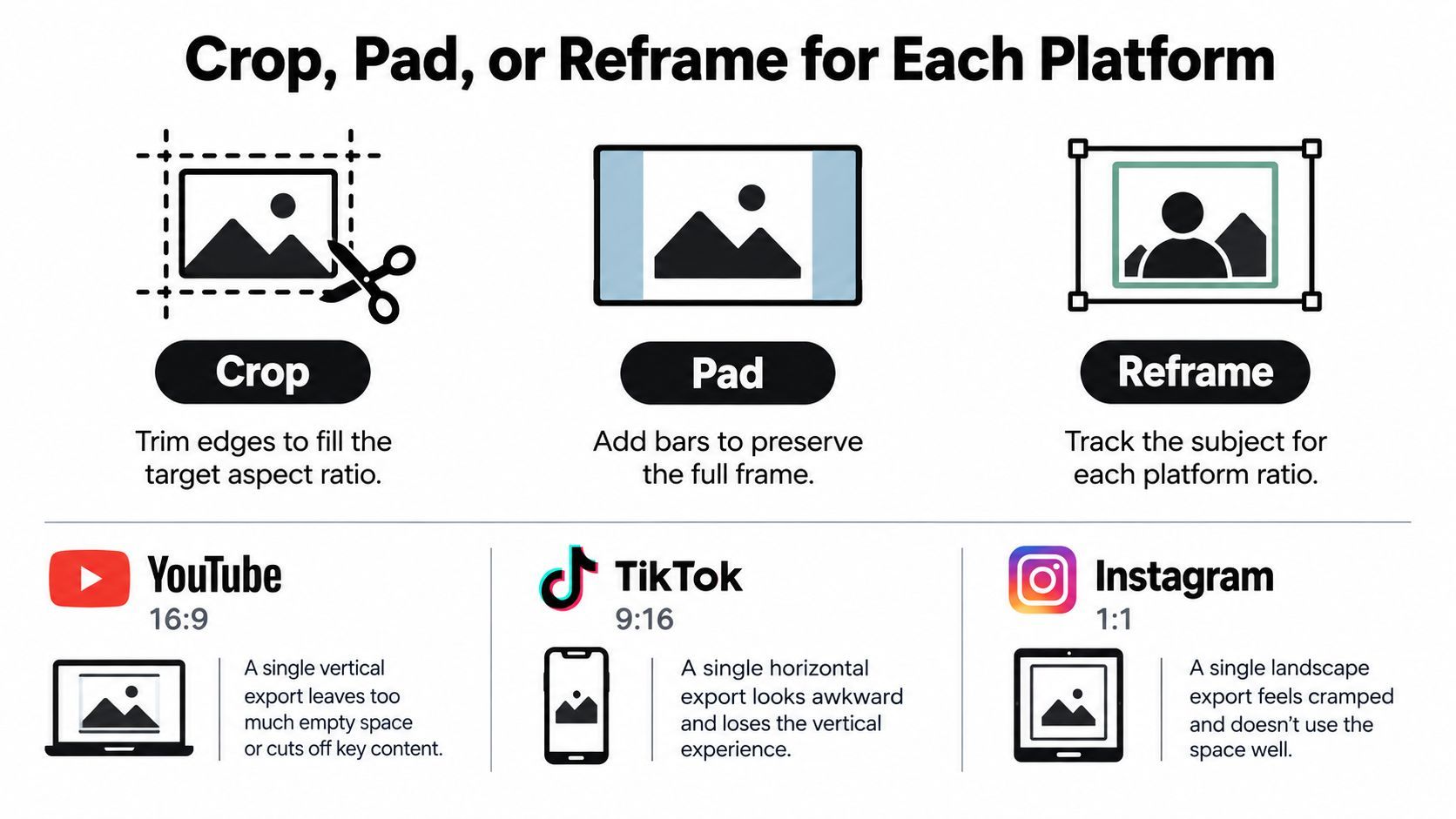
Choose the treatment by subject position
Crop when the important action sits near the center and the source has enough surrounding space. Cropping fills the target frame cleanly, but it can remove hands, products, subtitles, or a second speaker.
Pad when the entire source needs to remain visible. A blurred or branded background can work for a considered design, but plain bars often make a repurposed video feel unfinished. Match the background treatment across the sequence so each clip doesn't appear to come from a different template.
Reframe when the subject moves or the source composition changes. Keyframe the position around the speaker, product, or demonstration instead of applying one static crop to the entire clip. This takes more time, but it usually protects the information that matters.
Use 9:16 for TikTok, Reels, and Shorts when the subject is close, vertical, or easy to track. Use 16:9 for standard YouTube and desktop viewing when the composition depends on width, multiple people, screen recordings, or a broad product demonstration. Use 1:1 when the content must sit comfortably in a square feed tile. Use 4:5 when you need a taller feed composition without committing to full-screen vertical.
Keep faces, logos, demonstrations, and captions away from edges where controls or overlays may appear. Place text inside a consistent safe area, then inspect it in the platform preview rather than trusting the editor canvas.
For a clearer understanding of how aspect ratio changes affect visual quality, use guidance on how to preserve quality when resizing visuals. The practical rule is simple: crop for impact, pad for completeness, and reframe when the subject moves.
One source sequence can support several platform versions. The canvas shouldn't dictate what the viewer loses.
Smooth the Cuts Between Clips
A stitched sequence usually reveals its problems through the speakers before it reveals them through the pictures. One clip may have a close microphone, another may have room echo, and a third may contain a refrigerator hum or outdoor noise. If you only judge the edit visually, you'll miss the volume jump that makes the cut feel amateur.
Start by leveling dialogue clip by clip. Listen for the quietest phrase and the loudest word, then adjust gain and compression so the voice feels consistent without flattening every natural emphasis. If your editor or ShortGenius offers automated loudness matching, use it as a first pass, then listen manually at each edit point.
A dependable audio order
- Clean obvious problems. Remove clicks, long silences, distracting hum, and unusable breaths without making speech sound cut apart.
- Level the dialogue. Match perceived voice volume across recording environments.
- Resolve overlaps. Let one speaker finish unless the interruption is intentional. Crossfading two unrelated sentences usually creates muddiness.
- Add the music bed. Keep it underneath the voice and automate its level around speech, rather than applying one static setting to the entire file.
- Check multiple playback systems. Headphones reveal noise and edits. Phone speakers reveal whether the voice remains intelligible in a small, limited range.
Visual transitions deserve the same restraint. A hard cut works when motion, sentence rhythm, or a change in shot already provides separation. A cross-dissolve can signal a change in time or location. A whip pan or match cut is useful when the movement connects the two shots, but decorative transitions become distracting when every clip receives one.
A continuous music bed can hide small changes in room tone, but it can't repair unintelligible dialogue. If two clips have very different background noise, consider using a controlled ambience layer beneath both rather than switching abruptly from one room sound to another.
Export One Master, Then Derive Platform Files
Exporting the same timeline repeatedly through different editors is a reliable way to lose quality. Create one high-quality intermediate master, keep it, and generate platform derivatives from that file once. That approach also gives you a stable source for later reframing, caption changes, or alternate calls to action.
For a practical H.264 delivery profile, follow YouTube's recommended upload encoding settings. Use progressive output, preserve the frame rate used during recording, and avoid mixing variable frame rates without normalization. YouTube lists common frame rates including 24, 25, 30, 48, 50, and 60 frames per second.
For SDR uploads, the same guidance recommends 8 Mbps for 1080p at 24 to 30 fps and 12 Mbps for 1080p at 48 to 60 fps. For 4K, it lists 35 to 45 Mbps at standard frame rates and 53 to 68 Mbps at high frame rates. These are useful delivery targets, not a reason to inflate every export. Match the profile to the destination and the source quality.
Master export checklist
- Crop or pad the sequence to the master aspect ratio.
- Convert interlaced material to progressive video.
- Normalize clips to a constant frame rate.
- Resample audio to one common sample rate and channel layout.
- Encode the joined master once.
- Generate platform-specific files from that master.
- Decode the finished files end to end and inspect the final group of pictures.
Check for frozen frames, timestamp discontinuities, missing audio, A/V drift, incorrect rotation, color shifts, clipped highlights, and corrupted endings. Mixed HDR and SDR transfer functions can create visible shifts even when the edit itself looks correct. Re-encoding can't fix inconsistent source decisions after the fact, so make normalization part of the preparation stage.
Pre-Publish QA Pass for Captions and Audio
The last export isn't the last decision. Watch the complete file after encoding, especially at every point where one clip becomes another. Captions can drift after trimming, speed changes, or a reframed version, and an automated transcript may assign a line to the wrong speaker.
Treat captions, transcripts, and readable typography as separate deliverables. Captions synchronize spoken words with the video. A transcript provides a text record that can be searched or reused. Typography determines whether the words remain legible on a small screen, against a busy background, and inside platform safe zones. One file can't automatically solve all three problems.
Run the final inspection in four passes
Visual pass: Watch the vertical, square, and horizontal versions. Check faces, product details, logos, text placement, transitions, rotation metadata, and crop movement. Pay special attention to the first and last frame of every source clip.
Caption pass: Pause at each edit point. Confirm that captions arrive with the speech, disappear when the speaker stops, remain inside the safe area, and use the correct speaker label. Retiming captions after a cut is often more important than adding another transition.
Audio pass: Listen with headphones and phone speakers. Check the loudest word, quietest phrase, music ducking, room-tone changes, overlapping speech, and the final seconds of the file. Caption support matters for sound-off and noisy environments, but it doesn't compensate for dialogue that is hard to understand when sound is enabled.
Delivery pass: Open the actual encoded files, not just the timeline preview. Scrub through the beginning, middle, and end. Confirm that the file has audio, the image doesn't freeze, and the final caption isn't cut off by the export.
Royalty-free audio also needs documentation and usage checks. If you're sourcing a music bed, Drumloop AI's guide to royalty-free audio offers a useful starting point for thinking about licensing before publication.
ShortGenius can fit into this workflow when you're assembling scripted scenes, b-roll, voiceovers, licensed music, and captions in one project. Its editing features include trimming, resizing, scene swaps, caption work, and automated loudness matching, but the final responsibility still belongs to the person who watches the exported file across the intended destinations.
ShortGenius (AI Video / AI Ad Generator) helps creators and teams assemble scenes, voiceovers, b-roll, captions, music, and platform-ready versions without rebuilding the edit from scratch. Try ShortGenius (AI Video / AI Ad Generator) to turn one organized sequence into a reusable set of social and YouTube assets.