How to Add Captions to Videos A Practical Guide

Learn how to add captions to videos with actionable methods. Our guide covers AI tools, platform-specific steps, and best practices for accessibility.
When it comes to adding captions to your videos, you generally have three ways to tackle it: you can do it the old-fashioned way by manually typing everything out, lean on AI tools to do the heavy lifting for you, or simply upload a ready-made caption file like an SRT. Thankfully, modern platforms and software have made this entire process easier than ever, so boosting your video's engagement and accessibility doesn't have to be a major headache.
Why Captions Are a Must-Have for Any Modern Video
Knowing how to add captions is one thing, but truly understanding why they are a non-negotiable part of any video strategy is what really moves the needle. This goes way beyond just checking an accessibility box. It’s about making your content work smarter for you and driving real results, from a better user experience all the way to a serious SEO boost.
The ripple effect of well-done captions is huge, completely changing how people engage with your content in different settings.
Making Your Content Accessible and Easy to Understand
The most immediate benefit, of course, is opening up your content to viewers who are deaf or hard of hearing. But the impact doesn't stop there. Captions are a huge help for everyone, especially when you're dealing with complex jargon, speakers with thick accents, or less-than-perfect audio. They make sure your message hits home, no matter who is watching or where.
In fact, a staggering 80% of viewers who use captions aren't deaf or hard of hearing. They're using them to follow along in loud places or watch with the sound off.
Picture your audience's day-to-day life. Someone's scrolling on a quiet train during their commute, a new parent is watching a video while the baby sleeps, or an employee is trying to catch up on a webinar in a busy office. All of them need captions. Skip them, and you've likely lost that view.
Getting Found: The SEO Power of Captions
Here's something to remember: search engines can't watch a video, but they can definitely read text. Adding captions essentially gives Google a full, keyword-packed transcript to crawl and index. This helps search engines figure out what your video is about, which means it can start ranking for relevant searches and showing up to a wider audience. The result? More organic traffic and a much bigger reach for your content.
This whole process has become incredibly efficient, too. The use of AI-powered captioning tools for video has exploded since 2019, changing the game for creators and businesses. The AI captioning market hit $5.84 billion by 2025 and is expected to more than double to $12.38 billion by 2035. As tools like Opus.pro highlight, the power of captions is only growing.
Choosing the Right Captioning Method for Your Project
So, you need to add captions to your video. Where do you even start? There isn't a single "best" way—it all comes down to a classic trade-off between your time, your budget, and how perfect the captions need to be.
The three main paths you can take are doing it all by hand, letting AI do the heavy lifting, or working with a special subtitle file. Think of it like this: you wouldn't spend an hour hand-polishing a five-second social clip, but you also wouldn't trust a robot with critical legal testimony. Each method has its place.
This little flowchart helps break down when captions are non-negotiable.
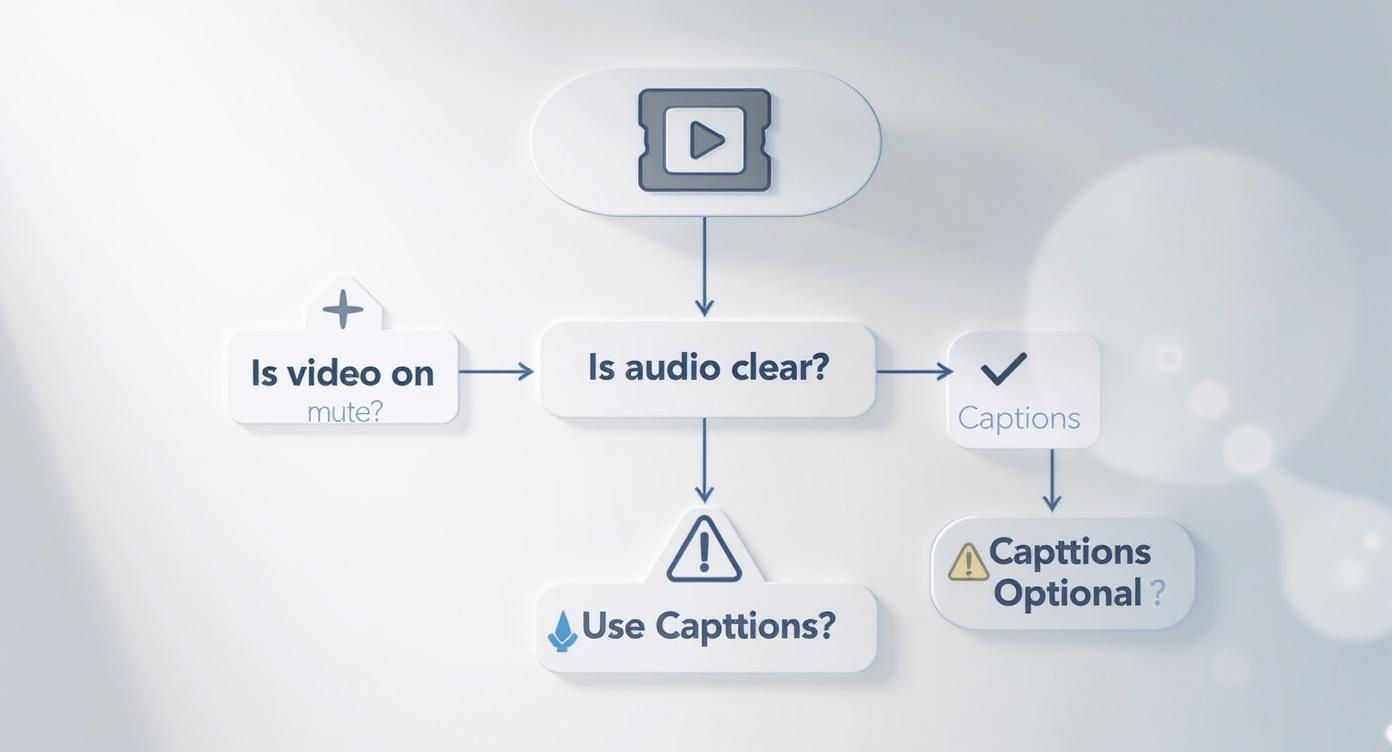
The big takeaway? Muffled or unclear audio is just as bad as no audio at all. Captions save the day in both scenarios, making sure your message actually lands.
Choosing the best captioning method really depends on your specific needs. To make it easier, here’s a quick side-by-side look at the options.
Captioning Method Comparison
| Method | Best For | Pros | Cons |
|---|---|---|---|
| Manual Captioning | High-stakes projects, technical/legal content, or when 100% accuracy is non-negotiable. | Unmatched precision; you have total control over every word, punctuation mark, and timing. | Extremely time-consuming; can be tedious and is not practical for high-volume video production. |
| AI-Powered Captioning | Social media, marketing videos, internal training, and most everyday content. | Incredibly fast and cost-effective; gets you most of the way there in minutes. | Requires proofreading; can struggle with accents, jargon, or poor audio quality. |
| Using SRT Files | Multi-platform distribution, multilingual content, and professional workflows where flexibility is key. | Highly versatile; easy to edit, translate, and allows viewers to toggle captions on/off (CC). | Requires an extra step of creating and uploading the file; can have a slight learning curve. |
Ultimately, the right choice is the one that fits your workflow and quality standards. For most people, a combination of AI generation followed by a quick manual review hits the sweet spot.
The Manual Method: Hands-On Precision
Going the manual route means you're in the driver's seat for everything. You listen to the video, type out every single word, and then painstakingly sync each line of text to the exact moment it's spoken. It’s meticulous work.
This method gives you unmatched accuracy, which is absolutely essential for things like technical tutorials with specific jargon, medical content, or legal videos where one wrong word could have serious consequences.
But that perfection comes at a steep price: your time. A simple five-minute video can easily take an hour—or more—to caption perfectly by hand. This is the method you save for your most important, high-stakes projects where there is absolutely no room for error.
AI-Powered Captioning: Speed and Efficiency
For the vast majority of creators out there, AI captioning has been a game-changer. Modern tools can spit out a full transcript with timestamps in just a few minutes, often hitting accuracy rates over 95% if your audio is clear. This completely changes the game for how to add captions to videos efficiently.
The secret to making AI work for you is proofreading. Never just export and post. Always take a few minutes to scan the text. The AI is brilliant, but it might misspell a unique company name, get confused by a strong accent, or bungle industry-specific terms. A quick polish makes all the difference.
This technology has made video accessibility a reality for everyone, not just big studios. It's no wonder the global video captions service market, valued at $477 million in 2025, is expected to hit $796 million by 2031. If you want to dive deeper into this world, check out our breakdown of the best AI tools for content creation.
Using SRT Files: The Flexible Standard
Ever seen a "CC" button on a video? That's usually powered by a file like an SRT. An SRT (which stands for SubRip Subtitle) is just a plain text file that holds all your caption text, along with the start and end timecodes for each line.
Think of it as a separate, universal script for your video's captions. Instead of permanently "burning" the text into the video frame, you upload this file to platforms like YouTube, LinkedIn, or Vimeo, and the platform handles the rest. This approach is incredibly flexible.
- Edit with Ease: Spot a typo after you've published? No problem. Just edit the text file and re-upload it. You don't have to re-render and re-upload your entire video.
- One File, Many Platforms: You can use the exact same SRT file on YouTube, Facebook, and your website, keeping your captions consistent everywhere.
- Go Global: It's simple to create separate SRT files for different languages, opening your content up to an international audience.
- User Control: This method creates closed captions (CC), which viewers can choose to turn on or off. This is a huge accessibility win.
Best of all, this method works beautifully with the others. A very common and efficient workflow is to use an AI tool to generate the initial SRT file, give it a quick proofread, and then upload that polished file to all your platforms.
Getting Captions on Your Favorite Social Platforms
Okay, so you understand why captions are crucial. But how do you actually get them onto your videos on the platforms you use every day? Each network has its own way of doing things, and what works on YouTube might not be the best approach for TikTok.
Let's walk through the specifics for each major channel, so you know exactly where to click and what to look for.
This is your practical playbook for getting captions done right, channel by channel.
Adding Captions on YouTube
When it comes to captioning, YouTube is the heavyweight champion. It gives you the most control, which makes sense given how important captions are for both accessibility and SEO on the platform. Think of them less as an add-on and more as a core part of how you optimize videos for platforms like YouTube to get found.
Inside YouTube Studio, you’ll find three main ways to get this done:
- Auto-Sync: This is a great middle-ground option. You just paste in your entire video transcript, and YouTube’s tech works its magic, automatically syncing the text to the spoken words.
- Upload a File: If you’re a pro, you probably already have an SRT or other subtitle file ready to go. This method gives you the most precise control over timing and formatting—just upload the file, and you're set.
- Auto-Generate: For most creators, this is the starting point. YouTube’s speech recognition automatically creates a caption track for your video. It's a lifesaver, but it's never perfect. Always, always review it for weird spelling, bad punctuation, and mangled names.
Here's a pro tip I swear by: Let YouTube do the heavy lifting with its auto-generate feature, then treat that output as your first draft. Jump into the editor to clean up the mistakes. This takes maybe five minutes, but it instantly makes your video look more professional and polished.
Captioning Instagram Reels and TikTok Videos
In the fast-paced world of vertical video, captions need to be quick, stylish, and easy to add. Instagram and TikTok have nailed this with incredibly intuitive, built-in auto-captioning tools.
Once you’ve uploaded your clip to Reels or TikTok, look for a "Captions" sticker or button on the editing screen. A single tap will generate the text for you.
But don't stop there. The real magic is in the customization.
- Edit for Punch: Tap the text block to fix any errors. This is also your chance to break up long sentences into shorter, more dynamic lines that match the rhythm of your video.
- Style Your Text: Don't settle for the default. Play with the fonts, colors, and backgrounds to make sure your captions pop and are easy to read. A classic choice is a bold, clean font with a subtle background box for contrast.
- Mind Your Placement: Drag the captions to a spot where they aren't covering your face or key action in the video. Remember to keep them clear of the top and bottom "no-go zones" where the app's interface (like usernames and buttons) will appear.
Captions on Facebook and X (Formerly Twitter)
For platforms like Facebook and X, where videos often autoplay on mute in a crowded feed, clear captions are non-negotiable. Both platforms give you the ability to upload a dedicated SRT file, which is honestly the best way to guarantee accuracy.
When uploading a video, dive into the settings and look for an option like "Edit Video" or "Captions." From there, you can upload your file. Facebook also has an auto-generator, but just like YouTube's, it needs a thorough proofread before you hit publish.
Since people often scroll through these feeds at work or in public, burned-in (open) captions ensure your message lands even with the sound off. Getting your social media video editing right for these platforms often starts with making sure the captions are an integral part of the experience, not an afterthought.
Creating Captions That People Actually Read
Just dropping captions onto your video isn't the finish line. There’s a real craft to making them effective, and the difference between captions that help and captions that just get in the way comes down to a few key details. Let’s move past the basics of just adding them and talk about how to create captions that genuinely make your video better.
Good captions should feel seamless, like they're a natural part of the video itself, not just some text slapped on top. They need to guide the viewer’s eye and make your content easy to follow, especially on social media where you have only seconds to grab someone's attention.
Pacing and Line Breaks for Readability
How you break up sentences on screen is a bigger deal than you might think. The goal is to avoid leaving a single, lonely word hanging on a line by itself—a little something designers call an "orphan." It’s jarring and disrupts the flow. Instead, you want to group words in a way that feels natural to read.
For example, this feels clunky:
- The quick
- brown fox jumps over
- the lazy dog.
This is much smoother and easier for the brain to process:
- The quick brown fox
- jumps over the lazy dog.
It’s a small change, but it makes a world of difference. When the text appears at the same pace as the speaker, it helps the viewer follow along without feeling rushed or overwhelmed.
The gold standard is to keep each caption block to a maximum of two lines. This keeps the text big enough to read comfortably without blocking half the screen and covering up important visuals.
Making Captions Truly Accessible
Real accessibility is about more than just typing out what's being said. It's about giving viewers who can't hear the audio the same experience as those who can. This means you need to include non-speech information that adds critical context.
These are descriptive cues, usually tucked inside brackets, that help paint the full picture of what’s happening. They fill in the gaps for sound events that hearing viewers often take for granted.
-
Atmosphere and Music: Cues like [upbeat music] or [tense string music] are fantastic for setting the mood. Even something as simple as [gentle rain falling] can completely change the tone.
-
Sound Effects: Don’t leave out important sounds that drive the story forward. A [door slams], a [phone rings], or [glass shatters] can be just as crucial as the dialogue.
-
Speaker Identification: This is a must when you have multiple speakers, especially if someone is off-screen. A simple [Sarah] or [Instructor] before their line makes it crystal clear who's talking.
When you start including these details, you're doing more than just providing a transcript. You're creating a complete, inclusive experience that makes your content accessible and enjoyable for a much, much wider audience.
Speed Up Your Workflow with AI Captioning Tools
Let's be real: as a creator, your time is your most valuable asset. While manually transcribing and timing captions for every single video is admirable, it's just not realistic if you want to publish content consistently. This is exactly where modern AI captioning tools come in and completely flip the script, turning a task that used to take hours into a quick five-minute review.
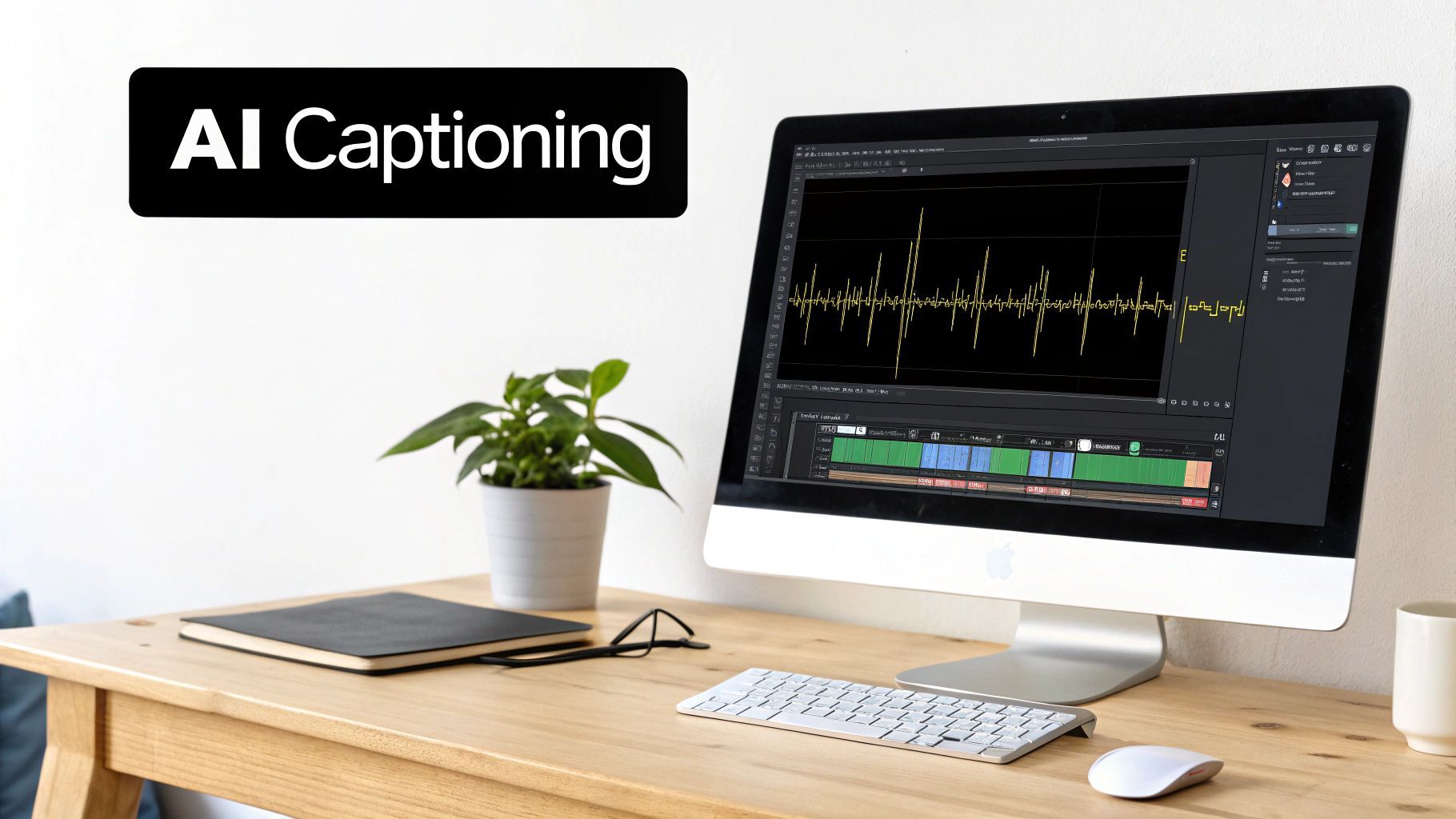
Think about it. What if you could get 95% of the work done for you automatically? You just upload your video, and within a few minutes, an AI spits out a full transcript with surprisingly accurate timestamps. Your role then shifts from being a tedious transcriptionist to a sharp editor, spending a few moments polishing the text for brand-specific terms, tricky names, or any industry jargon.
How AI Tools Actually Speed Things Up
These platforms aren't just simple voice-to-text converters; they're designed from the ground up to make your workflow faster. They listen to your audio, pinpoint the words, and sync them to your video timeline with impressive accuracy. The best part? Most of them let you export the final product in various formats, including the universally handy SRT file.
This kind of automation is precisely why the global captioning market is blowing up. It was valued at around $356.1 million in 2025 and is expected to rocket to $644.7 million by 2033. That explosive growth is a direct result of creators and businesses ditching old-school methods for faster, AI-powered solutions.
The time you get back is massive. Instead of grinding for an hour to caption a five-minute video, you can knock it out in ten minutes flat. You can then pour that reclaimed time into what you do best—creating more great content and actually talking to your audience.
It's More Than Just Basic Transcription
The really good AI tools go way beyond simple text generation. They handle the whole process, which is especially true when you look into the best AI video editing software, where captioning is often baked right into the editor.
When you're shopping around, keep an eye out for tools that offer:
- Custom Fonts and Styles: Slap your brand’s look and feel directly onto the captions.
- Direct Social Exports: Push your finished video straight to platforms like TikTok and Instagram without extra steps.
- Multi-Language Support: Easily translate your captions to reach viewers all over the world.
By bringing an AI captioning tool into your process, you're not just learning how to add captions to videos faster. You're building a smarter, more scalable system for creating content that works for you, not against you.
To see just how much AI can improve your workflow and make your videos more accessible, check out Medial V9's AI auto-captioning features for accessibility. These tools save you countless hours and make your content available to everyone, which is a clear win-win.
Answering Your Top Video Captioning Questions
Diving into video captions often brings up a handful of common questions. It’s easy to get tangled up in the jargon, but once you get the hang of a few key concepts, you'll be making smarter, more effective content in no time.
Let's clear up some of the most frequent points of confusion so you can get back to creating.
Open Captions vs. Closed Captions: What's the Real Difference?
This one's simple, and it all boils down to who has control: you or the viewer.
-
Closed Captions (CC): Think of these as the captions you can toggle on or off with a "CC" button. They're a separate layer of text, giving your audience the choice. This is the standard you see on YouTube or professional video players.
-
Open Captions: These are "burned" directly into your video pixels, meaning they are always visible and can't be turned off. This is the go-to method for platforms like Instagram or TikTok, where videos often start playing silently and you need to hook the viewer instantly.
So, closed captions provide flexibility, while open captions guarantee your message is seen, even with the sound off.
Just How Good Is AI Captioning Anyway?
Honestly, it's gotten incredibly good. For videos with clear audio, modern AI tools can easily hit over 98% accuracy. They're a massive time-saver for transcribing straightforward dialogue.
But, they're not perfect. The AI can stumble when you throw it a curveball, like:
- Loud background noise or music
- Thick, unfamiliar accents
- Niche industry jargon or company names
- People talking over each other
My rule of thumb? Always treat AI-generated captions as a first draft. A quick proofread to catch awkward phrasing or misspelled names is what separates the pros from the amateurs. That little bit of polish goes a long way in protecting your brand's credibility.
Seriously, Do Captions Help with SEO?
Yes, absolutely. This is probably the single most underrated benefit of adding captions. Search engines can't "watch" your video, but they are world-class experts at reading text.
When you add captions, you’re basically giving Google a word-for-word, keyword-rich transcript. This helps the algorithm understand exactly what your video is about, which in turn helps it rank for those search terms. It's a straightforward way to boost your video's discoverability and pull in more organic traffic.
What the Heck Is an SRT File?
An SRT file (which stands for SubRip Subtitle) is just a plain text file that holds all your caption text along with the exact start and end times for each line to appear on screen.
For creators, using SRT files is a huge efficiency hack. Since the SRT is a separate file from your video, you can upload that one file to multiple platforms—like Facebook, YouTube, and LinkedIn—without having to create different versions of your video. Need to fix a typo or add a translation? You just edit the simple text file, not the entire video project.
Ready to stop transcribing and start creating? ShortGenius uses AI to generate accurate captions, write scripts, and produce engaging videos in minutes. Discover how ShortGenius can transform your content workflow today!