Qwen Image 2
Modifica immagini precisa
Unified AI image editing model
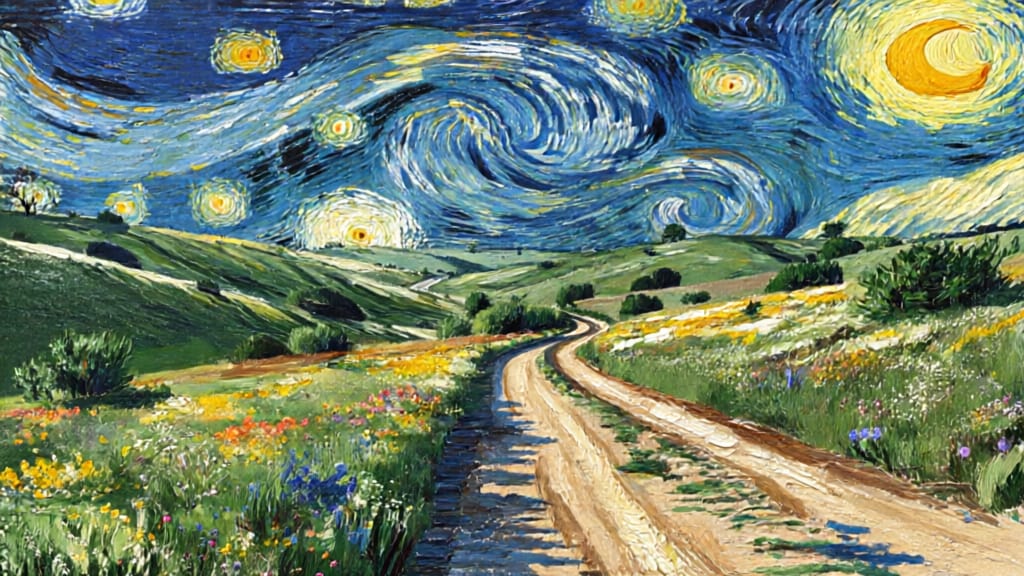
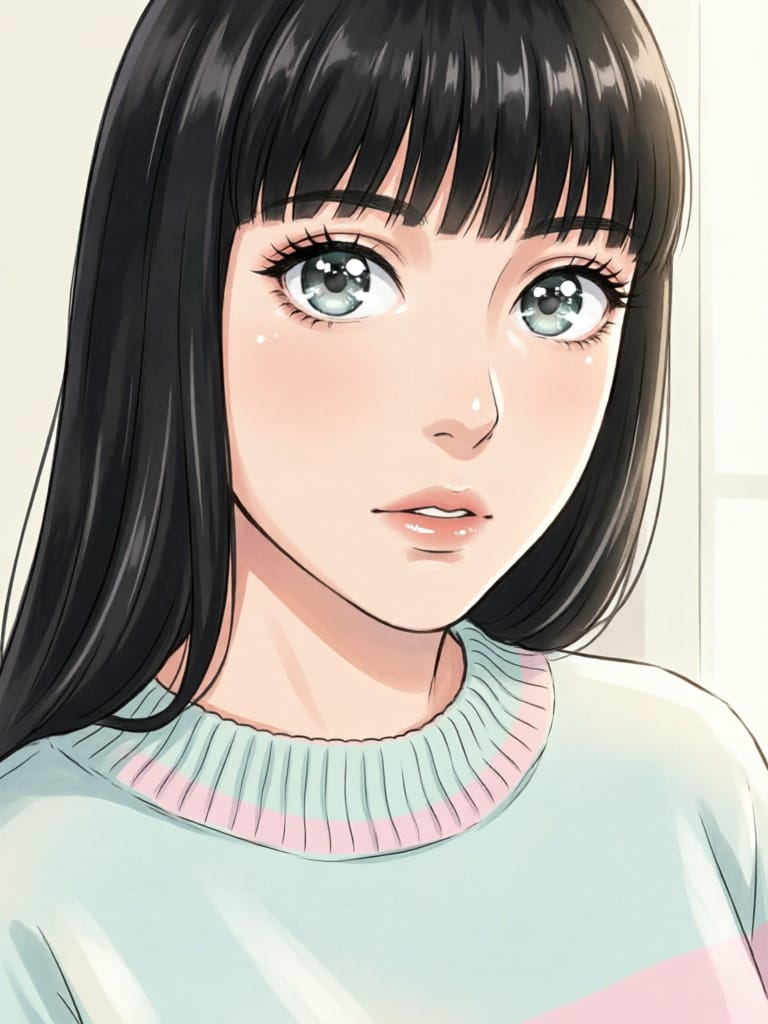
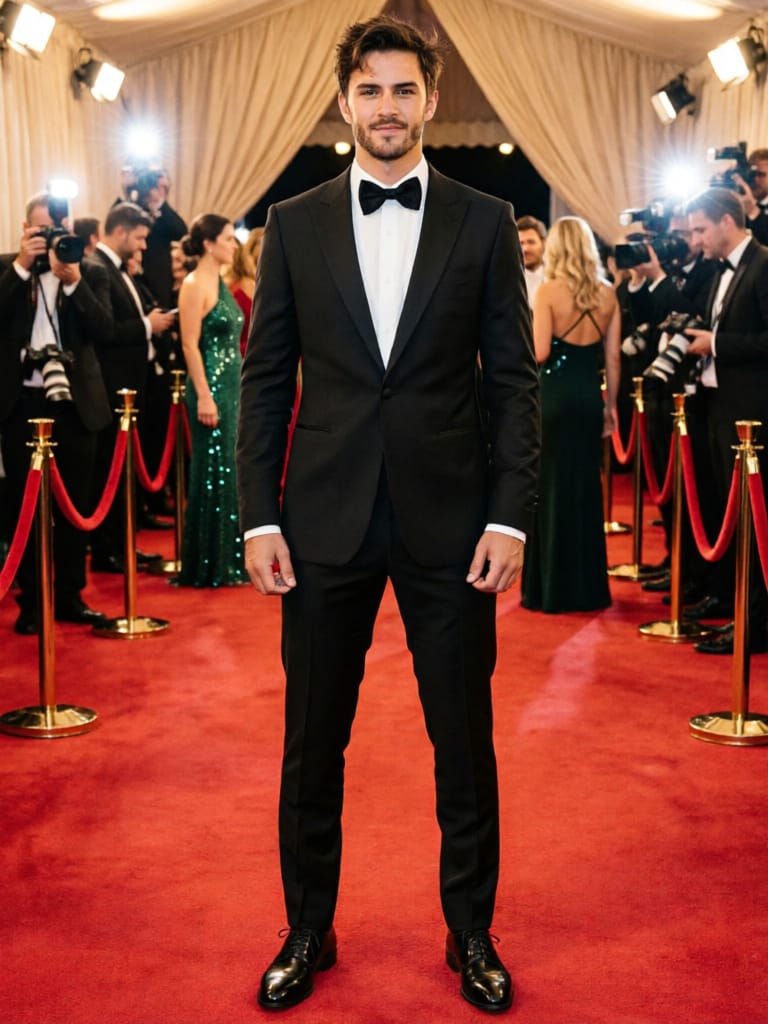
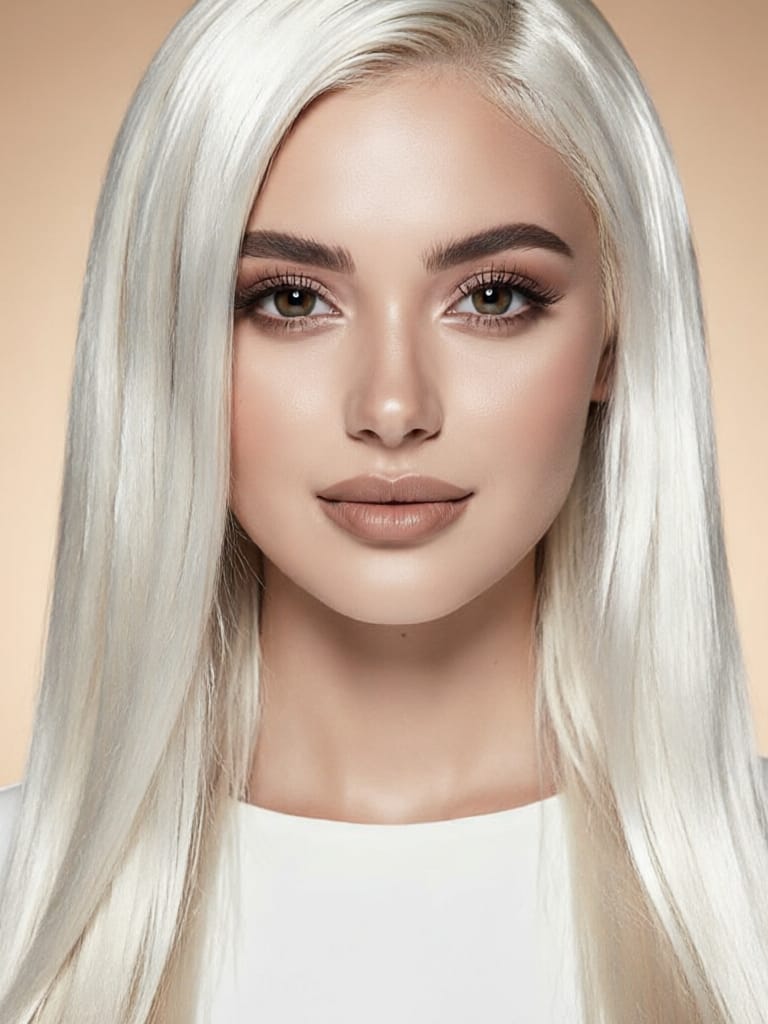
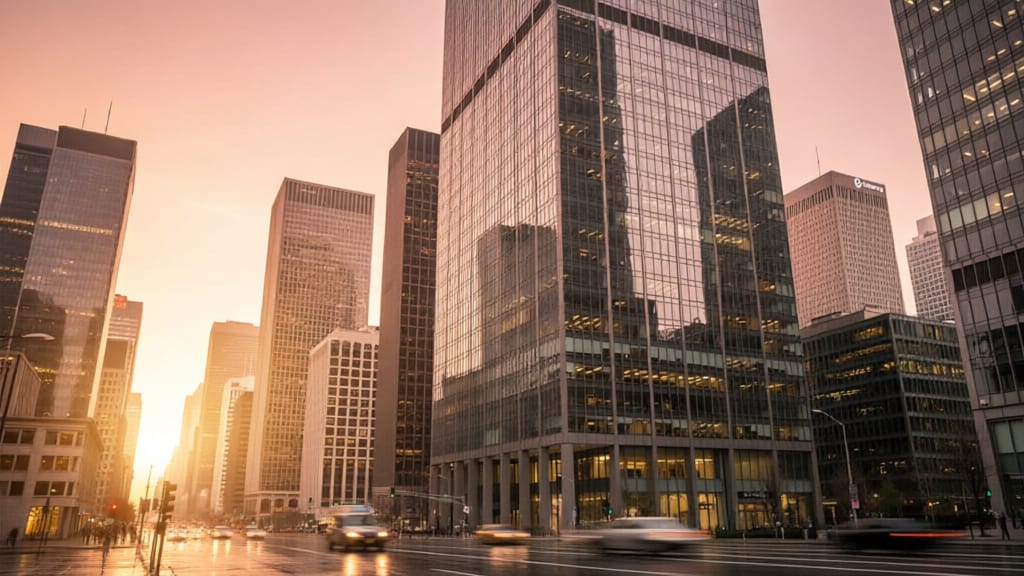
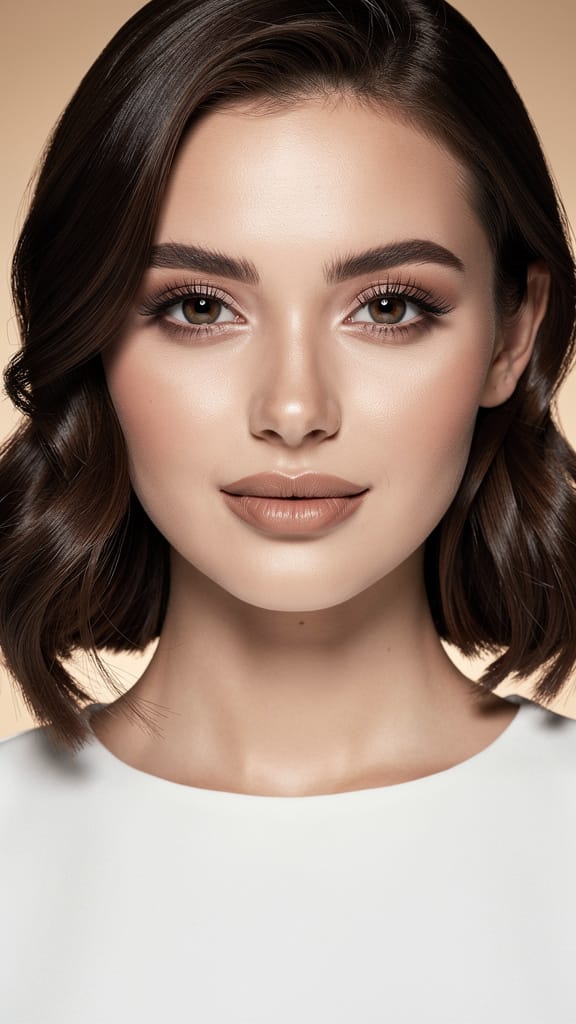
CAMBIO ACCONCIATURA
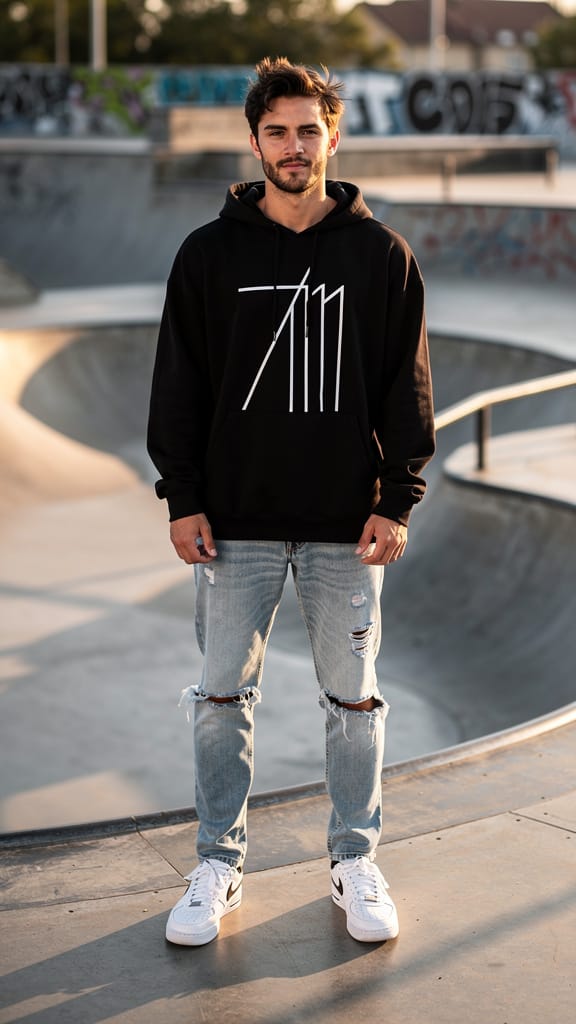
SCAMBIO STILE MODA
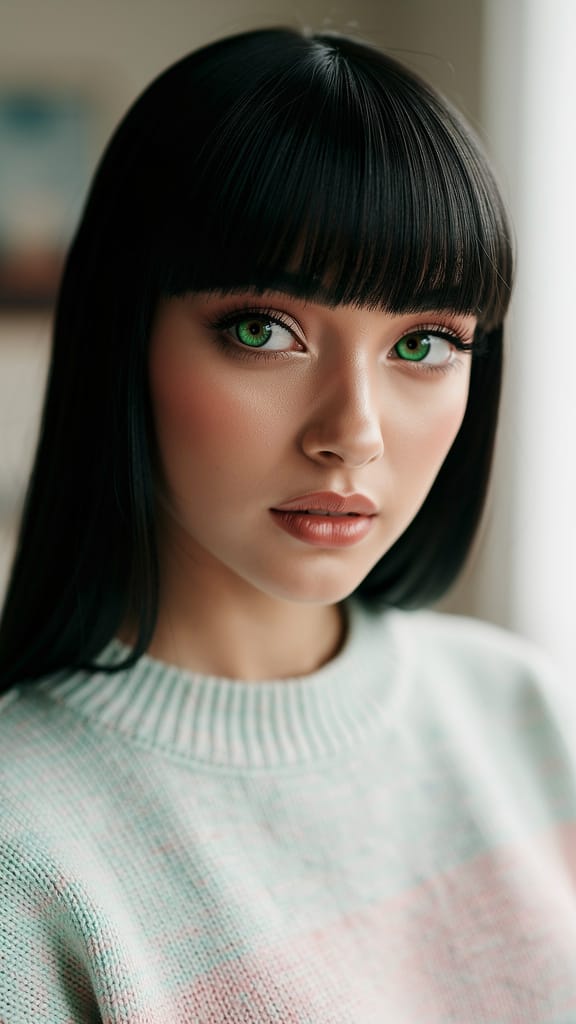
FOTO IN ANIME
Qwen Image 2 è uno strumento creativo di nuova generazione sviluppato da Black Forest Labs che permette ad artisti, designer, registi e creatori di contenuti di generare e trasformare immagini con un controllo e una flessibilità senza precedenti. Questo modello unificato di generazione e modifica fonde in modo fluido capacità AI avanzate con controlli creativi user-friendly, consentendo agli utenti di partire da immagini di riferimento e di rimodellarle o reinventarle usando prompt chiari in linguaggio naturale.
Qwen Image 2 eccelle nella modifica immagine-a-immagine e nelle trasformazioni stilizzate. Che vogliate apportare regolazioni sottili o revisioni complete — come sostituire un soggetto, cambiare ambienti o aggiungere elementi narrativi — questo modello produce risultati raffinati e coerenti guidati dalla vostra visione. Potete caricare da una a tre immagini di riferimento per sessione. Il modello presta grande attenzione all'ordine delle vostre immagini: quando create il prompt, potete fare riferimento ai file caricati come "image 1", "image 2" e "image 3", per specificare esattamente come applicare le modifiche. Questo flusso di lavoro favorisce il controllo creativo, consentendo modifiche mirate o combinazioni imaginative.
Qwen Image 2 comprende prompt dettagliati fino a 800 caratteri in inglese o cinese, supportando indicazioni creative sfumate. C'è anche un campo opzionale per il prompt negativo, dove potete specificare quali elementi escludere — come “low resolution” o “deformed” — ideale per raffinare stile, coerenza o evitare dettagli indesiderati.
Opzioni flessibili di formato e risoluzione assicurano che l'output corrisponda alle esigenze del progetto: generate immagini alle stesse dimensioni del riferimento scelto, o selezionate tra diversi aspect ratio, inclusi quadrato, ritratto (4:3, 16:9) e paesaggio (4:3, 16:9). Ogni immagine può essere creata con risoluzioni tra 512x512 e 2048x2048 pixel, rendendo opere ad alta risoluzione perfette per stampa, web o storyboard professionali. Le immagini di riferimento devono avere almeno 384 pixel per lato e non superare i 5000 pixel, garantendo risultati affidabili e chiari.
Potete salvare il lavoro in formati PNG, JPEG e WEBP, facilitando l'integrazione dei risultati in qualsiasi progetto digitale. Qwen Image 2 vi permette di produrre fino a sei variazioni per sessione, ideale per esplorare molteplici concetti o confrontare direzioni creative fianco a fianco.
Una caratteristica notevole è l'ottimizzazione integrata del prompt: abilitata di default, questa impostazione raffina e amplia intelligentemente le vostre istruzioni per risultati ancora più coerenti e d'impatto, aiutandovi a trasformare le idee in visuali vividi — anche se il vostro prompt è breve. Gli strumenti di sicurezza sono sempre attivi: la moderazione dei contenuti verifica automaticamente ciò che caricate e generate, offrendo tranquillità e aiutando a mantenere il lavoro appropriato.
Questo modello è particolarmente adatto per:
- Artisti che vogliono un modo rapido per iterare concetti visivi, remix o trasferimenti di stile con ispirazione dal mondo reale
- Designer che necessitano di modifiche precise o miglioramenti basati su feedback
- Registi in cerca di storyboard rapidi o cambiamenti di scena con esigenze narrative visive specifiche
- Creatori di contenuti pronti a generare immagini vibranti e di qualità editoriale da concetti creativi, o a repurporre visuali esistenti per nuove campagne
Migliori pratiche: Per risultati ottimali, caricate immagini di riferimento di alta qualità, dichiarate chiaramente i vostri obiettivi creativi nel prompt e usate il prompt negativo per escludere elementi indesiderati. Fate riferimento a più immagini usando il loro ordine nelle istruzioni testuali (ad esempio, “Replace the background of image 1 with the cityscape from image 2”).
In breve, Qwen Image 2 combina comprensione intuitiva delle immagini con AI generativa avanzata, così i professionisti possono sperimentare liberamente, iterare rapidamente e mantenere il controllo creativo. Che cerchiate esperimenti stilizzati o modifiche visive precise, apre nuove possibilità per narrazione e design — senza compromettere la vostra visione o intento.
Genera con l'editor di immagini più avanzato
Add the image that you want change
Carica immagine
Aggiungi l'immagine che vuoi modificare o trasformare
A woman kneeling in darkness, illuminated by a warm, radiant beam of light emerging from her raised hand.
Scrivi le modifiche
Descrivi le modifiche desiderate: cambiamenti di stile, rimozione oggetti o miglioramenti
Inizia a condividere
Scarica la tua immagine modificata professionalmente
Oltre il prompt: un nuovo livello di controllo
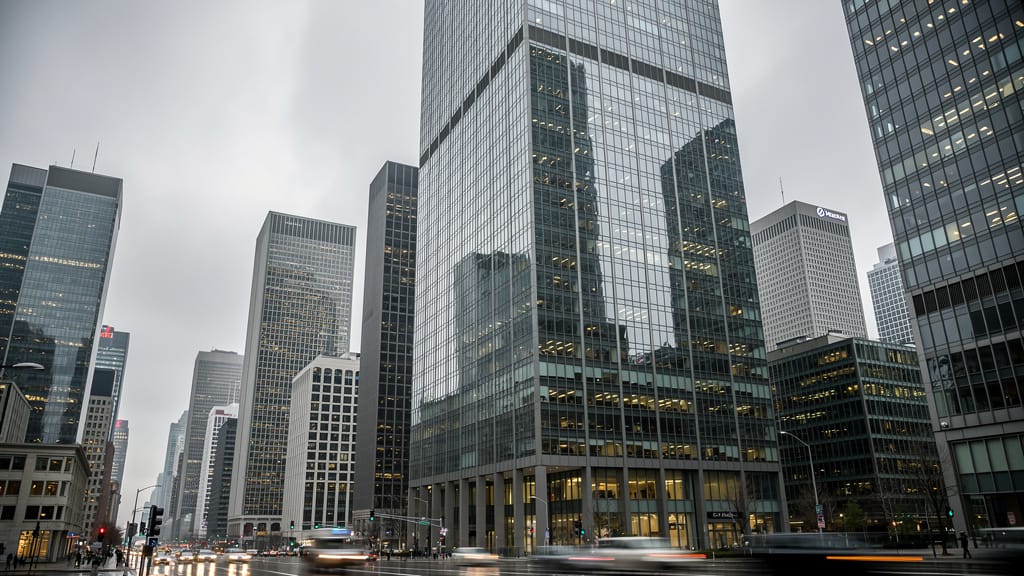
SOSTITUZIONE CIELO
Sostituisce cieli opachi o nuvolosi in foto di paesaggi architettonici, simulando condizioni di illuminazione drammatiche. Utile per marketing immobiliare e viaggi.
TRASFERIMENTO STILE ARTISTICO
Trasferisce stili pittorici iconici su fotografie, producendo opere uniche da scene quotidiane. Perfetto per campagne creative o progetti di arte digitale fine.
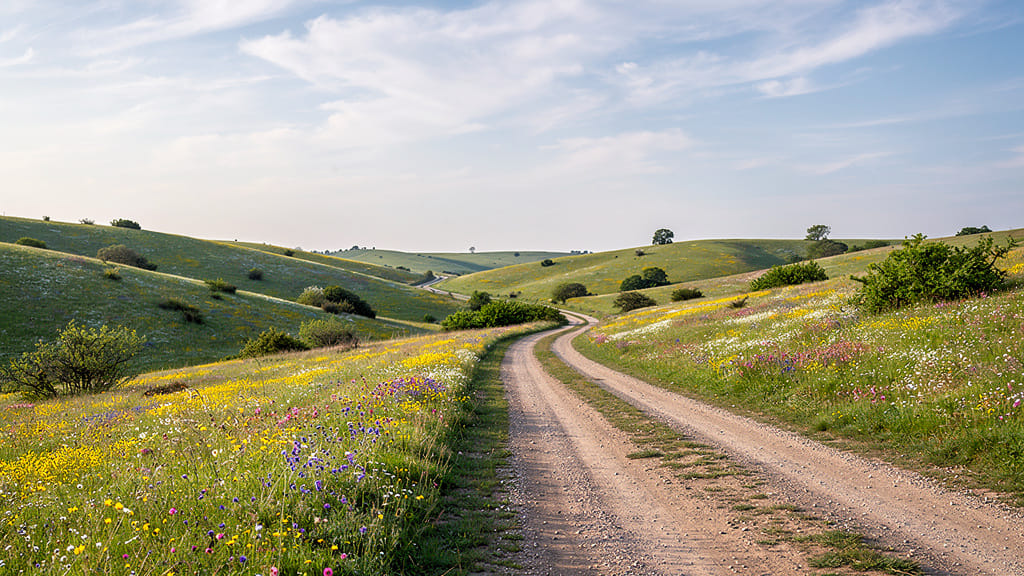
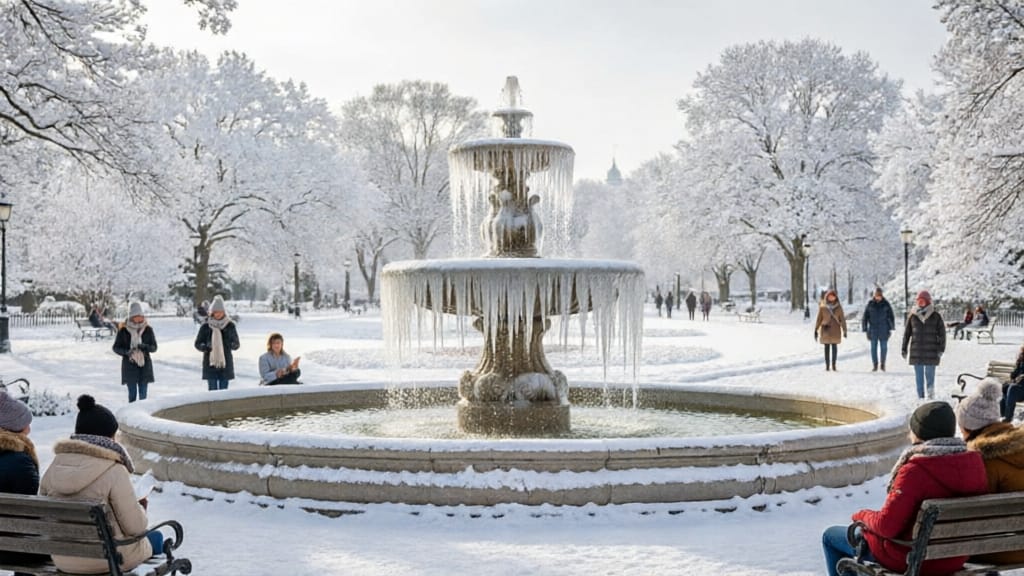
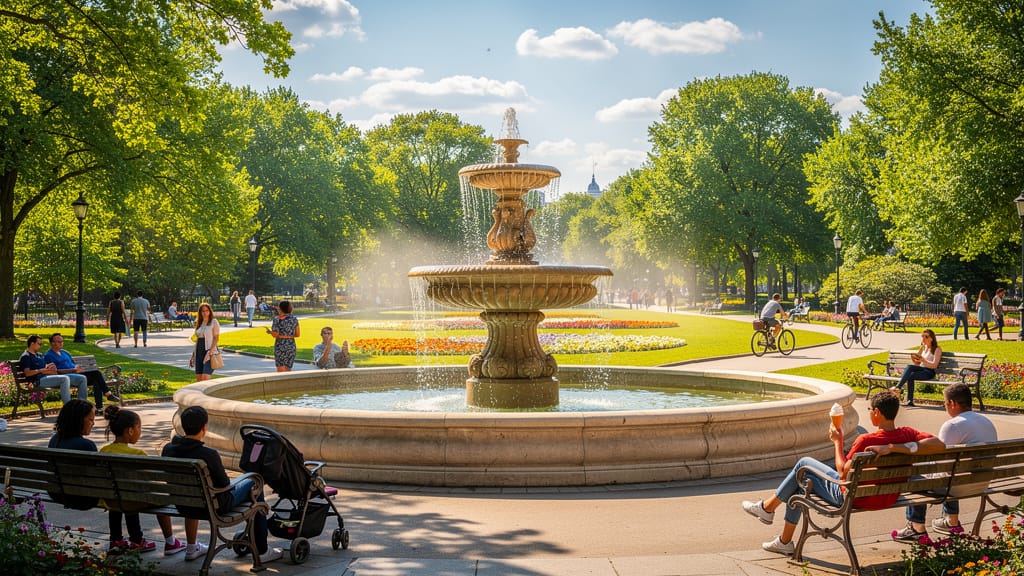
CAMBIO STAGIONALE
Simula cambiamenti stagionali drastici negli scenari, consentendo la visualizzazione di ambienti durante l'anno. Importante per architettura, urbanistica e contenuti social.
Confronta con modelli simili
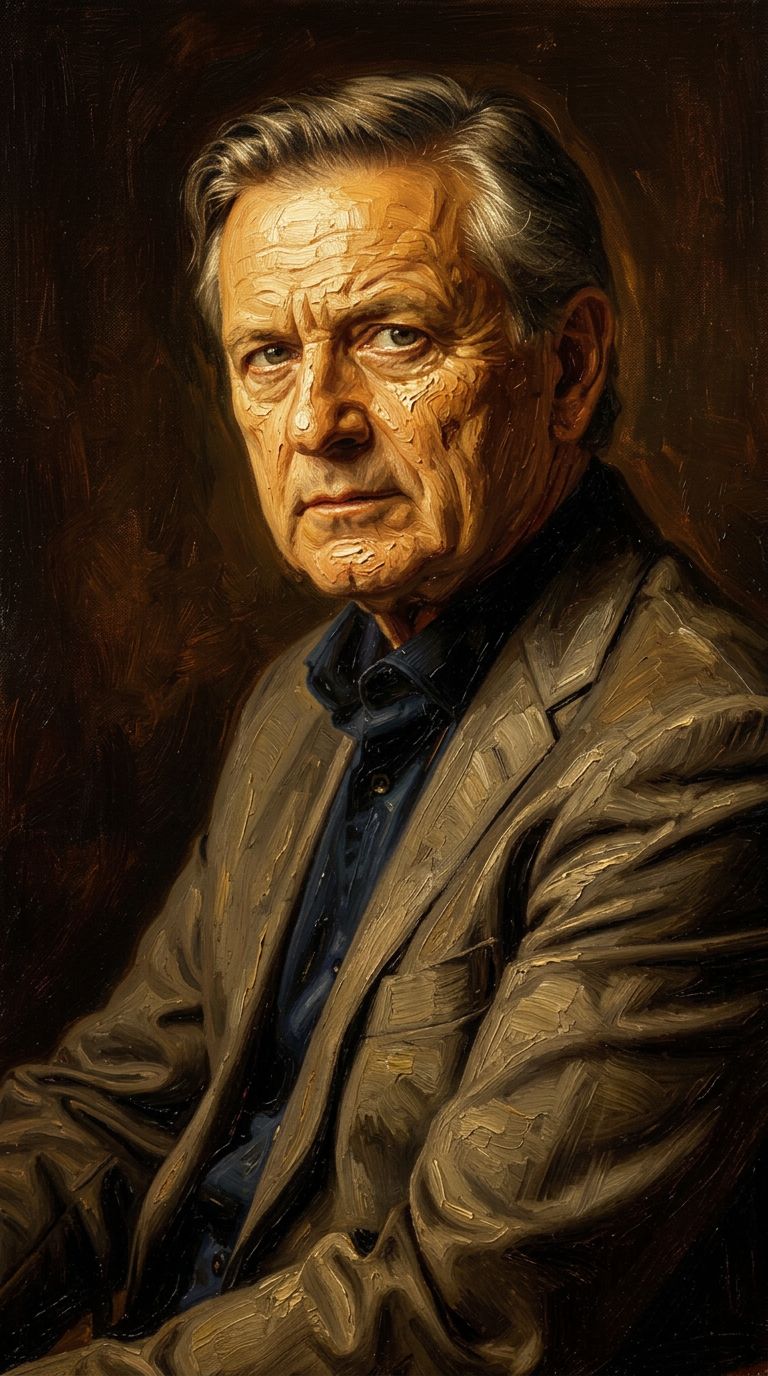
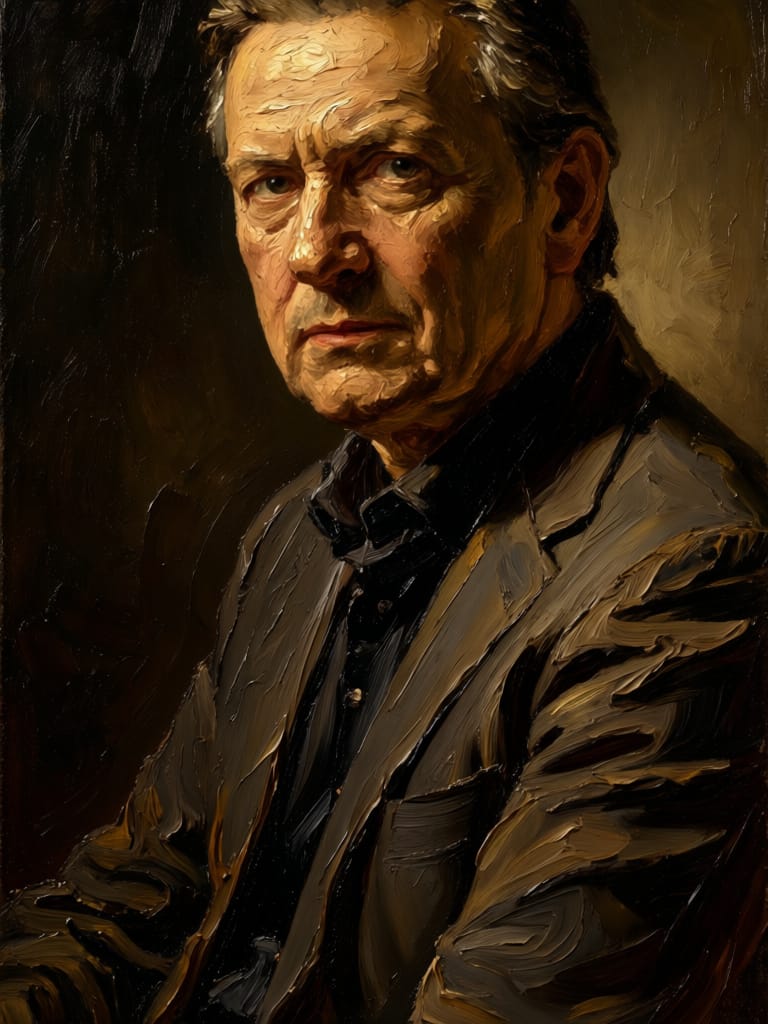
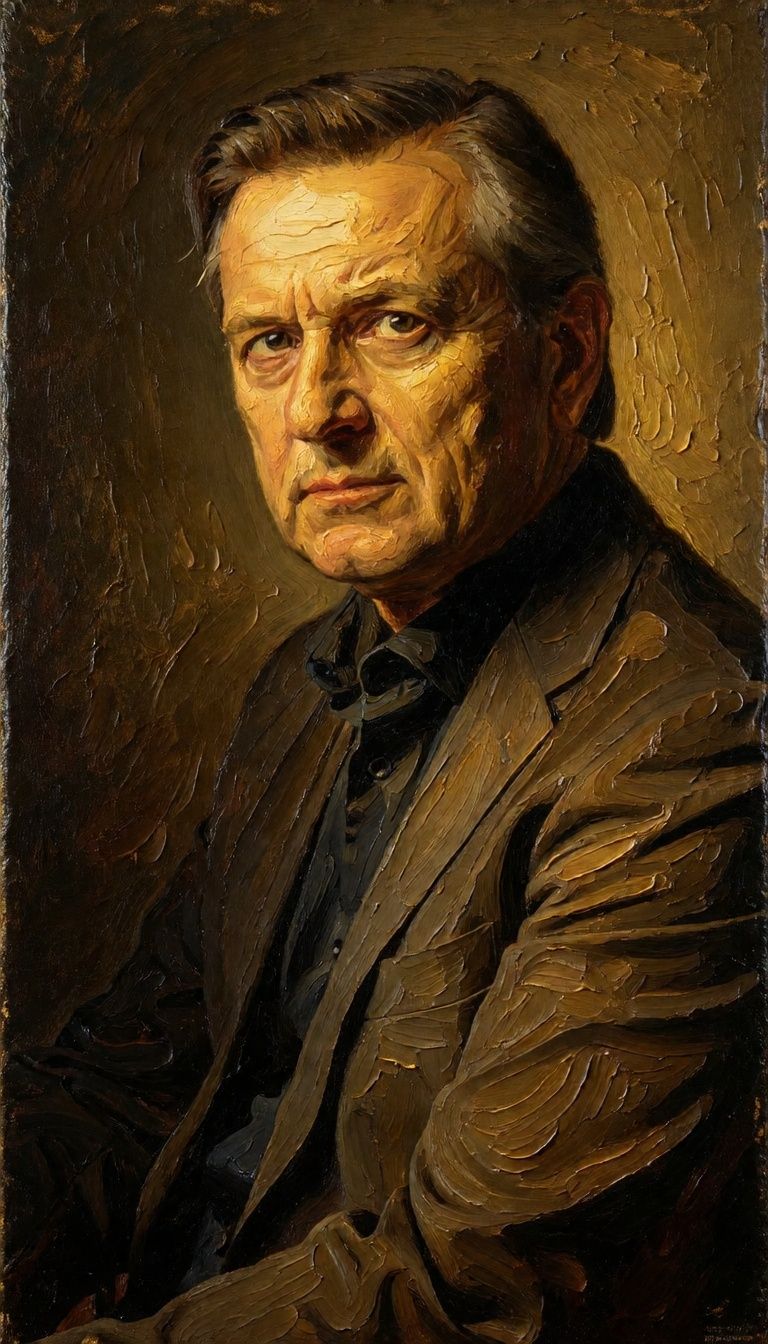
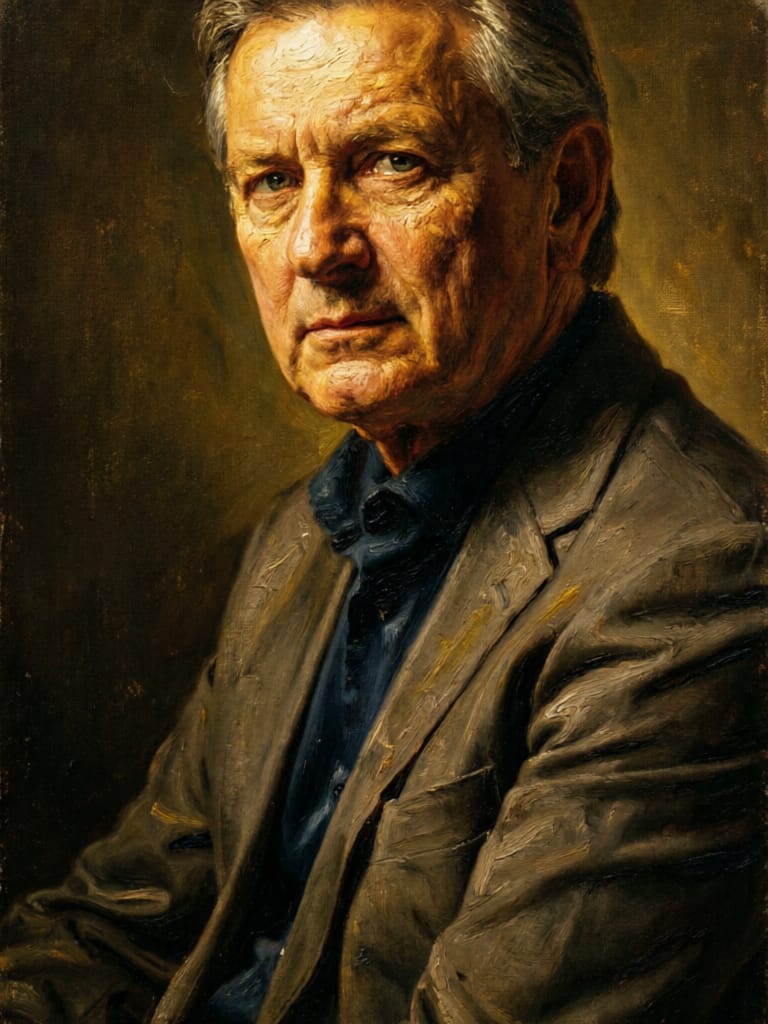
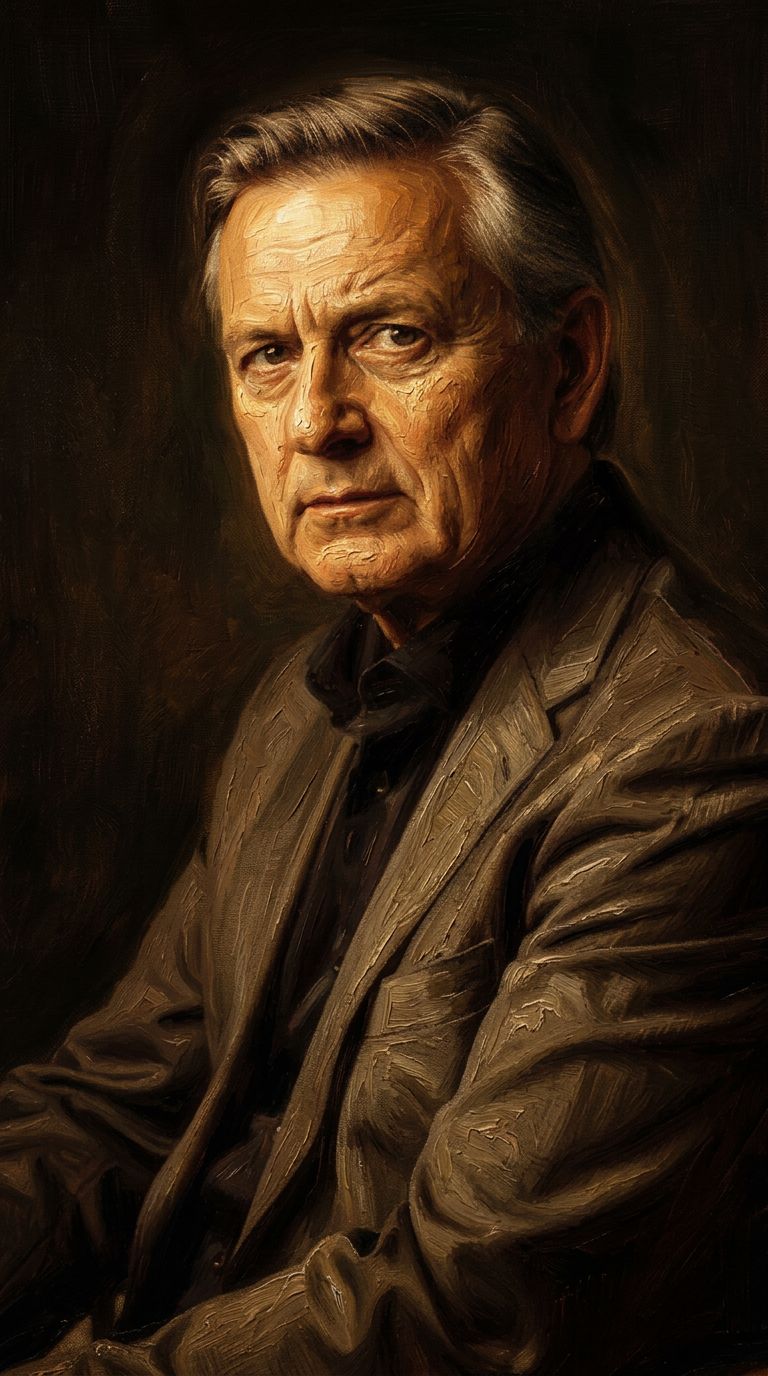
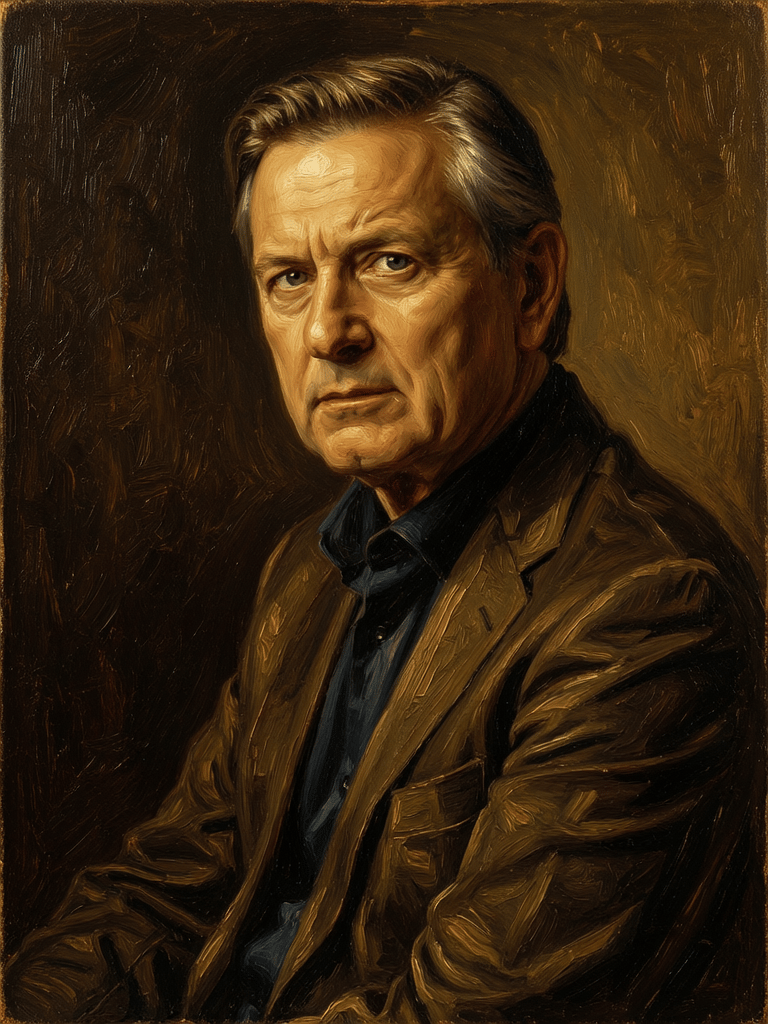
“Transform into a classical oil painting in the style of Rembrandt. Add visible impasto brushstrokes with thick paint texture. Apply warm golden undertones and dramatic chiaroscuro lighting with deep shadows. Enhance the dramatic contrast while preserving facial structure and expression. Add subtle canvas texture visible through the paint layers.”
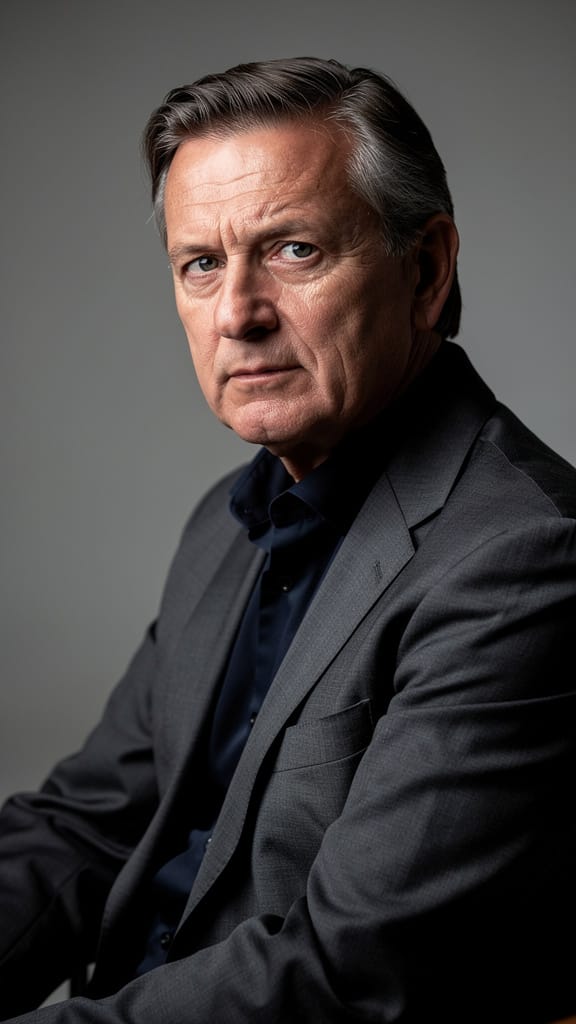
Immagine sorgente
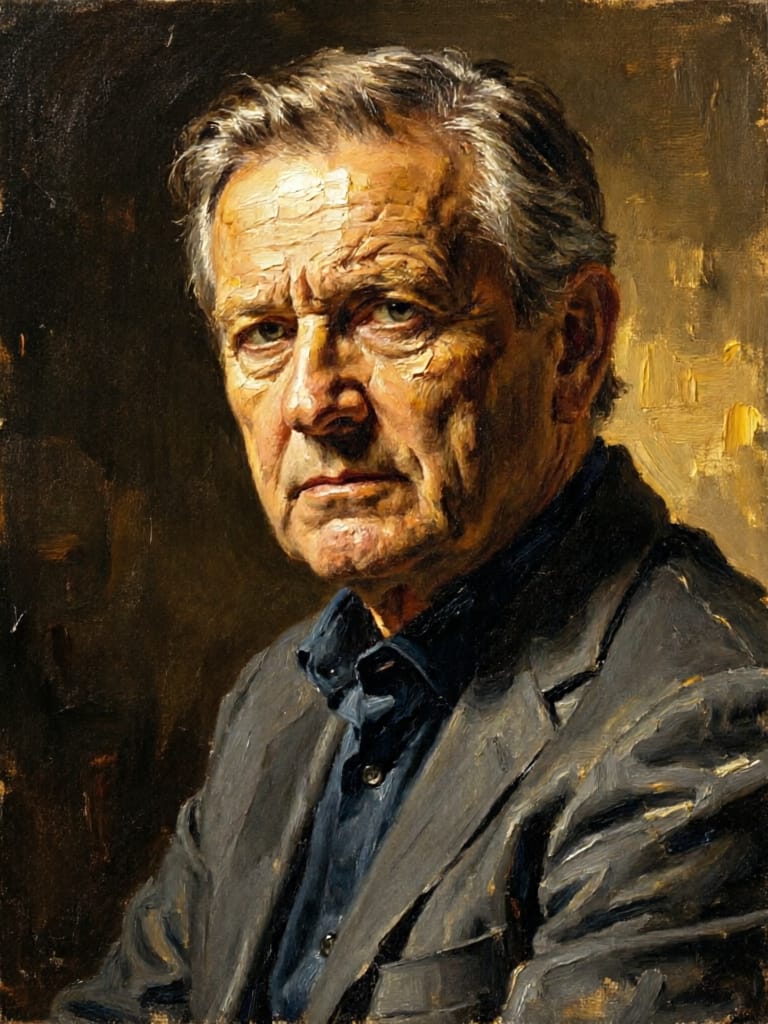
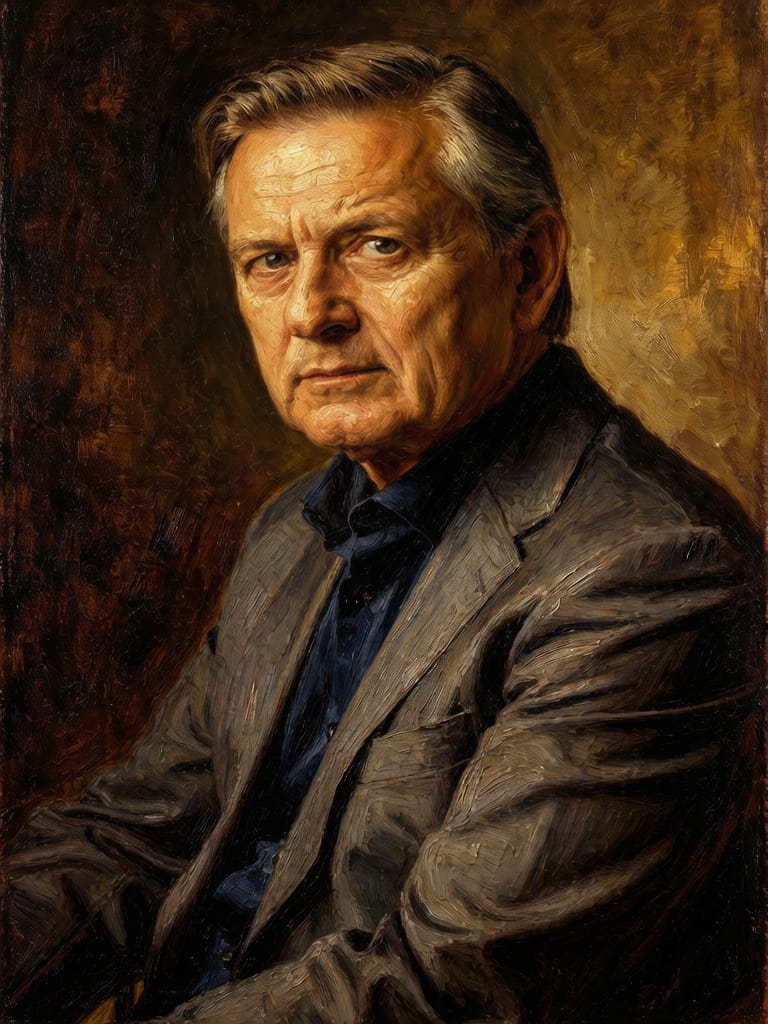
![FLUX.2 [klein] 9B LoRA output](https://shortgenius.com/cdn-cgi/image/width=3840,quality=80,format=auto/https://assets.shortgenius.com/example-model-output/cc1806c8-2af0-47e7-bd34-a95d2d180bfb.png)
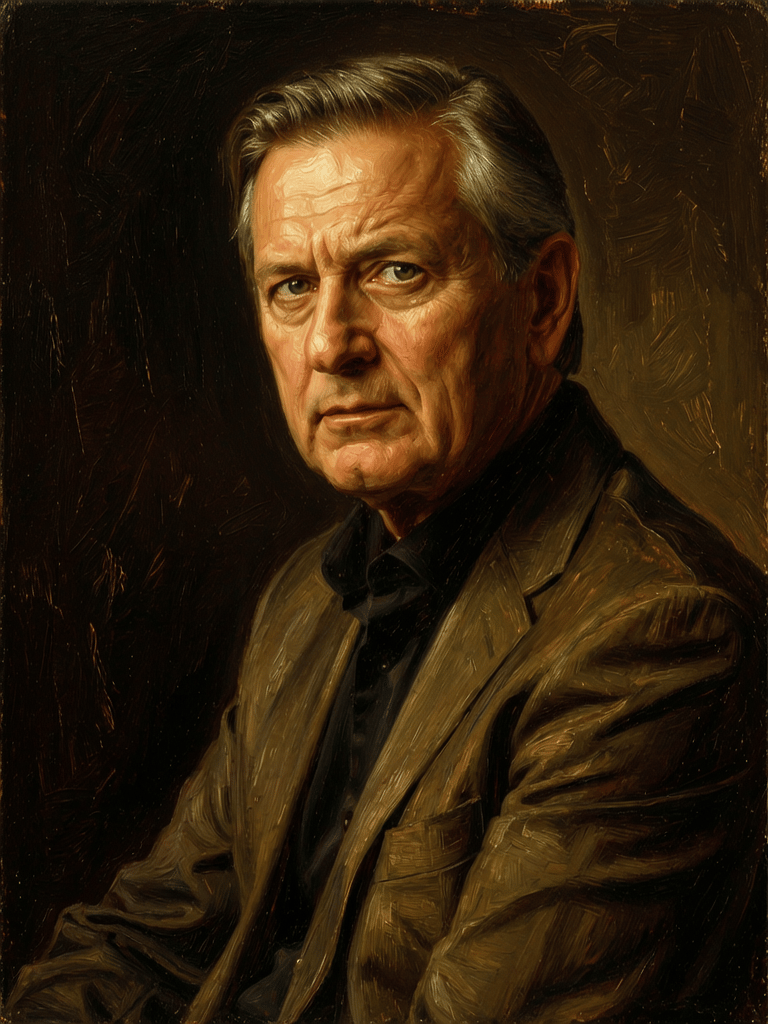
Vivi la perfezione con Qwen Image 2
Passa oggi alla sintesi guidata dal ragionamento
Domande frequenti
Modelli simili
Wan
Pro text-guided image editing
0.3 crediti
![FLUX.2 [klein] 9B LoRA](https://v3b.fal.media/files/b/0a928e3b/sIC-Ne9BMwZZtBvR3FwKN_9a724704a550471a9df59999e9e1017f.jpg)
FLUX.2 [klein] 9B LoRA
Precise natural language image editing
0.5 crediti
Wan
Text-guided creative image editing
0.2 crediti
Gemini 3.1 Flash Image Preview
Ultra-fast Google image editing
0.7 crediti
Joyai Image Edit
Natural language image editing
0.8 crediti
![FLUX.2 [klein] 9B LoRA](https://v3b.fal.media/files/b/0a928dd2/yFNW07YLHtp5zuE4eJAW1_e2f89915a1b740559b3c652b0b028296.jpg)
FLUX.2 [klein] 9B LoRA
Precise image edits, color control
0.3 crediti
Nano Banana 2
Google's advanced image editing
0.7 crediti
Firered Image Edit V1.1
Advanced AI-powered image editing
0.4 crediti
Qwen Image 2
Unified image editing and generation
0.6 crediti