Master the youtube thumbnail size: Perfect Dimensions for YouTube Thumbnails

Discover the youtube thumbnail size and exact dimensions to craft eye-catching thumbnails that boost your video's CTR.
When it comes to your YouTube thumbnail, the magic numbers are 1280 x 720 pixels. This is the sweet spot for a sharp, clear image that looks great everywhere.
Think of it like this: your thumbnail is the billboard for your video. It has to grab attention in a split second, and if it's blurry or stretched, viewers will just keep scrolling. To nail that crucial first impression, you need to follow YouTube's official specs.
What Are the Official YouTube Thumbnail Specs?
Sticking to YouTube's guidelines isn't just about following rules; it's about giving your content the best possible chance to succeed. Getting the technical details right is your first line of defense against fuzzy images, weird cropping, or distortion that can kill your click-through rate.
To make it super simple, here’s a quick-glance table with everything you need to know.
YouTube Thumbnail Technical Requirements
| Specification | Requirement | Why It Matters |
|---|---|---|
| Resolution | 1280 x 720 pixels | Ensures your thumbnail looks crisp and high-quality, even on large screens like TVs. |
| Aspect Ratio | 16:9 | Perfectly matches the YouTube video player, preventing ugly black bars (letterboxing). |
| File Size | Under 2 MB | A hard limit set by YouTube. Larger files will be rejected during upload. |
| File Formats | JPG, PNG, GIF | Provides flexibility, though JPG is usually the best for balancing quality and file size. |
Let's break down what each of these means for you in practice.
Getting the Dimensions Right: Resolution and Aspect Ratio
The foundation of any great thumbnail is getting the size and shape right from the start.
- Best Resolution: Always aim for 1280 pixels wide by 720 pixels tall. This is the official gold standard.
- Minimum Width: You absolutely can't go smaller than 640 pixels wide. Anything less will look pixelated and unprofessional when YouTube scales it up.
- Aspect Ratio: Stick to 16:9. This is the widescreen format of YouTube's video player, and using it ensures your thumbnail fits perfectly without any awkward adjustments.
This isn't a new rule—YouTube has been recommending these dimensions for years. The reason is consistency. When you upload an image with a different aspect ratio, YouTube has to force it to fit, often by adding those distracting black bars on the sides or top. You can learn more about how thumbnail ratios impact viewer experience and why the 16:9 standard is so important.
File Size and Format: The Final Polish
Once your design is done, you have to save it correctly. This is where file size and format come into play.
Your final image file must be under 2MB. If it's even a little bit over, YouTube will reject the upload. It’s a non-negotiable limit, so always check your file size before you hit publish.
You have a few choices for file format, and each one has its pros and cons.
- JPG: This is the go-to for most creators. It gives you fantastic image quality without creating a massive file, making it easy to stay under that 2MB limit.
- PNG: The best choice if your thumbnail has text with sharp edges, logos, or transparent elements. The tradeoff is that PNG files are often larger than JPGs.
- GIF: While you can upload a GIF, YouTube doesn't support animation in thumbnails. It will just grab a single, static frame from it, so it’s usually not worth the effort.
Why Thumbnails Are Your Most Important Marketing Tool
Let's move past the technical stuff for a moment. It’s easy to get bogged down in pixels and aspect ratios, but we need to talk about what a thumbnail really is. It's not just a preview image; it's the movie poster for your video, the book cover for your story. In a sea of endless content, your thumbnail is the single most powerful tool you have to get someone to click play.
A great thumbnail doesn't just show what your video is about—it makes a promise. In a split second, it has to communicate the topic, the tone, and why someone should spend their precious time watching. Think of it as a visual handshake that turns a passive scroller into an active viewer.
The Psychology of the Click
The decision to watch a video is almost never a logical one. It's instantaneous. It's emotional. Your thumbnail is what pulls that trigger. It works by sparking curiosity, showing a clear benefit ("I'll learn something!"), or creating an emotional hook. This is precisely why a thoughtfully designed image will always crush a random, auto-generated still from your video.
The numbers don't lie. A staggering 90% of YouTube users admit a thumbnail is a huge factor in their decision to watch a video. Channels that consistently nail their thumbnails can see 20-25% higher growth rates than those who don't. That’s a massive difference, and you can see YouTube themselves break down how thumbnails influence viewer decisions in their own creator guides.
A compelling thumbnail is a powerful signal to both people and the YouTube algorithm. It tells viewers your content is high-quality and worth their time. This, in turn, boosts your click-through rate (CTR)—a vital metric the algorithm uses to push your video to a wider audience.
Thumbnails and the YouTube Algorithm
The YouTube algorithm has one main job: keep people on the platform. It does this by showing them content it thinks they’ll click on and enjoy. When you create a thumbnail that begs to be clicked, you're giving the algorithm exactly the kind of positive feedback it's looking for.
A high CTR tells YouTube, "Hey, people are interested in this!" In response, the algorithm is far more likely to promote your video on the homepage, in recommended feeds, and higher up in search results. This kicks off a fantastic cycle: a great thumbnail boosts your CTR, a higher CTR signals value to the algorithm, and the algorithm rewards you with more visibility, leading to more views. That's why mastering your youtube thumbnail size and design is so critical.
To see how this fits into a broader plan, it's worth exploring different video marketing strategies to understand the bigger picture.
Designing Thumbnails That Actually Get Clicks
Getting the technical YouTube thumbnail size right is just the price of entry. The real game is in the design—that’s what makes someone actually want to click on your video. This is where you move beyond pixels and specs to create something that pulls people in. A killer thumbnail doesn't just look pretty; it screams "watch me" and stands out in an ocean of other videos.
Think about it: the YouTube homepage is basically a digital battleground for attention. Your thumbnail has a split second to catch a user's eye and stop their scroll. To win that battle, you have to lean on a few core design principles that tap into basic human psychology.

Use High Contrast Colors to Pop
Your thumbnail is almost always going to be sitting on a white, gray, or dark background. The easiest way to make it jump off the screen is by using high-contrast colors. Bright, bold colors slapped against a darker, more muted background instantly create a focal point that’s hard to ignore.
For instance, a splash of electric yellow text over a slightly desaturated photo will grab way more attention than a bland, muddy color scheme. This isn’t about making a fine art masterpiece; it’s about making sure your thumbnail doesn't just fade into the background noise.
The goal isn't just to be seen, but to be noticed first. High contrast forces the viewer's eye to land on your thumbnail before anyone else's, giving you a critical advantage in the fight for the click.
Feature Expressive Human Faces
We are biologically wired to notice and connect with other human faces, especially when they're showing a strong emotion. Putting a clear, expressive face in your thumbnail is like an emotional shortcut. A look of shock, pure joy, or deep concentration immediately tells a story and makes the viewer curious about what’s going on.
Here are a few ways this plays out:
- Surprise or Shock: Think wide eyes and an open mouth. This signals something unexpected or a major reveal in your video.
- Joy or Excitement: A massive grin or a celebratory pose promises the viewer a fun, positive, and entertaining watch.
- Intense Concentration: A focused stare can build a ton of intrigue, especially for tutorials, reviews, or complex topics.
This works so well because it instantly makes your content feel more human and relatable. You're building a connection before they've even heard your voice.
Craft Bold and Readable Text
An image might be worth a thousand words, but a few carefully chosen ones on your thumbnail can provide the context needed to earn the click. The secret is to keep your text short, punchy, and super easy to read, even on a tiny phone screen.
Stick to the Rule of Three to Five Words. Any more than that is just clutter.
Your thumbnail text shouldn't just repeat the title; it should add a new layer of intrigue. If your title is "My Honest Review of the Newest Smartphone," the thumbnail text could be something like "Worth It?" or "Big Problems." It creates a curiosity gap. Use a thick, clean font and maybe add a solid color block or an outline behind it to make sure it pops right off the background.
Common Thumbnail Mistakes That Hurt Your Channel
Getting the technical specs right is half the battle, but even a perfectly sized thumbnail can fall flat. Certain design choices can quietly sabotage your video's performance before anyone even clicks play. Think of your thumbnail as the book cover for your content; a few common mistakes can make potential viewers walk right past your shelf.
Avoiding these pitfalls is just as crucial as knowing the best practices. A single poor design choice can make your thumbnail look unprofessional, confusing, or just plain untrustworthy—all of which are instant click-killers.
Too Much Text on the Screen
This is probably the most common mistake I see. Creators try to cram a whole sentence, or sometimes a whole paragraph, onto their thumbnail. It's a billboard, not a novel. Viewers are scrolling fast, giving each image a split second of their attention. If they can’t read your text instantly, they won't bother trying.
It just creates visual chaos and buries the main point. The thumbnail’s job is to spark curiosity and give a quick hint of what’s inside, not to tell the entire story.
My Two-Second Rule: If someone can't read and understand the text on your thumbnail in two seconds, it's too long. Stick to 3-5 powerful words that punch up your video title.
Using Blurry or Low-Resolution Images
Nothing kills credibility faster than a blurry, pixelated thumbnail. When you take a tiny image and stretch it to fit the 1280x720 frame, it just turns into a mess. The same thing happens when you grab a low-quality still frame from your video that has motion blur all over it.
Your base image needs to be crisp and clear from the get-go. It’s a visual promise to the viewer that the video they’re about to watch is also high-quality and worth their time.
Creating Misleading or Clickbait Thumbnails
Sure, a wild, misleading thumbnail might trick someone into clicking, but it’s a strategy that will absolutely destroy your video's performance. When a viewer clicks expecting one thing and gets something completely different, they’re gone in seconds. This sends a huge red flag to the YouTube algorithm, telling it your video doesn't deliver on its promise.
This kind of bait-and-switch leads to some serious problems:
- Terrible Audience Retention: You'll see a massive viewer drop-off in the first few seconds.
- Plummeting Watch Time: The total minutes people spend watching your video will be abysmal.
- Algorithm Punishment: YouTube will see that viewers are bouncing and stop recommending your video to new people.
Trust is everything on YouTube. Your thumbnail should be an honest—though exciting—preview of what’s in the video. A clever hook is fantastic; an outright lie is a channel killer.
How to Resize Your Image to the Perfect Thumbnail Size
Alright, you know the rules of the game. Now it's time to actually get your hands dirty and create a thumbnail that meets YouTube's specs. Hitting that sweet spot of 1280x720 pixels is easier than you think, and you definitely don't need a graphic design degree to do it.
Whether you're using a free online tool or a pro-level software, the core steps are pretty much the same. Let's walk through how to do it in two of the most popular platforms out there.
The Easy Route: Using a Free Tool Like Canva
For most creators, Canva is the go-to. It's built for speed and simplicity, completely taking the guesswork out of getting the dimensions right.
- Start with a Template: Simply log in, hit "Create a Design," and search for "YouTube Thumbnail." Canva instantly whips up a blank canvas for you that's already a perfect 1280 x 720 pixels. No manual setup is needed.
- Add Your Visuals: From there, just drag and drop your image onto the canvas. You can pull the corners to scale it up or down and reposition it to get the framing just right.
- Export for YouTube: Once your design looks good, click the "Share" button, then "Download." I almost always recommend choosing JPG here—it gives you a fantastic balance of image quality and a small file size that YouTube loves.
The Pro-Level Polish: Using Adobe Photoshop
If you're someone who likes having total control over every pixel, Adobe Photoshop is your best friend. Even with its power, the basic resizing process is surprisingly straightforward. This is especially useful when you're starting with a massive source file, like an example of a high-resolution image (1880x1058), that needs to be wrangled into YouTube’s specifications.
- Create a New Document: First things first, go to
File > New. In the dialog box, manually enter the dimensions: 1280 pixels for the width and 720 pixels for the height. - Place and Scale Your Image: Drag your image into the new canvas. It will likely be too big or too small. Just hit
Ctrl+T(orCmd+Ton a Mac) to activate the Free Transform tool. Now you can resize and position your image perfectly within the 16:9 frame. - Save for the Web: This is the key step. Instead of just saving, go to
File > Export > Save for Web (Legacy). This feature is specifically designed to optimize images for online use. Choose JPEG, and then play with the quality slider until the file size preview dips comfortably below the 2MB limit.
Speaking of what not to do, a quick visual reminder can go a long way. Things like fuzzy, low-quality images or packing in way too much text can sink your video before anyone even clicks.
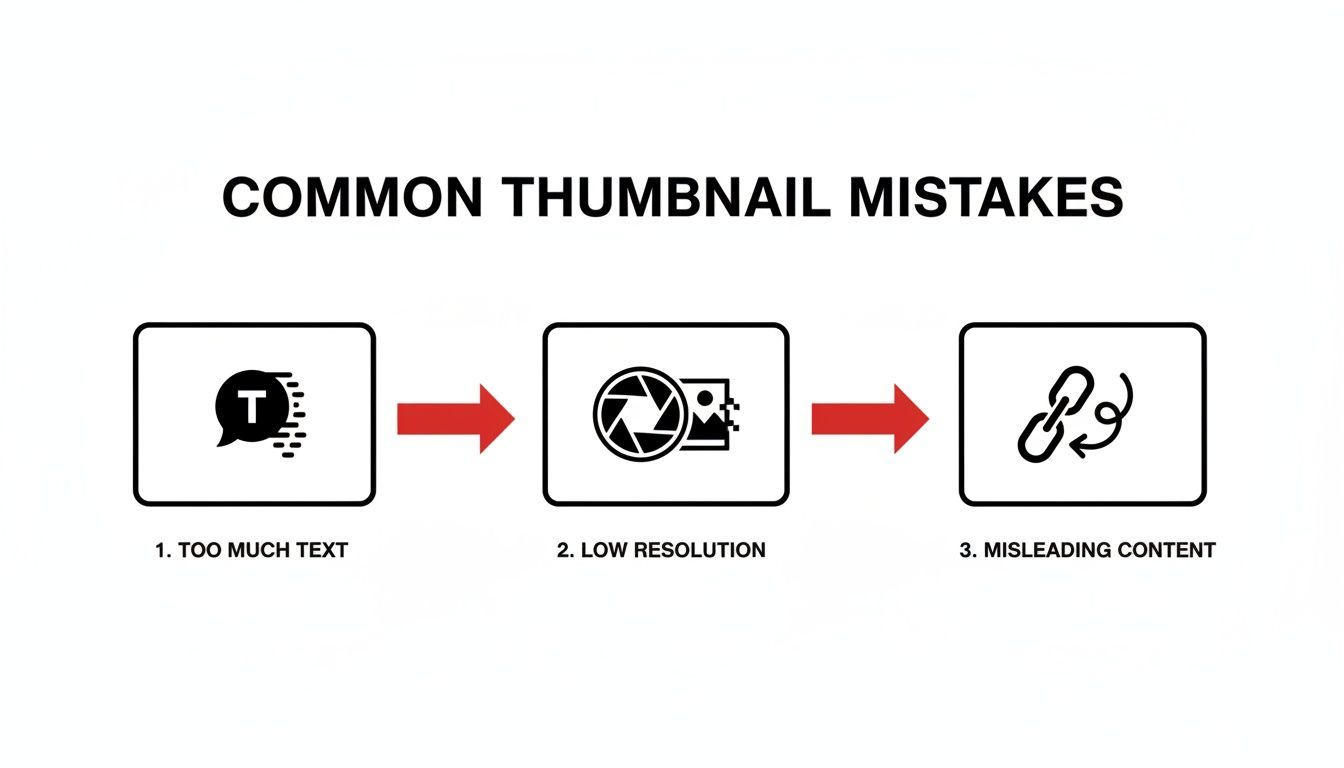
Each one of those mistakes is a classic click-through rate killer. They make your content look amateurish at best, and untrustworthy at worst.
Want a Faster Workflow? Let AI Create Your Thumbnails
While there's nothing wrong with rolling up your sleeves and designing a thumbnail from scratch, let's be honest—it takes a lot of time. What if you could skip the tedious design steps and jump straight to a thumbnail that gets clicks?
This is exactly where AI-powered tools like ShortGenius come in. Instead of staring at a blank canvas, you can generate a whole batch of thumbnail options specifically made for your video, almost instantly.
This kind of tool actually analyzes your video’s content to pull together eye-catching visuals, headlines, and layouts that make sense. It’s a huge leap from guessing what might work to letting data do the heavy lifting. The end result? You get a lineup of professional-looking thumbnails in minutes, not hours.
The AI Edge for Creators on the Clock
If you're trying to grow your channel, efficiency is the name of the game. Manually creating a unique, high-quality thumbnail for every single video is a massive time sink and can quickly become a bottleneck that slows down your entire production schedule.
AI tools completely flatten that hurdle. You don't need to be a Photoshop wizard to get great results.
Here’s where it really makes a difference:
- Instant Options: Generate several different thumbnail concepts in one go. This lets you see a variety of styles and pick the one that truly nails the vibe of your video.
- Perfect Specs, Every Time: Forget about remembering the right dimensions. Every thumbnail the AI creates automatically meets the official YouTube thumbnail size, aspect ratio, and file format requirements. No more rejected uploads.
- Keep it On-Brand: Many tools let you plug in your brand's specific colors and fonts, making sure every thumbnail looks and feels like it belongs on your channel.
This move toward automation isn’t just a gimmick; it’s backed by real numbers. Videos with custom, high-quality thumbnails often see a 25-30% jump in viewer engagement. This stat alone shows why top creators obsess over their thumbnails and why AI is quickly becoming a secret weapon for success. You can dive deeper into how thumbnails impact viewer behavior on YouTube to see the psychology behind it.
At the end of the day, using AI to create your thumbnails isn't just about saving time—it’s a strategic move. It frees you up to focus on what really matters: making fantastic videos. All the while, you can rest easy knowing your first impression is perfectly tuned to grab attention and earn that click.
Frequently Asked Questions About YouTube Thumbnails
Even when you think you have all the rules down, a few nagging questions always seem to pop up about thumbnails. Trust me, you're not alone. Let's tackle some of the most common ones I hear from creators.
Getting these details right is more than just ticking a box; it’s about fine-tuning your strategy and making sure every video has the best possible shot at success.
What Is the Best File Format for YouTube Thumbnails?
When you’re ready to export your masterpiece, you'll likely face the classic dilemma: JPG or PNG? There’s no single right answer here—the best choice really comes down to what's in your design.
- Go with JPG for photos. If your thumbnail is a still from your video or a photograph, JPG is your best friend. It does a fantastic job of keeping colors rich while compressing the file to easily fit under YouTube’s 2MB limit.
- Pick PNG for graphics and text. For thumbnails with sharp graphics, bold text, or transparent backgrounds (like dropping a logo on top), PNG is the clear winner. It keeps every line and letter perfectly crisp, though the file size can sometimes be a bit larger.
Does Thumbnail Size Affect My Video's SEO?
This is a great question, and the answer is a little nuanced. It’s yes, but not in the way you might think. YouTube’s algorithm doesn't directly scan your thumbnail to see if it’s 1280x720 pixels and then give you a ranking boost.
The real impact is on human behavior. A high-quality, properly sized thumbnail looks professional and grabs attention, which directly influences your click-through rate (CTR). A high CTR tells YouTube, "Hey, people are interested in this!" which then encourages the algorithm to show your video to more people.
So, while the dimensions aren't a direct ranking signal, they are absolutely critical for earning the clicks that are.
Can I Change a Thumbnail After My Video Is Published?
Yes, you absolutely can! In fact, this is one of the most powerful and underused tactics for reviving a video that’s not performing up to its potential.
Think of it as a mini-relaunch. You can head into your YouTube Studio dashboard at any time and swap out the thumbnail. If a video is underperforming, a new design can give it a second wind and a fresh chance to capture an audience.
This is your opportunity to A/B test different styles, headlines, or images to see what truly connects with viewers, all without having to re-upload a thing.
Ready to stop guessing and start creating high-performing thumbnails in a fraction of the time? With ShortGenius, you can use AI to instantly generate multiple eye-catching options, all perfectly sized and optimized for clicks. Try ShortGenius today and streamline your entire content workflow!