The Ultimate Guide to LinkedIn Video Specifications

Master LinkedIn video specifications with our complete guide. Get the latest formats, resolutions, aspect ratios, and ad specs for maximum engagement.
Getting your LinkedIn video specifications right from the start is the difference between a polished, professional video and one that fails to upload or looks pixelated. Think of these specs as the rules of the road for the platform. At a high level, you're generally safe with an MP4 format, keeping your organic posts under 5GB and ads under 200MB, and aiming for a video length under 15 minutes for native uploads.
Sticking to these technical guidelines is your first line of defense against frustrating upload errors and ensures your content looks exactly as you intended.
Your Quick Reference for LinkedIn Video Specifications
Trying to keep track of all the different technical requirements for LinkedIn video can feel like a moving target. The specs for an organic post are different from a video ad, which are different again from a LinkedIn Live stream. Each format has its own playbook, and knowing the nuances is crucial for any successful video strategy.
If you don't get these details right, you risk failed uploads, poor playback quality, or your ad campaign getting rejected outright. Nobody has time for that.
To make things easier, I've put together a quick reference guide that pulls all the essential numbers into one place. This is your cheat sheet to save time and avoid those common, preventable headaches.
Key Specs at a Glance
This quick summary breaks down the essential LinkedIn video specifications for the three main types: organic uploads, video ads, and LinkedIn Live broadcasts.
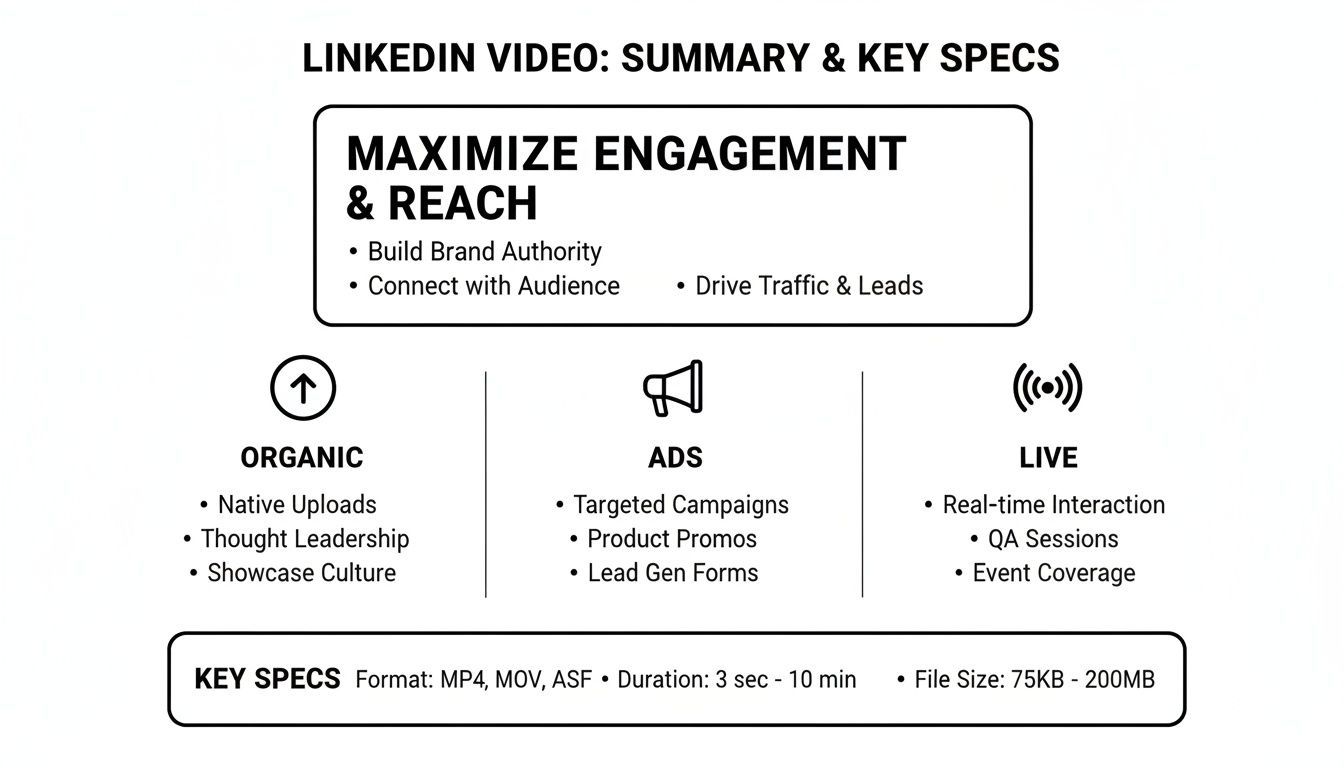
As you can see, organic videos give you a lot of breathing room with a 5GB file size limit, but video ads are much tighter at just 200MB. This means you'll need to be much more mindful of compression when exporting for ad campaigns.
To make this even easier to scan, here's a table with the most important specs side-by-side.
LinkedIn Video Specifications Quick Reference Table
| Specification | Organic Feed Video (Desktop/Mobile) | Video Ads | LinkedIn Live |
|---|---|---|---|
| File Format | MP4 (required), MOV, AVI, FLV, MKV, WebM | MP4 | RTMP/RTMPS (from encoder) |
| File Size Limit | 5GB | 200MB | N/A (stream-based) |
| Video Duration | 3 seconds – 15 minutes | 3 seconds – 30 minutes | Up to 4 hours |
| Frame Rate | 10 – 60 fps | < 30 fps | 30 fps (recommended) |
| Resolution Range | 256x144 to 4096x2304 | Min: 360p; Max: 1080p | 720p (1280x720) recommended |
| Aspect Ratio | 1:2.4 (Vertical) or 2.4:1 (Horizontal) | 9:16 (Vertical), 1:1 (Square), 16:9 (Horizontal) | 16:9 (Horizontal) |
| Video Codec | H.264 / AVC (required) | H.264 / AVC | H.264 / AVC |
| Audio Codec | AAC (required) | AAC | AAC |
This table shows how organic posts are built for flexibility, while ads are optimized for speed and mobile viewing. LinkedIn Live, on the other hand, is all about maintaining a stable, high-quality stream.
Key Takeaway: If you remember only one thing, make it this: always use an MP4 file container with the H.264 video codec and AAC audio codec. This is the universal standard for LinkedIn and will guarantee compatibility every single time. It's simply the best mix of quality and file size for the platform.
Think of these specifications as the blueprint for your video. Get the foundation right, and your creative work—the story, the message, the visuals—can truly stand out and connect with your audience. In the sections that follow, we'll dive deeper into each of these areas, covering everything from aspect ratios to specific export settings.
Getting the Basics Right: Core LinkedIn Video Requirements
Before you can create a video that truly connects with your audience on LinkedIn, you need to master the platform's fundamental technical rules. Getting these specs right from the start is the difference between a smooth upload and a frustrating error message. Think of them as the blueprint for any video you plan to share.
At the center of it all is LinkedIn's preference for the MP4 file container. This isn't just a random choice; MP4 is the gold standard for web video. It strikes the perfect balance between high-quality visuals and manageable file sizes, ensuring your video looks great and plays smoothly whether it's viewed on a desktop or a smartphone.
The Codec Combo: H.264 and AAC are Non-Negotiable
Inside that MP4 file, LinkedIn is looking for a very specific pairing of codecs: H.264 for video and AAC for audio. A codec is simply what compresses your video and audio data for storage and then decompresses it for playback.
H.264 is the go-to for a reason—it delivers sharp, clear video without making the file enormous. Likewise, AAC is the industry standard for audio, providing crisp sound that works flawlessly across the web. Using this H.264/AAC combination is the single most important step you can take to make sure LinkedIn accepts and processes your video without a hitch.
Duration and File Size: The Big Difference Between Organic Posts and Ads
LinkedIn has very different rules for organic videos versus paid video ads, and this distinction is critical for your content strategy. It's wild to think that in less than a decade, LinkedIn went from barely supporting video to having some of the most specific, data-backed specs for B2B content.
As of 2026, here’s the breakdown for organic videos:
- Maximum Duration: 15 minutes (when uploaded from a desktop) or 10 minutes (from mobile).
- Maximum File Size: A generous 5 GB.
- Minimum Duration: 3 seconds.
For video ads, the rules are much tighter:
- Maximum Duration: 30 minutes.
- Maximum File Size: Only 200 MB.
Key Insight: The huge 5 GB limit for organic posts gives you the freedom to upload high-quality, in-depth content like tutorials or long-form interviews. In contrast, the tiny 200 MB ad limit forces you to be hyper-efficient with your compression and focus on short, punchy messages that load quickly.
Of course, knowing the specs is only half the battle. You also need to know how to upload your video properly to get the best results. For a step-by-step walkthrough, check out this helpful guide on how to post a video to LinkedIn effectively. Nailing both the technical side and the upload process is the key to making your videos work on the platform.
Mastering Aspect Ratios and Resolutions
Getting your video’s dimensions right is one of the most important things you can do for your LinkedIn content. The aspect ratio and resolution you choose will dictate how your video looks in the feed, how much real estate it commands on someone's screen, and ultimately, whether they stop scrolling. If you get it wrong, you risk looking unprofessional with awkward cropping or ugly black bars.
An aspect ratio is just the relationship between a video's width and its height. A perfect square video, for instance, has a 1:1 aspect ratio. LinkedIn is surprisingly flexible here, accepting a huge range from a super tall 1:2.4 to a cinematic 2.4:1. But honestly, the most successful videos almost always stick to just a few key standards.
This visual is a good reminder of how different ratios create different frame shapes. For LinkedIn, the name of the game is figuring out which shape works best in a busy professional feed.
Choosing the Right Aspect Ratio
Here's the most important stat you need to know: nearly 60% of LinkedIn traffic comes from mobile devices. That means you have to think mobile-first. Formats that take up more vertical screen space simply perform better because they push out the noise and demand more attention.
Let’s break down the three most common aspect ratios you should have on your LinkedIn video specifications checklist:
- 1:1 (Square): This is my go-to recommendation for most organic content. A square video (like 1080x1080 pixels) takes up way more space in the mobile feed than a traditional widescreen video, making it tough to ignore. It’s perfect for interviews, product demos, or any video with on-screen text.
- 9:16 (Vertical): This is the native format for smartphones (1080x1920 pixels) and fills the entire screen. It's fantastic for behind-the-scenes clips or quick tips shot on a phone. Just be aware that LinkedIn video ads in 9:16 are served only to mobile devices, so it's a no-go if you need a paid campaign to reach desktop users.
- 16:9 (Horizontal): The classic widescreen format (1920x1080 pixels) you see on YouTube and in most formal presentations. It's perfectly fine to use on LinkedIn, but it takes up the least amount of space in the mobile feed. Your best bet is to reserve this for repurposing existing content, like webinar recordings.
Pro Tip: For most of your organic video posts, stick with a 1:1 square ratio. It’s the sweet spot—it looks great on mobile without feeling awkward or out of place on a desktop monitor. This ensures everyone has a solid viewing experience.
Why Resolution Is Crucial for Quality
Resolution is all about the number of pixels in your video frame, and it directly controls how sharp and clear your video looks. Like every social platform, LinkedIn compresses your video when you upload it to make sure it plays back smoothly for everyone. If you start with a low-resolution file, that compression will make it look fuzzy and amateurish.
LinkedIn’s internal system is built for stability, accepting resolutions from 256x144 all the way up to 4096x2304. To learn more about how the platform handles video, you can find in-depth details in various LinkedIn video format guides.
To fight back against that compression and keep your video looking crisp, always export at the highest quality LinkedIn supports. Aim for 1080p as your standard, no matter the aspect ratio. This gives LinkedIn's algorithm a clean, high-quality source file to work with, which means your final video will look much better after it's been processed.
Nailing Your Export and Audio Settings
Getting your video's dimensions right is only half the battle. The technical details you select when you hit "export"—things like bitrate, frame rate, and audio codecs—are what really make or break the final product. It might sound overly technical, but these settings are your key to a crisp, professional video that loads fast and looks fantastic on LinkedIn.
Think of bitrate as the amount of data packed into every second of your video. More data means a clearer, sharper image, but it also means a bigger file. LinkedIn doesn't give a hard-and-fast rule, but for a standard 1080p video, aiming for a bitrate between 5,000 and 8,000 kbps (5-8 Mbps) is the sweet spot. This range delivers excellent quality without bloating your file size.
So, how do you choose? If your video has a lot of fast movement or intricate visual details, pushing toward the 8,000 kbps mark is a smart move. On the other hand, for a simpler talking-head video with minimal action, you can easily get away with a lower bitrate around 5,000 kbps and keep that file size manageable.
Setting the Right Frame Rate
Frame rate, measured in frames per second (fps), dictates the smoothness of motion in your video. It's a subtle but crucial detail, and LinkedIn actually treats organic posts and paid ads differently. This distinction is a vital part of mastering the complete LinkedIn video specifications.
- Organic Videos: You have the flexibility to go all the way up to 60 fps. This is perfect for showcasing fast-paced action or achieving that super-fluid look. For most professional content, though, 24 or 30 fps is the industry standard and looks perfectly polished.
- Video Ads: Here, LinkedIn puts a cap on it. The maximum frame rate for video ads is 30 fps. If you upload an ad with a higher frame rate, the platform will automatically downsample it, which can sometimes result in choppy playback. It's always best to export your ad content at 30 fps or lower from the get-go.
If you're using a tool like ShortGenius, you'll often find presets that handle this for you. A "LinkedIn Organic Post" preset might default to 30 fps, while a "LinkedIn Video Ad" preset will ensure it stays at or below that critical 30 fps limit.
Fine-Tuning Your Audio for Clarity
Nothing kills a great video faster than bad audio. To make sure your sound is crystal clear and compatible everywhere, LinkedIn has some specific recommendations. Following these guidelines helps you avoid the dreaded compressed or distorted audio that can happen after uploading.
Key Recommendation: Always export your audio with the AAC (Advanced Audio Coding) codec. It’s the gold standard for web video and what LinkedIn’s system is built to handle best.
For truly professional results, dive into your export settings and dial in these specs:
- Audio Format: AAC (low complexity)
- Sample Rate: 48 kHz
- Bitrate: 192 kbps
This trifecta ensures your voiceovers, interviews, and music sound rich and full. Skimping on these settings can leave your audio sounding thin and tinny, which immediately cheapens the professional feel you're going for. By getting both your video and audio export settings just right, you guarantee a polished, high-quality experience for every viewer.
Getting Your LinkedIn Video Ads Right
If you're moving from organic posts to paid campaigns, heads up: the rules for video ads are a different ballgame. LinkedIn puts a much tighter leash on ad specs to make sure they run smoothly and effectively. Ignoring these can get your ad rejected, which is a frustrating waste of time and budget.
The biggest hurdle is file size. While you can upload a hefty 5 GB file for an organic post, video ads are capped at a lean 200 MB. That’s a massive difference. It means you have to be much smarter about your compression and export settings to keep your video looking sharp without bloating the file.
The Ad-Specific Checklist
Beyond just the file size, a few other key specs separate ads from regular video posts. These limitations are in place to guarantee a good user experience, especially for the huge number of people scrolling on their phones. For instance, your frame rate can't go above 30 fps for an ad, whereas organic posts can handle a smoother 60 fps.
Here’s a quick rundown of the essential specs you absolutely need to nail for video ads:
- Max File Size: 200 MB (a big drop from the 5 GB for organic)
- Video Duration: Must be between 3 seconds and 30 minutes. (Pro-tip: for brand awareness, keep it under 15 seconds.)
- Frame Rate: 30 fps or less.
- File Format: Only MP4 is accepted.
- Audio Format: Must be AAC.
It's also important to think about where your ad will be seen. A 9:16 vertical video ad looks fantastic on a phone, filling the whole screen. Just remember, LinkedIn will only show that ad on mobile. If you want to reach people on their desktops too, you’ll need to stick with a 1:1 square or a classic 16:9 horizontal format.
Don't Forget Thumbnails and Your CTA
With video ads, your thumbnail does more than just offer a sneak peek—it’s a vital piece of your creative. Sure, LinkedIn can generate one for you, but uploading your own custom thumbnail is non-negotiable if you want the best results. A powerful image can be the difference between someone scrolling past and someone stopping to watch.
Crucial Tip: Always upload a custom thumbnail. Make it a JPG or PNG file under 2 MB and ensure it has the exact same aspect ratio as your video. This is the secret to avoiding weird black bars or awkward cropping.
Finally, think about your call-to-action (CTA). This is the whole point of running an ad, right? Your video needs to set up the "why," and the CTA button ("Learn More," "Download," etc.) gives viewers the clear "how." When your message and CTA work together seamlessly, you're not just running an ad—you're guiding potential customers to the next step.
Troubleshooting Common Video Upload Errors
It's a frustrating moment for any creator: you’ve perfected your video, you’re ready to post, and then LinkedIn hits you with an upload error. When you see messages like "Media processing failed" or "Unsupported file type," it almost always comes down to a mismatch with LinkedIn's official video specifications. The fastest way to get your video live is to make sure your export settings are correct from the start.
The most common culprit is usually an incorrect codec. Your file might be an MP4, but if it doesn't have an H.264 video and AAC audio track inside, LinkedIn will likely reject it. Another frequent issue is file size; make sure you're under the 5GB limit for organic posts or the much smaller 200MB limit for video ads.
Common Errors and Their Fixes
If your upload does fail, don't worry. Take a breath and systematically check your video's properties against the core requirements. Most of these problems can be fixed with a quick re-export from your video editor.
Here’s a breakdown of the top issues and how to solve them:
-
“Unsupported File Type”: This error is a dead giveaway that your video isn't an MP4 or, more likely, it contains the wrong codecs. The fix is to re-export your project as an MP4 file with H.264 video and AAC audio.
-
“Media Processing Failed”: This is a more generic error message that can point to a few different problems. It might be a file size issue, a frame rate that's too high (over 60 fps for organic or 30 fps for ads), or a non-standard aspect ratio. Double-check every specification before you try uploading again.
-
Video Looks Pixelated or Blurry: While not technically an upload error, poor video quality after processing is a common complaint. This happens when LinkedIn's compression algorithm has to work too hard on a low-quality source file. To prevent this, always export your original video at 1080p resolution with a solid bitrate of around 5,000–8,000 kbps.
Getting these technical details right is crucial, as video posts on LinkedIn generate roughly 5 times more engagement than static content. With uploads increasing by 34% in 2024, ensuring your video works flawlessly is more important than ever. You can explore more about these powerful engagement statistics and what they mean for marketers.
Frequently Asked Questions
Even with all the specs laid out, a few questions always pop up. Let's tackle the ones I hear most often from marketers and creators trying to get their LinkedIn video strategy just right.
What Is the Best Video Length for LinkedIn?
Technically, you can upload an organic video that's up to 15 minutes long. But should you? Probably not.
Experience and platform data tell us the sweet spot for engagement is somewhere between 30 and 90 seconds. That's just enough time to deliver a solid, valuable message before people scroll on.
If you're running video ads, the game changes. You need to be even quicker. Aim for under 15 seconds to grab attention, boost brand awareness, and get those all-important completion rates.
Can I Upload a 4K Video to LinkedIn?
Sorry, but no. LinkedIn doesn't support 4K (3840x2160) uploads. If you try to upload a 4K file, the platform is just going to downscale it to 1080p (1920x1080) anyway.
To avoid any weird compression artifacts or loss of quality, it's always better to export your video at 1080p from the start. This way, you control exactly how it looks before LinkedIn's processors get their hands on it.
Why Does My Video Look Blurry on LinkedIn?
This is a classic problem, and it almost always comes down to compression. When you upload a video, LinkedIn processes it to optimize for streaming, and that can lead to a drop in quality, especially if the original file isn't up to snuff.
The fix? Give LinkedIn a high-quality source file to work with. Make sure you're exporting your video at 1080p resolution with a solid bitrate, ideally between 5,000 and 8,000 kbps. Uploading something with a low resolution or a skimpy bitrate is just asking for a blurry, pixelated mess once it's been processed.
Want to skip the guesswork and create perfectly optimized videos for LinkedIn every single time? ShortGenius has presets that match all these specs, so you can turn your ideas into high-quality, engaging content in minutes.