How to Share a Video on TikTok for Maximum Reach in 2026

Learn how to share a video on TikTok using proven methods. This guide covers uploading, Duets, Stitches, and optimization tips to grow your audience.
Ready to get your content in front of millions of people on TikTok? It's about more than just hitting the "Post" button. The real magic happens when you understand the platform's entire creative ecosystem—from uploading a polished video to jumping on a trend with a Duet or Stitch.
Beyond the Upload Button: A Guide to Sharing on TikTok
This guide will walk you through every way you can share a video, so you can pick the right method for your specific goals. We'll cover the basics, like posting from your camera roll, but we'll also get into the strategies that actually help your videos get traction.
It’s no secret that TikTok is a crowded space. To put it in perspective, as of 2026, users are uploading an astonishing 16,000 videos every single minute. That adds up to roughly 23 million videos a day. You can dig into more of these numbers in this eye-opening statistical report. When you share your video, you're competing with a massive volume of content, which is why your approach matters so much.
Choosing Your TikTok Sharing Path
Deciding how you share your video is just as important as what you're sharing. Each method is designed for a different purpose and can completely change how your video performs.
- Uploading a Pre-Edited Video: This is your go-to for high-quality, branded content or anything that needs a professional touch. It gives you total control over the editing, sound, and effects before it ever hits the TikTok app.
- Creating In-App: Perfect for those raw, authentic moments. This is the fastest way to hop on a new sound or trend the second it starts taking off.
- Collaborating with Duets & Stitches: These are your tools for joining a bigger conversation. Use them to react to other creators, put your own spin on a viral clip, and get in front of an audience that already exists.
This decision tree helps visualize your options. It's a great way to quickly figure out the best path based on whether your video is already made or if you're creating something new.
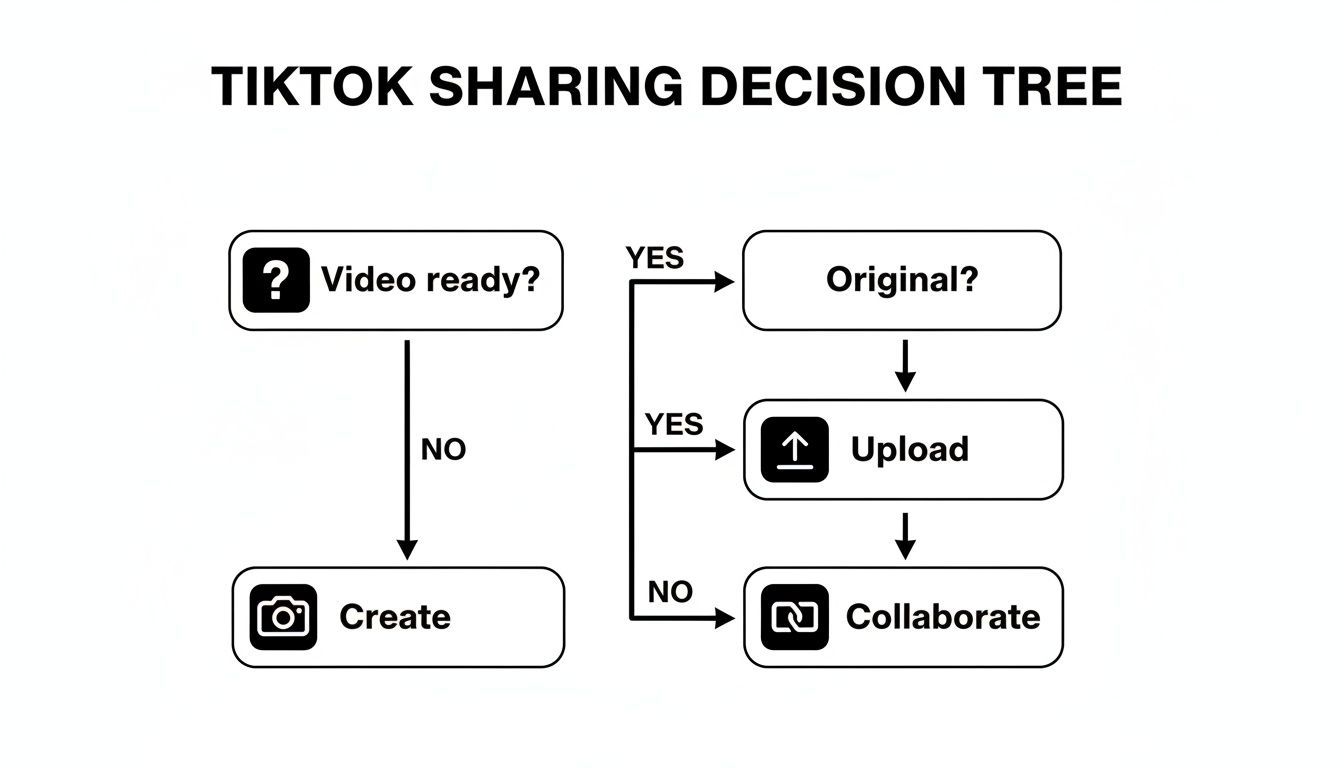
As you can see, your first choice is simple: is your video already edited, or are you starting from scratch? From there, the flowchart guides you toward the most effective workflow.
Your TikTok Sharing Options at a Glance
Here's a quick look at the main ways to share content on TikTok and the best scenarios for using each one.
| Sharing Method | Best For | Key Feature |
|---|---|---|
| Upload from Camera Roll | Polished, branded, or heavily edited content. | Maximum control over post-production. |
| Create in TikTok App | Spontaneous, trendy, or authentic moments. | Direct access to trending sounds and effects. |
| Duet / Stitch | Reacting, collaborating, or joining trends. | Taps into an existing video's audience. |
| Save & Share Another Video | Sharing content you love with your own followers. | Quick sharing with credit to the original creator. |
Think of this table as your cheat sheet. Whether you're aiming for a polished brand message or a spontaneous viral hit, choosing the right sharing method is the first step toward getting your content noticed.
Sharing Polished Videos from Your Camera Roll
For creators who do their heavy editing outside of TikTok, uploading a finished video from your camera roll is the way to go. This gives you total control, which is perfect for brand deals, cinematic shorts, or any project where you’ve meticulously edited every frame in a program like Final Cut or CapCut.
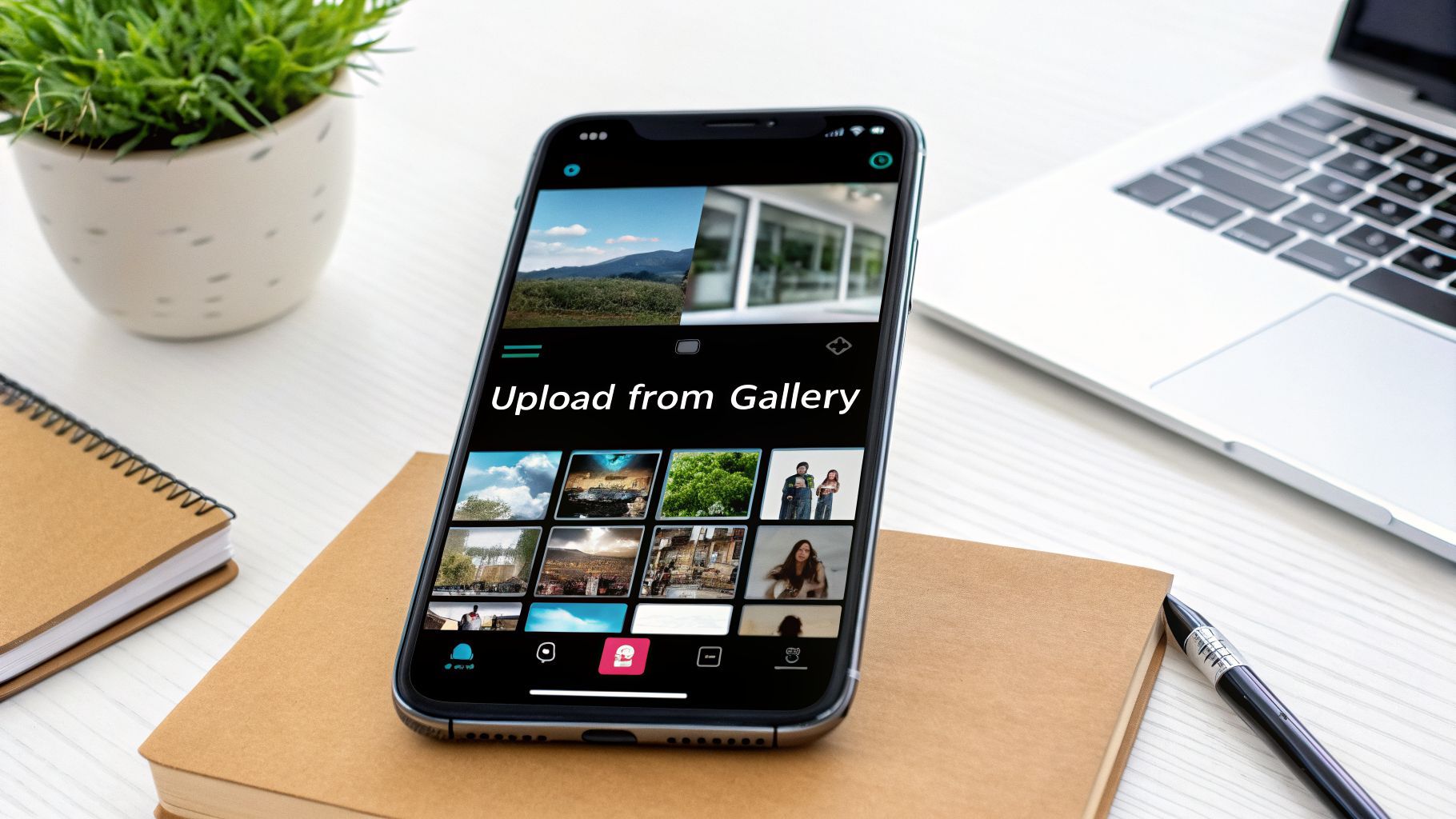
Getting started is simple. Just pop open the TikTok app and tap the big plus (+) icon you see at the bottom. Instead of hitting the record button, look to the bottom-right corner and tap "Upload." This will pull up your phone’s camera roll, where you can pick out the video (or multiple clips) you want to share.
Getting Your Video Ready for Primetime
Before you hit upload, a quick heads-up: make sure your video is formatted correctly for TikTok. The platform is built for vertical video, so a 9:16 aspect ratio is your best friend. If you upload a horizontal video, you’ll get those ugly black bars, which is a dead giveaway that the content wasn't made for the platform and can tank your engagement.
Once you’ve selected your clip, TikTok will take you to its own editor. Here, you can do a final trim to tighten things up or even stitch a few different clips together.
Pro Tip: I always tell people to add a trending sound from TikTok’s library, even if their video already has custom audio. You can layer it in and turn the volume way down. This little trick helps your video get picked up by the algorithm without messing with your original sound design.
Add Some Native TikTok Flair
The key to making an externally-edited video succeed is to make it feel like it belongs on TikTok. You don't want it to scream "this is an ad" or "this was made for YouTube."
Use TikTok's own creative tools to add that final layer of authenticity.
- Text Overlays: Add a hook or some key context with on-screen text.
- Stickers: A relevant GIF or sticker can add a touch of personality.
- Voiceovers: Even a quick, 5-second voiceover can make the video feel more personal and native to the feed.
This is the screen where you'll select your clips from your camera roll. It’s the first step to bringing your polished content into the TikTok ecosystem.
After you've picked your video, you’ll land on the editing screen. This is your last chance to add those native touches that help your video feel less like an interruption and more like a natural part of the For You Page.
If you really want to make your visuals pop before they even get to the app, you can explore other tools for unique effects and filters. To dive deeper into this, check out our guide on AI-powered image editing. Just remember, the goal is always to make your masterpiece feel right at home on TikTok.
Creating and Sharing Content Directly in the App
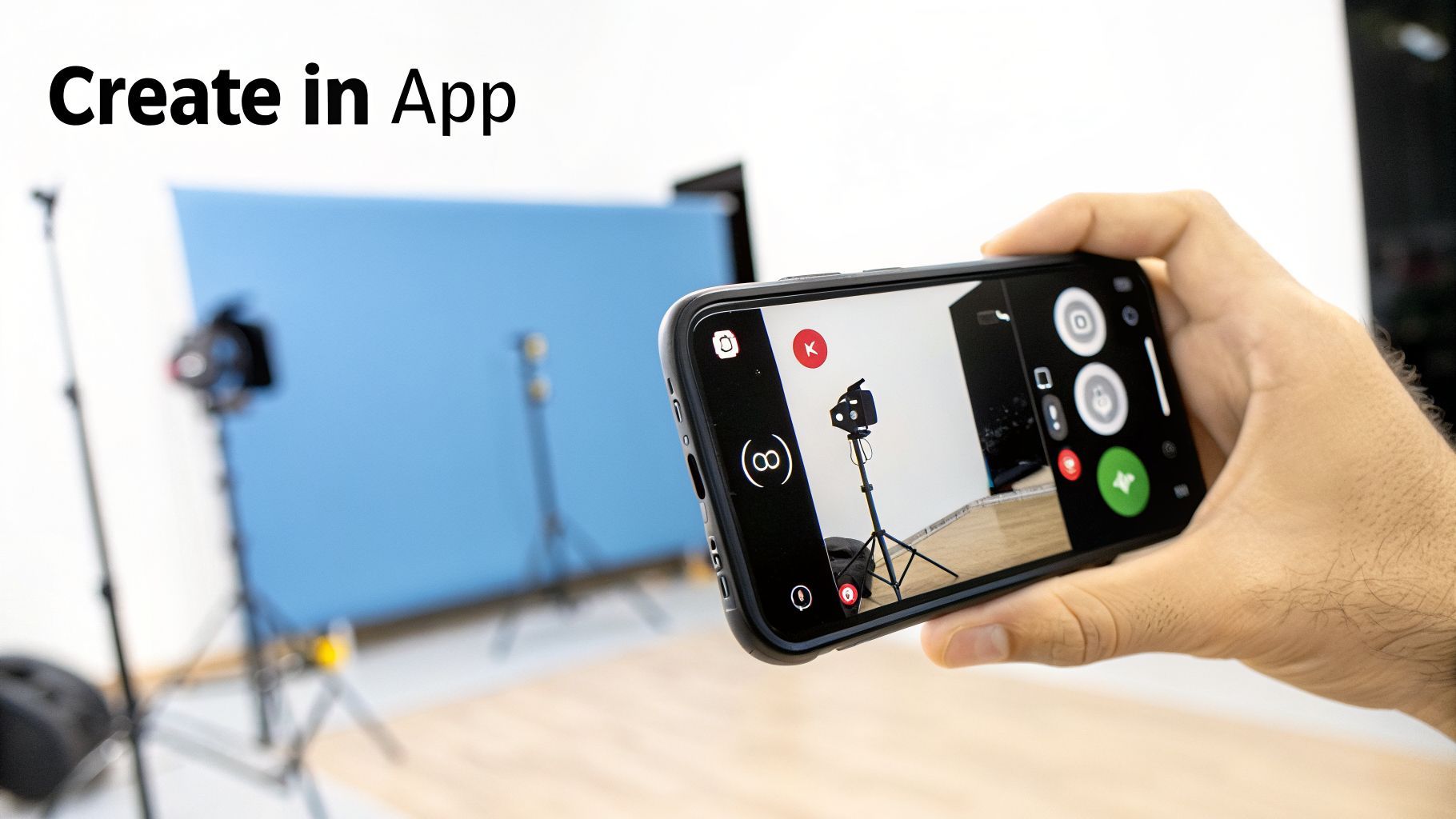
 Sometimes the best TikToks are the ones you make on the fly. For those raw, spontaneous moments, creating your video right inside the app is the way to go. It’s perfect for capturing that authentic, unpolished vibe and lets you jump on a trend the second it starts taking off.
Getting started is simple. Just tap the plus (+) icon at the bottom of your screen. This pulls up the TikTok camera, ready for you to record a single take or string together a few different scenes. Pro tip: use the hands-free timer. It’s an absolute game-changer, especially if you’re a solo creator.
Finding Your Creative Spark
The real magic of shooting in the app is having TikTok's entire library of effects and sounds at your disposal. Before you even hit record, you can play around with tons of AR effects and filters to give your video a unique look.
A huge part of TikTok's culture is built around its sound library. Using a trending audio track is one of the most effective ways to get your video discovered on the For You Page.
You can browse what’s popular, search for a specific song, or grab an audio clip directly from another video. For instance, if you see a "get ready with me" video blowing up, you can tap the sound, see what other creators are doing with it, and film your own take.
If you want to speed up your workflow, an AI TikTok video generator can offer a major shortcut. And for an all-in-one solution, check out our guide on how to generate engaging videos from a simple text prompt.
Getting comfortable with a few key in-app tools will immediately level up your content:
- Green Screen Effect: This lets you pop any image from your camera roll into the background. It's fantastic for reaction videos and explainers.
- Multi-Clip Recording: Just tap and hold the record button to film a scene, let go, and then repeat to build out your story clip by clip.
- Adjust Clips: After you’re done recording, you can easily trim, reorder, or delete individual clips to get your timing perfect.
Using Duets and Stitches to Join the Conversation
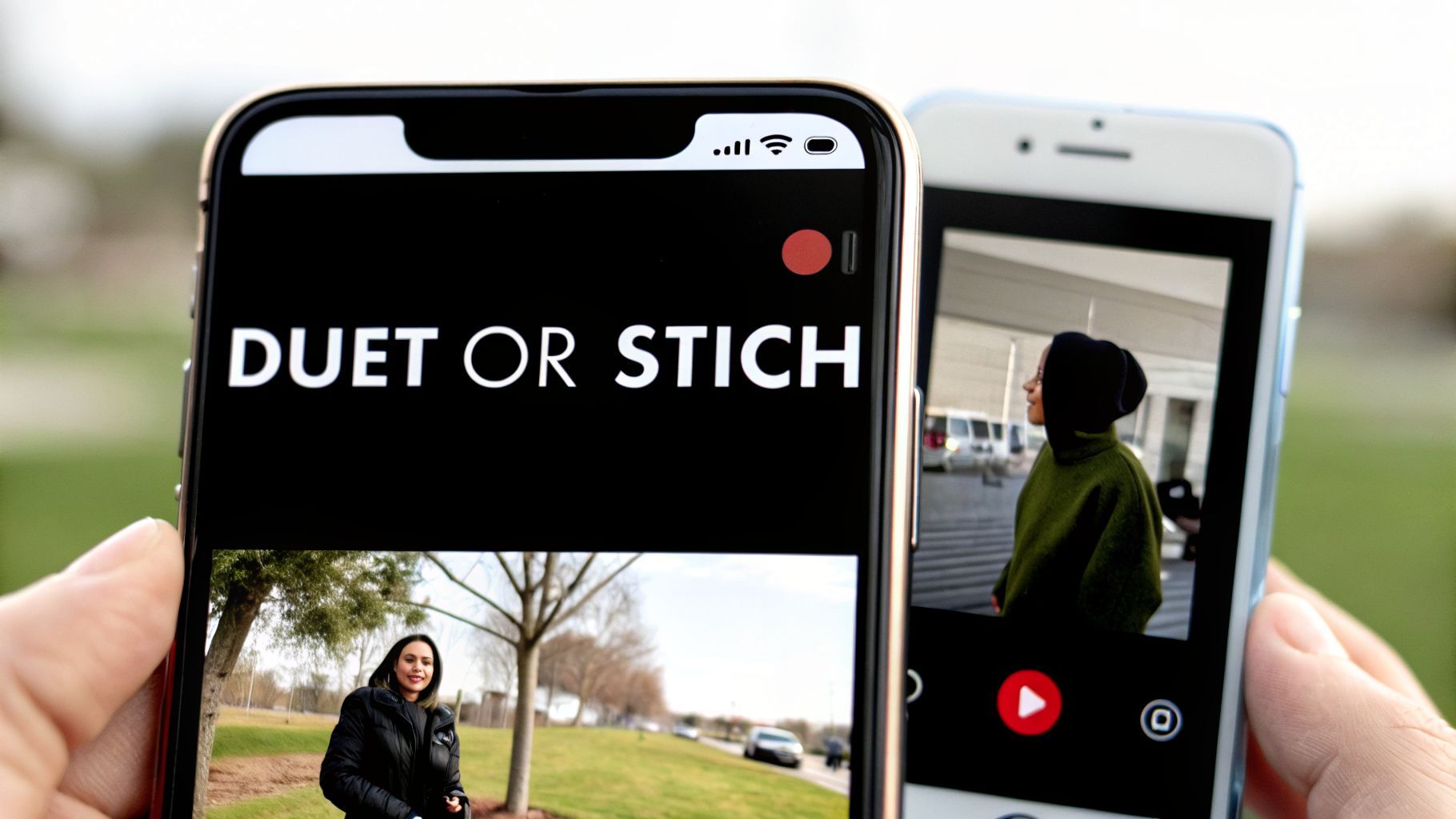
Sharing on TikTok goes way beyond just uploading your own clips. The real magic happens when you jump into the massive conversation that’s always happening on the platform. Two of your best tools for this are Duets and Stitches.
If you’re trying to figure out how to share a video on TikTok and actually get seen, learning to use these features is non-negotiable. They’re your shortcut to tapping into viral trends and collaborating with other creators, letting you put your own spin on what’s already popular. Instead of shouting into the void, you get to borrow a video's momentum.
The Strategic Difference Between Duets and Stitches
At a glance, they seem similar, but they're built for completely different kinds of content. Picking the right one is all about what you’re trying to say.
-
Duet: This puts your video right next to the original in a split-screen format. It's perfect for live reactions, trying out a dance challenge, or adding a harmony to someone’s song. Think of it as a direct, real-time interaction where your video and the original play simultaneously.
-
Stitch: This lets you clip the first few seconds of someone else’s video and use it as a setup for your own. Stitches are your go-to for commentary, answering a question, or creating a clever "part two." A classic example is stitching a video that asks, "What’s a weird fact you know?" and then recording your answer as a response.
Here’s a tip I see people miss all the time: don't use a Duet when a Stitch would work better. If you just need a quick intro for your punchline or comment, Stitch is much cleaner. Save Duets for when that continuous, side-by-side interaction is absolutely essential to get your point across.
To get started with either, just find a video you want to use. Tap the Share button (it looks like an arrow) and choose either "Duet" or "Stitch" from the pop-up menu.
The potential for engagement here is huge. As of early 2026, TikTok's average engagement rate climbed to 4.90%, with a typical post racking up over 3,400 likes and almost 250 shares. Collaborative features like these are a direct line to that highly active audience. You can dig into more stats on this in this detailed benchmark report on brand performance.
Optimizing Your Post for Maximum Discovery
You've shot and edited a fantastic video, but don't hit "Post" just yet. That final screen is where you give your content the best possible chance to be seen. Think of it as your launchpad—get it right, and your video can soar.
Your caption is the hook. You only have a couple of lines before TikTok hides the rest behind a "more" button, so make them impossible to ignore. Ask a provocative question, lead with a surprising statement, or create an instant sense of curiosity that makes viewers stick around to see how it ends.
Crafting a Smart Hashtag Strategy
Throwing a dozen random hashtags on your post is a rookie mistake. A truly effective strategy is all about balance and intent. From my experience, a mix of 3-5 well-chosen tags is the sweet spot.
Here’s a simple recipe that works:
- For Wide Reach: Start with one or two massive, general tags like
#fypor#viral. It’s a bit of a lottery ticket, but it gives your video a chance to break into the mainstream feed. - For Your Community: Add two or three niche-specific tags. If you're a photographer, use
#photographytips. If you're a book lover,#booktokis your home. This is how you connect with people who are actively looking for your kind of content. - For Timeliness: If it makes sense for your video, tack on one relevant trending tag. This lets you ride the momentum of a popular challenge or sound.
The real secret to hashtags isn't just getting eyeballs; it's getting the right eyeballs. Relevance tells the algorithm exactly who your video is for, which leads to higher engagement and signals that your content is worth sharing more widely.
Controlling Your Privacy and Interaction Settings
Before you finally share, a quick check of your privacy settings can save you a lot of headaches later. Right there on the post screen, you can decide who gets to see your masterpiece: everyone, just friends, or only you.
This is also where you control how people can interact with your video. You have simple toggles to turn on or off:
- Comments
- Duets
- Stitches
Think strategically about these. If you're sharing something deeply personal, you might want to disable Duets to prevent people from misusing your content. On the flip side, if your goal is to start a trend, you’ll definitely want to encourage Duets and Stitches. For creators serious about brand growth, digging into different social media engagement strategies can really level up your game.
And remember, consistency is everything on TikTok. If you're struggling to keep your content pipeline full, our guide to using an AI ad generator has some great tips for brainstorming fresh ideas fast.
Answering Your Top TikTok Sharing Questions
Once you get the hang of posting, you'll inevitably run into some specific questions about optimizing your content. Even seasoned creators hit these snags. Here are a few common issues I see pop up all the time, along with my go-to answers.
Can I Schedule My TikTok Posts?
Absolutely, but there's a catch. You'll need to switch to a free Business Account in your settings first. Once you do that, you can schedule posts up to 10 days in advance right from the TikTok desktop site.
This is a lifesaver for content batching. You can film and edit a week's worth of videos over the weekend and have them automatically go live on schedule. It’s perfect for staying consistent even when life gets hectic. For more advanced features, you'll want to look into third-party scheduling tools.
My biggest tip? Use scheduling to post when your audience is most active. The algorithm rewards consistency, and posting at peak times gives your videos the best possible launchpad, even if you can't be online yourself.
How Long Can a TikTok Video Be?
TikTok has really expanded its video length, now allowing clips up to 10 minutes long. While the platform built its reputation on short, snappy content, this longer format is fantastic for deeper storytelling, detailed tutorials, or commentary videos.
But remember, just because you can make a 10-minute video doesn't mean you should. The golden rule of TikTok is to hold your viewer's attention. If your story is best told in 30 seconds, stick to that. Test out different lengths and see what resonates most with your community.
Common TikTok Sharing Questions
Getting your videos out there can sometimes bring up a few technical headaches. This table should clear up a couple of the most frequent questions creators ask.
| Question | Answer |
|---|---|
| Why did my video's quality drop? | TikTok compresses videos to save server space. To get the best result, always record and export your video in 1080p and make sure you’re uploading over a strong Wi-Fi connection, not just cellular data. |
| Can I edit a TikTok after posting? | You can't edit the video clip itself, but you can sometimes edit the caption, cover image, and privacy settings after it's live. My advice? Triple-check everything before you hit that post button. It saves a lot of frustration later. |
Hopefully, these answers help you fine-tune your posting strategy and avoid common pitfalls.
Ready to take the guesswork out of your content creation? With ShortGenius, you can create, edit, and automatically schedule your videos for TikTok and other platforms from a single dashboard. Turn your ideas into a steady stream of high-quality content, hassle-free.