How to Post a Short on YouTube A Creator's Guide

Learn how to post a Short on YouTube from mobile or desktop. This guide covers technical specs, creation tips, and best practices for maximum reach.
If you've been on YouTube lately, you know that Shorts are everywhere. But getting started can feel like a mystery. The good news? It's surprisingly straightforward. At its core, you just need a vertical video under 60 seconds and the right hashtag.
Let's break down exactly what makes these little videos so powerful.
The Secret Sauce: What Makes YouTube Shorts Work?
Think of YouTube Shorts as more than just mini-videos. They are your channel's secret weapon for discovery. These vertical, quick-hit clips are built to grab attention immediately and are your best bet for rapid channel growth.
Unlike your regular long-form videos that rely on search and browse features, Shorts have their own dedicated, scrollable feed—much like you'd see on TikTok or Instagram. This gives your content a fighting chance to go viral and land in front of people who’ve never even heard of your channel before.
The magic is in the format. The strict 60-second limit forces you to get straight to the point and deliver value from the first second. For viewers, it's a frictionless way to sample new creators and topics without committing to a 10-minute video.
Why You Should Add Shorts to Your Strategy
Weaving Shorts into your regular content plan isn't just a trend; it's a smart move for growth. The algorithm behind Shorts is tuned to reward watch time and engagement, which means one great Short can literally introduce your channel to thousands of new subscribers overnight.
Here’s why they’re so effective:
- Massive Reach: Shorts pop up on the YouTube homepage, in the subscription feed, and of course, in the dedicated Shorts feed. It’s like having multiple billboards for your content.
- Easy to Create: Let’s be honest, making a polished, long-form video takes a ton of work. Shorts are far less demanding, so you can post more often and stay top-of-mind.
- Perfect for Testing: Got a wild new idea for a video? Make a Short about it first. You can quickly see what your audience hooks into before you commit to a full-length production.
When you figure out how to post Shorts effectively, you're doing more than just uploading a quick clip. You're opening up a direct line to a massive, untapped audience that's hungry for new content.
If you're looking for a really deep dive into the nitty-gritty, this complete guide for creators on posting YouTube Shorts is an excellent place to start.
Alright, let's get your video prepped and ready for the Shorts feed. Before you can even hit that upload button, you need to make sure your file is formatted correctly. This isn’t just a best practice—it's the only way YouTube’s algorithm knows to treat your video as a Short and serve it up to millions of potential viewers.
Get this part wrong, and your video might just get lost in the sea of standard, long-form content, completely missing the massive discovery potential of the Shorts feed.
The two non-negotiable rules are aspect ratio and length. Your video absolutely must be vertical, with a 9:16 aspect ratio, and it has to be 60 seconds or shorter. Seriously, even a single second over and it won't qualify.
Nailing the Technical Specs
To make sure your video looks crisp and professional on a phone screen (where almost everyone watches Shorts), you should always aim for a 1080x1920 pixel resolution. This is the gold standard and ensures your content looks sharp, not pixelated.
Here's a quick rundown of the essential specs to keep in mind.
YouTube Shorts Technical Specifications
This table is your quick reference guide for the technical must-haves. Sticking to these requirements ensures your video is optimized for the Shorts player and algorithm.
| Specification | Requirement |
|---|---|
| Length | 60 seconds or less |
| Aspect Ratio | 9:16 (Vertical) |
| Resolution | 1080x1920 pixels (Recommended) |
| File Format | .MOV, .MPEG4, .MP4, .AVI, etc. |
| Audio | Must have an audio track |
Think of these specs as the keys to unlocking the Shorts feed. Without them, your video is just another standard upload.
The YouTube algorithm is all about signals. A vertical video that’s under a minute long is the strongest possible signal you can send to tell it, "Hey, this is a Short!" Don't leave it up to guesswork.
Now, you've got two main ways to bring your Short to life: record it right inside the YouTube app or upload a clip you’ve already edited elsewhere.
Recording in the app is perfect for those spontaneous, in-the-moment ideas. It's quick, raw, and great for jumping on trends.
On the other hand, uploading a video you’ve polished in another app gives you way more creative freedom. You can dial in the transitions, add sophisticated effects, and get the pacing just right. This is where tools from platforms like Shorts Genius come into play, helping creators produce studio-quality Shorts without the heavy lifting.
So, which path should you choose?
- Create in the app for fast, authentic, and trend-driven content.
- Upload an edited video for more polished, branded, or story-focused Shorts.
Ultimately, it doesn't matter if you're shooting on the fly or spending hours editing. As long as you stick to those core technical specs, you're giving your content the best possible chance to succeed.
Creating and Posting Shorts on Your Phone
The fastest way to get a Short from an idea in your head to live on your channel is by using the YouTube mobile app. It's basically a pocket-sized studio, built to let you capture a moment, throw in some creative touches, and publish it right then and there.
Getting started is simple. Just open the app, tap the big "+" icon at the bottom of the screen, and choose "Create a Short." This will take you straight to the Shorts camera, which is where the magic happens.
Recording or Selecting Your Clips
You’ve got two paths from here: you can either record something new on the spot or pull in a video you already have in your phone's gallery.
For those spontaneous, "I have to film this right now" moments, recording directly is the way to go. You can either tap the red button for one continuous shot or press and hold it to string together multiple, shorter clips.
A feature I use all the time for hands-free shots is the Timer. It gives you a countdown before it starts recording. This is a lifesaver for things like workout videos or cooking demos where you need both hands free. No more awkwardly trying to hit record while holding a mixing bowl!
If you're aiming for something more polished, like one of those slick outfit transition videos, the Align tool is your best friend. It shows you a faint overlay of the last frame you shot, so you can line up your next clip perfectly. It’s a small thing that makes a huge difference in the final product.
Adding Music and Sounds
Let's be real—audio can make or break a Short. Before you even start recording, tap “Add sound” at the top of the screen. You'll get access to YouTube’s massive audio library, packed with licensed songs and trending sounds. Jumping on a popular audio clip is one of the easiest ways to get more eyes on your content.
Found a sound you love in someone else's video? No problem. Just tap the sound icon in the bottom-right of their Short and select “Use this sound.” YouTube will immediately open the Shorts camera for you with that audio track already loaded.
Before you go any further, it’s critical to make sure your video actually qualifies as a Short. If it doesn't meet the right specs, YouTube won't treat it like one.
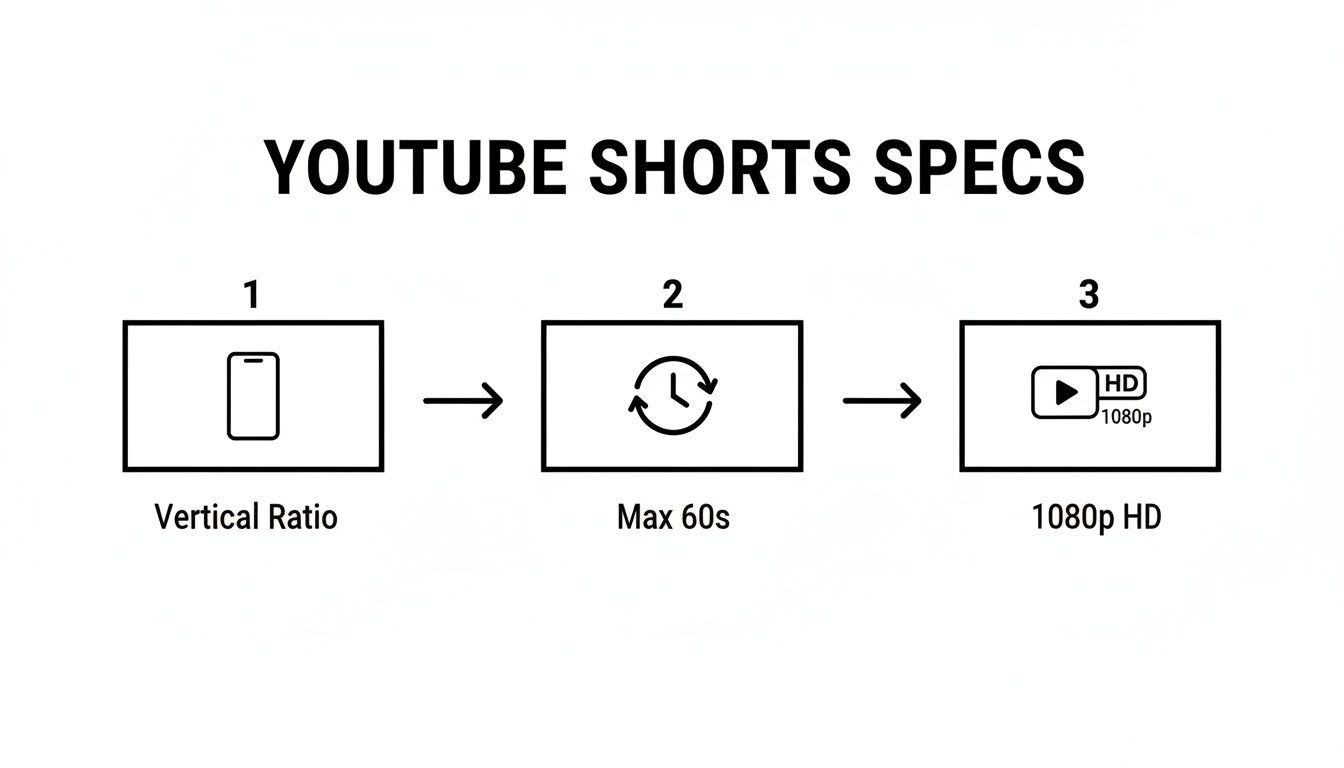
As the graphic shows, the rules are simple but non-negotiable: keep it vertical, under 60 seconds, and shoot for 1080p quality if you can.
Finalizing Your Draft
With your clips and audio in place, it’s time to add the finishing touches. The editor gives you a few powerful tools to play with:
- Text: Add titles or pop-up comments. What's really cool is the Timeline feature, which lets you control the exact moment your text appears and disappears.
- Filters: A quick way to change the whole vibe of your video with a single tap.
- Voiceover: Perfect for adding your own narration or commentary after the fact.
Once you’re happy with how it looks, tap "Next." This is the final screen where you'll write your caption—don't forget to include #Shorts to help the algorithm find you! You’ll also set your visibility (public, unlisted, or private) and confirm your audience settings.
When everything is good to go, hit “Upload Short,” and you're officially live.
Uploading and Scheduling Shorts from a Desktop
If you're creating more polished content with dedicated editing software, uploading from your desktop is the way to go. It offers a level of precision and control you just can't get on a phone, turning your Shorts production into a streamlined workflow.
The process is pretty much the same as uploading a regular long-form video. Head over to YouTube Studio, hit the "CREATE" button, and select "Upload videos."
Here's the most important part: you have to tell YouTube it's a Short.
To do that, you absolutely must include #Shorts in either the video's title or its description. This isn't just a suggestion—it's the official tag that gets your video into the Shorts feed. If you forget it, YouTube might just treat your vertical video like a standard upload, and you'll miss out on a huge opportunity for views.
Fine-Tuning Your Metadata for Discovery
Once your video is uploaded, it’s all about the metadata. Your title, description, and tags are what help people find you. A great title should be punchy and spark enough curiosity to stop someone mid-scroll.
When it comes to tags, don't just throw in single keywords. Think about what people are actually typing into the search bar. So, instead of just "baking," you might use tags like "quick baking recipes," "5-minute dessert ideas," or "no-bake cookie tutorial." A good mix of broad and specific phrases works best.
Your description is where you can add more context. Give a quick summary of the Short, maybe link out to a full-length video on the same topic, and add a few more relevant hashtags. This gives the algorithm more clues about what your content is about.
Scheduling is your superpower for consistency. You can batch-create a week's worth of Shorts, upload them all at once from your desktop, and then schedule them to go live when you know your audience is most active. It’s a game-changer that takes the pressure off daily posting.
The potential audience you can tap into is staggering. YouTube Shorts now pull in over 200 billion daily views, a massive jump from just 30 billion back in 2021. This explosive growth is a direct line to a global audience that's constantly looking for new content. You can dig deeper into YouTube's expanding audience on ourownbrand.co.
Making Sure Your Shorts Get Seen

It’s one thing to know how to upload a Short, but it's another thing entirely to get people to actually watch it. The YouTube Shorts algorithm is a different beast, and it’s all about capturing attention—fast. Your entire success can boil down to the first one to three seconds. That's your hook, and it has to be absolutely magnetic.
Think about it from a viewer's perspective. If you're a DIY channel, don't start with gathering materials. Start with a quick shot of the stunning final product before you show how you got there. If you're making a comedy sketch, lead with the most ridiculous punchline or reaction shot. The goal is to make someone stop their scroll and think, "Okay, I have to see what this is all about."
Master the Art of the Hook
The algorithm rewards what people watch all the way through, and a killer opening is your secret weapon for nailing that retention. Forget about long, slow introductions or fancy branding. Get straight to the point. Plunge right into the action or the most valuable piece of information.
It’s just like a movie trailer—you're giving them a glimpse of the best parts upfront to convince them the full show is worth their time.
Viewer retention is the name of the game for Shorts discovery. If you can keep people watching until the very end, YouTube's algorithm will notice and start pushing your video to a much larger audience. That's the magic formula.
Use Trends and Audio to Your Advantage
Hopping on a trending audio track is one of the most reliable ways to get more eyes on your content. The algorithm is designed to push content that uses popular sounds, placing your Short right in the path of people who are already engaging with that trend.
But here’s the key: don't just blindly copy what everyone else is doing. The real magic happens when you put your own unique spin on the trend so it feels authentic to your channel and your audience. Use a popular sound as the soundtrack for your own original idea, whether that’s a quick tutorial, a product review, or a personal story. This mix of familiarity (the sound) and originality (your content) is a potent recipe for discovery.
You can also seriously broaden your reach by repurposing your content for other platforms. Learning how to share YouTube Shorts on Instagram, for instance, lets you tap into the Reels and Stories audience. This kind of cross-promotion is a fantastic way to funnel new viewers and potential subscribers back to your YouTube channel, creating a growth cycle for all your content.
Got a Question About Posting YouTube Shorts?
Even with a solid plan, you're bound to run into a few snags when you first start posting Shorts. It happens to everyone. Let's walk through some of the most common questions I hear from other creators so you can get back to what you do best.
Can I Actually Make Money from YouTube Shorts?
Absolutely. Once you're in the YouTube Partner Program (YPP), you're set to earn.
The money comes from a shared pool funded by the ads that run between videos in the Shorts feed. Your cut of that pool is based on how well your Shorts perform—so focus on making great content, and YouTube handles the rest. You don't have to monetize each Short one by one.
Help! My Short Uploaded as a Regular Video!
This is a classic issue, and it almost always boils down to one of two things: format or length.
First, check your aspect ratio. For YouTube to see it as a Short, your video must be vertical (think a 9:16 phone screen). If you upload a square or horizontal video, it'll just be treated like a standard video.
Second, mind the clock. Your video has to be 60 seconds or less. Go over by even a single second, and it gets kicked out of the Shorts category.
My Go-To Trick: When uploading from your computer, always pop #Shorts into the title or description. It’s a simple, direct signal to YouTube that helps make sure your video lands in the Shorts feed where it belongs.
Can I Edit a Short After Publishing It?
You can edit some things, but not others. Once a Short is live, the actual video file, the music you chose, and any effects are locked in. If you spot a mistake in the video itself, your only option is to delete it and upload a corrected version.
But don't worry—you can always tweak the title, description, tags, and other metadata. Just head over to your YouTube Studio and make any changes you need.
Ready to create stunning Shorts in minutes without all the manual effort? ShortGenius uses AI to handle everything from scriptwriting and video creation to scheduling, so you can focus on your ideas. Transform your content strategy with ShortGenius today!