How to Make a Slideshow on TikTok A Complete Guide

Learn how to make a slideshow on TikTok with this guide. Get expert tips on photos, music, and algorithm hacks to create viral content that gets noticed.
Ready to turn your still photos into a compelling TikTok? The basic process is straightforward: just tap the (+) icon, hit Upload, pick your images, and then flip over to Photo Mode to create that swipeable carousel. From there, you can layer on music, text, and effects before sharing it with the world.
Your Quick Guide to TikTok Photo Slideshows
Putting together a great TikTok slideshow is one of the quickest ways to tell a story or show off your products without needing to shoot and edit a full video. This format, which TikTok calls Photo Mode, lets you string together a series of images into one interactive post.
What makes this so effective is that viewers can swipe through the photos at their own speed. This gives you a really unique way to hold their attention. It’s also a fantastic method for breathing new life into content you already have—think product shots, event photos, or even user-generated images—and presenting it in a way that feels completely native to the platform.
Choosing Your Workflow: In-App vs. External Editor
Before you start selecting pictures, it’s worth thinking about how you want to build your slideshow. Are you going for speed and simplicity, or do you need more creative firepower? You can do everything right inside the TikTok app, or you can use a third-party tool for more advanced control.
My take: The best workflow really depends on your goal. If you're jumping on a trend or just need to post something fast, TikTok's built-in tools are your best friend. But for a highly polished, brand-focused narrative, an external editor is going to give you far more power.
To help you figure out the right path, let's break down the two main approaches. The table below compares the key differences between creating a slideshow directly in the TikTok app versus using a dedicated video editing app like CapCut and then uploading the finished product.
TikTok Native Slideshow vs Third-Party App Workflow
This comparison should give you a clearer picture of the trade-offs between speed and creative flexibility.
| Feature | TikTok Native Slideshow | Third-Party App (e.g., CapCut) |
|---|---|---|
| Ease of Use | Very high; super intuitive and built for speed. | Moderate; there's a slight learning curve with a new interface. |
| Creative Control | Limited; you get basic transitions and text options. | High; access to advanced effects, precise timing, and custom animations. |
| Speed | Excellent; you can go from idea to posted in just a few minutes. | Slower; involves a separate editing, exporting, and uploading process. |
| Trending Audio | Seamless; direct access to TikTok's full trending sounds library. | Manual; you have to find and add the sounds yourself. |
| Best For | Quick "photo dumps," simple tutorials, and reactive content. | Polished brand stories, detailed product showcases, and cinematic effects. |
Ultimately, there's no single "best" way—it's all about matching the tool to the task at hand. For most day-to-day content, the native TikTok editor is more than enough. When you need that extra polish, a third-party app is the way to go.
Getting Your Photos Ready for a Killer Slideshow
A slideshow that goes viral on TikTok doesn't just happen by accident. The real magic isn't in the app itself—it’s in the prep work you do before you even think about uploading. Anyone can just dump a bunch of photos into a slideshow, but if you want to create something that looks polished and stops people from scrolling, you need a strategy.
The absolute first thing to tackle is the format. It's a simple step, but it makes a world of difference.
Lock in That 9:16 Aspect Ratio
TikTok is built for phones, which means it’s a vertical world. This is non-negotiable.
If you’ve ever seen a slideshow with those ugly black bars on the top and bottom, you know what I’m talking about. It instantly screams "amateur." To avoid this, you need to crop every single one of your photos to the 9:16 aspect ratio, or 1080x1920 pixels.
Doing this makes your images fill the entire screen, pulling the viewer right into your story. It’s a small detail that makes your content look intentional and professionally made, which is exactly what you need to hold someone's attention on their "For You" page.
Tell a Story with Your Images
Once all your photos are formatted correctly, it's time to think like a storyteller. Don't just toss them in randomly. Your goal is to guide the viewer through a narrative, even if it's a short one.
Here’s a simple framework I use:
- Lead with your best shot. Think of your first image as the hook. It needs to be your most interesting, eye-catching, or powerful photo. This is what makes someone pause their endless scrolling.
- Create a natural flow. Arrange the rest of the photos to tell a clear story. If you're doing a tutorial, show the steps in order. If you're showcasing a travel spot, maybe you start with a wide landscape shot and then move to closer, more detailed images. The sequence matters.
- Keep the vibe consistent. Your slideshow will feel much more put-together if the images share a similar look. Try applying the same filter or editing style to all your photos. Whether you're going for a bright, sunny aesthetic or something more dark and moody, consistency is key.
A great slideshow isn't just a collection of pictures; it's a visual sentence. Each photo is a word, and the order in which you place them determines whether your message is clear or confusing.
Thinking this way turns a random assortment of images into a purposeful narrative. For those creating ads or promotional content, using an AI ad generator can be a huge help in creating a batch of visually consistent images that are already optimized for this kind of storytelling. A few extra minutes of planning here will pay off big time in how your audience connects with your content.
Alright, with your photos prepped and a clear story in mind, it's time to jump into the TikTok app and actually build the thing. This is the fun part where you get to assemble the images, add your own creative spin, and see your slideshow come to life. The tools inside TikTok are built for speed and are more powerful than you might think.
Let's get started. Open up TikTok and tap the big (+) icon at the bottom, just like you would to film a new video. Instead of hitting the record button, look for the Upload button on the bottom right and give it a tap. This will pull up your phone’s camera roll.
From here, start selecting the photos you prepared. You can pick up to 35 photos for a single slideshow. You’ll notice a little number pop up on each thumbnail as you select it, showing you the order. Once you've got them all, hit Next.
Switching to the Iconic Photo Mode
After you’ve picked your images, TikTok will land you in the editor. Now, this next choice is crucial. At the bottom of the screen, you'll see two options: Video Mode and Photo Mode. Video Mode is fine—it just turns your pictures into a standard video clip.
But for the best results, you want to switch it over to Photo Mode. This is the format that creates that classic, swipeable carousel that everyone loves. It gives the viewer control, and that interaction (the swipe) is a massive signal to the TikTok algorithm that people are engaging with your content. Once you tap it, your photos will appear in a neat little timeline, ready for you to work your magic.
The whole game here is to refine each image so it pulls its weight in your story. This simple breakdown covers the essentials.
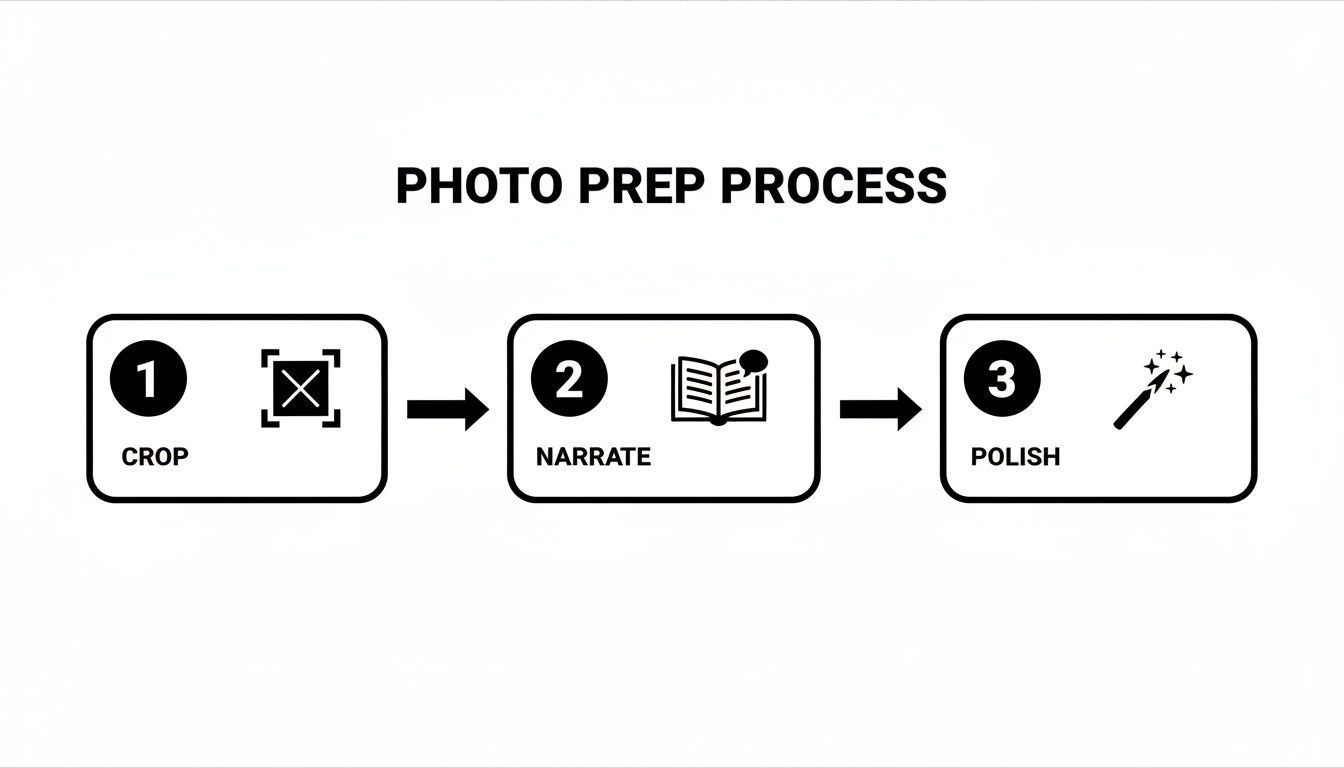
Nailing this workflow—cropping for focus, narrating with text, and polishing it all up—is really the secret sauce behind every slideshow that pops off.
Customizing Each Slide for Maximum Impact
Now the real creative work begins. You can fine-tune each photo to build a story that flows perfectly. Just tap and hold any image in the timeline and drag it to a new spot. This is where you can nail the sequence you planned out earlier.
This is also your chance to inject some personality and context. Imagine you're doing a "get ready with me" slideshow. You could add text overlays to each image: "First, moisturizer," "Next up: foundation," and so on. The editing tools you need are all sitting on the right side of the screen.
- Text (Aa): This is for adding your captions. You can play with different fonts, colors, and placements to keep things on-brand.
- Stickers: Don't sleep on these. Throw in a poll, a quiz sticker, or a funny GIF to get people interacting directly with your content.
- Filters: To give your slideshow a cohesive look, try applying the same filter across all the images. It instantly makes everything feel more polished.
Don’t just add music; let the music guide you. The rhythm of a trending sound often dictates the perfect pacing for a slideshow. Viewers are already familiar with the beat, making your content feel instantly native and satisfying.
Finally, the most important element: sound. Tap Add sound at the very top of the screen to browse TikTok's huge library of music and audio clips. Choosing a trending sound is one of the easiest ways to give your slideshow a discoverability boost. The music will play over the images, tying everything together.
When you’re happy with how it all looks and sounds, tap Next to head to the final posting screen.
Optimizing Your Slideshow to Win the Algorithm
Making a great-looking slideshow is one thing, but getting people to actually see it is the real challenge. You have to remember that TikTok’s algorithm for Photo Mode plays by a different set of rules than it does for video. It’s all about tracking specific user actions that scream "this is good content."
To get your slideshow noticed, you need to shift your thinking from just creating something pretty to creating something irresistible. The goal is to make a slideshow so engaging that viewers don't just swipe through to the end, but actually stop, look, and interact. That's how you signal to the algorithm that your post deserves a spot on more For You Pages.
The Metrics That Matter for Slideshows
When it comes to carousels, the TikTok algorithm is all about the data. It's looking at very specific micro-behaviors to decide if your content is worth promoting.
We're talking about the swipe-through rate (STR), completion rate, per-slide dwell time, and even reverse swipes—which is when a user actually goes back to look at a previous slide. These are the signals that can make or break your reach.
Basically, if your slideshow gets a good amount of likes, comments, and saves in its first few hours, TikTok takes that as a sign to show it to more people. A high STR and completion rate are like pouring fuel on that fire.
This screenshot really breaks down how all those ranking signals work together.
The takeaway is simple: Every swipe and every second a user lingers on a slide is a vote of confidence. The algorithm rewards content that holds attention from the first slide to the last.
Crafting a Narrative That Drives Swipes
Your first slide is everything. It has to be strong enough to stop someone mid-scroll. Use your most eye-catching image, ask a burning question with a text overlay, or show a dramatic "before" picture that makes the "after" feel like a must-see.
Try to think of your slideshow as a tiny story with a clear beginning, middle, and end.
- The Hook (Slide 1): Grab their attention immediately. No warm-ups.
- The Buildup (Middle Slides): Deliver on the promise you made in the hook. Reveal new information, build suspense, or show progress with each swipe.
- The Payoff (Final Slide): Give them the resolution they're looking for—the final result, the answer to the question, or a clear call-to-action (CTA).
Every single swipe is a micro-commitment from your viewer. If a slide doesn't add to the story or make them curious about what's next, you're giving them a reason to leave. Your job is to make swiping forward more rewarding than scrolling away.
Captions, Sounds, and Hashtags
Your caption is prime real estate for starting a conversation. Don't just state the obvious; ask a question that people will actually want to answer. Instead of "My photos from Italy," try something like, "Which of these spots in Italy is at the top of your bucket list?"
Picking the right sound is just as critical. Using a trending audio clip can give your slideshow an instant discoverability boost, since TikTok's algorithm often favors content that jumps on popular sounds.
Finally, nail your hashtag strategy with a smart mix:
- Broad Hashtags: Think
#travelor#photodumpto cast a wide net. - Niche Hashtags: Get specific with tags like
#positanoitalyor#summeroutfitinspoto connect with a targeted community. - Branded Hashtags: Create your own to start building a library of your content.
Once you’ve put together your masterpiece, check out this guide on proven strategies to increase TikTok video views. Even though it's a different format, many of the core principles for getting eyeballs on your content still apply. It also doesn't hurt to understand the money side of things; our guide on how much TikTok pays creators can give you some extra motivation to optimize every post for maximum reach.
Advanced Slideshow Techniques and Creative Ideas
Alright, you've got the basics down. But if you really want your slideshows to pop, you need to start thinking less like you're just stringing photos together and more like you're crafting a cinematic story. The small details are what separate a decent slideshow from a truly great one, and taking a few extra minutes can make a world of difference for your engagement.
One of the easiest ways to add a professional touch is by giving your static images a bit of movement. This simple trick can make your content feel way more dynamic and keep people watching.
Bring Your Photos to Life with Motion
You've probably seen it a thousand times without knowing its name: the Ken Burns effect. It's that slow, subtle pan and zoom that makes a still photo feel alive. While TikTok doesn't have a built-in button for this, you can easily pull it off with a free app like CapCut before you even get to TikTok.
Just drop your photos into a CapCut project, decide how long you want each one on screen, and use the keyframe feature to set a start and end point for a gentle zoom or pan. It’s a tiny effort for a massive payoff, instantly elevating a simple photo dump into something that looks polished and professional.
Pro Tip: Don’t just show the photo; guide the viewer’s eye through it. A slow zoom can build anticipation, while a gentle pan can reveal details in a much more engaging way than a static image ever could.
This is a powerful technique for brands, too. For instance, our guide on creating high-performing AI UGC ads shows how dynamic visuals are essential for stopping the scroll. The exact same idea applies to your slideshows—motion grabs attention.
Proven Slideshow Concepts That Perform Well
Knowing the technical how is only half the battle. The real secret is knowing what kind of content works best in a slideshow format. Some concepts just consistently hit the mark because they spark curiosity and give viewers a satisfying reveal.
Here are a few ideas that almost always get great engagement:
- Before-and-After Reveals: This is a classic for a reason. It works for everything from home makeovers and fitness journeys to showing off a product's impact. The swipe is the perfect mechanism for that "wow" moment.
- Mini-Tutorials: Break down a simple process into clear steps, using one slide per action. Think "My 5-Step Skincare Routine" or "How to Style a Scarf 3 Ways." It's bite-sized and super helpful.
- Listicle-Style Photo Dumps: Instead of a generic "Trip to Paris," frame it as "5 Outfits I Wore in Paris." Giving your photo collection a numbered structure makes people want to swipe all the way to the end to see the full list.
This shift to structured photo stories isn’t just a random trend. By 2025, TikTok had fully embraced photo carousels as a core part of the platform. Why? Because users demanded it. A huge 76% of users said they wanted a mix of images and video on their For You Page, according to data from Buffer. These creative slideshow ideas tap directly into that preference, giving people the engaging, story-driven content they're looking for.
Troubleshooting Common TikTok Slideshow Problems
Even the most experienced creators run into frustrating technical glitches. Nothing throws a wrench in your creative flow faster than the app crashing, your photos uploading in a jumbled mess, or the perfect audio refusing to sync up. It’s annoying, but these issues are almost always fixable.
Most of the time, the problem is with the app itself. Before you get too deep into troubleshooting, try the easy stuff. Force-close and reopen TikTok. Clear the app's cache in your phone’s settings. Or, pop over to the app store and check for an update. A slightly outdated version is often the real reason you're seeing weird bugs.
Solving Blurry or Low-Quality Photos
This is probably the most common complaint I hear: your super sharp photos suddenly look pixelated and grainy the second you upload them. This is a classic compression issue, and it usually means the image files aren’t quite right for TikTok’s standards.
To keep your images looking crisp, you have to start with high-quality files. It makes a world of difference.
- File Type: Stick with JPG or PNG files. Whatever you do, avoid using screenshots—they’re almost always a lower resolution and will get crunched.
- Resolution: Make sure your photos are at least 1080x1920 pixels. This is the standard vertical format, and it ensures your images fill the screen without getting stretched or distorted.
- Internet Connection: Believe it or not, a weak Wi-Fi or data signal can make TikTok compress your files more aggressively to speed up the upload. If you can, connect to a stronger network before you post.
Following these simple rules is the key to making sure the quality you see on your camera roll is what everyone else sees on their For You Page.
When Your Slideshow Is Not Swipeable
Ever created a slideshow, only to find it plays automatically like a video instead of letting people swipe through at their own pace? It’s a super common mix-up, and the fix is simple.
Here’s the deal: To get that interactive, swipeable slideshow, you absolutely must be in Photo Mode. If you accidentally select a video Template during the creation process, TikTok will lock it into an auto-playing video format. You have to manually choose Photo Mode right after you upload your images to give your audience control.
Hitting the 35-Photo Limit
So, you’ve got a big story to tell and you hit TikTok’s 35-photo cap. Your first instinct might be to cram everything in, but trust me, a rushed and bloated slideshow just overwhelms your viewers.
The better move? Turn it into a series. Think of it as a storytelling opportunity. End your first slideshow with a clear hook on the final slide—something like, "Part 2 is already up!" or "Follow to see how it ends." It's a fantastic way to drive engagement and get people coming back for more.
Got Questions About TikTok Slideshows? We've Got Answers.
As you start making more slideshows, you'll naturally run into some specific questions. Think of this as your go-to cheat sheet for troubleshooting common issues and leveling up your creative game. We’ll tackle everything from the nitty-gritty of photo formats to why your slideshow might be playing like a video instead of letting users swipe.
What Are the Best Photo Formats and Sizes?
For the crispest results, always start with high-quality JPG or PNG files. The real key, though, is getting the dimensions right.
To make sure your images fill the entire phone screen without those clunky black bars, you need to use a 9:16 aspect ratio. The gold standard resolution is 1080x1920 pixels.
Trust me on this one—if you use smaller photos or, even worse, screenshots, the final product will look blurry and pixelated. TikTok's compression is aggressive, and it will only magnify any initial quality issues.
What Is a TikTok Slideshow Called, Anyway?
You’ll hear a few different terms floating around on the app, which can be confusing. Officially, TikTok calls the interactive, swipeable version Photo Mode.
But in the wild, you'll see creators and viewers calling them carousels or, more casually, a photo dump. Knowing these different names will make it much easier to find tutorials or just get inspired by what others are doing.
How Many Photos Can I Actually Use in a Slideshow?
TikTok lets you cram up to 35 photos into a single slideshow. It's tempting to use every last slot, but more isn't always better. A shorter, punchier story almost always wins.
If your narrative genuinely needs more than 35 images, your best bet is to break it up. Turn it into a multi-part series to keep your audience hooked and eagerly awaiting Part 2.
A great slideshow is more than just a random collection of pictures; it's a visual story built to grab and hold attention. The real magic happens when you get disciplined about the details—from the hook and slide pacing to a clear call-to-action. That’s what turns an average post into a viral one.
Why Is My Slideshow a Video and Not Swipeable?
This is probably the most common snag people hit, and the fix is surprisingly simple. It all comes down to a single tap during the creation process.
If your slideshow just plays automatically like a regular video, it means one of two things happened: you either picked one of TikTok's pre-made Templates or you never switched out of the default Video Mode after uploading your photos.
To get that interactive, swipe-through experience, you must manually tap "Photo Mode" at the bottom of the editor screen immediately after selecting your images. This is the crucial step that puts the control in your viewer's hands. For you, the creator, that added interactivity is a powerful signal to the algorithm.
Speaking of which, platform benchmarks show that TikTok's average engagement rate sits somewhere between 2.6% and 4.5%. Interactive formats like a swipeable Photo Mode are one of your best tools for blowing past those averages. You can discover more insights about TikTok engagement on Backlinko.com.
Ready to stop wrestling with assets and start creating stunning content in minutes? ShortGenius uses AI to generate scripts, images, and voiceovers, letting you produce high-quality videos and ads at scale. Streamline your workflow and publish consistently to all your channels. Find out how ShortGenius can transform your content creation today.