How to Get Clips from YouTube Videos The Definitive Guide

Learn how to get clips from YouTube videos using four proven methods. This guide covers the best tools, legal best practices, and AI workflows for creators.
So, you want to grab clips from YouTube videos. It's actually pretty straightforward once you get the hang of the different tools available. You've got options ranging from YouTube's own 'Clip' feature for fast sharing, the YouTube Studio editor for trimming videos you own, and a whole world of third-party downloaders and screen recorders when you need more flexibility.
Each method is built for a different job, whether you're just trying to make a quick reaction GIF for a friend or you're a creator looking to turn your long-form content into a library of social media gold.
Why Clipping YouTube Videos Is A Modern Content Goldmine
Before we get into the "how-to," let’s talk about the why. Understanding this is key because clipping isn't just a neat trick; it's a core strategy. The way we consume video has totally shifted. Attention spans are shorter, and the hunger for quick, punchy content on platforms like TikTok, Instagram Reels, and YouTube Shorts has exploded.
This isn't some passing fad. It's a huge opportunity. Your long-form videos—whether they're podcasts, webinars, tutorials, or vlogs—are absolutely packed with brilliant little moments. Letting them sit there, trapped inside a single lengthy video, is like mining for gold and only bothering to keep one nugget.
Maximize Your Creative Investment
Think about all the work you put into a single 20-minute YouTube video. The planning, scripting, filming, and editing can take days. Clipping that video lets you multiply its impact with very little extra effort.
Suddenly, one long video becomes:
- A dozen YouTube Shorts: Pull out key takeaways, funny outtakes, or powerful quotes to hook a new audience.
- Engaging Instagram Reels or TikToks: Share behind-the-scenes bits or quick tips perfectly formatted for vertical screens.
- Teasers for other social platforms: Post compelling snippets on X or Facebook to funnel traffic back to your main YouTube channel.
- Dynamic content for your website: Embed short, relevant clips on landing pages or in email newsletters to skyrocket engagement.
With this approach, one piece of content fuels an entire campaign. You save an incredible amount of time and creative energy. Instead of constantly chasing new ideas, you can focus on mining the best moments from the content you've already perfected.
Reach Untouched Audiences
Let’s be real: the person watching a 60-second Short isn't always the same person who will sit down for a 30-minute deep dive. By creating clips, you’re making your content accessible to people who might otherwise never find your channel.
Short-form video platforms run on discovery algorithms that can blast a single clip to millions of people overnight. This is your ticket to introducing your brand and expertise to a totally new demographic that lives on fast, digestible content.
Here's a real-world example. A financial advisor's detailed video on "Retirement Planning Strategies" might only connect with a specific niche on YouTube. But a 30-second clip from that same video titled "The #1 Mistake People Make in Their 30s" could easily go viral on TikTok. This introduces their brand to a much younger audience and drives genuinely curious viewers back to their channel for the full story.
The Power of Efficiency and Relevance
At the end of the day, clipping is about working smarter, not harder. It’s the single most efficient way to stay active across multiple platforms without completely burning out. You stay relevant by feeding the social media algorithms exactly what they want: a steady stream of bite-sized content.
For any creator or marketer serious about growth, knowing how to clip YouTube videos isn't just a technical skill—it's a fundamental part of modern content strategy. It's how you connect your hard work to tangible results like boosting engagement, building a loyal community, and seriously expanding your digital footprint.
Four Essential Methods for Clipping YouTube Videos
Knowing how to get clips from YouTube videos opens up a massive world of content possibilities. But not every tool is right for every job. Your goal—whether it's sharing a funny moment with friends or building a multi-channel content strategy—will determine the best path forward.
Let's break down the four essential methods, from the simplest built-in features to more powerful, flexible options. Each approach serves a distinct purpose, and understanding the pros and cons will help you build a workflow that's both efficient and effective.
Using YouTube's Native Clip Feature
The simplest way to start is with YouTube's own "Clip" button, located right below the video player next to the "Share" and "Download" options. This feature is designed for one thing: quick, easy sharing of a short segment, typically between 5 and 60 seconds long.
When you click "Clip," a small editor pops up. You just drag the handles to select the moment you want, give it a title, and hit "Share clip." YouTube then generates a unique URL that links directly to that specific segment, looping it for the viewer.
This method is ideal for:
- Community Engagement: Quickly sharing a key highlight in a comment section or on social media to spark discussion.
- Referencing a Point: Sending a colleague the exact moment in a long webinar they need to see.
- Simple Sharing: Grabbing a funny or memorable moment to post on X or in a private chat.
The main limitation here is that you don't actually download a video file. You're creating a shareable link to a moment within YouTube, which is great for keeping viewers on the platform but not for repurposing the clip elsewhere.
Trimming Your Own Content in YouTube Studio
If you're the creator of the video, YouTube Studio offers a much more powerful, built-in solution. The "Editor" tool within your channel's dashboard is a surprisingly capable video trimmer that lets you permanently alter your uploaded videos or save new clips from them.
This tool is your best friend when you need to make corrections or extract highlights from content you own. For example, if you hosted a two-hour livestream, you could use the editor to trim out the pre-show chatter or create a shorter, "best of" version without re-uploading anything.
The process is straightforward: navigate to the video in YouTube Studio, select "Editor," and use the "Trim & Cut" function. You can then save the changes to the existing video or use the "Save as new" option to create an entirely separate video from your selected clip. This is perfect for turning a webinar highlight into a standalone tutorial on your channel.
Leveraging Reputable Third-Party Downloaders
When you need an actual MP4 file from a video you don't own (and have permission to use), third-party tools are the answer. These are typically websites or software where you paste a YouTube video URL, and it gives you options to download a specific portion as a video file.
A word of caution is essential here. The internet is flooded with sketchy YouTube downloader sites riddled with pop-up ads and potential malware. It's crucial to stick with well-known, reputable services that have clear privacy policies and positive reviews.
These tools are incredibly useful for tasks like:
- Creating reaction videos where you need to splice in clips from another source.
- Grabbing a customer testimonial from a review video to feature on your website.
- Analyzing a competitor's ad by downloading it for a team breakdown.
The key benefit is control. You get a downloadable file in the format and resolution you choose, ready for any video editing software. To explore various manual and automated options for extracting specific segments, delve into this complete guide on how to get clips from YouTube videos.
The Flexibility of Screen Recording
Finally, the most versatile method is screen recording. This is the catch-all solution when other methods fail or aren't practical. Using software like OBS Studio, QuickTime (on Mac), or the Xbox Game Bar (on Windows), you can simply record any portion of your screen as it plays the video.
This approach gives you maximum flexibility. You can capture anything—including live streams that can't be downloaded—and you have full control over the recording area.
The downside is that the quality is dependent on your screen resolution and computer's performance. You also won't get a "clean" file; you'll be recording everything visible in that window. Still, for many use cases, like creating a quick GIF or a short clip for a presentation, it's a fast and effective solution.
The effort is well worth it. With YouTube Shorts pulling in over 70 billion daily views, clipping your long-form content is a direct path to a massive, engaged audience.
Comparing YouTube Clipping Methods
Choosing the right tool depends entirely on your project's needs. Do you need a quick shareable link, or a high-quality video file for editing? This table breaks down the pros and cons of each method at a glance.
| Method | Best For | Pros | Cons |
|---|---|---|---|
| YouTube Clip Feature | Quick, casual sharing on social media or in chats. | Extremely fast and easy; no software needed. | Creates a link, not a downloadable file; limited to 60 seconds. |
| YouTube Studio Editor | Creators editing their own long-form content. | High-quality output; can save as a new video on your channel. | Only works for videos you own; editor can be slow. |
| Third-Party Downloaders | Getting an MP4 file for editing or offline use. | Gives you a physical file (MP4, MOV, etc.); high control over quality. | Risk of malware from sketchy sites; potential copyright issues. |
| Screen Recording | Capturing live streams or when other methods fail. | Universal—works on any video; captures exactly what you see. | Quality depends on your screen/PC; not a "clean" source file. |
Ultimately, having all four of these techniques in your toolkit ensures you're ready for any scenario, from a quick social media post to a complex video project.
Navigating Copyright and Fair Use Without the Headaches
Knowing how to clip a YouTube video is one thing. Knowing if you should is a whole different ball game.
Using content that isn't yours can feel like walking on eggshells. But once you get a real handle on copyright and the doctrine of Fair Use, you can create with confidence instead of fear.
At its core, copyright law is simple: it protects a creator's original work. Grabbing someone’s video and re-uploading it as your own is a textbook violation. Period.
However, the law has a built-in exception called Fair Use. It allows for the limited use of copyrighted material without getting permission first, but only for specific purposes like commentary, criticism, news reporting, and education. The linchpin of any Fair Use argument is whether your new creation is transformative.
What Does "Transformative" Actually Mean?
This is the million-dollar word in any Fair Use conversation. Being transformative means you’ve done more than just copy and paste—you’ve added a new layer of meaning, a fresh perspective, or a different purpose to the original clip.
You aren't just showing a clip; you're using it as a building block for your own, unique message.
Think of it this way: a movie reviewer who shows a 10-second scene to break down the acting is transforming it. Their analysis and perspective create something new. On the flip side, a channel that just strings together "Funniest Movie Scenes" without any original commentary is simply redistributing content. That's a much harder sell for Fair Use.
A few real-world examples make it crystal clear:
- Likely Fair Use: A video essayist analyzes the character development in a popular animated series, using short clips to illustrate their points.
- Not Fair Use: A channel uploads full episodes of that same series with their logo slapped in the corner.
- Likely Fair Use: A comedian creates a parody, dubbing over a political speech with goofy dialogue to make a satirical point.
- Not Fair Use: Someone uploads the original political speech in its entirety just to chase views on their own channel.
The question you need to ask yourself is: "Am I adding real value and a new context, or am I just re-sharing someone else's work?" Your honest answer will tell you almost everything you need to know.
The Real-World Consequences of Getting It Wrong
Ignoring copyright rules can lead to some serious headaches. YouTube’s automated Content ID system is constantly scanning new uploads for copyrighted material, and it’s surprisingly good at its job. If it flags your video, a few things can happen.
The most common outcome is a Content ID claim. This isn't a strike against your channel, but more of a heads-up. The copyright owner can then choose to run ads on your video and collect the revenue, track its analytics, or block it in certain countries. It’s annoying, but it won’t get your channel shut down.
A copyright strike, on the other hand, is a big deal. This is a formal, legal takedown request from the rights holder. Just one strike can temporarily lock you out of features like livestreaming. If you rack up three strikes, YouTube can terminate your entire channel—videos, subscribers, everything. Gone. That's the real danger you want to avoid.
A Few Practical Tips to Minimize Your Risk
While Fair Use is a legal defense and not an ironclad guarantee, you can dramatically lower your risk by following a few common-sense rules.
- Always Add Commentary. Don't just let a clip run silently. Your voice, your analysis, or even your on-screen text should be a prominent part of the experience. You need to be an active participant, not a passive broadcaster.
- Use Only What's Necessary. Be ruthless in your editing. If a 10-second clip makes your point, don't use a 30-second one. The less you use, the stronger your Fair Use argument becomes.
- Give Meaningful Credit. This won't save you legally, but it's the right thing to do. Always link back to the original video and credit the creator in your description. It shows respect and builds goodwill within the community.
- Consider Your Purpose. Using a clip in a non-monetized educational video is far less risky than using it in a paid brand sponsorship. Commercial use almost always carries a higher level of scrutiny.
By keeping these guidelines in mind, you can use clips to make your content far more dynamic and engaging, all while respecting other creators and keeping your channel safe.
How to Optimize Your Clips for Maximum Impact
Pulling a great clip from a longer YouTube video is a solid start, but it’s really just the beginning. A raw, unedited clip is like an unpolished gem—the potential is there, but it won't shine until you cut and set it properly. To actually stop someone's endless scroll on TikTok, Reels, or Shorts, you have to transform that raw footage into a piece of content that demands attention.
This is where the real work begins. It’s not just about trimming the fat; it’s about strategically packaging your clip for how people actually watch videos today. From the shape of the video to the first words they see, every single detail counts in a crowded social feed.
Nail the Format and Quality From the Start
Before you even think about witty captions or viral audio, your clip needs to look and feel right on a phone. Getting the technical foundation straight is non-negotiable if you want to make a professional impression.
First up, the aspect ratio. Short-form video platforms are built for a vertical world. You absolutely have to format your clip to 9:16 to fill the entire screen of a smartphone. A horizontal video with big black bars at the top and bottom screams "low effort" and is a surefire way to get someone to swipe away instantly.
Next, get that resolution as high as you can. You should be aiming for 1080p (1920x1080 pixels) at a minimum. Anything less, and you risk your video looking grainy or pixelated, which can make your content feel cheap and untrustworthy. Don't let poor quality undermine your message before anyone even hears it.
Craft an Unskippable First Three Seconds
You have just a few moments—literally—to convince someone your clip is worth their time. The first three seconds are everything. If you don't create a compelling hook right away, your viewer is gone, and all your hard work goes down the drain.
A strong hook can be a few different things:
- A Provocative Question: Kick things off with a question your audience is desperate to have answered. Something like, "Are you making this one critical mistake with your finances?"
- A Bold Statement: Make a claim that’s surprising or goes against the grain to spark curiosity. For instance, "Everything you know about productivity is wrong."
- A Visual Shock: Open with the most visually interesting part of your clip. It could be an explosion, a dramatic facial expression, or a stunning visual that immediately grabs the eye.
Think of your hook as the headline of your video. Its only job is to earn you the next five seconds of a viewer's attention. Once you master this, you’ll see your watch time and retention metrics climb.
Make Captions a Top Priority
You might have recorded crystal-clear audio, but a huge chunk of your audience will never actually hear it. People watch videos everywhere—in public, at work, late at night—and a surprising number of them do it with the sound off. Without captions, your message is completely lost on them.
Dynamic, easy-to-read captions aren't just an accessibility feature anymore; they're a fundamental part of modern video. They keep silent viewers locked in and help everyone else retain the information better. I recommend using large, bold fonts and styles that highlight words as they’re spoken to make the whole experience more visually engaging.
The data backs this up. With 93% of marketers seeing strong ROI from video, optimization is everything. The best short-form content often aims for a 50-70% average view duration. When you consider that 50% of viewers watch silently, adding captions becomes an essential step to hitting that goal. Creators who get this right—pinpointing high-retention moments and adding professional captions—can see their click-through rate jump by up to 38%, pushing it from an average of 0.65% to over 0.90%. You can dig into more data-driven strategies and learn how to scrape YouTube trends on eunit.me.
Add Branding and a Clear Call to Action
Finally, every clip needs a purpose. Are you trying to drive traffic, gain followers, or generate leads? Whatever the goal, you need to explicitly tell your viewers what to do next.
This is your call-to-action (CTA). It can be a simple text overlay, a quick verbal cue, or a screen at the end.
- Verbal CTA: "Follow me for more daily tips!"
- Text Overlay CTA: A simple graphic saying "Link in Bio" or "Download Now."
- End Screen CTA: A final card that points people to your website or another video.
Don't forget to weave in subtle branding, too. A small logo in the corner or using your brand colors for text overlays helps build recognition over time. It ensures that even if someone doesn't follow you right away, they'll start to remember your content. That consistent visual identity is what turns one-off views into a loyal community.
Building A High-Efficiency Clipping Workflow With AI
Let's be honest: manually scrubbing through hours of footage to find a few golden nuggets is the single biggest bottleneck in content repurposing. It’s tedious, drains your creative energy, and slows your output to a crawl. But a modern, AI-powered workflow completely flips this model on its head, turning a chore into a scalable content engine.
Instead of hunting for moments, you can now teach an AI to find them for you. It all starts by identifying your best-performing long-form content. Look for videos with high audience retention spikes, lots of engagement, and positive comments. These are your goldmines.
Once you’ve picked your source video, AI tools can get to work analyzing its transcript and even visual cues to auto-detect the most compelling moments. This could be a powerful quote, a key takeaway, or a segment where your energy just pops. What used to take me an hour of manual review can now be done in minutes.
Automating The Heavy Lifting
The real magic kicks in after those key moments are identified. An AI-driven system can instantly generate dozens of short-form clips, each centered around a specific point. This is how you stop treating clipping as a one-off task and start building a true production system.
Imagine feeding a one-hour podcast episode into a tool and getting back 20-30 ready-to-post clips an hour later. Each one can be automatically reframed to a vertical 9:16 aspect ratio, stamped with your logo, and styled with dynamic, animated captions.
This kind of automation unlocks creative strategies that would be impossible to pull off manually. For instance:
- Create Themed Clip Series: Pull every question from a Q&A session and turn them into a week-long "Ask Me Anything" series for your Instagram Reels.
- Batch Content for Weeks: Repurpose an entire webinar into a month's worth of valuable, bite-sized tips for TikTok and YouTube Shorts.
- A/B Test Hooks: Generate a few different versions of the same clip with different opening hooks to see which one actually grabs your audience.
This shift in workflow transforms you from a video editor into a content strategist. Your focus moves from the tedious mechanics of clipping to the high-level decisions that actually drive growth.
A Practical AI Clipping Blueprint
So, what does this new process actually look like? Instead of a messy, multi-tool headache, you get a single, unified workflow.
The flowchart below shows how to get your clips optimized through a simple, AI-powered, three-step flow—from format to hook to captions.
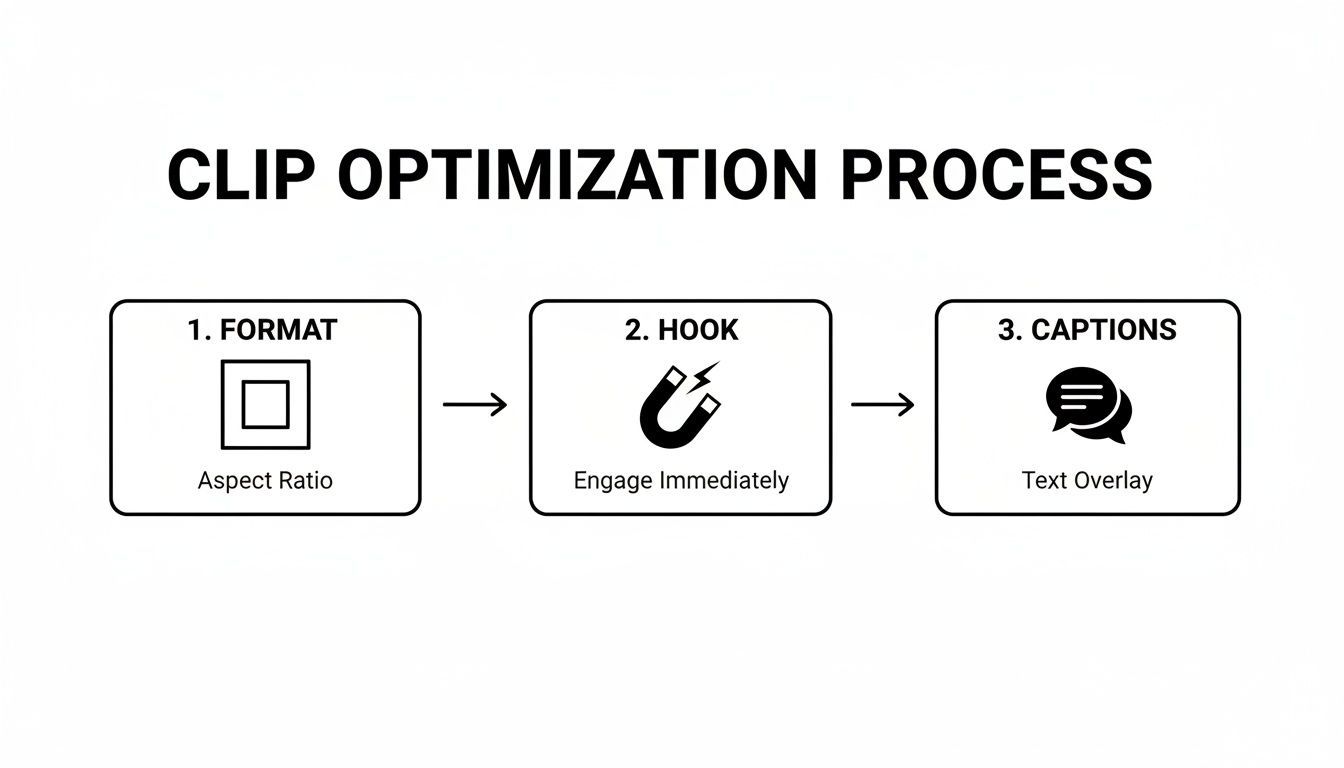
As you can see, the AI handles the foundational edits, freeing you up to focus on creative refinement and strategy. To really dial in your content, you can even analyze YouTube video comments with AI to gain actionable insights that feed right back into your workflow.
Integrating Your Brand Seamlessly
One of the best parts of an AI workflow is brand consistency. Smart tools can use a pre-set brand kit to automatically apply your specific colors, fonts, and logo to every single clip. This ensures every piece of content feels cohesive and professional, no matter where you post it.
You can set up templates for different types of content—one for motivational quotes, another for quick tips, and a third for testimonials. This level of organization and speed is how top creators maintain a constant presence across multiple channels without burning out. Platforms like https://shortgenius.com are designed to serve as the central hub for this entire operation.
Ultimately, building an AI-assisted workflow isn’t about replacing creativity. It’s about removing the friction that stifles it, letting you spend less time on repetitive editing and more time doing what matters: connecting with your audience and growing your brand.
Got Questions About Clipping YouTube Videos? We've Got Answers.
When you first dive into creating clips from YouTube videos, it's natural for a bunch of questions to come up. It can feel like walking a tightrope with all the rules and best practices. We've been there. So, here are the straight-up answers to the questions we hear most often.
Is It Actually Legal To Clip Someone Else's YouTube Video?
This is the big one, and the honest answer is… it's complicated. Grabbing someone’s video and just re-uploading it as your own is a hard no—that’s a straight-up copyright violation. The grey area, however, is Fair Use.
Fair Use is a legal concept that might protect your clip if you’re using it for transformative purposes. This means you’re not just reposting it; you’re adding something new. Think about things like:
- Reacting to a clip with your own commentary and critique.
- Including a short segment in a news report.
- Using it as a teaching tool in an educational video.
- Creating a parody or satire.
The whole point is that you have to add your own creative spin, analysis, or context. But remember, Fair Use is a defense you'd use in court, not a free pass. It's always a good idea to credit the original creator, and if you're ever unsure, the safest bet is to just ask them for permission.
Can I Make Money From Videos That Use Clips From Other Channels?
This is a risky game. YouTube's Content ID system is incredibly sophisticated and will almost certainly find copyrighted material in your video. If it does, a few things can happen: the video could be demonetized, the ad revenue could be sent directly to the original owner, or your video could be blocked or taken down entirely.
To even qualify for the YouTube Partner Program and earn money, your channel has to offer significant original value. If your videos are just a mashup of other people's content without your own substantial commentary, creative editing, or analysis, you'll likely be rejected.
What's The Best Length For A YouTube Short or Clip?
YouTube Shorts lets you go up to 60 seconds, but that doesn't mean you should. In my experience, the magic really happens in the 15 to 30-second range. You have to hook people instantly.
Your starting point should always be "shorter is better." A punchy, 15-second clip that delivers a key insight or a great laugh will almost always do better than a 60-second clip that takes too long to get to the point. Play around with different lengths and see what resonates with your audience.
Do I Have To Credit The Original Creator When I Use A Clip?
Yes. 100% yes. Even if you’re confident your clip is covered by Fair Use, giving credit is just good practice and the right thing to do. It’s a sign of respect for the person who put in the work, and it helps create a more collaborative and positive community.
It doesn’t have to be complicated. Just drop a simple line in your video description, like "Clip from [Channel Name]: [Link to Original Video]." While this won't save you from a copyright claim, it's a fundamental part of being a responsible creator.
Ready to stop manually scrubbing through videos and start generating high-quality clips in minutes? With ShortGenius, you can use AI to automatically find the best moments, add your branding, and schedule dozens of shorts across all your social channels. Transform your content workflow today.