Add Text to Video: Quick Guide to Engaging Clips

Learn how to add text to video with practical tips on typography, design, and accessibility to boost viewer engagement.
Adding text to a video is no longer just a creative choice—it’s a necessity. You can go the AI route with a tool like ShortGenius for lightning-fast captions, dive deep with traditional desktop editors like Adobe Premiere Pro for granular control, or use a mobile app like CapCut for quick edits on the go. The right tool really just depends on what you're trying to accomplish, whether that's a quick social clip or a polished, professional piece.
Why Adding Text to Your Videos Is No Longer Optional
Let’s get real for a second. Most people are scrolling through their feeds with the sound off. That single behavior has fundamentally changed how we need to think about video. Adding text isn't just a "nice-to-have" anymore; it's a critical part of making sure your message actually gets heard, even in silence.
Think about the modern viewing experience, especially on platforms like Instagram, TikTok, and Facebook. Videos autoplay on mute. This means you have a tiny window—maybe just a few seconds—to grab someone's attention before they scroll right past. A bold text overlay or a well-timed caption can be the very thing that stops the scroll.
The Power of Silent Storytelling
In a world where everyone is multitasking, text gives your video instant context. It doesn't matter if your viewer is in a quiet office, on a noisy train, or just prefers to watch without sound—they can still understand what you're trying to say. This ensures your content is not just seen but actually understood, which makes a huge difference in message retention and engagement.
The stats don't lie. A staggering 85% of mobile videos are watched without sound, which drives home just how crucial text is. It also explains why 59% of creators are now leaning on automated captions, a number that's climbing fast. You can learn more about how text is shaping video marketing and see how others are adapting.
This is precisely where tools built for the modern creator shine. Platforms like ShortGenius, for instance, are designed around this text-first reality.
Just look at the interface. Generating eye-catching, animated captions isn't some buried feature; it's a core part of the workflow. This approach treats text not as an afterthought, but as a dynamic visual element that pulls the viewer in and helps tell the story from the very first frame.
Before we dive into the "how," let's quickly recap the "why." Adding text does more than just make your videos watchable on mute; it fundamentally improves their performance across the board.
| Benefit | Impact on Performance | Best For |
|---|---|---|
| Increased Engagement | Captures attention in sound-off environments, leading to higher watch time and interaction rates. | Social media feeds (Instagram, TikTok, Facebook), ads, and short-form content. |
| Improved Accessibility | Makes content accessible to the 466 million people worldwide who are deaf or hard of hearing. | All video types, especially educational, corporate, and public-facing content. |
| Enhanced Comprehension | Reinforces key points, clarifies complex topics, and improves message retention, even with sound on. | Tutorials, explainers, webinars, and content with detailed information. |
| Boosted SEO | Search engines can crawl closed captions, helping your video rank for relevant keywords on platforms like YouTube. | Long-form content, educational videos, and evergreen marketing assets. |
Simply put, text makes your videos work harder for you, ensuring your message connects with the widest possible audience, no matter how they choose to watch.
More Than Just Words on a Screen
Beyond just grabbing attention in a silent feed, text serves a few other vital functions that can seriously elevate your content.
-
Boosts Accessibility: This one is huge. By adding text, you’re opening up your content to viewers who are deaf or hard of hearing, making your message truly inclusive.
-
Improves Comprehension: Let's be honest, sometimes things get complicated. Even with the audio on, text can help clarify technical terms, highlight key takeaways, and just generally reinforce the most important parts of your message.
-
Increases Watch Time: It’s a simple formula: when people can easily follow what's happening, they’re far more likely to stick around and watch your video all the way through.
At the end of the day, adding text is about making sure your hard work pays off and your message actually lands. It transforms a passive viewing into an active, engaging experience that delivers real results.
The AI-Powered Workflow for Adding Text in Minutes
Let’s be honest, manually adding text and captions to a video used to be a real drag. What if you could turn a raw video clip into a polished, ready-to-post social media video in the time it takes to brew a pot of coffee? That's not a far-fetched idea anymore; it's exactly what modern AI-driven workflows are built for.
These tools are designed to take hours of tedious, click-by-click editing and condense it into a few simple steps. You're no longer juggling separate apps for transcription, design, and timing. A platform like ShortGenius, for example, puts everything you need in one place. You just upload your video, and the AI takes over from there.
From Raw Clip to Finished Post
The first thing AI tackles is transcription, which is usually the most time-consuming part of the process if you do it by hand. The system listens to your audio and generates a surprisingly accurate script, which then becomes the backbone of your captions. It’s not just a block of text, either—it’s a transcript that’s already synced up with your video’s timing.
This automated approach is quickly becoming the norm. The use of AI for video editing is exploding, with 51% of marketers planning to use these tools for creating or editing videos by 2025. And what's the number one use case? Auto-generating captions, cited by 59% of them. That tells you everything you need to know about the demand for speed.
Once the script is ready, the magic really starts. You can apply a pre-designed brand kit with a single click. This instantly reformats all the text to match your specific brand fonts, colors, and overall style. No more manually tweaking every single caption to stay on-brand.
The flowchart below breaks down just how vital text is for grabbing attention when people are scrolling with the sound off.
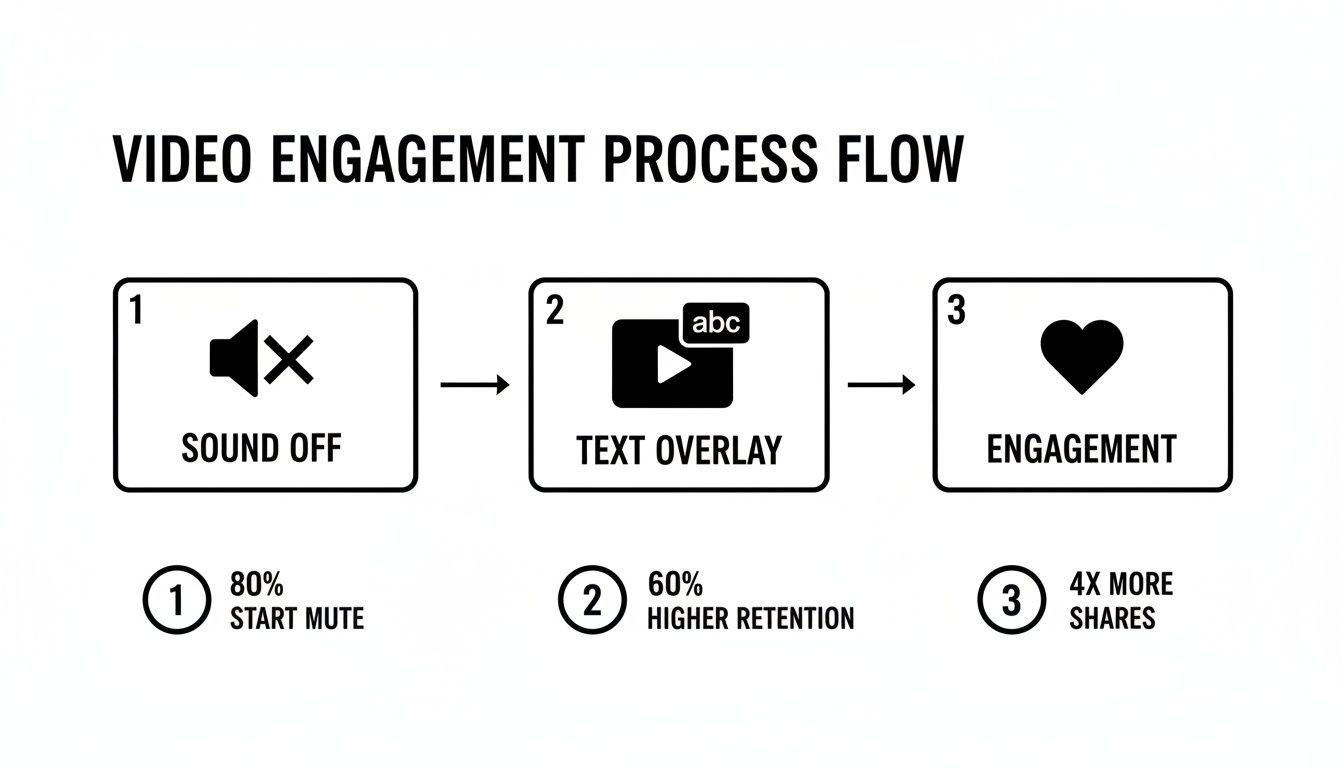
This simple visual really drives home the point: text isn't just an afterthought anymore. It's a fundamental part of hooking a viewer from the very first frame.
Dynamic Text and Effortless Repurposing
Static captions get the job done, but animated text is what really stops the scroll. AI-powered editors are packed with presets that add dynamic, eye-catching effects to your words, making them impossible to ignore.
You can typically pick from a whole library of styles, like:
- Word-by-word highlights that color a word just as it's spoken, guiding the viewer's focus.
- Pop-up animations that make key stats or calls-to-action jump off the screen.
- Smooth fade-ins and slide-ins that give the video a clean, professional feel.
On top of that, more advanced tools that can repurpose content AI can take one long video—like a podcast or webinar—and chop it into a month's worth of social clips, all with perfectly formatted text added automatically.
It's a completely different way of working. This unified workflow gets rid of the technical headaches, letting you focus on your message and creative ideas instead of getting lost in the weeds of editing software.
The end product is a professional-grade video with perfectly timed, beautifully styled text that keeps your audience engaged. This level of efficiency is what makes it possible to keep up with the relentless pace of social media today.
How to Choose the Right Video Text Editor
Picking the right tool to add text to your videos can be the difference between a quick, creative win and a frustrating time-sink. Your editor really does shape your entire workflow. The good news is, while there are a ton of options out there, they pretty much all fall into one of three buckets.
Figuring out which bucket is for you is the first real step. Are you a social media manager cranking out daily content? A filmmaker who needs pixel-perfect control? Or are you just trying to add some quick text to a video on your phone? Let's break down where you should be looking.
Integrated AI Platforms
AI-driven tools like ShortGenius are built from the ground up for speed. If you're a creator or a marketing team that needs to pump out a lot of content without getting lost in the weeds, this is your zone. Their main superpower is a single, smooth workflow where automatic transcription, captioning, and styling all happen in one place.
- Who they're for: Social media managers, content creators, and agencies that live and die by their content calendar.
- The big win: You can take a raw video and have a polished, captioned clip that matches your brand in just a few minutes. Things like one-click brand kits and slick animated text presets handle all the tedious stuff for you.
- The trade-off: You might give up some of the super-granular control you'd get in a pro desktop editor, but you gain incredible efficiency in return.
The whole point of these platforms is to make adding great-looking text feel like a natural part of making a video, not an extra chore you have to talk yourself into doing.
Traditional Desktop Editors
This is the world of the heavy hitters—think Adobe Premiere Pro or DaVinci Resolve. These are the powerhouses, giving you absolute control over every last detail. We're talking precise keyframe animations, custom fonts, and complex visual effects.
You'll want a desktop editor when creative control is the most important thing on your list. If you need to nail exact brand specs or build one-of-a-kind text animations from scratch, this is where you'll do it. Just know that all that power comes with a much steeper learning curve and a workflow that takes more time. Manually transcribing, timing every caption, and styling each text element is a serious commitment.
On-the-Go Mobile Apps
Apps like CapCut and InShot have basically put a video editing suite in our pockets. Their biggest advantage is pure convenience. You can shoot, edit, and add text to your videos all on your phone, making them perfect for TikTok, Instagram Reels, and other mobile-first platforms. They’re packed with trendy text styles and fun effects.
These apps are usually free and incredibly easy to pick up and use, which is a huge plus. The downside? You’ll run into limitations with brand customization, and trying to manage a longer, more complicated project on a tiny screen can get clumsy fast. They're fantastic for short, of-the-moment content where getting it done quickly matters more than perfect brand alignment.
Comparison of Video Text Adding Methods
To make the choice clearer, it helps to see how these different approaches stack up side-by-side. Each method has its own strengths, and the "best" one really depends on what you're trying to accomplish.
| Method | Best For | Speed & Ease of Use | Customization | Cost |
|---|---|---|---|---|
| AI Platforms | High-volume social content, marketing teams, creators needing efficiency | Extremely Fast. Automated workflow, minimal learning curve. | Good. Template-based with brand kit integration. Less granular than desktop. | Varies (Free to Subscription) |
| Desktop Editors | Professional video production, detailed brand work, unique animations | Slow. Manual process, steep learning curve. | Unlimited. Full control over every element. | High (Subscription or one-time purchase) |
| Mobile Apps | Quick social posts, on-the-go editing, trendy content | Very Fast. Intuitive, designed for mobile workflows. | Limited. Relies on built-in templates and effects. | Mostly Free (with in-app purchases) |
Ultimately, choosing your tool comes down to a simple balance: speed, control, and convenience. Think about your most common projects and pick the path that removes the most friction from your process.
Designing Text That Grabs and Holds Attention
Adding text to a video is one thing. Making it an integral, attention-grabbing part of the experience? That's a completely different ballgame. The design choices you make—from font and color to where you stick it on the screen—are what separate an amateur clip from polished, professional content. Your goal is to make the text enhance the video, not just feel slapped on top.

Think of your text as another character in your video's story. Does it command attention with a bold, sans-serif font like Montserrat, or is it more elegant with a classic serif like Georgia? The psychology of fonts is real; a playful, rounded font just feels right for a lighthearted tutorial, whereas a clean, modern one is a much better fit for a corporate announcement.
Mastering Contrast and Readability
Here's the single most important design rule for video text: readability. If your audience has to squint to read your words, you've already lost them. High contrast is your absolute best friend here. It's a simple concept but so often ignored—never put light text over a light background or dark text over a dark one.
A little pro trick I've learned is to use a subtle background element to make text pop, no matter what’s happening in the video footage behind it.
- Text Outline: A thin, one-pixel black stroke around white text can make it perfectly legible, even against a bright, blown-out sky.
- Drop Shadow: A soft drop shadow gives the text a slight lift, creating a sense of depth that separates it cleanly from the video layer.
- Background Box: Placing a semi-transparent black or colored box behind the text is a foolproof way to guarantee it always stands out.
These simple additions create a visual buffer between your text and the moving imagery, ensuring clarity every time.
Strategic Placement for Every Platform
Where you put your text is just as critical as how it looks. Every social media platform has its own user interface filled with icons, buttons, and usernames that can block your carefully crafted words. You have to design for these "safe zones."
On TikTok and Instagram Reels, the bottom and right edges are notoriously crowded with UI elements. Keep your most important text and captions centered or in the upper two-thirds of the screen to avoid them being cut off.
For a standard YouTube video, the classic "lower-third" position works perfectly for introducing a speaker or a new topic. But that same placement would be a disaster on a vertical TikTok clip. You've got to think about the final destination of your video when you decide where to add text to video frames.
This platform-aware approach is non-negotiable; it prevents awkward overlaps and ensures your message actually gets seen.
Using Animation with Purpose
Text animation can be a fantastic tool for emphasis, but it's incredibly easy to overdo it. The goal is to draw the eye to key points, not to distract everyone with flashy, bouncing effects. From my experience, subtle animations are almost always more effective.
Instead of a dizzying fly-in, consider these more purposeful effects:
- A gentle fade-in can introduce a new idea without being jarring.
- A word-by-word highlight guides the viewer's focus through a sentence as it's spoken, which is great for reinforcing a point.
- A quick "pop" effect can make a startling statistic or a call to action jump off the screen just for a moment.
The best text animations feel completely natural and support the video's pacing. They should guide the viewer's eye and reinforce the spoken word, creating a more dynamic and engaging experience without pulling focus from your core message.
Beyond the Basics: Text for Accessibility and SEO
Okay, so you've nailed the creative side of adding text to your videos. They look great. But if you stop there, you're leaving a massive amount of potential on the table. Adding text isn't just about grabbing attention; it’s a strategic move to make your content more inclusive and easier for search engines to find.
This is where you graduate from simply making videos to creating high-performing marketing assets.
Let's dive into two key areas where a little extra effort with your text pays off big time: accessibility and search engine optimization (SEO). Get these right, and you'll expand your reach and boost your visibility in ways you might not expect.
Making Your Content Accessible to Everyone
Thinking about accessibility isn't just a box to tick for compliance; it's about being a decent human and creating an experience everyone can enjoy. When you add text to video, you're immediately helping people in sound-off environments, but you're also opening your content up to the 466 million people worldwide who are deaf or hard of hearing.
To get this right, you need to know the difference between the two main types of captions.
- Open Captions: Think of these as "burned in" to the video. They’re part of the video file itself and can't be turned off. This is your go-to for platforms like Instagram or TikTok, where videos often autoplay on mute. You need to guarantee the text is seen, no matter what.
- Closed Captions (CC): These are separate text files (you'll often see them as an .SRT file) that the viewer can turn on or off. This is the standard for YouTube and Vimeo. It gives viewers control while still meeting accessibility guidelines like the Web Content Accessibility Guidelines (WCAG).
And here's a pro tip: accessible design helps everyone. Transcripts and captions aren't just for users with disabilities. People scan them when they're short on time, or they'll copy and paste key info directly from them.
If you really want to dig into how these elements work together, it's worth exploring the hidden power of captions for accessibility and SEO.
Using Text to Fuel Your Video SEO
Search engine bots are smart, but they can't watch a video. They need text to understand what your content is about. This is where your captions and transcripts become your secret SEO weapon.
When you upload a video to YouTube with a closed caption file, you’re basically handing the algorithm a word-for-word script. This lets it index every single keyword and topic you cover, dramatically increasing the odds your video will pop up in relevant searches. Think of it as giving Google the ultimate cheat sheet for your content.
This same principle applies to paid ads. Don't just slap one headline on your video and call it a day. A/B test a few different text hooks to see what your audience actually responds to.
For instance, you could try pitting these two against each other:
- "Learn How to Boost Your Sales by 50%"
- "Stop Making These Common Sales Mistakes"
A tiny tweak in your text overlay can have a huge impact on your click-through rates and ad spend. It’s a simple, data-backed way to make sure the text you add doesn't just look good—it gets results.
Common Questions About Adding Text to Video
Even when you know the basics, the moment you start adding text to your video projects, a bunch of practical questions pop up. Getting straight answers to these common hang-ups can make your workflow smoother and your final videos much better.
Let's dive into some of the most frequent questions I hear from creators to clear up any confusion.
What Is the Best Font Size for Video Text on Mobile?
There’s no single magic number here, but I’ve found that for a standard vertical 1080p video, aiming for a primary text height of 70-90 pixels is a great starting point.
The real test, though? Watch a draft on your own phone before you hit publish. If you have to squint, even a little, it’s too small. Readability is king, and high contrast is what gets it there.
My go-to trick for making text legible against busy backgrounds is adding a subtle design element. A semi-transparent background box or a thin text outline can make your words pop without looking tacky.
Should I Use Automatic Captions or Type Them Manually?
When it comes to pure speed, you just can't beat automatic captions. AI-powered tools are impressively accurate these days, often hitting over 95% accuracy on the first pass. If you're churning out content quickly, this is your best friend.
That said, always budget a few minutes for a quick proofread. You'll want to fix any weird punctuation and correct the spelling of unique names, brands, or niche jargon. Manual typing gives you ultimate control, but it takes forever. The smartest workflow is a hybrid: let the AI do the heavy lifting, then you swoop in for a quick polish.
How Long Should Text Stay on Screen?
You need to leave your text up just long enough for someone to comfortably read it without feeling rushed. A simple, effective rule of thumb is to time it by reading the text aloud twice at a normal pace.
- For short phrases of just 2-4 words, a couple of seconds is usually plenty.
- Longer sentences might need anywhere from 4-7 seconds.
Getting the pacing right is everything. Make sure the text timing flows naturally with the video's audio and visual beats for a smooth, professional feel.
Can Adding Text to a Video Improve Its SEO?
Yes, it absolutely can—but indirectly. Search engines can't actually "read" the text that's burned into your video file like an image. The real SEO goldmine is uploading a separate transcript file, like an .SRT file, to platforms like YouTube.
This file gives search crawlers a full script to index. Suddenly, every word spoken in your video becomes searchable, which can massively boost your visibility for relevant keywords. That transcript is the key to unlocking your video's SEO potential.
Ready to create stunning videos with perfectly styled, animated text in minutes? With ShortGenius, you can automate the tedious parts of video creation—from script to captions—and focus on what matters most your message. Try ShortGenius for free and see how fast you can turn your ideas into scroll-stopping content.