ایک سے زیادہ ویڈیوز کو ایک میں جوڑنے کا صحیح طریقہ

ایک صاف ورک فلو کے ساتھ ایک سے زیادہ ویڈیوز کو ایک میں جوڑنا سیکھیں: import، arrange، trim، export، captions اور multi-platform sizing۔
آپ نے ٹکڑے ریکارڈ کر لیے ہیں: ایک talking-head تعارف، ایک screen demonstration، ایک product close-up، ایک customer clip، اور ایک call to action۔ ٹائم لائن میں، یہ ٹھیک لگتے ہیں۔ پھر آپ export کرتے ہیں، TikTok پر اپ لوڈ کرتے ہیں، Reels کے لیے فائل دوبارہ استعمال کرتے ہیں، Shorts کے لیے crop کرتے ہیں، اور YouTube پر رکھتے ہیں۔ اچانک، speaker کا چہرہ کاٹ دیا جاتا ہے، captions interface controls کے نیچے بیٹھ جاتی ہیں، music scenes کے درمیان جمپ کرتا ہے، اور final upload edit سے نرم تر لگتا ہے۔
یہی وجہ ہے کہ کئی ویڈیوز کو ایک میں ملانا سیکھنا صرف کلپس کو ایک کے پیچھے ایک رکھنے کا معاملہ نہیں ہے۔ یہ ایک delivery کا مسئلہ ہے۔ آپ کو ایک coherent sequence، ایک dependable master file، اور platform-specific versions کی ضرورت ہے جو subject، sound، captions، اور intended pacing کو محفوظ رکھیں۔
کیوں کلپس کو ملانا اصل میں ایک Delivery Problem ہے
زیادہ تر editors ٹائم لائن سے شروع کرتے ہیں۔ بہتر workflow destinations سے شروع ہوتا ہے۔
ایک merged file TikTok، Instagram Reels، YouTube Shorts، Facebook، اور standard YouTube placements سے گزر سکتی ہے۔ ہر destination مختلف aspect ratio، viewing context، اور compression outcome کو ترجیح دے سکتی ہے۔ Deloitte کی 2025 Digital Media Trends رپورٹ کے مطابق، صارفین تقریباً روزانہ چھ گھنٹے media اور entertainment پر خرچ کرتے ہیں، جو streaming، social platforms، gaming، music، اور podcasts میں تقسیم ہوتے ہیں۔ وہی رپورٹ کہتی ہے کہ social platforms امریکی advertising spending کا زیادہ سے زیادہ نصف حاصل کرتے ہیں، جو ایک reusable، channel-ready video asset کو valuable بناتی ہے نہ کہ optional۔
ایک creator تعارف، demonstration، testimonial، captions، music، اور call to action کو ایک master میں ملا سکتا ہے۔ غلطی یہ ہے کہ اس master کو ہر جگہ final upload سمجھا جائے۔ یہ ایک clean source ہونی چاہیے جس سے مختلف framing اور جہاں ضروری ہو مختلف pacing والی versions بنائی جائیں۔
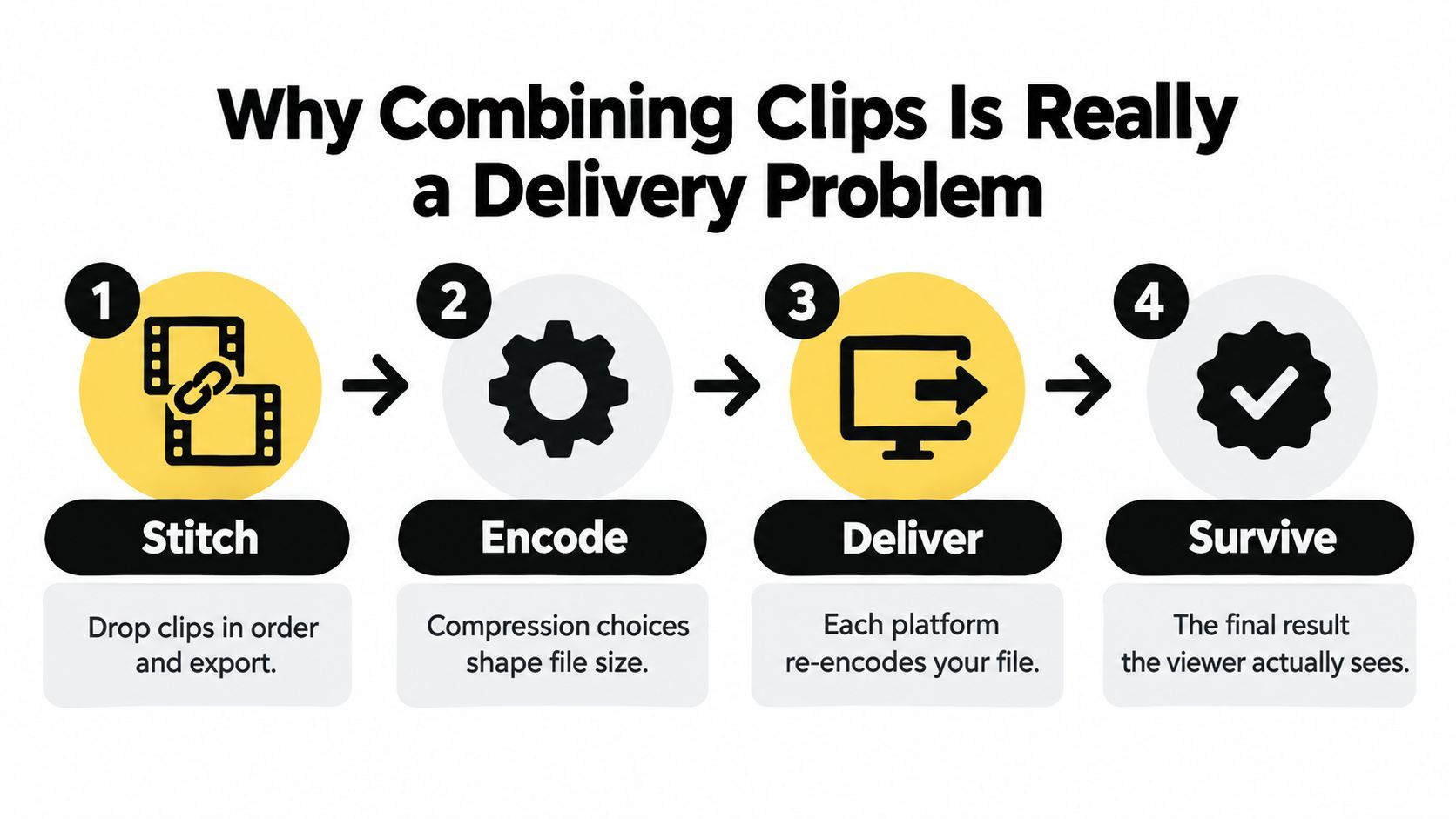
وہ pipeline جو مہنگے rework سے بچاتی ہے
ایک reliable sequence اس طرح لگتی ہے:
- Inspect ہر source کو technical compatibility کے لیے۔
- Normalize ان کلپس کو جو frame rate، dimensions، codecs، یا audio layout پر متفق نہ ہوں۔
- Assemble کلپس کو narrative order میں اور unusable handles ہٹائیں۔
- Reframe composition کو ہر destination کے لیے بجائے اس کے کہ ہر platform کو ایک canvas میں مجبور کریں۔
- Caption اور level finished sequence کو۔
- Export ایک high-quality master اور اس سے platform files derive کریں۔
- Validate files کو audience کے devices پر دیکھ کر اور سن کر۔
Editing کی تاریخ بھی اسی طرف اشارہ کرتی ہے۔ 1950 کی دہائی کے اوائل میں، helical-scan videotape اور rotary-head technology نے practical tape editing ممکن بنایا، جو linear editing کی طرف لے گئی۔ Ampex Editec 1963 میں آیا، اور CMX 600 1971 میں پہلا nonlinear editing system تھا، جو editors کو segments تک رسائی اور rearrange کرنے کی اجازت دیتا تھا بغیر پوری sequence کو دوبارہ copy کیے۔ Timeline editing، clip bins، اور random access نے assembly problem حل کیا۔ Modern publishing ایک اور requirement شامل کرتی ہے: assembled timeline کو کئی delivery environments میں زندہ رہنا چاہیے۔
Practical rule: ایک بار assemble کریں، لیکن یہ نہ سمجھیں کہ ایک ہی identical canvas ہر جگہ publish کرنا چاہیے۔
کچھ بھی Merge کرنے سے پہلے Files کو تیار کریں
ایک بری merge بنانے کا سب سے تیز طریقہ یہ ہے کہ ہر file کو editor میں drag کیے بغیر چیک کریں کہ اندر کیا ہے۔ Shot arrange کرنے سے پہلے، اس کا container، codec، resolution، frame rate، time base، duration، audio streams، sample rate، اور channel layout inspect کریں۔
اگر streams match کرتی ہیں تو packet-level join ایک اور generation کی encoding سے بچ سکتی ہے۔ FFmpeg کی concat demuxer documentation matching streams مانگتی ہے، بشمول codecs اور time bases۔ یہ timestamps کو بھی adjust کرتی ہے تاکہ پہلی file zero سے شروع ہو اور بعد والی اسے فالو کریں۔ Inaccurate durations یا مختلف لمبائی والی audio اور video streams اب بھی gaps بنا سکتی ہیں، اس لیے compatibility کو صرف file extensions سے assume نہ کریں۔
پہلے یہ compatibility check چلائیں
| Parameter | Why It Matters | What to Standardize On |
|---|---|---|
| Container اور codec | Incompatible streams direct join روک سکتی ہیں یا unnecessary conversion trigger کر سکتی ہیں | ایک delivery-friendly container اور codec |
| Resolution اور dimensions | مختلف canvases scaling، cropping، یا visible jumps کا باعث بنتے ہیں | master کے لیے ایک working canvas |
| Frame rate | Mixed rates uneven motion اور timestamp problems پیدا کر سکتے ہیں | ایک constant frame rate |
| Scan type | Interlaced footage combing یا motion artifacts پیدا کر سکتی ہے | Progressive video |
| Pixel format | Inconsistent formats color handling تبدیل کر سکتے ہیں یا direct merge روک سکتے ہیں | ایک pixel format |
| Audio sample rate اور layout | Mismatches conversion، missing channels، یا sync issues کا باعث بنتے ہیں | ایک sample rate اور channel layout |
| Duration اور time base | Incorrect timestamps gaps یا drift پیدا کر سکتے ہیں | Verified durations اور consistent timing |
جب files disagree کریں تو joining سے پہلے normalize کریں۔ Material کو shared canvas، progressive scan، constant frame rate، pixel format، audio sample rate، اور channel layout میں تبدیل کریں۔ Concat filter اس وقت مناسب ہے جب sources کو decoding اور re-encoding کی ضرورت ہو، لیکن یہ quality trade-off لاتی ہے اور inconsistent defaults پر چھوڑنے کے بجائے control کرنا چاہیے۔
یہ audit production کے business side کو بھی محفوظ رکھتی ہے۔ اگر آپ repeatable creator operation بنا رہے ہیں تو guide to building creator revenue production choices کو monetization planning سے جوڑنے میں مدد کر سکتی ہے۔ Technical habit سادہ ہے: scale output سے پہلے known input profile بنائیں۔
Join کرنے سے پہلے: اگر دو کلپس compatible stream parameters share نہ کریں تو پہلے normalize کریں۔ Forced lossless join lossless نہیں ہوتی جب inputs کبھی compatible نہ ہوں۔
ShortGenius یا کسی بھی Editor میں Sequence بنائیں
Software تبدیل ہوتی ہے، لیکن assembly logic نہیں۔ چاہے آپ ShortGenius، CapCut، Adobe Premiere Pro، یا DaVinci Resolve میں کام کر رہے ہوں، essential moves import، order، trim، transition، اور export ہیں۔
سب کلپس کو ایک project میں import کریں۔ انہیں role کے مطابق name یا group کریں، جیسے hook، explanation، demonstration، testimonial، اور call to action۔ یہ ایک common mistake روکتا ہے: files کی recording order میں edit کرنا بجائے viewers کو message سمجھنے کی order میں۔
مختلف tools میں وہی پانچ moves استعمال کریں
ShortGenius میں، generated scenes، b-roll، voiceover، music، اور captions کو ایک project میں لائیں۔ Scenes کو intended story order میں arrange کریں، pauses اور duplicate ideas trim کریں، ضعیف scene کو swap کریں جہاں ضروری ہو، پھر project کو target delivery canvas کے لیے resize کریں۔ اس کا workflow خاص طور پر creators کے لیے موزوں ہے جو short scripted scenes اور supporting footage assemble کرتے ہیں بغیر الگ production tools کے درمیان جائیں۔
Traditional editor میں، کلپس کو پہلے bins میں رکھیں، پھر intended master settings سے sequence بنائیں۔ Premiere Pro nested sequences، audio tracks، اور frame-level trims پر detailed control دیتی ہے۔ DaVinci Resolve color، sound، اور finishing پر برابر توجہ کے لیے مفید ہے۔ CapCut fast social edits کے لیے mechanics accessible رکھتی ہے، لیکن project frame rate اور canvas چیک کریں automatic settings پر بھروسہ نہ کریں۔
Meaning کے لیے trim کریں، صرف duration کے لیے نہیں۔ Speaker شروع ہونے سے پہلے پہلی سانس ہٹائیں، repeated phrases کو tighten کریں، اور caption کے لیے اگلی cut سے ٹکراؤ نہ ہو اس طرح room چھوڑیں۔ Visual action یا sentence naturally continue ہو تو hard cut استعمال کریں۔ صرف time یا place کی تبدیلی کے لیے short dissolve شامل کریں۔
نیچے دی گئی sequence core workflow کو visual format میں دکھاتی ہے۔ Operations کی order کے لیے reference کے طور پر استعمال کریں، actual export چیک کرنے کا substitute نہیں۔
ہر platform کے لیے الگ edits scratch سے نہ بنائیں۔ ایک clean master timeline بنائیں flexible source material کے ساتھ، پھر اس sequence سے destination versions بنائیں۔ یہ story، brand language، اور caption wording کو consistent رکھتا ہے جبکہ ہر channel کو appropriate frame دیتا ہے۔
ہر Platform کے لیے Crop، Pad، یا Reframe منتخب کریں
ایک universal export efficient لگتا ہے، لیکن اکثر compromise بناتا ہے جو کوئی دیکھنا پسند نہ کرے۔ Wide clip کو vertical frame میں رکھنے سے face یا product crop ہو سکتا ہے۔ Vertical clip کو wide canvas میں pad کرنے سے image محفوظ رہ سکتی ہے لیکن subject بہت چھوٹا ہو جائے۔ Square crop demonstration ہٹا سکتی ہے جو clip کو useful بناتی تھی۔
Major canvas choices 9:16 vertical، 1:1 square، 4:5 portrait feed، اور 16:9 horizontal ہیں۔ Short-form destinations عموماً vertical presentation کو ترجیح دیتی ہیں، جبکہ standard YouTube اور desktop placements horizontal format استعمال کرتے ہیں۔ ContentStudio's social media video specifications guide سے جمع کی گئی platform guidance عملی مسئلہ ظاہر کرتی ہے: وہی footage مختلف destinations پر مختلف dimensions اور composition decisions مانگتی ہے۔
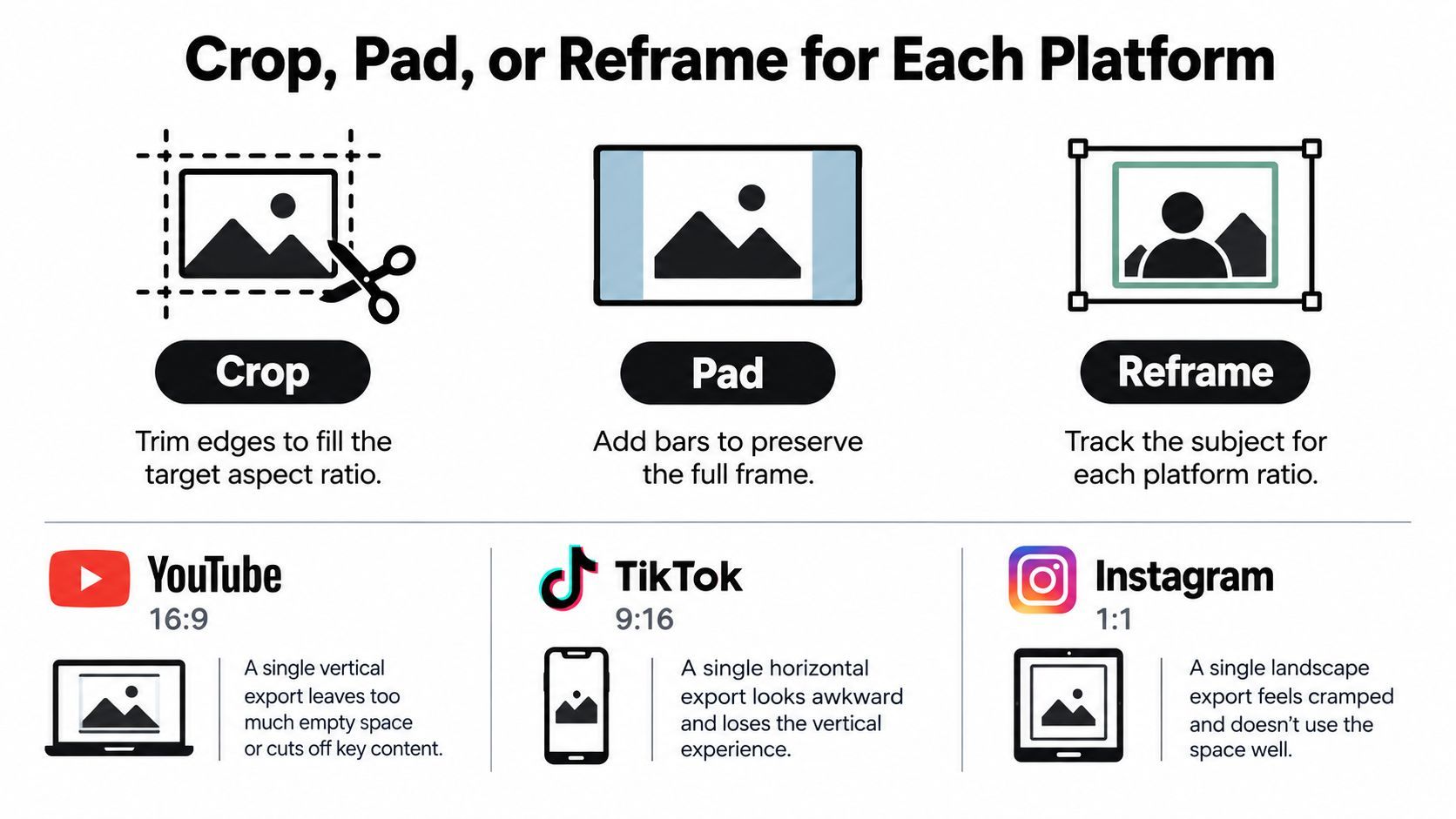
Subject position کے مطابق treatment منتخب کریں
Crop تب کریں جب important action center کے قریب ہو اور source میں کافی surrounding space ہو۔ Cropping target frame کو cleanly بھرتی ہے، لیکن hands، products، subtitles، یا second speaker ہٹا سکتی ہے۔
Pad تب کریں جب entire source visible رہنی چاہیے۔ Blurred یا branded background considered design کے لیے کام کر سکتا ہے، لیکن plain bars repurposed video کو unfinished feel دلاتی ہیں۔ Sequence بھر میں background treatment match کریں تاکہ ہر clip مختلف template سے نہ لگے۔
Reframe تب کریں جب subject move کرے یا source composition change ہو۔ Speaker، product، یا demonstration کے ارد گرد position keyframe کریں بجائے entire clip پر ایک static crop کے۔ یہ زیادہ وقت لیتا ہے، لیکن usually information محفوظ رکھتا ہے جو matter کرتی ہے۔
TikTok، Reels، اور Shorts کے لیے 9:16 استعمال کریں جب subject close، vertical، یا track کرنے میں آسان ہو۔ Standard YouTube اور desktop viewing کے لیے 16:9 استعمال کریں جب composition width، multiple people، screen recordings، یا broad product demonstration پر depend کرے۔ 1:1 تب جب content square feed tile میں comfortably بیٹھے۔ 4:5 تب جب taller feed composition چاہیے بغیر full-screen vertical کی commitment کے۔
Faces، logos، demonstrations، اور captions کو edges سے دور رکھیں جہاں controls یا overlays آ سکتے ہیں۔ Text کو consistent safe area میں رکھیں، پھر platform preview میں inspect کریں editor canvas پر بھروسہ نہ کریں۔
Aspect ratio changes کا visual quality پر اثر سمجھنے کے لیے preserve quality when resizing visuals کی guidance استعمال کریں۔ Practical rule سادہ ہے: impact کے لیے crop، completeness کے لیے pad، اور subject move ہو تو reframe۔
ایک source sequence کئی platform versions support کر سکتی ہے۔ Canvas کو viewer کے نقصان کا فیصلہ کرنے نہ دیں۔
کلپس کے درمیان Cuts کو Smooth کریں
ایک stitched sequence اپنے problems کو speakers کے ذریعے ظاہر کرتی ہے pictures سے پہلے۔ ایک clip میں close microphone ہو سکتا ہے، دوسرے میں room echo، اور تیسرا refrigerator hum یا outdoor noise رکھتا ہو۔ اگر آپ صرف visually judge کریں تو volume jump miss ہو جائے گا جو cut کو amateur feel دلاتا ہے۔
Dialogue کو clip by clip level کریں۔ Quietest phrase اور loudest word سنیں، پھر gain اور compression adjust کریں تاکہ voice consistent feel دے بغیر natural emphasis کو flat کیے۔ اگر editor یا ShortGenius automated loudness matching offer کرے تو first pass کے لیے استعمال کریں، پھر ہر edit point پر manually سنیں۔
ایک dependable audio order
- Obvious problems clean کریں۔ Clicks، long silences، distracting hum، اور unusable breaths ہٹائیں بغیر speech کو cut apart feel دیے۔
- Dialogue level کریں۔ Recording environments بھر میں perceived voice volume match کریں۔
- Overlaps resolve کریں۔ ایک speaker فنش ہونے دیں جب تک interruption intentional نہ ہو۔ دو unrelated sentences کو crossfade کرنے سے muddiness بنتی ہے۔
- Music bed شامل کریں۔ اسے voice کے نیچے رکھیں اور speech کے ارد گرد level automate کریں، بجائے entire file پر ایک static setting کے۔
- Multiple playback systems چیک کریں۔ Headphones noise اور edits ظاہر کرتے ہیں۔ Phone speakers بتاتے ہیں کہ voice small، limited range میں intelligible رہتی ہے یا نہیں۔
Visual transitions کو بھی وہی restraint دیں۔ Motion، sentence rhythm، یا shot change پہلے سے separation دے تو hard cut کام کرتا ہے۔ Cross-dissolve time یا location change signal کر سکتا ہے۔ Whip pan یا match cut movement connect کرے تو useful ہے، لیکن decorative transitions distracting ہو جاتے ہیں جب ہر clip کو ایک ملے۔
Continuous music bed small room tone changes چھپا سکتی ہے، لیکن unintelligible dialogue ٹھیک نہیں کر سکتی۔ اگر دو کلپس میں background noise بہت مختلف ہو تو دونوں کے نیچے controlled ambience layer استعمال کریں بجائے ایک room sound سے دوسرے میں abrupt switch کے۔
ایک Master Export کریں، پھر Platform Files Derive کریں
ایک ہی timeline کو مختلف editors سے repeatedly export کرنا quality lose کرنے کا reliable طریقہ ہے۔ ایک high-quality intermediate master بنائیں، اسے رکھیں، اور platform derivatives اسی file سے generate کریں۔ یہ approach بعد میں reframing، caption changes، یا alternate calls to action کے لیے stable source دیتی ہے۔
Practical H.264 delivery profile کے لیے YouTube کی recommended upload encoding settings فالو کریں۔ Progressive output استعمال کریں، recording کے frame rate کو preserve کریں، اور normalization کے بغیر variable frame rates mix نہ کریں۔ YouTube common frame rates لسٹ کرتی ہے بشمول 24، 25، 30، 48، 50، اور 60 frames per second۔
SDR uploads کے لیے وہی guidance 1080p پر 24 سے 30 fps کے لیے 8 Mbps اور 1080p پر 48 سے 60 fps کے لیے 12 Mbps recommend کرتی ہے۔ 4K کے لیے standard frame rates پر 35 سے 45 Mbps اور high frame rates پر 53 سے 68 Mbps۔ یہ useful delivery targets ہیں، ہر export کو inflate کرنے کی وجہ نہیں۔ Profile کو destination اور source quality سے match کریں۔
Master export checklist
- Sequence کو master aspect ratio میں crop یا pad کریں۔
- Interlaced material کو progressive video میں تبدیل کریں۔
- Clips کو constant frame rate میں normalize کریں۔
- Audio کو ایک common sample rate اور channel layout میں resample کریں۔
- Joined master کو ایک بار encode کریں۔
- اس master سے platform-specific files generate کریں۔
- Finished files کو end to end decode کریں اور final group of pictures inspect کریں۔
Frozen frames، timestamp discontinuities، missing audio، A/V drift، incorrect rotation، color shifts، clipped highlights، اور corrupted endings چیک کریں۔ Mixed HDR اور SDR transfer functions visible shifts بنا سکتے ہیں حتیٰ کہ edit خود correct لگے۔ Re-encoding source decisions کو after the fact ٹھیک نہیں کر سکتی، اس لیے normalization کو preparation stage کا حصہ بنائیں۔
Captions اور Audio کے لیے Pre-Publish QA Pass
آخری export آخری decision نہیں ہے۔ Encoding کے بعد complete file دیکھیں، خاص طور پر ہر point جہاں ایک clip دوسری بنے۔ Captions trimming، speed changes، یا reframed version کے بعد drift کر سکتی ہیں، اور automated transcript غلط speaker کو line assign کر سکتا ہے۔
Captions، transcripts، اور readable typography کو الگ deliverables سمجھیں۔ Captions spoken words کو video سے synchronize کرتی ہیں۔ Transcript searchable یا reusable text record دیتی ہے۔ Typography words کو small screen پر، busy background کے خلاف، اور platform safe zones میں legible رکھتی ہے۔ ایک file تینوں problems خودکار طور پر حل نہیں کر سکتی۔
Final inspection چار passes میں چلائیں
Visual pass: Vertical، square، اور horizontal versions دیکھیں۔ Faces، product details، logos، text placement، transitions، rotation metadata، اور crop movement چیک کریں۔ ہر source clip کے first اور last frame پر special attention دیں۔
Caption pass: ہر edit point پر pause کریں۔ Confirm کریں کہ captions speech کے ساتھ آئیں، speaker رکے تو غائب ہوں، safe area میں رہیں، اور correct speaker label استعمال کریں۔ Cut کے بعد captions retiming اکثر transition شامل کرنے سے زیادہ important ہے۔
Audio pass: Headphones اور phone speakers سے سنیں۔ Loudest word، quietest phrase، music ducking، room-tone changes، overlapping speech، اور file کے final seconds چیک کریں۔ Caption support sound-off اور noisy environments کے لیے matter کرتی ہے، لیکن sound enabled پر hard-to-understand dialogue کی تلافی نہیں کرتی۔
Delivery pass: Actual encoded files کھولیں، timeline preview نہیں۔ Beginning، middle، اور end scrub کریں۔ Confirm کریں کہ file میں audio ہے، image freeze نہ ہو، اور final caption export سے cut off نہ ہو۔
Royalty-free audio کو documentation اور usage checks کی ضرورت ہے۔ اگر music bed source کر رہے ہیں تو Drumloop AI's guide to royalty-free audio licensing سوچنے کے لیے useful starting point ہے publication سے پہلے۔
ShortGenius اس workflow میں فٹ ہو سکتا ہے جب آپ scripted scenes، b-roll، voiceovers، licensed music، اور captions ایک project میں assemble کر رہے ہوں۔ اس کی editing features میں trimming، resizing، scene swaps، caption work، اور automated loudness matching شامل ہیں، لیکن final responsibility انتظامی destinations پر exported file دیکھنے والے شخص کی ہے۔
ShortGenius (AI Video / AI Ad Generator) creators اور teams کی مدد کرتا ہے scenes، voiceovers، b-roll، captions، music، اور platform-ready versions assemble کرنے میں بغیر edit کو scratch سے rebuild کیے۔ ShortGenius (AI Video / AI Ad Generator) آزمائیں تاکہ ایک organized sequence کو reusable social اور YouTube assets کے set میں تبدیل کریں۔